
1. Introduction
This manual provides detailed instructions for the setup, operation, maintenance, and troubleshooting of your UNISHEEN UC3200H 1080P60 HDMI Video Capture Card. Please read this manual thoroughly before using the device to ensure optimal performance and longevity.
2. Package Contents
Verify that all items are present in your package:
- UNISHEEN UC3200H HDMI Video Capture Card
- USB 3.0 Cable
- Installation Guide (as indicated in product information)
If any items are missing or damaged, please contact customer support.
3. Product Overview
The UNISHEEN UC3200H is a high-definition HDMI video capture device designed for game recording, live streaming, and broadcasting. It supports 1080p at 60 frames per second (fps) and features USB 3.0 connectivity for high-speed data transfer and low latency.

Image 3.1: Front view of the UNISHEEN UC3200H HDMI Video Capture Card with its USB 3.0 cable.
Key Features:
- 1080P/60fps Full HD Capture: Supports BT.709 color space and is compliant with UAC and UVC standards.
- USB 3.0 Connectivity: High-speed data transfer with low latency, compatible with USB 2.0.
- HDMI Loop-out: Allows real-time gameplay monitoring without lag.
- Plug and Play: No drivers or external power supply required for most operating systems.
- Wide Compatibility: Supports Windows, Mac, Linux, and Android operating systems, and various streaming software.

Image 3.2: Visual representation of the 1080p HD quality capture at 60 frames per second supported by the device.
4. Setup Instructions
Follow these steps to set up your UNISHEEN UC3200H video capture card:
- Connect HDMI Input: Connect your HDMI source device (e.g., game console, camera, DVD player) to the "HDMI IN" port on the capture card using an HDMI cable.
- Connect USB Output: Connect the USB 3.0 cable from the capture card's USB 3.0 port to an available USB 3.0 port on your computer (laptop, desktop, or all-in-one PC).
- (Optional) HDMI Loop-out: If you wish to monitor your video source in real-time without latency, connect an HDMI cable from the capture card's "HDMI OUT" port to an external display (e.g., TV, monitor).
- Power On: The device is powered via the USB connection. Ensure your computer is on. The capture card should be automatically recognized as a video and audio input device.

Image 4.1: Connection diagram illustrating HDMI input from various devices (drone, game console, camcorder, TV box) to the capture card, and USB 3.0 output to a laptop, desktop, or all-in-one PC.

Image 4.2: A camera connected to a laptop through the UNISHEEN UC3200H capture card, demonstrating a typical plug-and-play live streaming setup.
5. Operating Instructions
Once connected, the capture card functions as a standard webcam or video input device on your computer. You can use various software applications to record or stream your content.
Using with Streaming/Recording Software:
- Open your preferred streaming or recording software (e.g., OBS Studio, VLC, Potplayer, Wirecast, XSplit).
- In the software's settings, locate the video input/source options.
- Select the UNISHEEN UC3200H (or similar name) as your video input device.
- Similarly, select the UNISHEEN UC3200H as your audio input device if you wish to capture audio from the HDMI source.
- Configure your desired resolution, frame rate, and other settings within the software.
- Start recording or streaming.
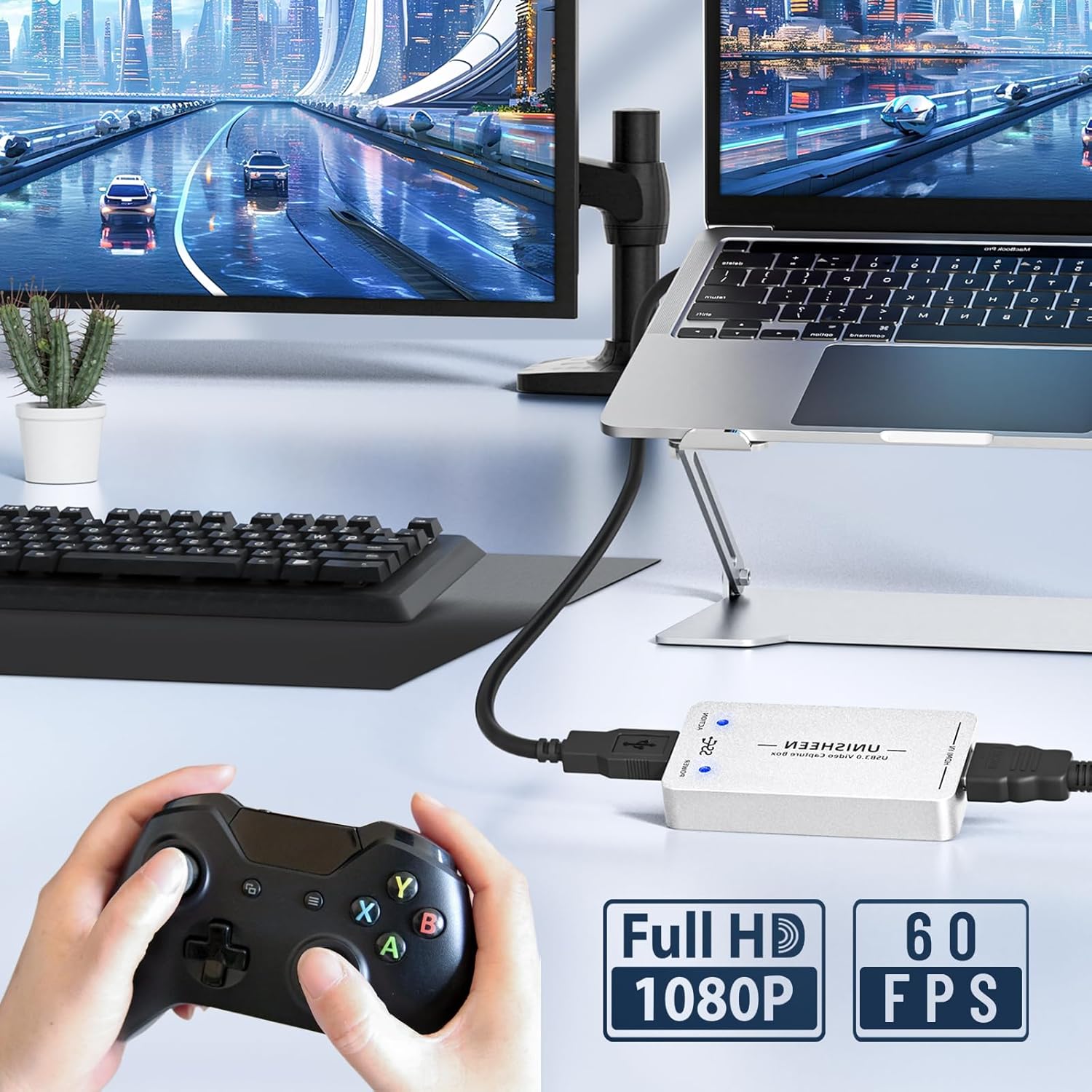
Image 5.1: A gaming setup demonstrating the UNISHEEN UC3200H capture card connected to a game console and a laptop, enabling full HD 1080p 60fps game capture.

Image 5.2: Examples of common applications for the capture card, including live streaming, creating instructional videos, game capture, and video conferencing.
6. Compatibility
The UNISHEEN UC3200H is designed for broad compatibility with various operating systems and software applications.
Supported Operating Systems:
- Windows (7, 8, 8.1, 10, 11)
- Linux (kernel version 2.6.38 and above)
- OS X (10.8 and above) / macOS
- Android
Compatible Software/Platforms:
- OBS Studio
- Vmix
- Wirecast
- Xsplit
- VLC
- Potplayer
- Twitch
- YouTube
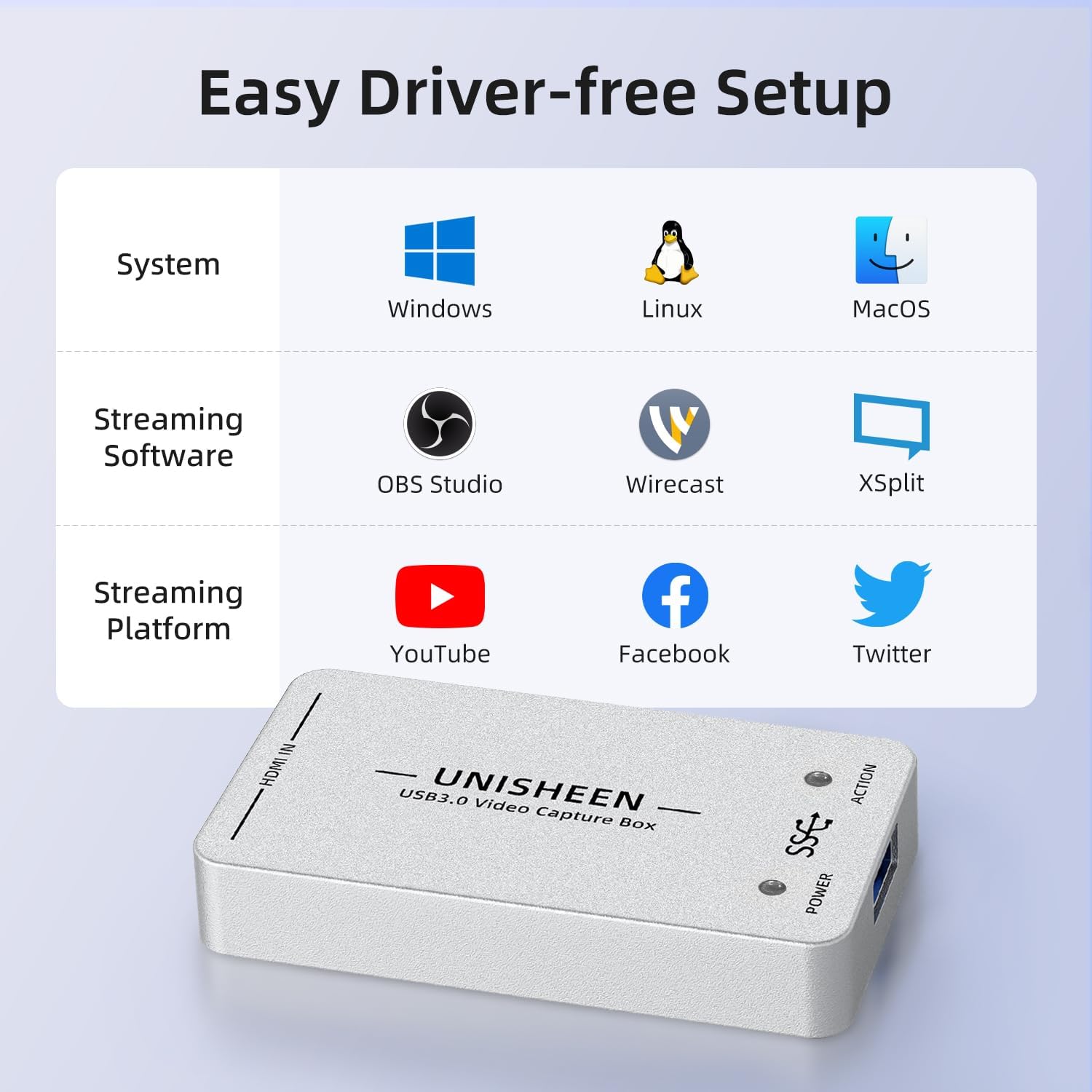
Image 6.1: A visual guide to the UNISHEEN UC3200H's compatibility with major operating systems (Windows, Linux, MacOS) and popular streaming/capture software (OBS Studio, Wirecast, XSplit, VLC, Potplayer, WOWZA) and platforms (YouTube, Facebook, Twitter).
7. Troubleshooting
If you encounter issues with your UNISHEEN UC3200H, please refer to the following common troubleshooting steps:
- No Signal/Black Screen:
- Ensure all HDMI and USB cables are securely connected.
- Verify that your HDMI source device is powered on and outputting a signal.
- Check your streaming/recording software settings to ensure the correct video input device (UNISHEEN UC3200H) is selected.
- Confirm that your HDMI source is outputting a resolution and frame rate supported by the capture card (up to 1080p60).
- No Audio:
- Ensure the correct audio input device (UNISHEEN UC3200H) is selected in your software's audio settings.
- Check the audio output settings of your HDMI source device.
- Flickering/Lagging Video:
- Ensure you are using a USB 3.0 port on your computer for optimal performance.
- Close unnecessary applications on your computer to free up system resources.
- Check your computer's CPU and GPU usage during capture/streaming. High usage can cause performance issues.
- Verify that your HDMI cables are of good quality and not excessively long.
- Device Not Recognized:
- Try connecting the device to a different USB port on your computer.
- Restart your computer.
- Ensure your operating system is up to date.
For further assistance, please refer to the 'Warranty & Support' section.
8. Specifications
| Brand | UNISHEEN |
| Model Number | UC3200H |
| Hardware Interface | HDMI, USB 2.0, USB 3.0 |
| Video Capture Resolution | 1080p (up to 60fps) |
| Operating System Support | Windows (7, 8, 8.1, 10, 11), Linux (kernel 2.6.38+), OS X (10.8+) |
| Recommended Uses | Video Recording, Live Streaming |
| Item Weight | 8.8 ounces |
| Product Dimensions (LxWxH) | 3.94 x 2.76 x 0.94 inches |
| Color | White |
9. Maintenance
To ensure the longevity and proper functioning of your UNISHEEN UC3200H video capture card, follow these maintenance guidelines:
- Cleaning: Use a soft, dry cloth to clean the exterior of the device. Avoid using liquid cleaners or solvents, as they may damage the finish or internal components.
- Storage: When not in use, store the device in a cool, dry place away from direct sunlight and extreme temperatures.
- Handling: Handle the device with care. Avoid dropping it or subjecting it to strong impacts.
- Ventilation: Ensure the device has adequate ventilation during operation to prevent overheating. Do not cover ventilation openings.
10. Warranty & Support
UNISHEEN is committed to providing quality products and customer satisfaction. If you encounter any quality problems or require further assistance with your UC3200H video capture card, please contact our support team.
Contacting Support:
To contact customer support, please follow these steps:
- Locate your order details.
- Click the "Contact Seller" button associated with your purchase.
Our team aims to resolve your problem within 24 hours.
Damaged Products:
If you receive a damaged product, it may be due to transit issues. You can apply for an exchange through the Amazon platform within 30 days of receipt.


