
Product Overview and Features
The Attoe Wireless Bluetooth Keyboard (Model: ik6620D) offers a versatile and portable typing solution for multiple devices. Its compact design and dual-mode connectivity make it ideal for use with tablets, smartphones, PCs, and laptops across various operating systems.
- Fashion & Quiet Design: Features compact-sized 79 round silent click key caps with glossy and smooth edge technology. Designed for comfortable and smooth typing with low-profile, whisper-quiet keys.
- Multi-Device Dual-Mode Design: Supports both Bluetooth 5.0 and 2.4G Wireless connections, allowing for a stable connection distance of up to 20 meters (66 feet).
- Ultra-Slim Cross-Compatible: Compatible with Windows, iOS, Mac, and Android operating systems. The keyboard automatically recognizes the operating system after pairing, requiring no pass code.
- Space-Saving: Supports simultaneous high-speed connection and easy switching between up to 3 different HID devices (e.g., mobile phone, laptop, PC), helping to save space.

Figure 1: Attoe Wireless Bluetooth Keyboard with a tablet and smartphone in its integrated stand, showcasing its compact design and multi-device capability.
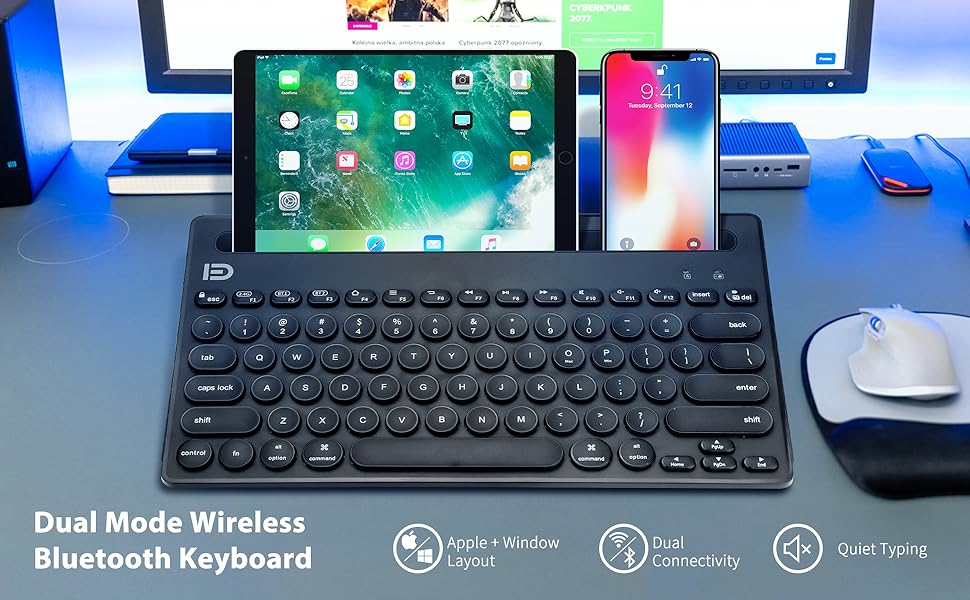
Figure 2: The keyboard is compatible with a wide range of operating systems including Windows, macOS/iOS, and Android, making it a versatile accessory for various devices.
What's in the Box
Upon opening the package, you should find the following items:
- 1 x Attoe Wireless Bluetooth Keyboard
- 1 x User Manual (this document)
- 2 x AAA batteries (pre-installed or included separately)
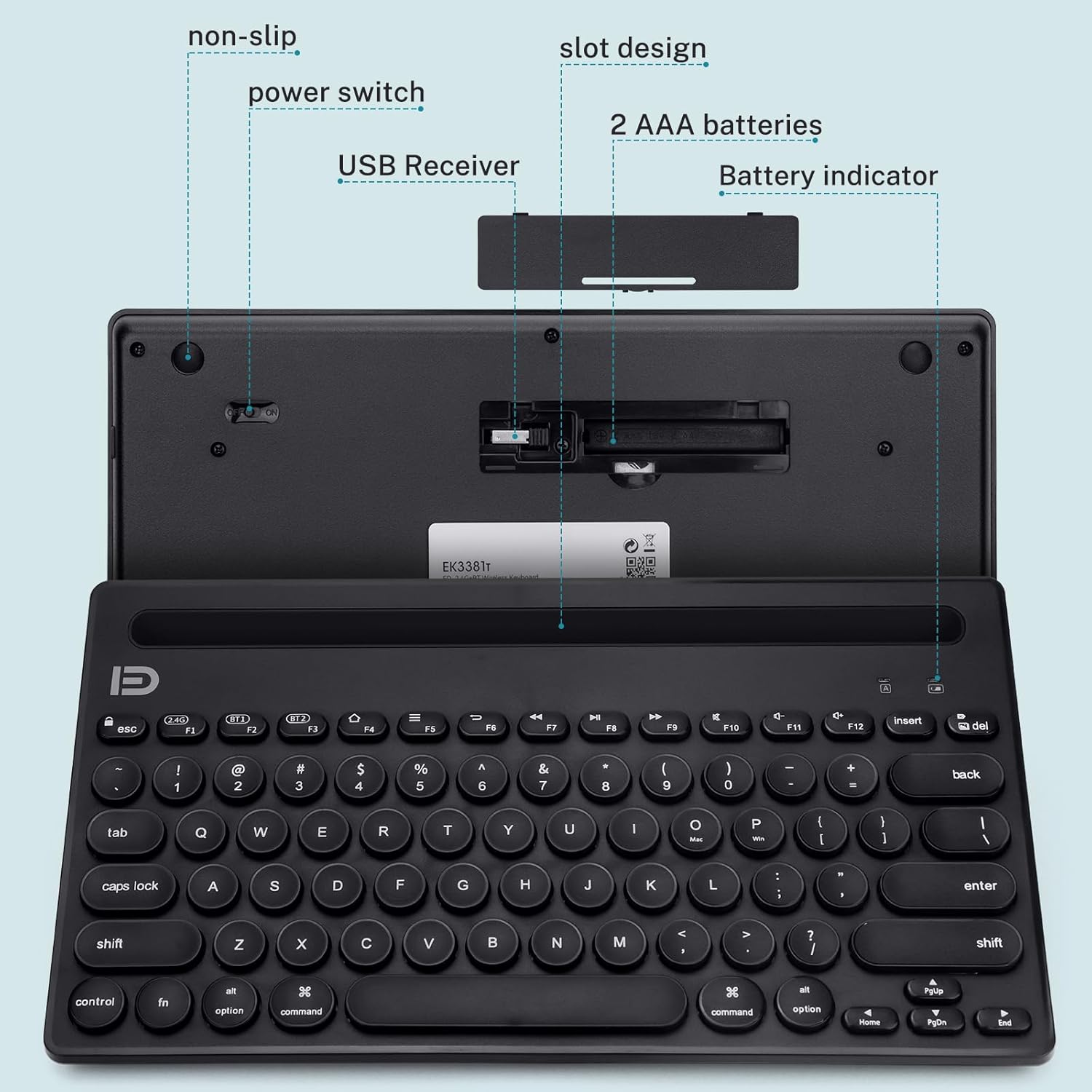
Figure 3: The underside of the keyboard reveals the battery compartment for two AAA batteries, a storage slot for the 2.4G USB receiver, and the power switch.
Setup Guide
1. Battery Installation
- Locate the battery compartment on the underside of the keyboard.
- Open the battery cover.
- Insert two AAA batteries, ensuring correct polarity (+/-).
- Close the battery cover securely.
2. Powering On
Slide the power switch, located on the top right edge of the keyboard, to the "ON" position. The battery indicator light should briefly illuminate.
3. Connecting to Your Device (Dual-Mode)
The keyboard supports two connection modes: Bluetooth and 2.4G Wireless. You can connect up to three devices simultaneously (one via 2.4G, two via Bluetooth).
3.1. Bluetooth Connection (BT1, BT2)
- Press and hold the Fn key and then press either F2 (BT1) or F3 (BT2) for approximately 3-5 seconds until the corresponding Bluetooth indicator light (BT1 or BT2) starts blinking rapidly. This indicates the keyboard is in pairing mode.
- On your device (tablet, smartphone, PC), navigate to the Bluetooth settings.
- Search for available devices. The keyboard should appear as "Bluetooth Keyboard" or similar.
- Select the keyboard to pair. Your device may prompt for a pass code; typically, no pass code is needed, or you may be asked to type a code on the keyboard and press Enter.
- Once paired, the indicator light will stop blinking and remain solid for a few seconds before turning off, indicating a successful connection.
3.2. 2.4G Wireless Connection (F1)
- Locate the 2.4G USB receiver in the battery compartment on the underside of the keyboard.
- Plug the USB receiver into an available USB port on your computer or device.
- Press and hold the Fn key and then press F1 (2.4G). The 2.4G indicator light will illuminate.
- The keyboard should automatically connect to your device.
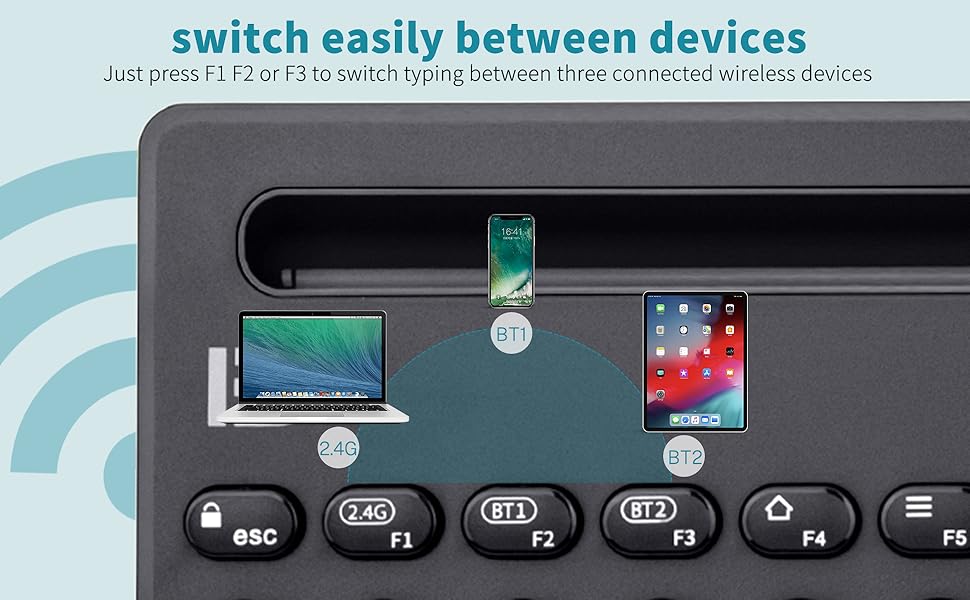
Figure 4: The keyboard supports seamless switching between 2.4G wireless and two Bluetooth channels (BT1, BT2), allowing connection to multiple devices simultaneously.
Operating Instructions
1. Switching Between Connected Devices
To switch between connected devices, simply press the corresponding function key:
- Press Fn + F1 to switch to the 2.4G wireless connected device.
- Press Fn + F2 to switch to the first Bluetooth connected device (BT1).
- Press Fn + F3 to switch to the second Bluetooth connected device (BT2).
2. Using Function Keys and Shortcuts
The keyboard features 79 keys, including 14 shortcut/media keys. These keys provide quick access to various functions depending on your operating system.

Figure 5: The keyboard features a 79-key layout, including dedicated shortcut and media keys for enhanced productivity.
3. Integrated Device Stand
The keyboard includes an integrated stand designed to hold your tablet or smartphone at an optimal viewing angle while typing. Ensure your device's case is removed if it prevents proper seating in the slot.
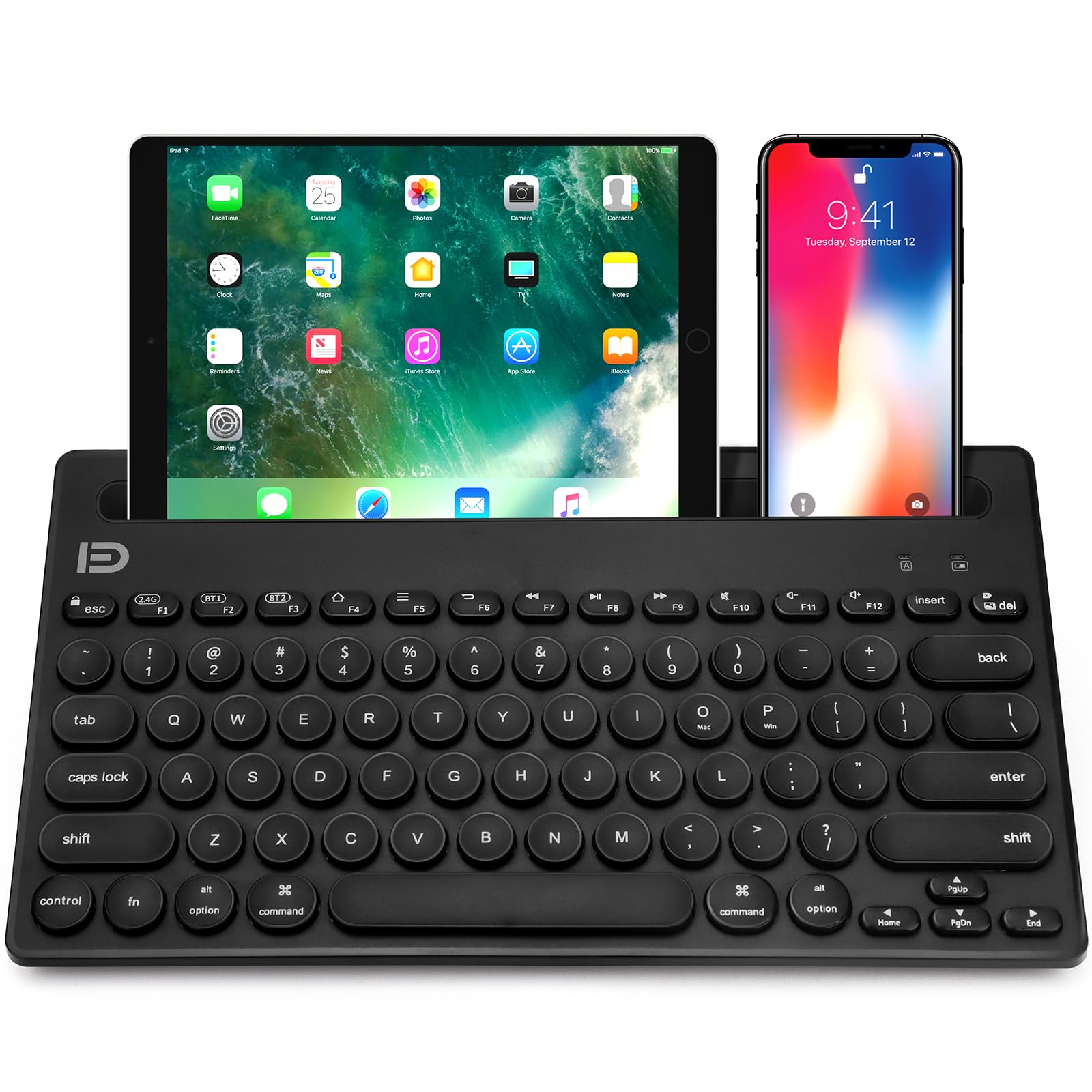
Figure 6: The integrated stand securely holds your tablet or smartphone, providing a comfortable setup for typing.
Maintenance
- Cleaning: Use a soft, dry cloth to clean the keyboard surface. For stubborn dirt, a slightly damp cloth with mild soap can be used, ensuring no liquid enters the keycaps or internal components.
- Battery Replacement: When the battery indicator light signals low power, replace the two AAA batteries promptly to ensure uninterrupted operation.
- Storage: Store the keyboard in a cool, dry place away from direct sunlight and extreme temperatures.
- Handling: Avoid dropping the keyboard or exposing it to excessive force, which could damage internal components or keycaps.
Troubleshooting
| Problem | Possible Cause | Solution |
|---|---|---|
| Keyboard not connecting/pairing. | Low battery; keyboard not in pairing mode; device Bluetooth off; interference. | Replace batteries. Ensure keyboard is ON and in pairing mode (Fn+F2/F3 for Bluetooth, Fn+F1 for 2.4G). Turn device Bluetooth off/on. Move closer to the device. |
| Keys not responding or delayed response. | Low battery; connection issue; dirty keycaps. | Replace batteries. Re-pair the keyboard. Clean under the keycaps if necessary. |
| Phone/tablet slips out of the stand. | Device case is too thick. | Remove the device's protective case before placing it in the integrated stand. |
| Unexpected loud key presses. | Normal operation for some keys (e.g., spacebar). | While designed for quiet typing, some keys, particularly the spacebar, may produce a slightly louder sound due to their mechanical design. This is normal and not a defect. |
Specifications
| Feature | Detail |
|---|---|
| Model Number | ik6620D |
| Connectivity | Bluetooth 5.0, 2.4G Wireless |
| Operating Range | Up to 20m (66 feet) |
| Compatible OS | Windows, iOS, Mac, Android |
| Number of Keys | 79 (including 14 shortcut/media keys) |
| Power Source | 2 x AAA Batteries |
| Product Dimensions | 15.51 x 6.5 x 1.1 inches |
| Item Weight | 10.6 ounces |
| Color | Black |
Warranty and Support
Attoe offers a 30-day money-back guarantee and a 12-month warranty for this product. If you encounter any issues or have questions regarding your Wireless Bluetooth Keyboard, please contact Attoe customer service for assistance.
For further support, please visit the official Attoe store: Attoe Store on Amazon.