
HyperX 4P5P6AA
HyperX QuadCast USB Condenser Gaming Microphone
Model: 4P5P6AA
Introduction
The HyperX QuadCast is an all-inclusive standalone microphone designed for streamers, podcasters, and gamers seeking impressive sound quality. It features an anti-vibration shock mount to reduce handling noise, a built-in pop filter for clearer voice, and an LED indicator for mic status. With four selectable polar patterns and a gain control knob, it offers versatile audio capture. Compatible with PC, PS4, PS5, and Mac, the QuadCast delivers clear audio for various broadcasting needs.

Figure 1: HyperX QuadCast Microphone Overview
What's in the Box
Verify that all components are present in the packaging:
- Microphone with Stand
- Mini USB to USB Cable (3M)
- Mic Arm Adapter

Figure 2: Included Components
Setup
The HyperX QuadCast is designed for easy plug-and-play setup across multiple platforms.
- Connect the Microphone: Plug the Mini USB end of the provided 3-meter cable into the microphone's port.
- Connect to Device: Plug the standard USB end of the cable into an available USB port on your PC (Windows 10, 8.1, 8, 7), PS4, PS5, or Mac.
- Automatic Recognition: Your operating system should automatically detect and install the necessary drivers for the microphone.
- Verify Connection: The microphone's red LED lighting will illuminate upon successful connection, indicating it is active.

Figure 3: USB Connection
Operating Instructions
Polar Patterns
The QuadCast offers four selectable polar patterns to optimize your audio capture for different scenarios:
- Stereo: Ideal for vocals and instruments, capturing a wide soundstage.
- Omnidirectional: Picks up sound equally from all directions, suitable for multi-person podcasts or conference calls.
- Cardioid: Focuses on sound directly in front of the microphone, best for podcasts, streaming, and voiceovers.
- Bidirectional: Captures sound from the front and rear, perfect for face-to-face interviews.

Figure 4: Understanding Polar Patterns
Adjust the polar pattern using the dial located on the back of the microphone.

Figure 5: Polar Pattern Dial
Gain Control
The gain control knob at the bottom of the QuadCast allows you to easily adjust the microphone's sensitivity. Turn the dial to increase or decrease the input level to suit your environment and voice volume.

Figure 6: Gain Control Knob
Tap-to-Mute Sensor with LED Indicator
Quickly mute or unmute the microphone by tapping the top of the unit. The integrated LED indicator provides instant visual confirmation of your mic status: red light indicates active, no light indicates muted.

Figure 7: Tap-to-Mute Feature
Anti-Vibration Shock Mount & Pop Filter
The built-in anti-vibration shock mount isolates the microphone and suppresses the sound of unintentional rumbles and bumps. An internal pop filter further reduces plosive sounds for clearer audio quality.
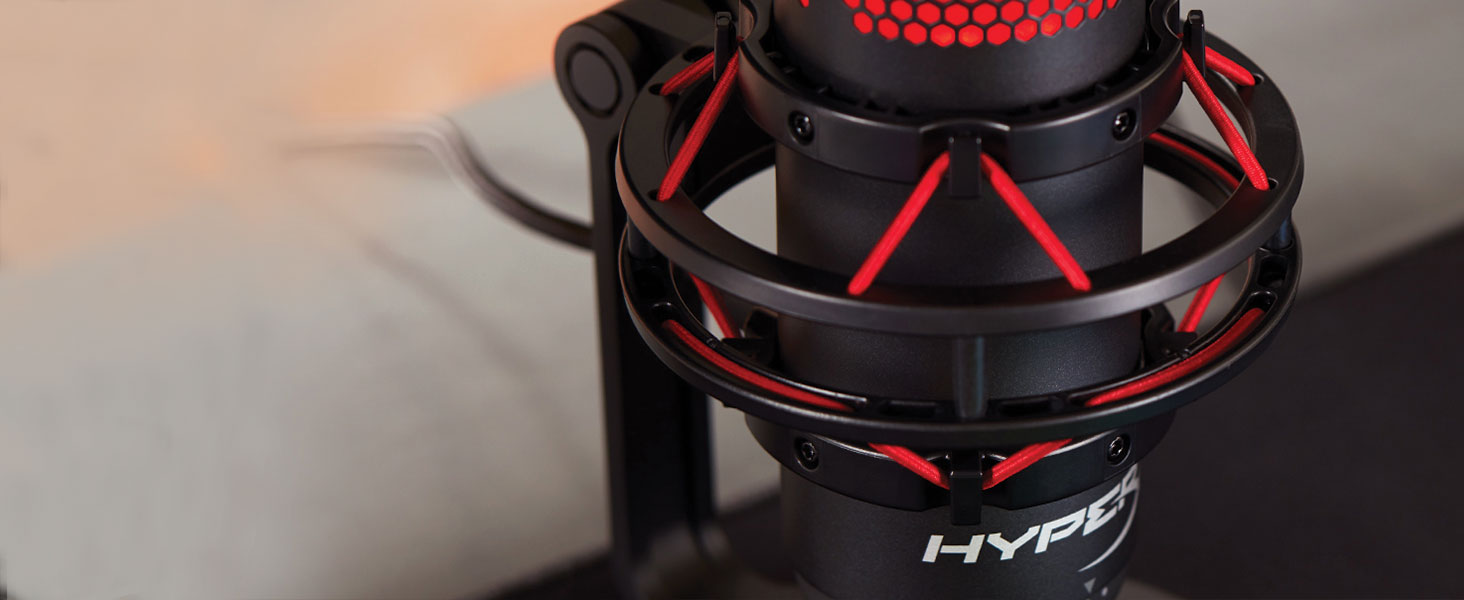
Figure 8: Shock Mount Detail
Maintenance
To ensure the longevity and optimal performance of your HyperX QuadCast microphone, follow these simple maintenance guidelines:
- Cleaning: Use a soft, dry cloth to gently wipe the exterior of the microphone. Avoid using harsh chemicals, solvents, or abrasive cleaners, as these can damage the finish or internal components.
- Storage: When not in use, store the microphone in a clean, dry place away from extreme temperatures, humidity, and direct sunlight.
- Handling: Handle the microphone with care. Avoid dropping it or subjecting it to strong impacts, which can damage the internal components or the shock mount.
- Cable Care: Do not excessively bend or pull the USB cable. Store it neatly to prevent tangles and damage.
Troubleshooting
If you encounter issues with your HyperX QuadCast, try the following troubleshooting steps:
- No Sound/Microphone Not Detected:
- Ensure the USB cable is securely connected to both the microphone and your device.
- Try plugging the microphone into a different USB port on your computer or console.
- Verify that the microphone is not muted (check the LED indicator on top).
- Check your device's sound settings to ensure the HyperX QuadCast is selected as the default input device.
- Low Volume/Distorted Audio:
- Adjust the gain control knob at the bottom of the microphone.
- Check your device's sound settings for microphone input levels and adjust as needed.
- Ensure you are speaking directly into the front of the microphone, especially when using Cardioid polar pattern.
- Experiment with different polar patterns to find the best setting for your environment.
- Excessive Background Noise:
- Ensure the anti-vibration shock mount is properly installed.
- Use the Cardioid polar pattern to minimize sound pickup from the sides and rear.
- Reduce ambient noise in your recording environment.
Specifications
Detailed technical specifications for the HyperX QuadCast microphone:
| Feature | Detail |
|---|---|
| Microphone Element | Electret condenser microphone |
| Condenser Type | Three 14mm condensers |
| Polar Patterns | Stereo, Omnidirectional, Cardioid, Bidirectional |
| Frequency Response | 20Hz – 20kHz |
| Sensitivity | -36dB (1V/Pa at 1kHz) |
| Sample/Bit Rate | 48Hz/16-bit |
| Cable Length | 3m |
| Microphone Weight | 254g (0.56 lbs) |
| Total Weight (with stand & cable) | 710g (1.56 lbs) |
| Headphone Output Impedance | 32 Ohms |
| Headphone Output Max Power | 7mW |
| Compatibility | PC (Windows 10, 8.1, 8, 7), PS4, PS5, Mac |

Figure 9: Product Dimensions and Weight
Warranty and Support
For detailed warranty information and further technical support, please refer to the official HyperX website or the full user manual available at: HyperX QuadCast User Manual (PDF).
Please retain your proof of purchase for warranty claims.
Related documents4P5P6AA


Ask a question about this manual
Ask about setup, troubleshooting, compatibility, parts, safety, or missing instructions. Manuals+ will review the question and use this page’s manual context to help answer it.