
Fellowes 100M
Fellowes AutoMax Micro-Cut 100M Paper Shredder User Manual
Model: 100M | Brand: Fellowes
Introduction
The Fellowes AutoMax 100M Micro-Cut Paper Shredder is designed for efficient and secure document destruction in office environments. This versatile 2-in-1 shredder offers both automatic and manual feeding options, allowing for flexible use based on your shredding needs. It is engineered to shred paper, credit cards, staples, and paper clips into micro-cut particles, ensuring a high level of security for confidential information. Key features include jam prevention with Auto Reverse technology, ultra-quiet operation with SilentShred, and a convenient pull-out bin with an LED full indicator.

Image: The Fellowes AutoMax 100M Micro-Cut Paper Shredder, a black unit with a clear window showing shredded paper, featuring controls on the top panel.
Safety Information
Always read and understand all safety instructions before operating the shredder. Keep hands, hair, and loose clothing away from the paper entry slot. Do not insert fingers or other body parts into the shredder opening. Keep children and pets away from the shredder at all times. Unplug the shredder when not in use or before cleaning, moving, or emptying the waste bin. Do not use aerosol products near the shredder. Avoid shredding adhesive labels or materials that are not specified for shredding, as this may cause jams or damage.
Setup
- Unpacking: Carefully remove the shredder from its packaging. Ensure all packing materials are removed from the shredder and the waste bin.
- Placement: Place the shredder on a flat, stable surface. Ensure there is adequate space around the unit for ventilation and access to the power outlet.
- Connect Power: Plug the power cord into a grounded electrical outlet.
- Waste Bin: Ensure the 6-gallon pull-out waste bin is correctly inserted into the shredder. The shredder will not operate if the bin is not properly seated.
Operating Instructions
Automatic Shredding (Auto Feed)
The AutoMax 100M allows you to shred up to 100 sheets automatically. This feature is ideal for larger shredding tasks, enabling you to load documents and walk away.
- Open the auto-feed tray.
- Stack up to 100 sheets of paper neatly into the auto-feed tray. Ensure there are no staples or paper clips if not intended for shredding with them.
- Close the auto-feed tray. The shredder will automatically begin shredding.
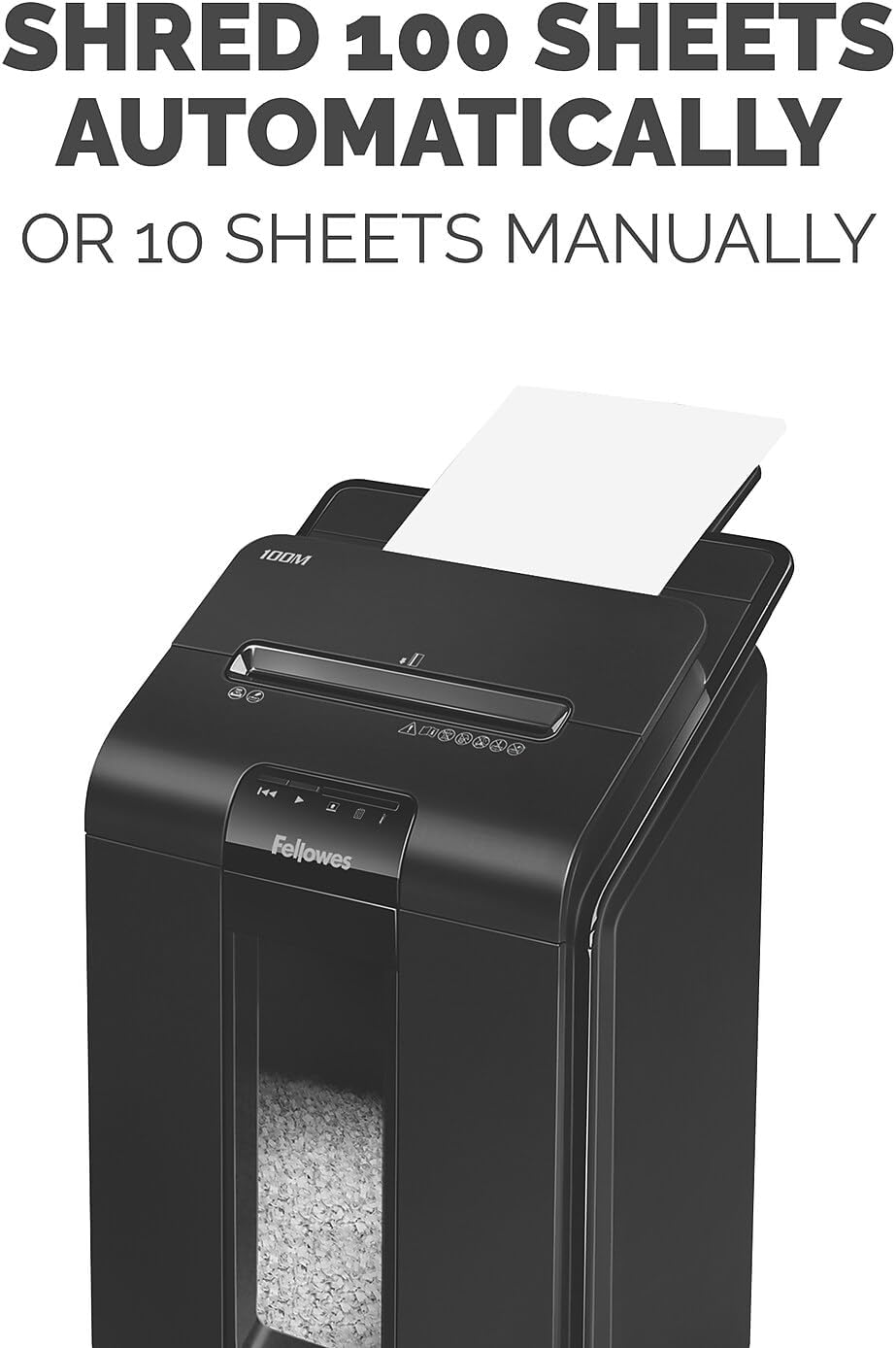
Image: A close-up of the Fellowes AutoMax 100M shredder showing paper loaded into the automatic feed tray, illustrating its 100-sheet auto-feed capacity.
Manual Shredding
For quick, smaller jobs, the manual feed slot can handle up to 10 sheets at a time, or single items like credit cards.
- Insert up to 10 sheets of paper into the manual feed slot.
- For credit cards, insert one card at a time into the designated slot.
- The shredder will activate automatically when material is detected.
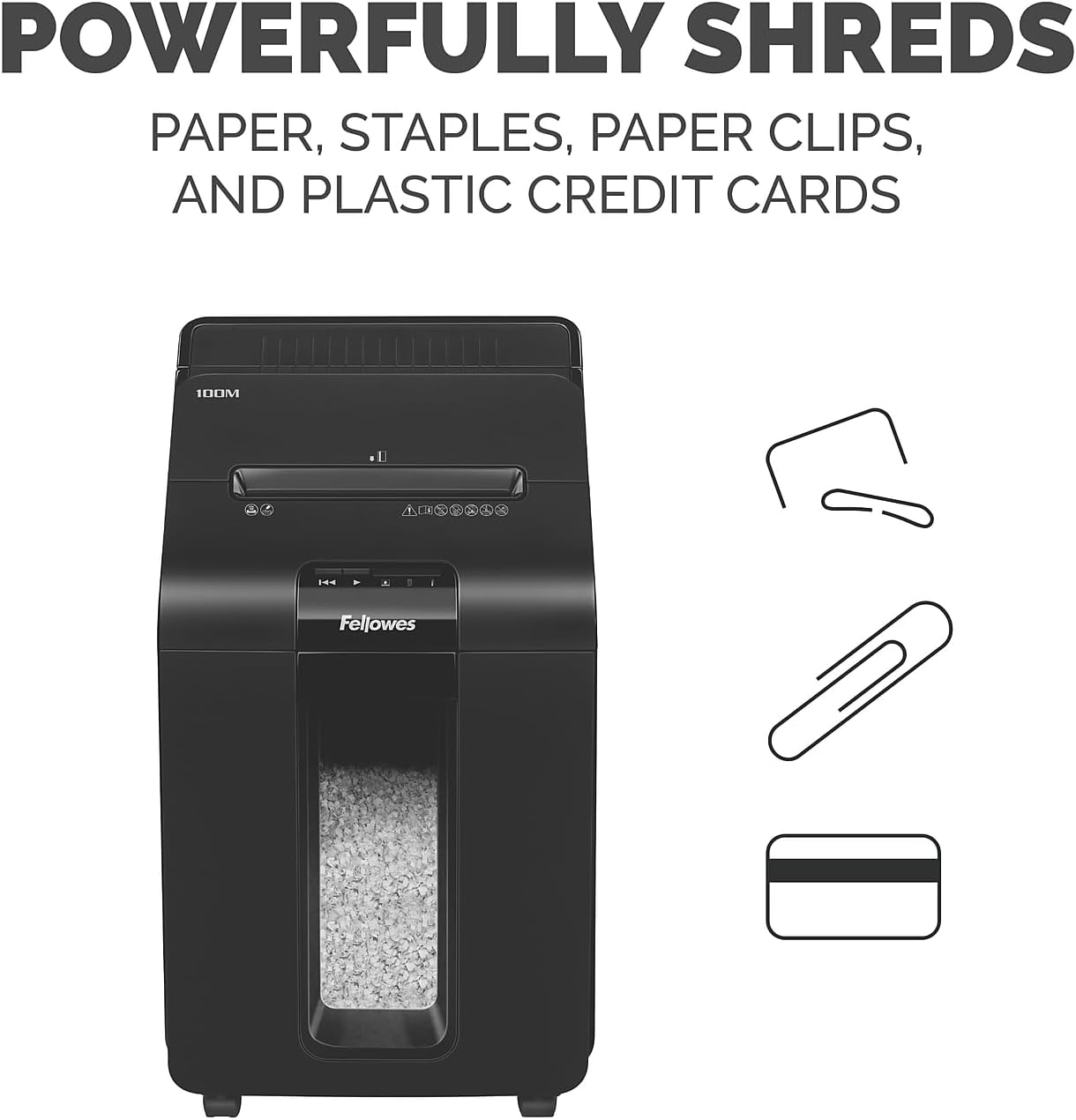
Image: The Fellowes AutoMax 100M shredder with graphic icons indicating its ability to shred paper, staples, paper clips, and plastic credit cards.
Continuous Run Time and Overheat Protection
The shredder can operate continuously for up to 15 minutes. After this period, it may enter a cool-down phase to prevent overheating. An LED indicator will signal if the shredder needs to cool down.

Image: A hand feeding paper into the manual slot of the Fellowes AutoMax 100M shredder, accompanied by an icon indicating a 15-minute continuous run time.
Security Level
The AutoMax 100M provides P-4 security level micro-cut particles, measuring 5/32” x 25/64”. This ensures a high level of security for sensitive documents.
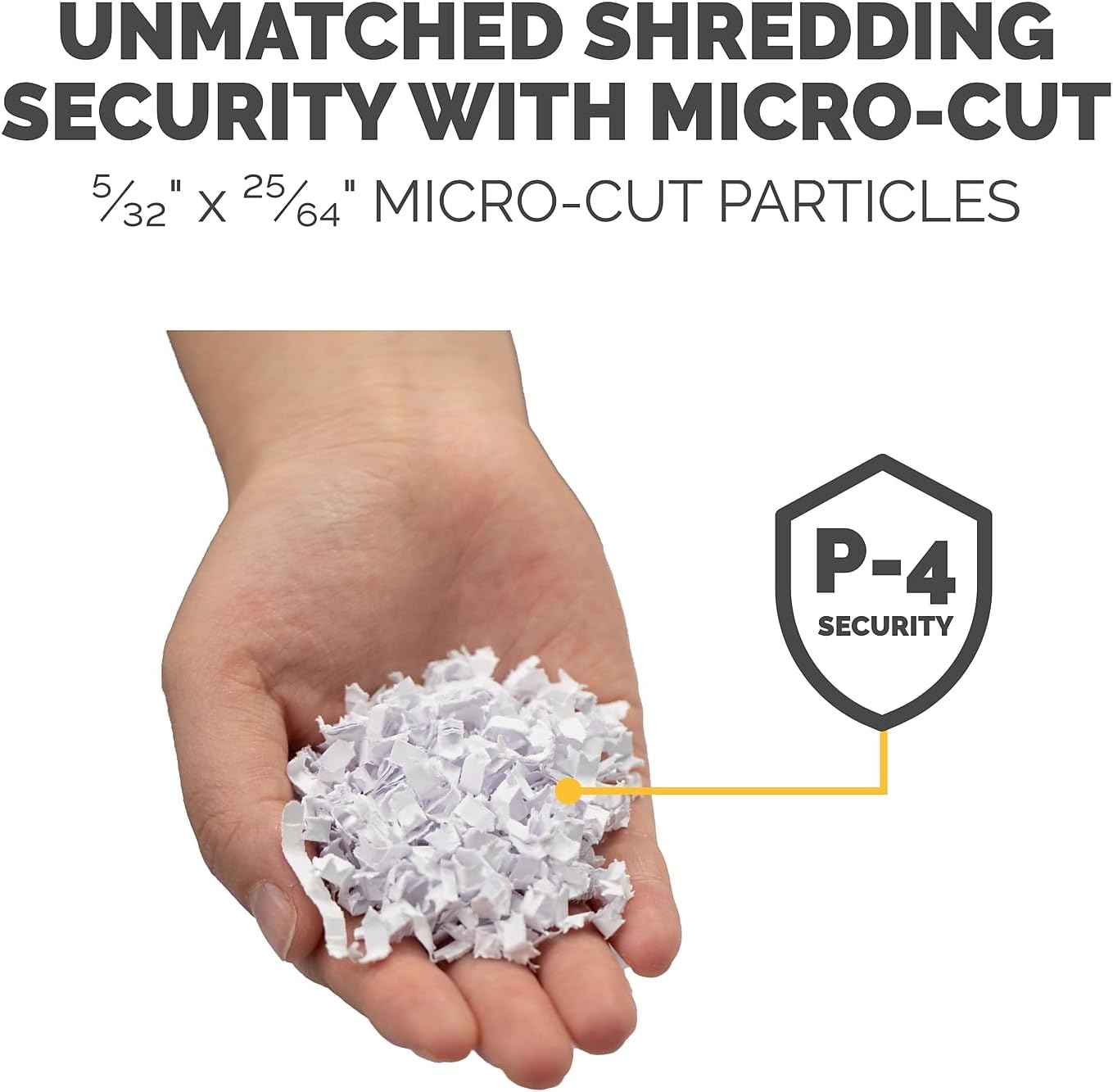
Image: A hand holding a small pile of micro-cut shredded paper, with a P-4 security level shield icon, demonstrating the high security of the shredded particles.
Maintenance
Emptying the Waste Bin
The shredder features a 6-gallon pull-out bin. An LED indicator will illuminate when the bin is full, signaling that it needs to be emptied.
- Pull out the waste bin from the front of the shredder.
- Dispose of the shredded material.
- Slide the waste bin back into the shredder until it clicks securely into place.
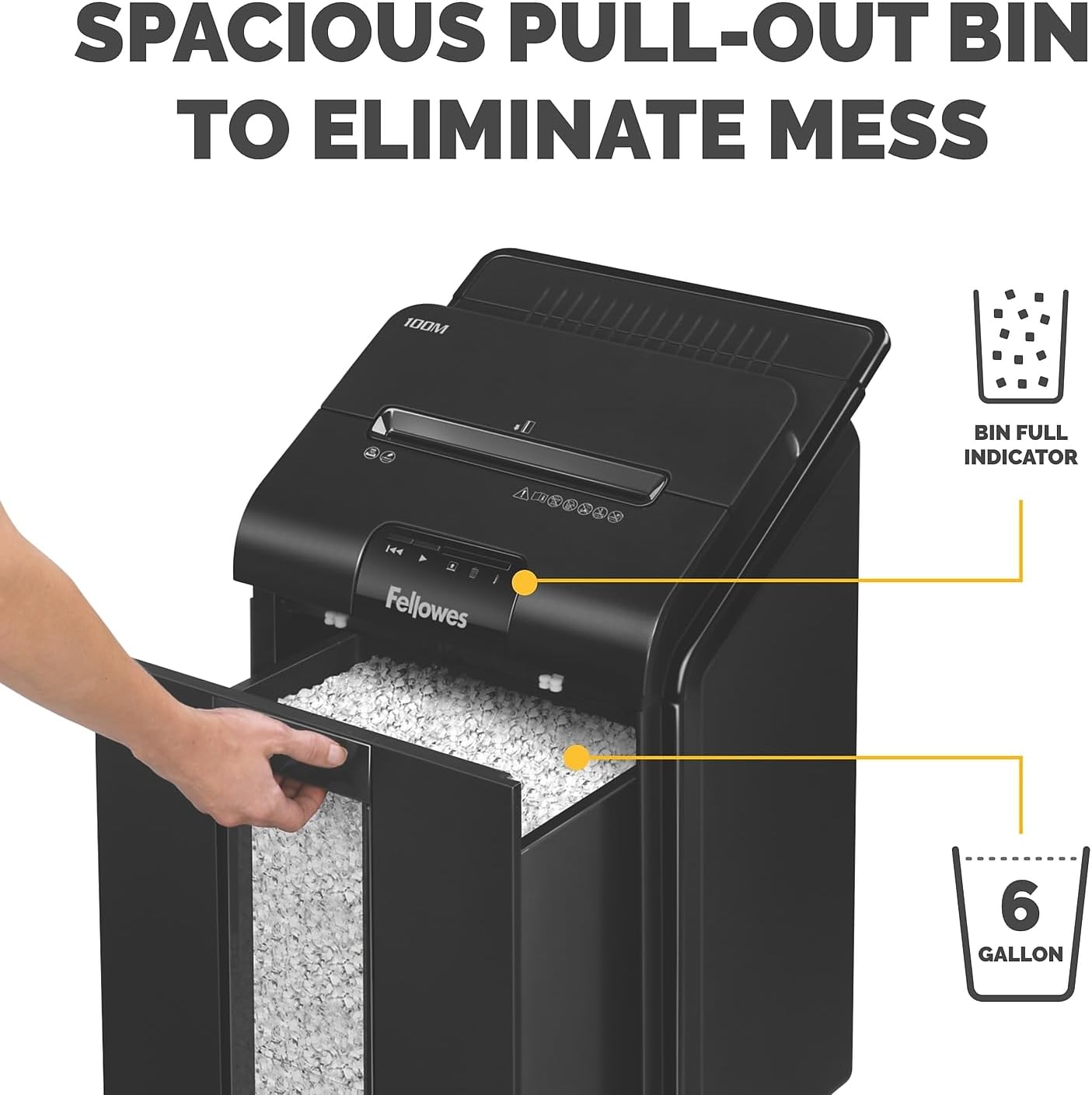
Image: A hand pulling out the spacious 6-gallon waste bin from the Fellowes AutoMax 100M shredder, with a "Bin Full Indicator" icon shown, demonstrating easy disposal.
Oiling the Shredder
Regular oiling is crucial for maintaining shredder performance and extending its lifespan. Use Fellowes shredder oil or a vegetable-based oil. Do not use aerosol lubricants.
- Apply a thin line of oil across the paper entry slot.
- Run the shredder in reverse for a few seconds to distribute the oil.
- Repeat this process after every 30 minutes of continuous shredding or when performance decreases.
Troubleshooting
| Problem | Possible Cause | Solution |
|---|---|---|
| Shredder does not turn on. | Not plugged in; waste bin not properly inserted; overheat protection activated. | Check power connection; ensure bin is fully inserted; allow shredder to cool down for 30 minutes. |
| Paper jam. | Overfeeding; material not suitable for shredding. | Utilize the Auto Reverse feature (if active); press the reverse button to clear the jam. Reduce sheet count for future shredding. |
| Shredder is noisy. | Lack of lubrication; normal operation. | Oil the shredder blades. The SilentShred technology minimizes noise, but some operational sound is normal. |
| Shredder stops unexpectedly. | Overheat protection; bin full; jam detected. | Allow to cool; empty bin; clear jam. |
Specifications
- Model: 100M
- Cut Type: Micro-Cut
- Particle Size: 5/32” x 25/64”
- Security Level: P-4
- Auto Feed Capacity: Up to 100 sheets
- Manual Feed Capacity: Up to 10 sheets
- Shreds: Paper, credit cards, staples, paper clips
- Bin Capacity: 6 Gallons
- Continuous Run Time: 15 minutes
- Dimensions (Product): 18.44 x 15.38 x 26.38 inches
- Item Weight: 28.9 pounds
- Special Feature: Auto Reverse Technology, SilentShred™
- Color: Black
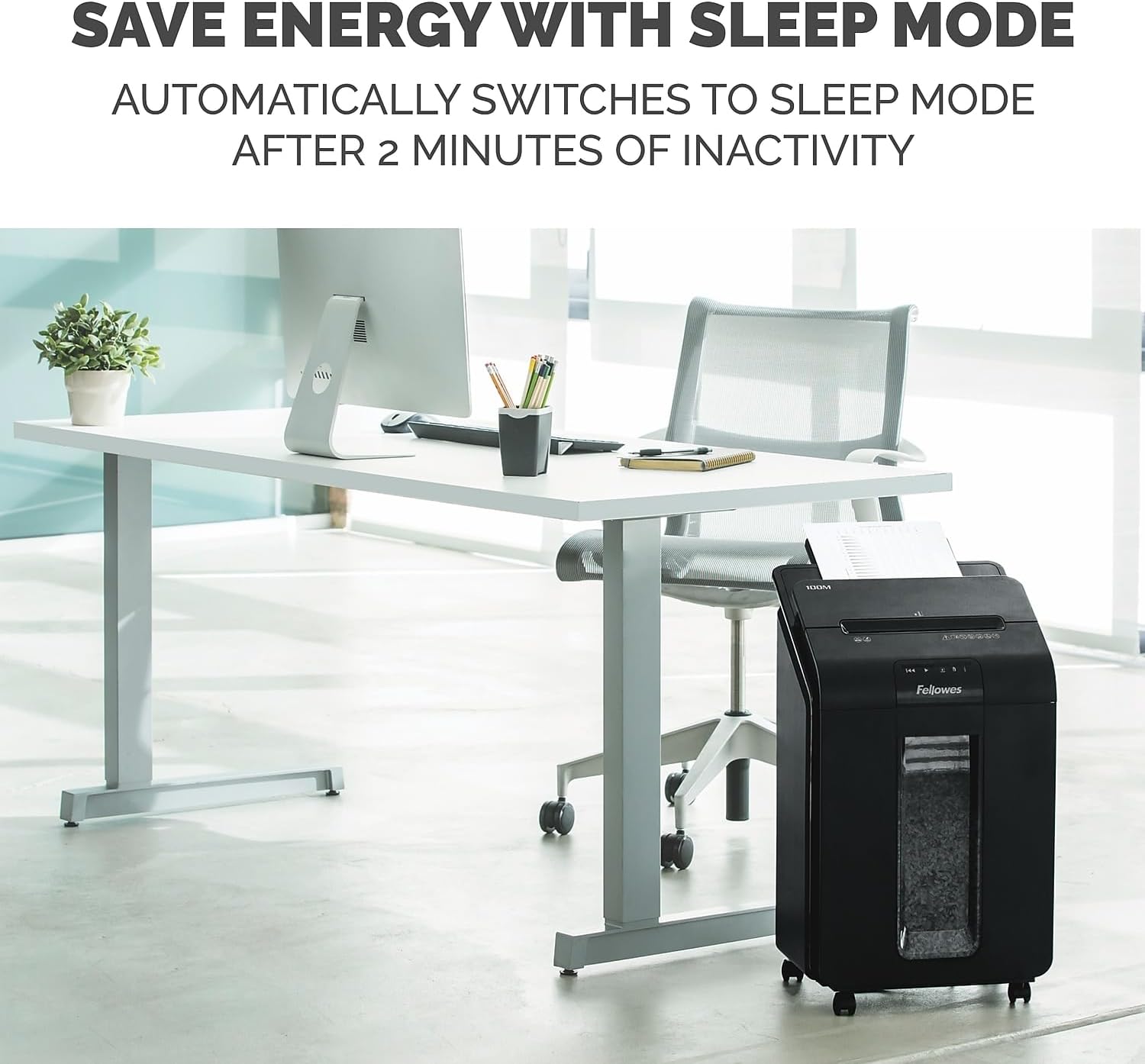
Image: The Fellowes AutoMax 100M shredder positioned in an office environment, highlighting its energy-saving sleep mode feature which activates after 2 minutes of inactivity.

Image: A woman operating the Fellowes AutoMax 100M shredder in a shared office space, with a sound wave icon indicating its ultra-quiet SilentShred™ performance.
Warranty and Support
The Fellowes AutoMax 100M Micro-Cut Auto Feed shredder is backed by a 2-year product warranty and a 7-year cutter warranty. For technical support, service, or warranty claims, please contact Fellowes customer service. Refer to the official Fellowes website or the contact information provided in your product packaging for the most current support details.
You can visit the official Fellowes store for more information and products: Fellowes Store
Related documents100M


Ask a question about this manual
Ask about setup, troubleshooting, compatibility, parts, safety, or missing instructions. Manuals+ will review the question and use this page’s manual context to help answer it.