
1. Introduction
The Divoom Tivoo Max is a versatile pixel art Bluetooth speaker designed to enhance your home, office, or gaming room with high-resolution audio and an interactive LED display. This manual provides comprehensive instructions for setting up, operating, and maintaining your Tivoo Max to ensure optimal performance and longevity.

Figure 1.1: Divoom Tivoo Max, a pixel art Bluetooth speaker.
The Tivoo Max features a vibrant 8-inch LED display capable of showing custom pixel art and animations, alongside powerful 40W audio output for an immersive experience.
2. Package Contents
Please verify that all items listed below are included in your package:
- Divoom Tivoo Max Speaker
- Micro USB Charging Cable
- 3.5mm Audio Cable (AUX)
- User Manual (this document)
- Promotional materials (e.g., stickers, postcards)

Figure 2.1: Typical package contents of the Divoom Tivoo Max.
The image displays the speaker along with its charging cable, auxiliary cable, and various accompanying documents and stickers.
3. Product Features
- High-Resolution Audio: Equipped with 2x10W high-performance drivers and a 20W subwoofer, delivering 40W of 2.1 sound with DSP bass boost for clear, distortion-free audio.
- 8-inch LED Pixel Art Display: Customize the display with pixel art created via the Divoom app or choose from a vast online community gallery.
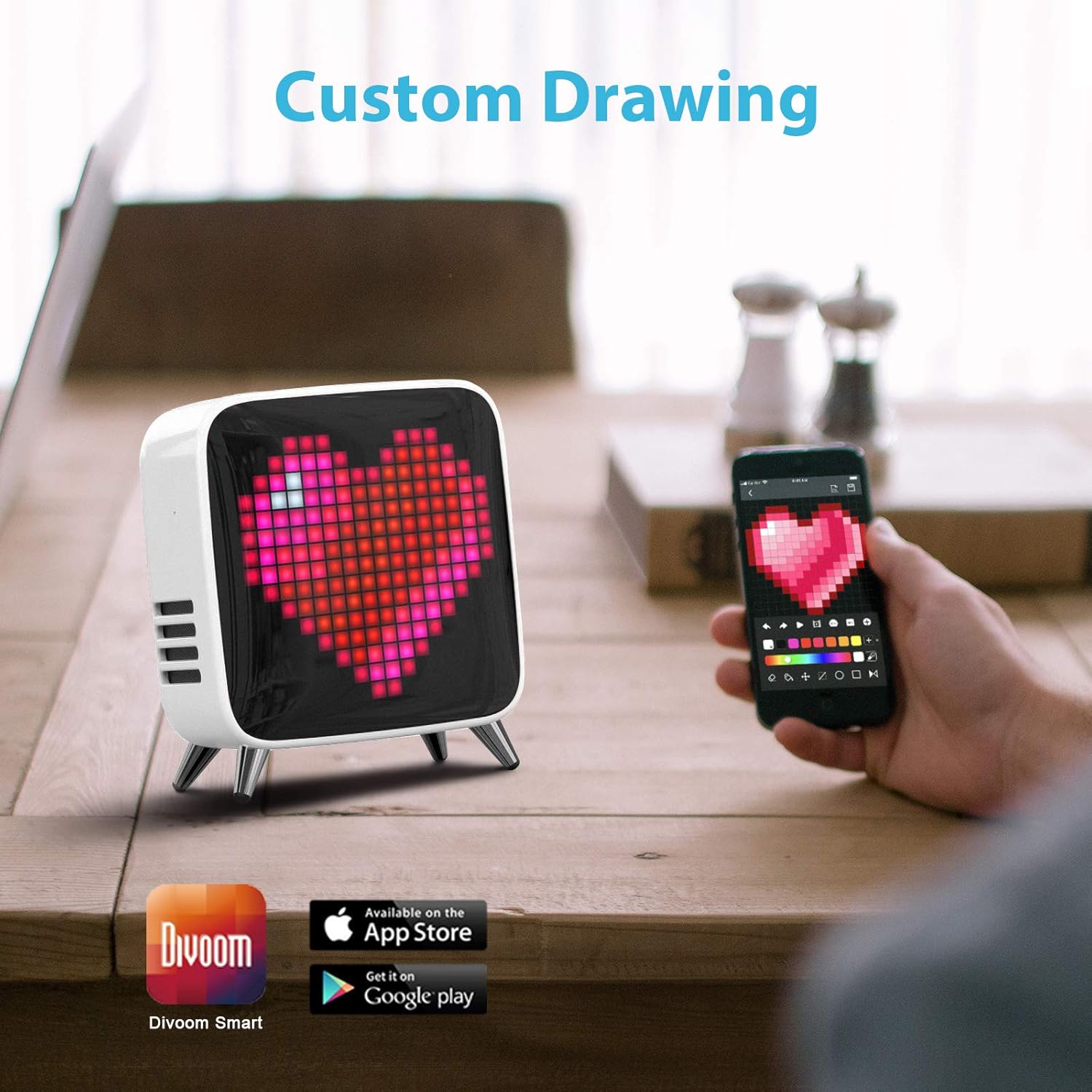
Figure 3.1: Real-time pixel art drawing and display on the Tivoo Max.
The Divoom app allows users to draw and display custom pixel art directly on the speaker's screen.
- Versatile Functions: Acts as a digital clock, alarm, and provides quick notifications for calls, texts, and social media apps (Twitter, WhatsApp, Facebook, Snapchat).
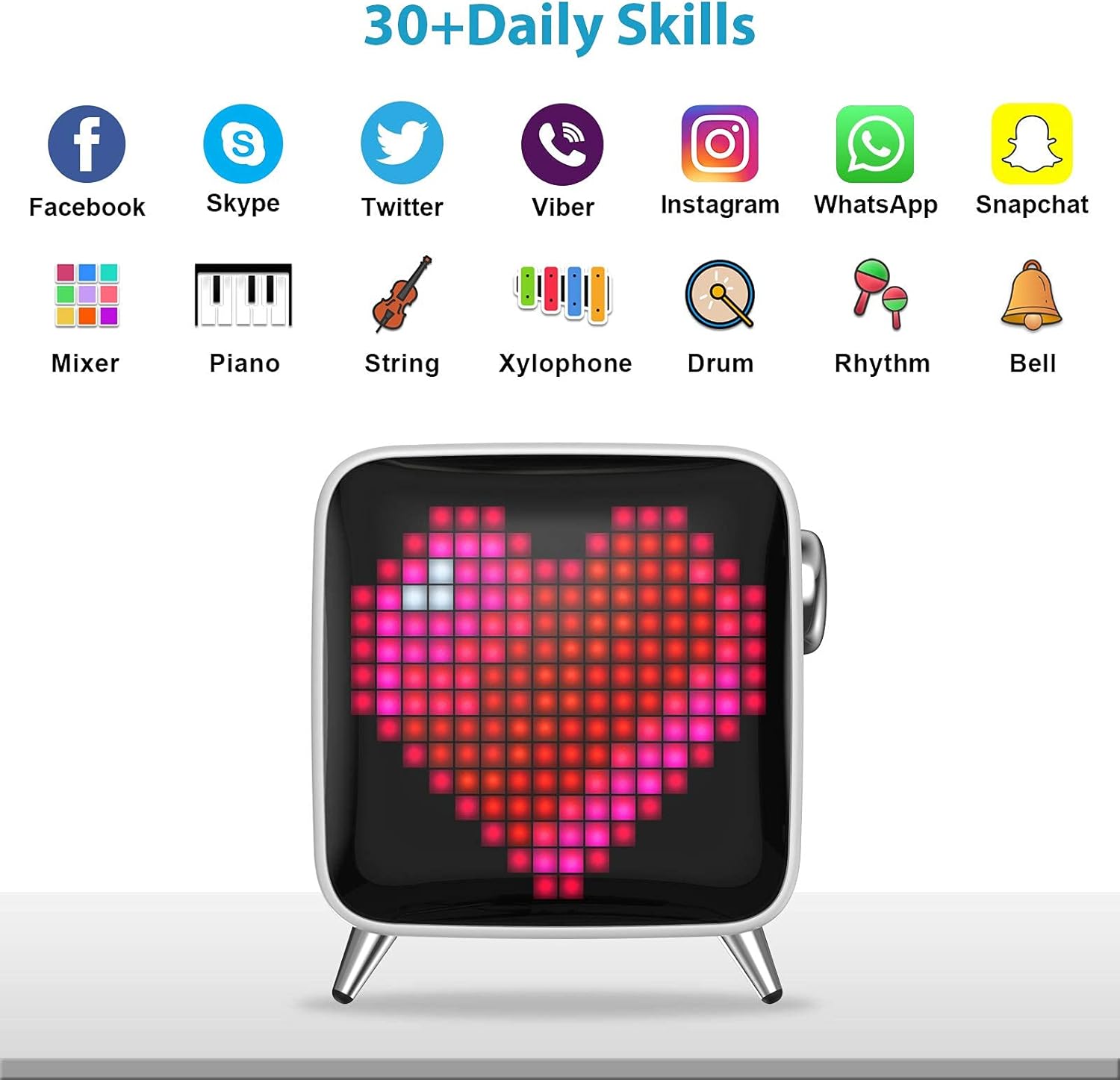
Figure 3.2: Tivoo Max showcasing various daily skills and app integrations.
The speaker integrates with popular social media apps and offers features like a mixer and virtual instruments.
- Long Battery Life: Built-in 10,000mAh battery provides extended playtime, making it portable for various settings.
- Retro Design: Unique vintage TV-inspired design with a chrome rotary knob and rubber-tipped feet, serving as an eye-catching decor piece.

Figure 3.3: Tivoo Max integrated into a desktop environment.
Its distinctive design makes it a stylish addition to any desk or room.
4. Setup and Connection
Follow these steps to set up your Divoom Tivoo Max:
- Charging the Device: Connect the Micro USB charging cable to the DC 5V port on the back of the Tivoo Max and the other end to a USB power adapter (not included). The LED display will indicate charging status. A full charge takes approximately 4 hours.
- Power On/Off: Press and hold the power button located on the back of the device for a few seconds to turn it on or off.
- Bluetooth Pairing:
- Turn on your Tivoo Max.
- Enable Bluetooth on your smartphone or tablet.
- Search for "TIVOO-MAX" in the list of available Bluetooth devices and select it to pair.
- A confirmation sound will indicate successful pairing.
- Divoom App Installation:
- Scan the QR code in the user manual or search for "Divoom" in your device's app store (Google Play Store for Android, Apple App Store for iOS).
- Install the Divoom app and follow the on-screen instructions to connect it to your Tivoo Max.
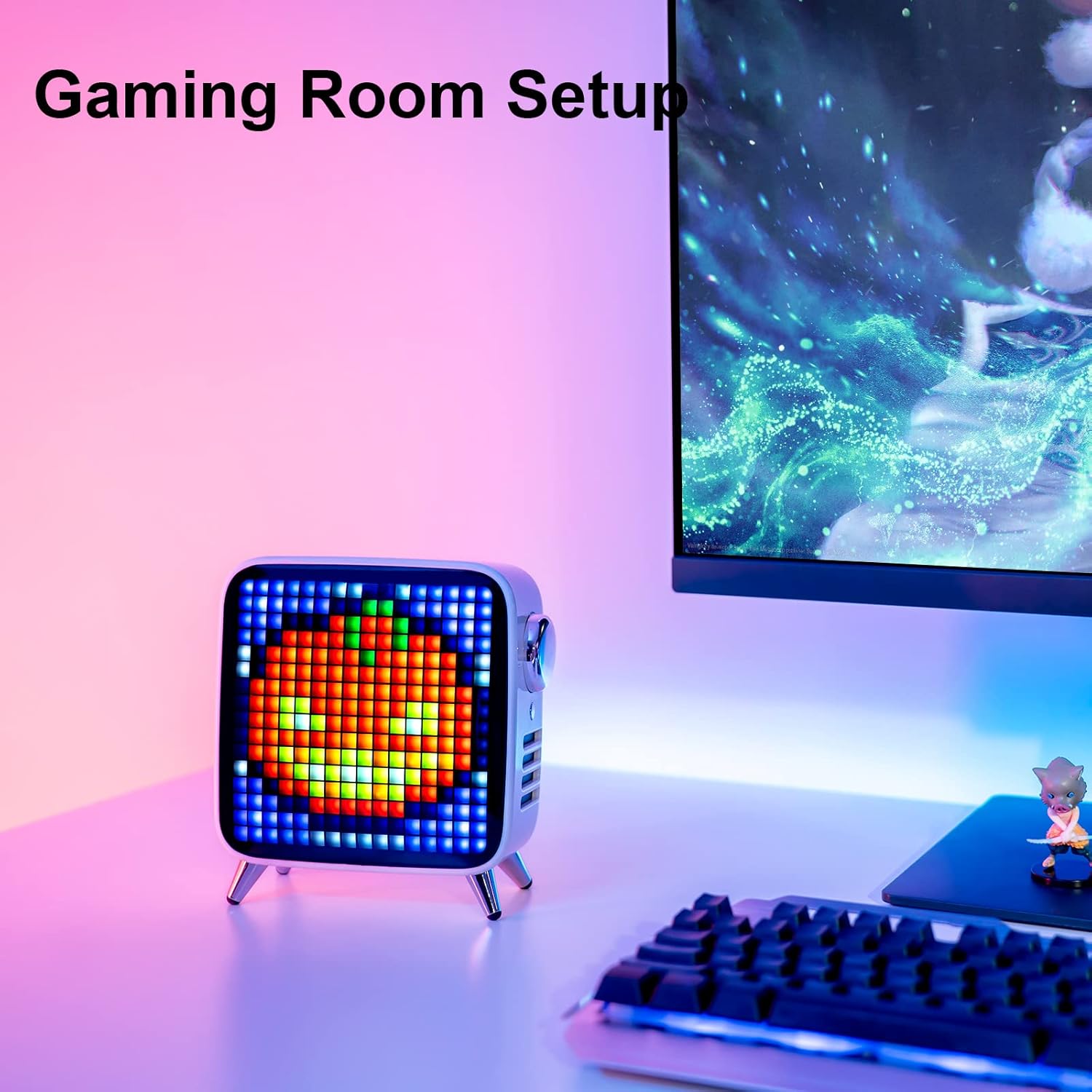
Figure 4.1: Tivoo Max in a gaming setup, ready for app control.
The speaker seamlessly integrates into various environments, controlled via its dedicated mobile application.
- AUX Input: Connect an external audio device using the provided 3.5mm audio cable to the AUX port on the back of the Tivoo Max.
- MicroSD Card Playback: Insert a MicroSD card (up to 64GB, FAT32 format) loaded with MP3 audio files into the TF card slot. The speaker will automatically begin playing music from the card.
5. Operating Instructions
The Divoom Tivoo Max offers intuitive controls for various functions:
5.1. On-Device Controls
- Rotary Knob (Right Side):
- Rotate to switch between different pixel art channels/modes.
- Press to confirm selection or activate a function (e.g., play/pause in music mode, answer/end call).
- Top Touch Buttons:
- '+' (Plus): Tap to increase volume. Hold to skip to the next track.
- '-' (Minus): Tap to decrease volume. Hold to go to the previous track.
- Play/Pause: Tap to play/pause music, answer/end calls. Hold to record a voice message or reject an incoming call.
- Clock/Alarm: Tap to switch between clock display modes. Hold to enter manual alarm settings.
- Light/Auto Power Off: Tap to change light effects. Hold to set auto power off timer.

Figure 5.1: Tivoo Max functioning as a pixel clock.
The device offers various clock faces and can be controlled directly via its physical buttons and rotary knob.
5.2. Divoom Mobile App
The Divoom app unlocks the full potential of your Tivoo Max:
- Pixel Art Creation: Design your own pixel art and animations in real-time.
- Online Community: Browse and download pixel art from a global community of creators.
- Music Visualizer: Enjoy dynamic visual effects that sync with your music.
- Smart Alarm & Sleep Aid: Set custom alarms with pixel animations and utilize sleep aid functions with white noise and light waves.
- Notifications: Configure the speaker to display notifications from your phone (calls, texts, social media).
- DJ Mixer & Games: Access built-in DJ mixer features and play classic pixel games like Tetris.
Video 5.2.1: Official Divoom Tivoo Max product overview.
This video demonstrates the various features and functionalities of the Divoom Tivoo Max, including its pixel art capabilities, sound quality, and app integration.
6. Maintenance
To ensure the longevity and optimal performance of your Divoom Tivoo Max, follow these maintenance guidelines:
- Cleaning: Use a soft, dry cloth to wipe the surface of the speaker. Avoid using abrasive cleaners or solvents that may damage the finish or LED screen.
- Storage: Store the speaker in a cool, dry place away from direct sunlight and extreme temperatures.
- Water Resistance: The Divoom Tivoo Max is NOT waterproof. Avoid exposing it to water or high humidity to prevent damage.
- Battery Care: For optimal battery life, avoid fully discharging the battery frequently. Charge the device regularly, even if not in use for extended periods.
7. Troubleshooting
If you encounter issues with your Divoom Tivoo Max, refer to the following common problems and solutions:
| Problem | Possible Cause | Solution |
|---|---|---|
| Device won't turn on. | Low battery or power issue. | Charge the device fully. Ensure the charging cable and adapter are working correctly. |
| Cannot pair via Bluetooth. | Bluetooth not enabled, device out of range, or already paired. | Ensure Bluetooth is on for both devices. Move devices closer. Forget "TIVOO-MAX" from your device's Bluetooth list and try pairing again. |
| No sound or low volume. | Volume too low, incorrect input mode, or connection issue. | Increase volume on both the Tivoo Max and your connected device. Check if the correct input mode (Bluetooth, AUX, MicroSD) is selected. Reconnect audio cables if using AUX. |
| Pixel art not displaying correctly. | App connection issue or corrupted file. | Ensure the Divoom app is connected. Try restarting the app and the speaker. Re-upload the pixel art. |
| Device freezes or becomes unresponsive. | Software glitch. | Perform a soft reset by holding the power button until the device turns off, then turn it back on. |
8. Specifications
- Model Name: TIVOO MAX
- Speaker Type: Subwoofer, Portable Bluetooth Speaker
- Audio Output Mode: Stereo
- Speaker Maximum Output Power: 40 Watts
- Connectivity Technology: Bluetooth 5.0
- Wireless Communication Technology: Bluetooth
- Battery Life: Up to 10 hours (actual battery life may vary based on usage)
- Battery Capacity: 10,000 mAh
- Charging Time: Approximately 4 hours
- Product Dimensions: 3.39"D x 6.42"W x 7.26"H
- Item Weight: 4.4 pounds (2 Kilograms)
- Special Features: Touch sense controls, TF card compatible, APP control
- Water Resistance Level: Not Water Resistant
9. Warranty and Support
The Divoom Tivoo Max comes with a Limited Warranty. For detailed warranty information, please refer to the warranty card included in your package or visit the official Divoom website.
For technical support, troubleshooting assistance, or any inquiries regarding your product, please contact Divoom Customer Service through their official website or the contact information provided in your warranty documentation.


