
1. Introduction
The Fanvil X210 is a high-end enterprise IP phone designed for users requiring flexible and advanced features to manage medium to high call volumes efficiently. This manual provides detailed instructions for setting up, operating, maintaining, and troubleshooting your Fanvil X210 IP phone, ensuring you can leverage its full potential for enhanced productivity.
2. Product Features
The Fanvil X210 boasts a comprehensive set of features tailored for demanding business environments:
- Main Display: Features a high-resolution 4.3-inch color display with 10 DSS keys for intuitive navigation and call management.
- Side Displays: Equipped with two 3.5-inch side color displays, providing up to 96 DSS keys (32 physical) for functions like BLF (Busy Lamp Field), speed dial, and group broadcasting.
- HD Audio: Delivers crystal-clear audio quality for superior call experiences.
- Connectivity: Includes built-in Bluetooth, Wi-Fi connectivity (via Wi-Fi dongle), EHS (Electronic Hook Switch) support, dual Gigabit Ethernet ports, and PoE (Power over Ethernet) capability.
- Integration: Supports IP camera and SIP video door phone integration for enhanced security and communication.
- Adjustable Stand: Comes with an adjustable stand offering 40 and 50-degree angles for optimal viewing comfort.
- Compatibility: Compatible with major platforms including 3CX, Asterisk, BroadSoft, Avaya, Metaswitch, and Elastix.
3. Setup Guide
Follow these steps to set up your Fanvil X210 IP Phone:
- Unpack the Phone: Carefully remove all components from the packaging.
- Attach the Stand: Securely attach the adjustable stand to the back of the phone. You can choose between 40 and 50-degree angles for optimal viewing.
- Connect Handset: Plug one end of the coiled handset cord into the handset port on the phone and the other end into the handset.
- Connect Network Cable: Connect an Ethernet cable from your network switch or router to the LAN port on the back of the phone. If using PoE, this will also power the device.
- Connect Power Adapter (if no PoE): If your network does not support PoE, connect a compatible power adapter (not included) to the power port on the back of the phone and plug it into a power outlet.
- Connect PC (Optional): If you wish to connect a PC through the phone, connect an Ethernet cable from your PC to the PC port on the back of the phone.
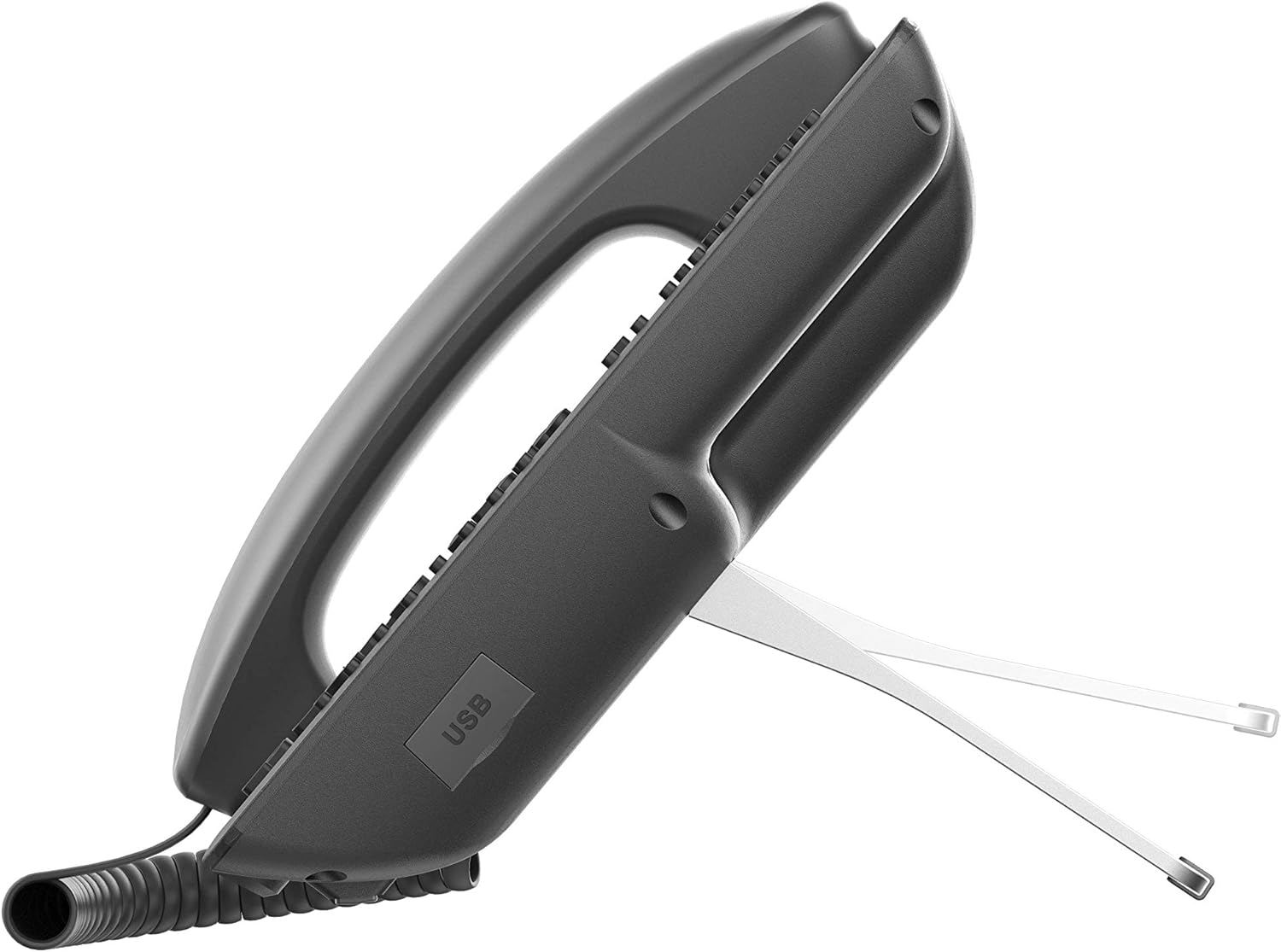
Figure 1: Rear view of the Fanvil X210 with connection ports.

Figure 2: Side view of the Fanvil X210 highlighting the USB port.
4. Operating Instructions
The Fanvil X210 is designed for ease of use with its intuitive interface and extensive features.
4.1 Basic Call Functions
- Making a Call: Lift the handset, press the speakerphone button, or press a line key. Dial the number and press the Dial soft key or wait for a few seconds.
- Answering a Call: Lift the handset, press the speakerphone button, or press the Answer soft key.
- Ending a Call: Replace the handset, or press the End Call soft key.
- Hold/Resume: During a call, press the Hold soft key. To resume, press the Resume soft key.
4.2 DSS Keys and Displays
The X210 features a 4.3-inch main color display and two 3.5-inch side color displays, providing a total of up to 106 DSS keys. These keys can be configured for various functions:
- BLF (Busy Lamp Field): Monitor the status of other extensions (busy, ringing, available).
- Speed Dial: Program frequently called numbers for quick dialing.
- Group Broadcasting: Initiate group calls or announcements.
- Line Keys: Manage multiple SIP lines.
4.3 Advanced Features
- HD Video Display: The phone's display supports HD video, allowing integration with IP cameras and SIP video door phones for visual communication and monitoring.
- Wi-Fi Connectivity: Connect to wireless networks using a compatible Wi-Fi dongle plugged into the USB port.
- Bluetooth: Pair Bluetooth headsets for hands-free communication.
- EHS Headset Support: Use EHS-compatible headsets for remote call control.
- USB Ports: Utilize USB ports for Wi-Fi dongles, USB headsets, or other compatible accessories.
Video 1: Overview of the Fanvil X210 Enterprise VoIP Phone, showcasing its design and key features.
5. Maintenance
To ensure the longevity and optimal performance of your Fanvil X210 IP Phone, follow these maintenance guidelines:
- Cleaning: Use a soft, dry cloth to clean the phone's surface. For stubborn marks, slightly dampen the cloth with water. Avoid abrasive cleaners or solvents.
- Handle with Care: Avoid dropping the phone or exposing it to excessive force.
- Environment: Keep the phone in a dry environment, away from direct sunlight, extreme temperatures, and high humidity.
- Cable Management: Ensure all cables are neatly organized and not under strain to prevent damage to ports or cables.
6. Troubleshooting
If you encounter issues with your Fanvil X210, try the following troubleshooting steps:
- No Power: Check if the power adapter is securely connected to both the phone and the power outlet. If using PoE, ensure the Ethernet cable is properly connected and the network switch provides power.
- No Dial Tone: Verify the network cable is securely connected to the LAN port. Check your network connection and SIP registration status on the phone's display.
- Poor Audio Quality: Ensure the handset or headset is properly connected. Check network stability and bandwidth.
- Display Issues: If the display is blank or frozen, try restarting the phone by unplugging and re-plugging the power.
- DSS Keys Not Working: Verify that the DSS keys are correctly configured in the phone's settings or through your VoIP system.
- Network Connectivity Problems: Check network cable connections. Ensure your network settings (IP address, subnet mask, gateway, DNS) are correct.
For persistent issues, consult your IT administrator or Fanvil technical support.
7. Specifications
| Feature | Detail |
|---|---|
| Brand | Fanvil |
| Model Number | X210 |
| Main Display | 4.3-inch Color Display |
| Side Displays | Two 3.5-inch Color Displays |
| DSS Keys | Up to 106 (10 on main, 96 on side displays, 32 physical) |
| SIP Lines | 20 |
| Ethernet Ports | Dual-port Gigabit Ethernet |
| PoE Support | Yes |
| Bluetooth | Built-in |
| Wi-Fi Connectivity | Via Wi-Fi Dongle (not included) |
| EHS Support | Yes |
| USB Ports | Yes |
| Video Codec | H.264 |
| Dimensions (L x W x H) | 12.7 x 8.43 x 7.37 inches |
| Item Weight | 3.85 pounds |
| Color | Black |
| Compatible Devices | 3CX, Asterisk, BroadSoft, Avaya, Metaswitch, Elastix |
8. Warranty and Support
The Fanvil X210 Enterprise VoIP Phone comes with a manufacturer's warranty. Please refer to the warranty card included with your product for specific terms and conditions. For technical support, software updates, or further assistance, please visit the official Fanvil website or contact your authorized reseller.


