
1. Introduction
This manual provides comprehensive instructions for the installation, operation, and maintenance of your Extel Video Intercom System. This system is designed to enhance your home security and convenience by allowing you to see, speak to, and grant access to visitors from your indoor monitor or a connected smartphone. Please read this manual thoroughly before installation and use to ensure proper functioning and safety.
2. Safety Information
Always adhere to the following safety guidelines:
- Ensure all electrical connections are made by a qualified electrician and comply with local electrical codes.
- Disconnect power before performing any installation, maintenance, or wiring work.
- Do not expose the outdoor unit to direct water spray or submerge it.
- Keep the indoor monitor away from high humidity, extreme temperatures, and direct sunlight.
- Use only the specified 24V power supply for this device.
3. Package Contents
Verify that all components are present in your package:
- 1 x Indoor Monitor (7-inch screen)
- 1 x Outdoor Unit (Camera with call button)
- 1 x Power Adapter (24V)
- Mounting Hardware (screws, wall plugs)
- User Manual

4. Setup and Installation
The Extel Video Intercom System requires wired connection between the indoor monitor and the outdoor unit. Careful planning of cable routing is essential.
4.1. Outdoor Unit Installation
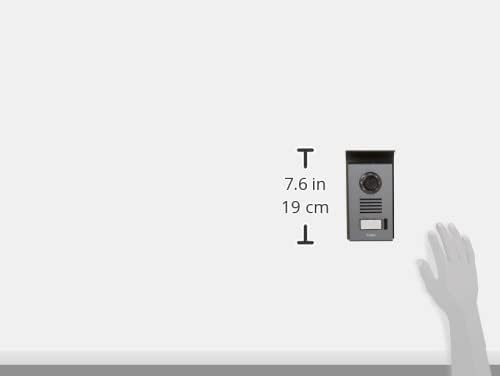
Choose a suitable location for the outdoor unit, typically near your main entrance, at a height that allows visitors to be clearly seen. Ensure it is protected from direct rain and sunlight if possible. The unit should be mounted securely to a solid surface.

4.2. Indoor Monitor Installation
Select a central and easily accessible location inside your home for the indoor monitor. Mount it at eye level for comfortable viewing. Ensure the location allows for easy connection to the outdoor unit and a power outlet.

4.3. Wiring Connections
Connect the outdoor unit to the indoor monitor using appropriate wiring. This system operates at 24V. Refer to the detailed wiring diagram provided in a separate document or on the manufacturer's website for specific terminal connections. Ensure all connections are secure and insulated.
4.4. Power Connection
Once all wiring is complete, connect the 24V power adapter to the indoor monitor and plug it into a suitable power outlet. The system will power on automatically.
5. Operating Instructions
5.1. Receiving a Call
When a visitor presses the call button on the outdoor unit, the indoor monitor will ring and display the visitor's image. You can then press the 'Answer' button on the monitor to speak with the visitor.
5.2. Viewing Visitors
At any time, you can press the 'Monitor' button on the indoor unit to view the live feed from the outdoor camera. This allows you to check your entrance without a visitor initiating a call.
5.3. Opening Gates/Doors
If your system is connected to an electric gate or door lock, you can open it by pressing the 'Unlock' button on the indoor monitor during a call or while monitoring the outdoor unit.

6. Mobile App Integration
The Extel Video Intercom System can be connected to your smartphone via the 'Extel Connect' application, available for Android and Apple devices. This feature allows for remote monitoring and control.
6.1. Downloading the App
Search for 'Extel Connect' in the Apple App Store or Google Play Store and install it on your smartphone.

6.2. Pairing with Smartphone
Follow the in-app instructions to pair your smartphone with the intercom system. This typically involves connecting the indoor monitor to your home Wi-Fi network and then scanning a QR code or entering a device ID into the app.
6.3. Remote Monitoring and Control
Once paired, you can:
- Receive notifications when a visitor presses the call button.
- View live video from the outdoor unit.
- Speak with visitors remotely.
- Open gates or doors from your smartphone.
7. Maintenance
Regular maintenance ensures the longevity and optimal performance of your intercom system.
- Cleaning: Use a soft, damp cloth to clean the indoor monitor and outdoor unit. Avoid abrasive cleaners or solvents.
- Lens Care: Keep the camera lens on the outdoor unit clean and free from obstructions for clear image quality.
- Software Updates: Check the Extel website or the 'Extel Connect' app for any available firmware or software updates for your system.
8. Troubleshooting
If you encounter issues with your Extel Video Intercom System, refer to the following common problems and solutions:
| Problem | Possible Cause | Solution |
|---|---|---|
| No image on indoor monitor | Loose wiring, power issue, camera fault | Check all wiring connections. Ensure power is supplied. Contact support if problem persists. |
| No sound during communication | Microphone/speaker issue, volume settings | Check volume settings on the monitor. Inspect microphone/speaker for obstructions. |
| Smartphone app not connecting | Wi-Fi issue, incorrect pairing, app error | Ensure monitor is connected to Wi-Fi. Re-pair the device in the app. Restart app/phone. |
| Gate/door not unlocking | Wiring to lock, lock mechanism fault | Verify wiring to the electric lock. Test the lock mechanism independently. |
For more detailed troubleshooting or issues not listed here, please refer to the official Extel support website or contact customer service.
9. Specifications
Key technical specifications for the Extel Video Intercom System (Model 720308):
| Feature | Specification |
|---|---|
| Manufacturer | Extel |
| Model Number | 720308 |
| Screen Size | 7 inches (18 cm) |
| Connectivity Technology | Wired (intercom), Wireless (smartphone app) |
| Power Source | Electric Cable |
| Voltage | 24 Volts |
| Power Consumption | 1 Watt |
| Controller Type Compatibility | Android, Apple iOS |
| Number of Channels | 2 (e.g., for gate and door control) |
| Product Weight | 2.2 Pounds |
10. Warranty and Support
This Extel product comes with a manufacturer's warranty. Please refer to the warranty card included in your package or visit the official Extel website for detailed warranty terms and conditions.
For technical assistance, spare parts, or further inquiries, please contact Extel customer support through their official website or the contact information provided in your product documentation. When contacting support, please have your model number (720308) and purchase details ready.


