
Important Safety Information
To reduce the risk of fire, electric shock, or other injury, follow all instructions and safety guidelines. Read all instructions before using the air purifier.
- Only use the air purifier as described in this manual.
- Do not use the air purifier outdoors.
- Keep the air purifier away from water or wet areas.
- Always unplug the air purifier before moving it, opening the casing, or performing any cleaning or maintenance.
- Do not block air openings.
- Do not insert foreign objects into the air purifier.
- Do not use if the power cord or plug is damaged.
- This appliance has a polarized plug (one blade is wider than the other). To reduce the risk of electric shock, this plug is intended to fit in a polarized outlet only one way. If the plug does not fit fully in the outlet, reverse the plug. If it still does not fit, contact a qualified electrician. Do not attempt to defeat this safety feature.
Package Contents
- 1 x Levoit Smart WiFi Air Purifier (LV-PUR131S)
- 1 x 3-in-1 True HEPA Filter (Pre-installed)
- 1 x User Manual
Specifications
| Specification | Value |
|---|---|
| Model | LV-PUR131S |
| Item Weight | 5.21 kg |
| Product Dimensions | 18.3D x 37.1W x 47H Centimetres |
| Power Source | Corded Electric |
| Filter Type | HEPA (H13 True HEPA) |
| Floor Area Coverage | 360 Square Feet |
| Noise Level | 27 dB (Sleep Mode) |
| Control Method | App, Touch Panel |
| Certification | Energy Star Certified |
Getting Started (Setup)
1. Initial Setup
Before first use, the filter must be removed from its plastic packaging and reinserted into the air purifier.

Image Description: A four-panel image illustrating the filter installation process. Panel 1: Removing the back cover. Panel 2: Taking out the filters. Panel 3: Removing plastic bags from the filters. Panel 4: Reinstalling the filters and back cover.
- Place the air purifier on a flat, stable surface.
- Remove the back cover of the air purifier.
- Take out the 3-in-1 True HEPA filter.
- Remove all plastic packaging from the filter.
- Reinsert the filter into the air purifier with the pull tabs facing outwards.
- Replace the back cover securely.
- Plug in the power cord.
2. VeSync App Setup
The VeSync app allows you to control your air purifier remotely, monitor air quality, and track filter life.

Image Description: A Levoit air purifier shown next to a smartphone displaying the VeSync app. The app shows air quality status as 'VERY GOOD' and options for fan speed, display, schedule, and sleep mode. A Wi-Fi signal icon is prominent, indicating smart connectivity.
- Download the free VeSync app from the App Store (iOS) or Google Play Store (Android).
- Open the app and create an account or log in.
- Follow the in-app instructions to add your Levoit LV-PUR131S air purifier. Ensure your phone is connected to a 2.4GHz Wi-Fi network during setup.
3. Connecting to Smart Home Systems
The Levoit Smart WiFi Air Purifier can be integrated with Amazon Alexa and Google Assistant for voice control.

Image Description: An illustration of a multi-story house with a Levoit air purifier placed inside. A person outside the house is using a smartphone with the VeSync app, demonstrating remote control capabilities. A large power icon indicates the ability to turn the device on/off from anywhere.
- Once your air purifier is connected to the VeSync app, open the Alexa or Google Home app.
- Enable the VeSync skill/action and link your VeSync account.
- You can now use voice commands such as "Alexa, turn on the air purifier" or "Hey Google, set air purifier to sleep mode."
Operation
Control Panel Overview
The top panel of the air purifier features touch controls and an LED display.

Image Description: A detailed view of the Levoit air purifier's top control panel. Icons for Power, Display Off, Sleep Mode, Auto Mode, 3 Fan Speeds, and 1-12 Hour Timers are clearly visible and labeled, indicating their functions.
- Power Button: Turns the air purifier on/off.
- Display Button: Turns the LED display on/off.
- Sleep Mode Button: Activates Sleep Mode for quiet operation.
- Auto Mode Button: Enables Auto Mode, adjusting fan speed based on air quality.
- Fan Speed Button: Cycles through low, medium, and high fan speeds.
- Timer Button: Sets a timer for automatic shutdown (1-12 hours).
Modes and Fan Speeds
The LV-PUR131S offers various modes to optimize air purification for different needs.

Image Description: A split image showing the Levoit air purifier on the left and a close-up of its internal sensor on the right. A red laser beam emanates from the sensor, illustrating its ability to detect 0.03 micron particles and automatically adjust fan speed based on real-time air quality.
- Auto Mode: Utilizes an advanced infrared smart sensor to detect airborne particles. The fan speed will automatically adjust between 3 levels (low, medium, high) according to the real-time air quality display.
- Sleep Mode: Operates at the lowest fan speed, producing a noise level as low as 27dB. The LED display can be turned off in this mode for an undisturbed sleeping environment.
- Manual Fan Speeds: You can manually select between Low, Medium, and High fan speeds using the fan speed button.
Maintenance
Filter Replacement
The Levoit LV-PUR131S uses a 3-in-1 filtration system consisting of a Pre-Filter, H13 True HEPA Filter, and Activated Carbon Filter. The filter life is typically 6-8 months, depending on usage and air quality.

Image Description: A diagram illustrating the three stages of the H13 True HEPA filter. The Pre-Filter captures large particles like hair and lint. The True HEPA Filter traps fine particles such as dust mites, airborne bacteria, and pollen. The Activated Carbon Filter removes household odors and VOCs.
The VeSync app provides a filter life tracking feature to help you know when to replace the filter.
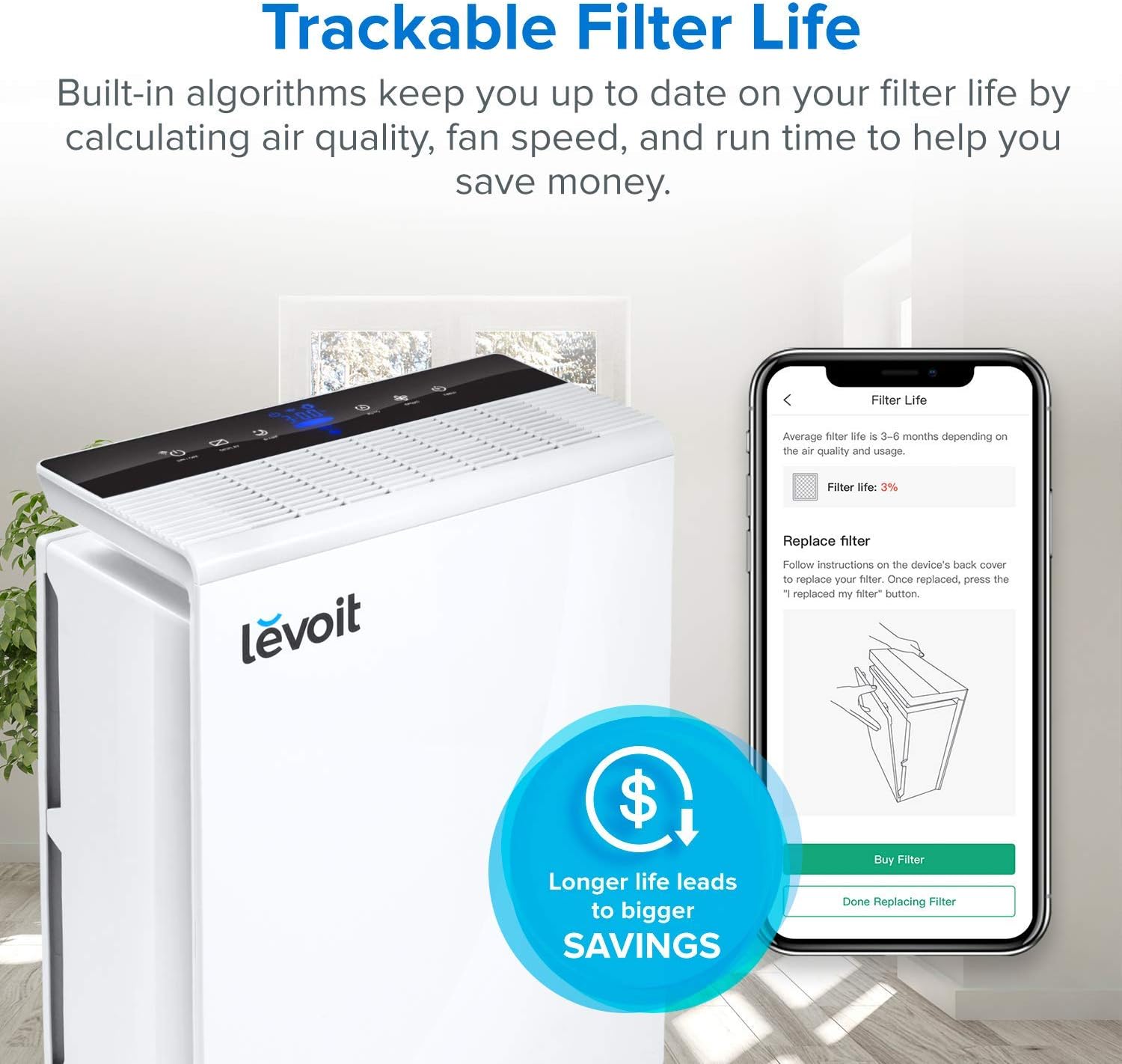
Image Description: A Levoit air purifier shown next to a smartphone displaying the VeSync app's filter life screen. The screen indicates 'Filter life: 9%' and provides instructions to replace the filter, along with a diagram of the replacement process and buttons to buy a new filter or confirm replacement.
To replace the filter, follow the same steps as the initial setup (removing plastic packaging from the new filter).
Cleaning the Air Purifier
- Always unplug the air purifier before cleaning.
- Wipe the exterior of the air purifier with a soft, dry cloth.
- Do not use abrasive cleaners or chemicals.
- The pre-filter can be gently cleaned with a soft brush or vacuum cleaner to remove large dust particles, but the HEPA and activated carbon filters are not washable.
Troubleshooting
| Problem | Possible Cause / Solution |
|---|---|
| Air purifier does not turn on. | Ensure the power cord is securely plugged into a working outlet. Check if the back cover is properly installed. |
| Airflow is significantly reduced. | The filter may be clogged. Check the filter life indicator in the VeSync app and replace the filter if necessary. Ensure no air inlets/outlets are blocked. |
| Unusual noise. | Check if the filter is installed correctly. Ensure no foreign objects are inside the unit. |
| Air quality reading seems inaccurate. | Ensure the air quality sensor is clean. Avoid placing the purifier near strong odors or high humidity. |
| Cannot connect to VeSync app. | Ensure your Wi-Fi network is 2.4GHz. Check Wi-Fi signal strength. Restart the air purifier and your router. Follow in-app troubleshooting steps. |
Warranty and Support
Levoit provides a 2-year after-sales support for the LV-PUR131S air purifier. For any issues or questions not covered in this manual, please contact Levoit customer support.
For more information, visit the official Levoit website or contact their customer service directly.


