
Other BTI-010
Other BTI-010 2-in-1 Bluetooth Audio Transmitter and Receiver User Manual
Model: BTI-010
1. Introduction
Thank you for purchasing the Other BTI-010 2-in-1 Bluetooth Audio Transmitter and Receiver. This device is designed to add Bluetooth functionality to your audio equipment, allowing you to wirelessly transmit audio from non-Bluetooth devices or receive audio on non-Bluetooth devices. Please read this manual carefully to ensure proper use and optimal performance.
2. Package Contents
- 1 x BTI-010 Bluetooth Transmitter and Receiver Unit
- 1 x USB Charging Cable
- 1 x 3.5mm Audio Cable
- 1 x User Manual
3. Product Overview
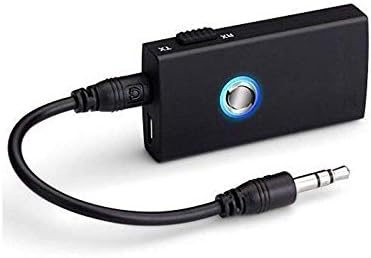
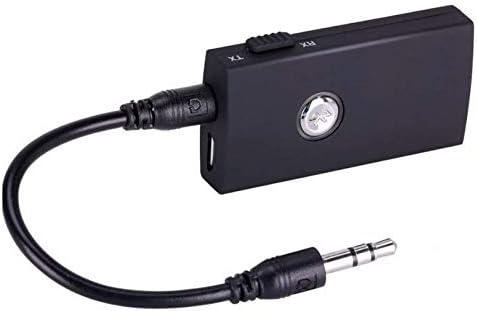
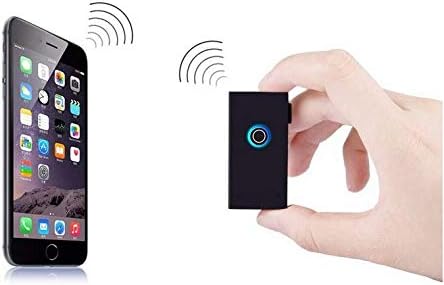
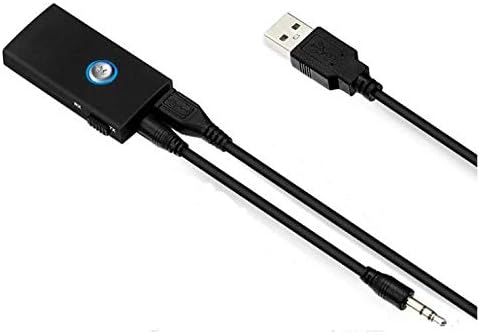
The BTI-010 is a versatile audio adapter that functions as both a Bluetooth transmitter (TX) and a Bluetooth receiver (RX). It features a compact design, a multi-function button, a mode switch, and standard audio and charging ports.

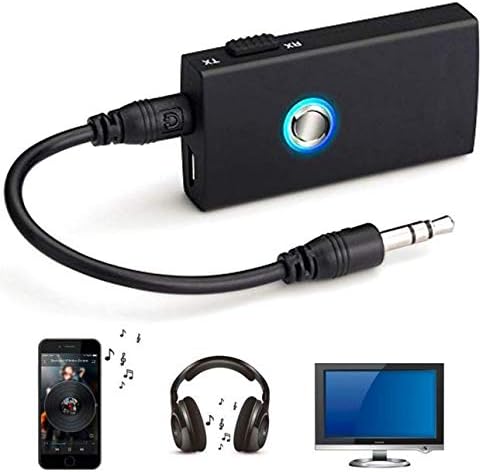
4. Setup and Operation
4.1. Charging the Device
- Connect the supplied USB charging cable to the micro USB port on the BTI-010.
- Plug the other end of the USB cable into a USB power adapter (not included) or a computer's USB port.
- The LED indicator will illuminate during charging and turn off when fully charged. Charging typically takes about 2 hours.
4.2. Transmitter (TX) Mode
Use TX mode to transmit audio wirelessly from a non-Bluetooth device (e.g., TV, PC, MP3 player) to a Bluetooth-enabled receiving device (e.g., Bluetooth headphones, Bluetooth speaker).
- Slide the mode switch on the BTI-010 to the TX position.
- Connect the BTI-010 to your non-Bluetooth audio source (e.g., TV's audio out jack) using the 3.5mm audio cable.
- Power on the BTI-010 by pressing and holding the multi-function button until the LED indicator flashes blue rapidly, indicating pairing mode.
- Place your Bluetooth receiving device (headphones, speaker) into pairing mode.
- The BTI-010 will automatically search for and connect to nearby Bluetooth receiving devices. Once connected, the LED will flash blue slowly.
- Adjust the volume on your receiving device.
4.3. Receiver (RX) Mode
Use RX mode to receive audio wirelessly from a Bluetooth-enabled device (e.g., smartphone, tablet) and play it through a non-Bluetooth audio system (e.g., car stereo, home stereo, wired headphones).
- Slide the mode switch on the BTI-010 to the RX position.
- Connect the BTI-010 to your non-Bluetooth audio system (e.g., AUX input of a car stereo) using the 3.5mm audio cable.
- Power on the BTI-010 by pressing and holding the multi-function button until the LED indicator flashes blue and red alternately, indicating pairing mode.
- On your Bluetooth-enabled device (smartphone, tablet), enable Bluetooth and search for new devices.
- Select "BTI-010" from the list of available devices to pair. Once connected, the LED will flash blue slowly.
- Play audio on your Bluetooth-enabled device, and it will be streamed to your connected audio system. Adjust volume as needed.
5. Operating Instructions
5.1. Power On/Off
- Power On: Press and hold the multi-function button for approximately 3 seconds until the LED indicator lights up.
- Power Off: Press and hold the multi-function button for approximately 3 seconds until the LED indicator turns off.
5.2. Pairing
- In TX mode, the device automatically enters pairing mode upon power-on if not connected. The LED flashes blue rapidly.
- In RX mode, the device automatically enters pairing mode upon power-on if not connected. The LED flashes blue and red alternately.
5.3. Mode Switching
To switch between Transmitter (TX) and Receiver (RX) modes, slide the TX/RX switch located on the side of the device. Ensure the device is powered off before changing modes for optimal performance.
6. Troubleshooting
- No Power: Ensure the device is fully charged. Connect it to a power source using the USB cable.
- Cannot Pair:
- Ensure the BTI-010 is in the correct TX or RX mode for your intended use.
- Make sure both the BTI-010 and the target Bluetooth device are in pairing mode.
- Move the devices closer to each other (within 10 meters).
- Turn off and restart both devices, then attempt pairing again.
- No Audio:
- Verify that the 3.5mm audio cable is securely connected to both the BTI-010 and the audio source/destination.
- Check the volume levels on both the BTI-010 (if applicable) and the connected audio device.
- Ensure the BTI-010 is successfully paired and connected (LED flashes blue slowly).
- Confirm the audio source is playing and outputting sound.
- Poor Audio Quality:
- Reduce the distance between the BTI-010 and the connected Bluetooth device.
- Remove any obstacles that may be interfering with the Bluetooth signal.
- Ensure there are no other strong wireless signals nearby causing interference.
7. Technical Specifications
| Model | BTI-010 |
| Bluetooth Version | 3.0 (Class II) |
| Bluetooth Profiles | A2DP, AVRCP |
| Operating Distance | Up to 10 meters (33 feet) |
| Working Frequency | 2.402 GHz - 2.480 GHz |
| Working Time (TX Mode) | Up to 8 Hours |
| Working Time (RX Mode) | Up to 6 Hours |
| Charging Time | Approximately 2 Hours |
| Battery Capacity | 160mAH Lithium Battery |
| Connectivity Technology | AUX, Bluetooth, USB |
| Power Source | Battery Powered |
| Compatible Devices | Smartphone, Tablet, Audio Systems |
| Item Weight | 68 g |
| Package Dimensions | 15.01 x 7.19 x 5 cm |
8. Safety Information
- Do not expose the device to extreme temperatures, direct sunlight, or humid environments.
- Do not disassemble or attempt to repair the device yourself. This may void the warranty and cause damage.
- Keep the device away from water and other liquids.
- Use only the provided USB cable for charging.
- Dispose of the device and its battery responsibly according to local regulations.
9. Warranty and Support
This product comes with a standard manufacturer's warranty. For specific warranty details, please refer to the documentation provided at the time of purchase or contact your retailer. For technical support or inquiries, please reach out to the customer service department of your point of purchase.
Ask a question about this manual
Ask about setup, troubleshooting, compatibility, parts, safety, or missing instructions. Manuals+ will review the question and use this page’s manual context to help answer it.