
Introduction
Thank you for choosing the Roav SmartCharge T1. This Bluetooth FM Transmitter is designed to enhance your in-car audio experience by allowing you to stream music and make hands-free calls through your vehicle's FM radio. With its PowerIQ 2.0 technology, it also provides fast charging for your mobile devices. Please read this manual carefully to ensure proper use and optimal performance.
Key Features
- Boosted FM Connection: Stream music directly from your phone to your car’s stereo system via stable Bluetooth 4.2 and FM connections.
- Crisp Audio: Static-cancellation technology combined with a boosted FM signal ensures clear audio through your car stereo.
- Hands-Free Calling: Bluetooth 4.2 provides a reliable connection for stable incoming and outgoing calls.
- PowerIQ 2.0: Anker’s exclusive fast-charging technology delivers high-speed charging to almost any device (compatible with Qualcomm Quick Charge devices).
- Large LED Display: Easily view the current FM frequency.
- Flexible Neck: Allows for versatile installation and optimal positioning in various car interiors.
Product Overview

The Roav SmartCharge T1 Bluetooth FM Transmitter, featuring a flexible neck, large LED display, and dual charging ports.

Diagram illustrating the SmartCharge T1's boosted FM signal strength for clearer audio transmission.
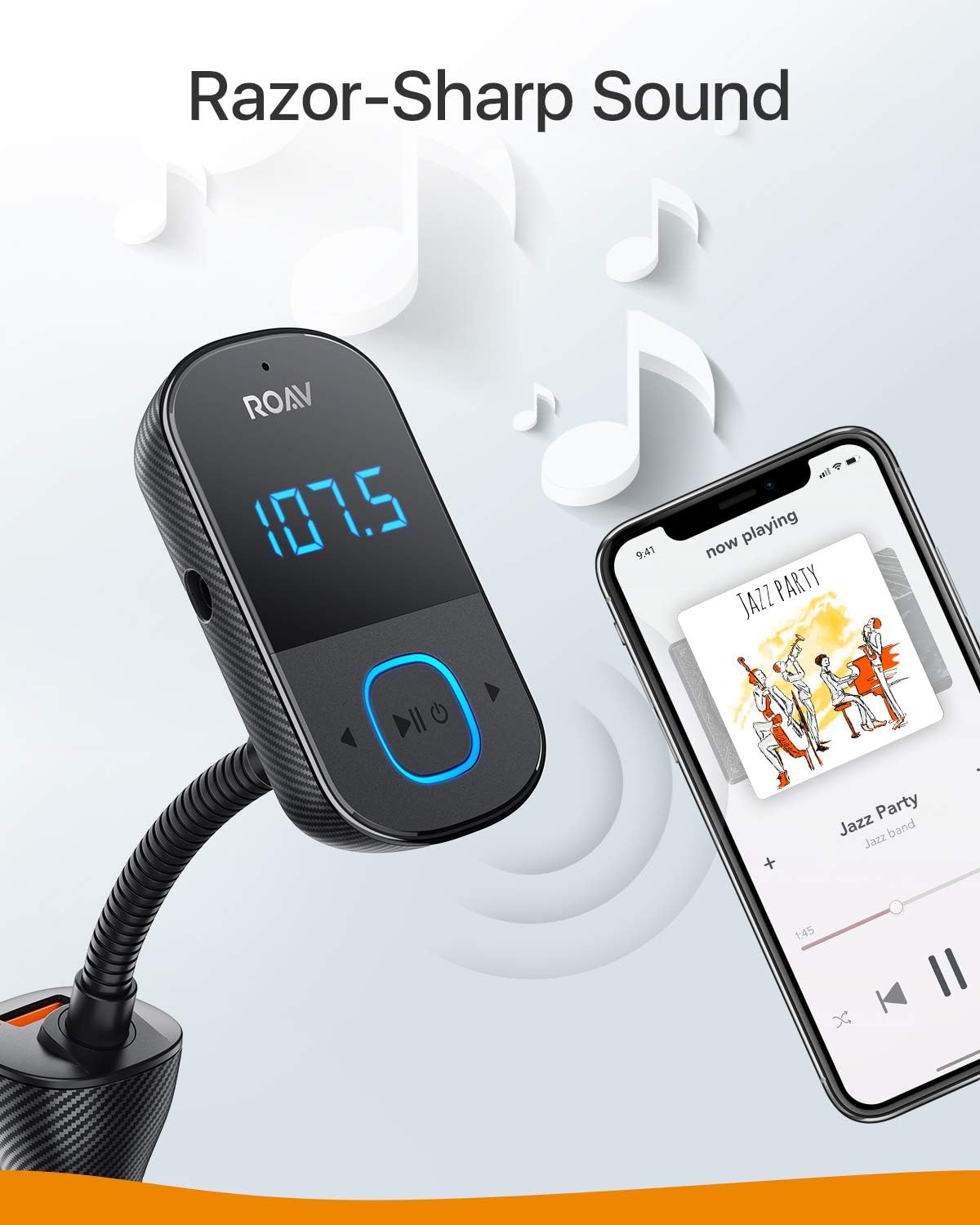
The SmartCharge T1 connected to a smartphone playing music, demonstrating its high-quality audio output.

An illustration showing the SmartCharge T1 facilitating a hands-free call with noise cancellation.
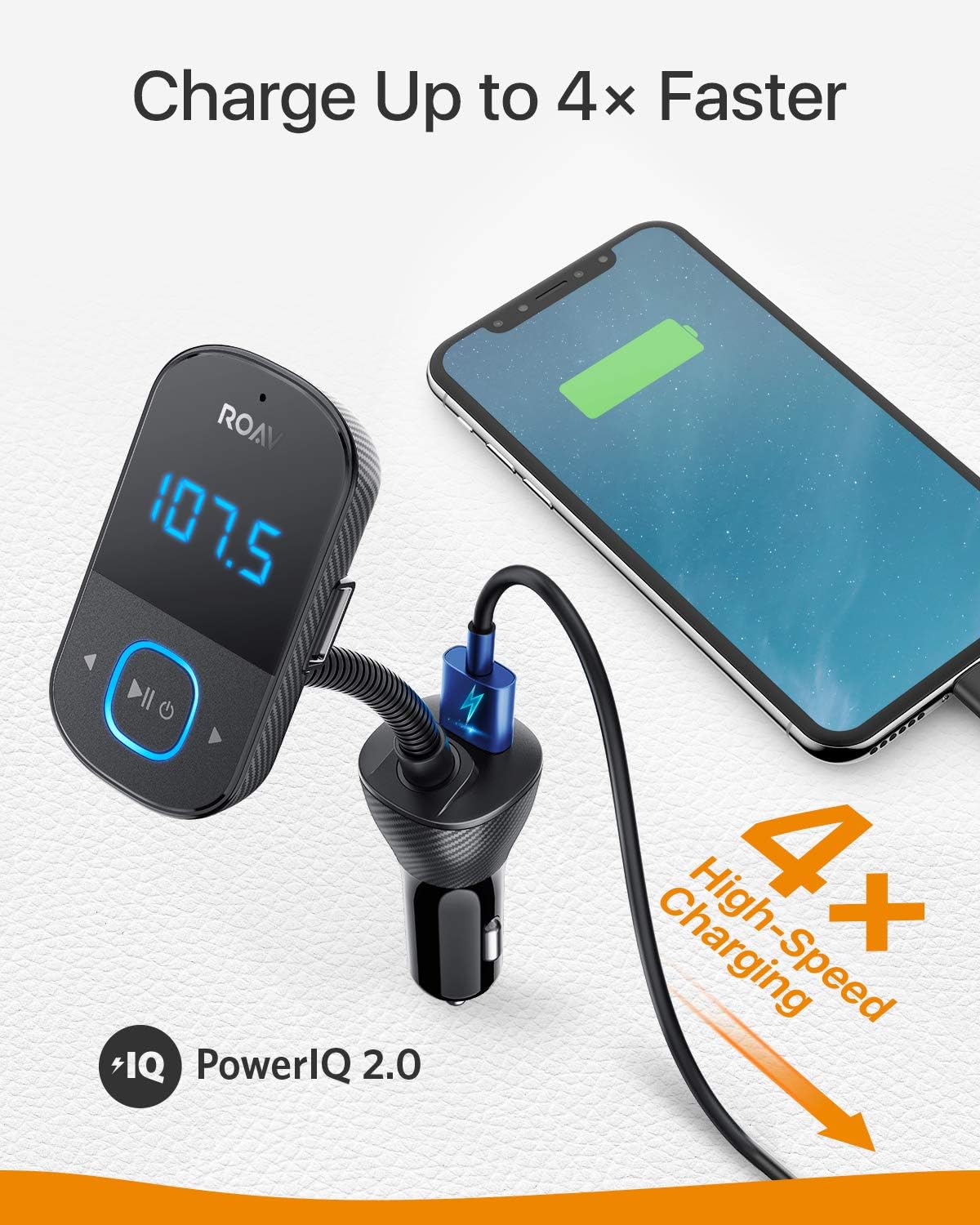
The SmartCharge T1 charging a smartphone via its PowerIQ 2.0 port, highlighting fast-charging capabilities.

A smartphone screen displaying a successful Bluetooth connection to the Roav T1, indicating seamless pairing.

Illustrations demonstrating the 90-degree rotation capability of the SmartCharge T1's flexible neck for optimal positioning in any car.
Setup Guide
- Plug In: Insert the SmartCharge T1 into your car's cigarette lighter socket. The LED display will light up.
- Tune FM Frequency: Find an empty FM frequency on your car's radio. An empty frequency is one with no active radio station, only static. Then, adjust the frequency on the SmartCharge T1 to match your car's radio. Use the frequency adjustment buttons on the device to change the frequency.
- Pair Bluetooth: On your smartphone or Bluetooth-enabled device, enable Bluetooth and search for available devices. Select "Roav T1" from the list to pair. Once paired, the device will confirm the connection.
- Test Audio: Play music from your paired device. The audio should now be transmitted through your car's speakers. Adjust the volume on your phone and car stereo for optimal sound.
Operating Instructions
Playing Music
- Once paired via Bluetooth, open your preferred music application on your smartphone.
- Start playing music. The audio will be transmitted to your car's FM radio.
- Use the play/pause and track skip buttons on the SmartCharge T1 to control playback.
Hands-Free Calling
- When a call comes in, press the multi-function button (usually the play/pause button) on the SmartCharge T1 to answer.
- To end a call, press the multi-function button again.
- To reject an incoming call, press and hold the multi-function button.
- The built-in microphone will pick up your voice, and the call audio will play through your car's speakers.
Charging Devices
- Connect your device's charging cable to the PowerIQ 2.0 USB port on the SmartCharge T1.
- The SmartCharge T1 will automatically detect your device and deliver the fastest possible charge.
Maintenance
- Keep the device clean by wiping it with a soft, dry cloth.
- Avoid exposing the device to extreme temperatures, direct sunlight, or moisture.
- Do not attempt to disassemble or repair the device yourself. Contact customer support if issues arise.
Troubleshooting
No Power / Device Not Turning On
- Ensure the SmartCharge T1 is securely plugged into the car's cigarette lighter socket.
- Check if the car's cigarette lighter socket is receiving power (e.g., by testing with another device).
Static or Poor Audio Quality
- Find a new, empty FM frequency on your car radio and the SmartCharge T1. Frequencies with strong existing radio stations will cause interference.
- Ensure the volume on your smartphone is set to a high level before adjusting the car stereo volume.
- Move the SmartCharge T1's flexible neck to a different position to optimize signal reception.
Bluetooth Disconnection / Unable to Pair
- Ensure Bluetooth is enabled on your smartphone and the SmartCharge T1 is powered on.
- Forget "Roav T1" from your phone's Bluetooth settings and attempt to re-pair.
- Restart both your smartphone and the SmartCharge T1.
Specifications
| Feature | Detail |
|---|---|
| Product Dimensions | 1.73 x 2.99 x 6.46 inches |
| Item Weight | 3.2 ounces (0.2 Pounds) |
| Model Number | R5133 |
| Connectivity Technology | Bluetooth, Auxiliary |
| Special Feature | LED Display |
| Color | Black |
| Power Source | Adapter (Car Cigarette Lighter) |
What's in the Box
- Roav SmartCharge T1
- Happy Card
- 12-month worry-free warranty information
- Friendly customer service contact details
Warranty and Support
Roav provides a 12-month worry-free warranty for the SmartCharge T1. If you encounter any issues with your product, please contact Roav customer service for assistance. They are committed to replacing any defective products, no questions asked, ensuring your satisfaction with their quality and innovation.

