
1. Introduction
This manual provides detailed instructions for the installation, operation, maintenance, and troubleshooting of your Thermaltake Toughpower iRGB Plus 750W 80+ Gold Power Supply. This fully modular digital power supply features a patented 16.8 million-color Ring Duo 14 RGB fan and supports Smart Power Management (SPM) for advanced control and monitoring.

Image 1.1: Front view of the Thermaltake Toughpower iRGB Plus 750W Power Supply, showcasing its design and RGB fan.
2. Safety Information
Please read and follow these safety guidelines carefully to prevent injury and damage to your equipment:
- Disconnect Power: Always disconnect the AC power cord from the wall outlet before installing, removing, or performing any maintenance on the power supply or other computer components.
- Do Not Open: The power supply unit contains high voltage components. Do not open the PSU casing. There are no user-serviceable parts inside. Opening the casing voids the warranty.
- Proper Grounding: Ensure your computer system is properly grounded to prevent electrical shock.
- Ventilation: Ensure adequate ventilation around the power supply. Do not block the fan or ventilation openings.
- Moisture and Temperature: Avoid exposing the power supply to moisture, high humidity, or extreme temperatures. Operate within the specified operating temperature range (0°C to +50°C).
- Correct Cables: Use only the modular cables provided with this power supply. Using incompatible cables may cause damage to the PSU or connected components.
3. Product Features
The Thermaltake Toughpower iRGB Plus 750W Power Supply offers several advanced features:
- Smart Power Management (SPM): Monitor real-time PSU, CPU, VGA, RAM, and HDD status, control lighting, and receive warning alerts via PC and mobile applications.
- Razer Chroma Compatibility: Synchronize gaming and RGB lighting effects with the Razer Chroma ecosystem for a unified lighting experience.
- Alexa Voice Control: Control lighting or fan speed by speaking to an Alexa-enabled device.
- Smart Zero Fan: The fan activates only when the power supply reaches 30% of its rated load, minimizing noise during low-load operation.
- Built-in Ring Duo RGB Fan: Features a 16.8 million-color Ring Duo 140mm RGB fan with 18 addressable LEDs to customize your build's aesthetics.

Image 3.1: Two views of the power supply highlighting the built-in 140mm Riing Duo RGB fan with 18 addressable LEDs.

Image 3.2: Top-down view of the power supply fan, showing the RGB lighting capabilities.
4. Package Contents
Verify that your package contains the following items:
- Thermaltake Toughpower iRGB Plus 750W Power Supply Unit
- AC Power Cord
- Modular Cable Set (as detailed below)
- Mounting Screws
- User Manual (this document)
Modular Cable Set:

Image 4.1: A table detailing the connector types, cable lengths, and quantities included with the 750W power supply.

Image 4.2: The power supply unit with its fully modular cable design, showing the various ports for connecting cables.
| Connector Type | Cable Length | Quantity |
|---|---|---|
| Main Power Connector (24 Pin) | 600mm | 1 |
| ATX 12V (4 + 4 Pin) | 650mm | 1 |
| SATA (5Pin) | 500mm+150mm+150mm+150mm+150mm | 9 |
| PCI-E (6 + 2 Pin) | 500mm+150mm+150mm | 4 |
| Peripheral (4 Pin) | 500mm+150mm+150mm+150mm | 4 |
| Floppy Adapter (4 Pin) | 100mm | 1 |

Image 4.3: The power supply unit shown with a selection of its modular cables connected, demonstrating the flexibility of the design.
5. Setup and Installation
Follow these steps to install your power supply:
- Prepare Your System: Ensure your computer is completely powered off and unplugged from the wall outlet. Open your computer case.
- Remove Old PSU (if applicable): Disconnect all cables from your old power supply and remove it from the case.
- Mount the New PSU: Place the Thermaltake Toughpower iRGB Plus 750W into the power supply bay of your computer case. Secure it with the provided mounting screws. Ensure the fan is facing the correct direction for optimal airflow (typically facing down if your case has a bottom vent, or up if it's a top-mounted PSU).
- Connect Essential Cables:
- Connect the 24-pin Main Power Connector to your motherboard.
- Connect the 4+4-pin ATX 12V Connector to your motherboard's CPU power socket.
- Connect the necessary 6+2-pin PCI-E Connectors to your graphics card(s).
- Connect SATA Power Connectors to your storage drives (HDDs, SSDs) and optical drives.
- Connect Peripheral (4-pin Molex) Connectors to any other components requiring them (e.g., case fans, fan controllers).
- If needed, use the Floppy Adapter for older devices.
- Connect USB Cable for Digital Control: Locate the USB port on the power supply and connect one end of the provided USB cable. Connect the other end to an available USB 2.0 header on your motherboard. This connection is essential for Smart Power Management (SPM) and RGB control software.
- Cable Management: Route cables neatly to improve airflow and aesthetics.
- Close Case and Power On: Close your computer case, connect the AC power cord to the power supply, and then plug it into a wall outlet. Flip the power switch on the back of the PSU to the 'ON' position.

Image 5.1: Rear panel of the power supply, indicating the AC power inlet and the main power switch.
6. Operating Instructions
Once installed, you can utilize the advanced features of your power supply:
6.1. Smart Power Management (SPM)
The SPM platform allows you to monitor and manage your power supply digitally. Download and install the Thermaltake SPM software from the official Thermaltake website. This software provides:
- Real-time monitoring of power consumption, efficiency, voltage, and temperature.
- Fan speed control and Smart Zero Fan mode management.
- Customizable warning alerts for abnormal conditions.
- Access via PC application and mobile app.
6.2. RGB Lighting Control
The iRGB Plus series offers extensive RGB lighting customization:
- TT RGB Plus Software: Use the Thermaltake TT RGB Plus software to customize the 16.8 million-color RGB fan. This software allows for various lighting modes, effects, and color synchronization with other compatible Thermaltake RGB products.
- Razer Chroma: Integrate your PSU's RGB lighting with the Razer Chroma ecosystem for synchronized effects across your Razer peripherals and other Chroma-compatible devices.
- Alexa Voice Control: If configured, you can use voice commands through an Alexa-enabled device to change lighting colors, effects, or adjust fan speed.
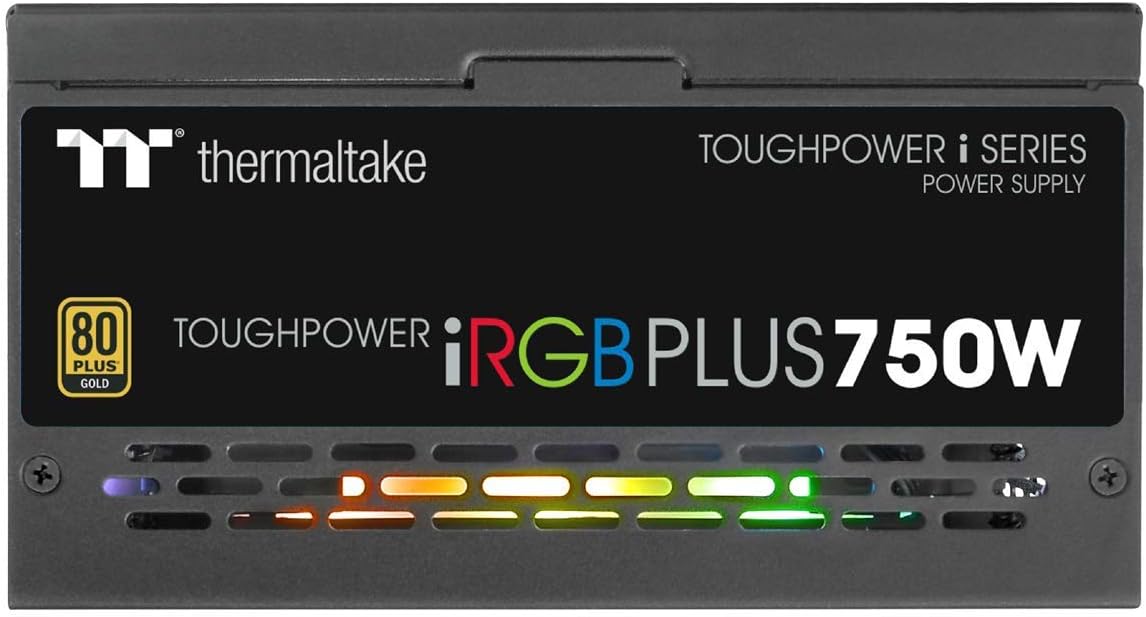
Image 6.1: Side view of the power supply, illustrating the vibrant RGB lighting effects.
7. Maintenance
Regular maintenance helps ensure the longevity and optimal performance of your power supply:
- Dust Removal: Periodically clean the power supply's fan and ventilation grilles using compressed air. Ensure the system is powered off and unplugged before cleaning.
- Cable Check: Occasionally check all modular cable connections to ensure they are securely seated.
- Software Updates: Keep the Thermaltake SPM and TT RGB Plus software updated to the latest versions for improved features and stability.
8. Troubleshooting
If you encounter issues with your power supply, refer to the following common troubleshooting steps:
- No Power:
- Ensure the AC power cord is securely plugged into both the PSU and the wall outlet.
- Verify the power switch on the back of the PSU is in the 'ON' position.
- Check all modular cable connections, especially the 24-pin and 4+4-pin motherboard connectors.
- Test the wall outlet with another device to ensure it has power.
- RGB Lighting Not Working:
- Ensure the internal USB cable from the PSU is correctly connected to a USB 2.0 header on your motherboard.
- Install or update the Thermaltake TT RGB Plus software.
- Check software settings to ensure RGB lighting is enabled and configured.
- Restart your computer.
- Smart Zero Fan Not Functioning / Fan Always On:
- The Smart Zero Fan feature only activates the fan when the PSU load exceeds 30%. If your system load is consistently above this threshold, the fan will remain on.
- Check the SPM software settings to ensure Smart Zero Fan mode is enabled.
- Ensure the internal USB cable is connected for software control.
- Software Glitches (SPM/TT RGB Plus):
- Ensure you have the latest version of the software installed from the official Thermaltake website.
- Temporarily disable any conflicting RGB software from other manufacturers.
- Check your firewall settings to ensure the software is not being blocked.
- Reinstall the software if issues persist.
9. Specifications
Detailed technical specifications for the Thermaltake Toughpower iRGB Plus 750W Power Supply:
| Feature | Specification |
|---|---|
| Model Number | PS-TPI-0750F3FDGU-1 |
| Type | ATX 12V V2.4 and EPS V2.92 |
| Max. Output Capacity | 750W |
| Peak Output Capacity | 900W |
| Dimension (W/H/D) | 150mm(W) x 86mm(H) x 160mm(D) |
| PFC (Power Factor Correction) | Active PFC |
| Efficiency | 80 PLUS Gold at 115Vac Input |
| Cooling System | 14cm Hydraulic bearing fan |
| MTBF (Mean Time Between Failures) | 120,000 hrs minimum |
| Safety Approval | CE/cTUVus/TUV/FCC/EAC/s-mark |
| Input Current | 10A max. |
| Input Frequency Range | 50Hz - 60Hz |
| Input Voltage | 100V – 240V~ |
| Operating Temperature | 0°C to +50°C |
| Operating Humidity | 20% to 90%, non-condensing |
| Storage Temperature | -20°C to +70°C |
| Storage Humidity | 5% to 95%, non-condensing |
| Capacitors | 100% Japanese 105°C/221°F |
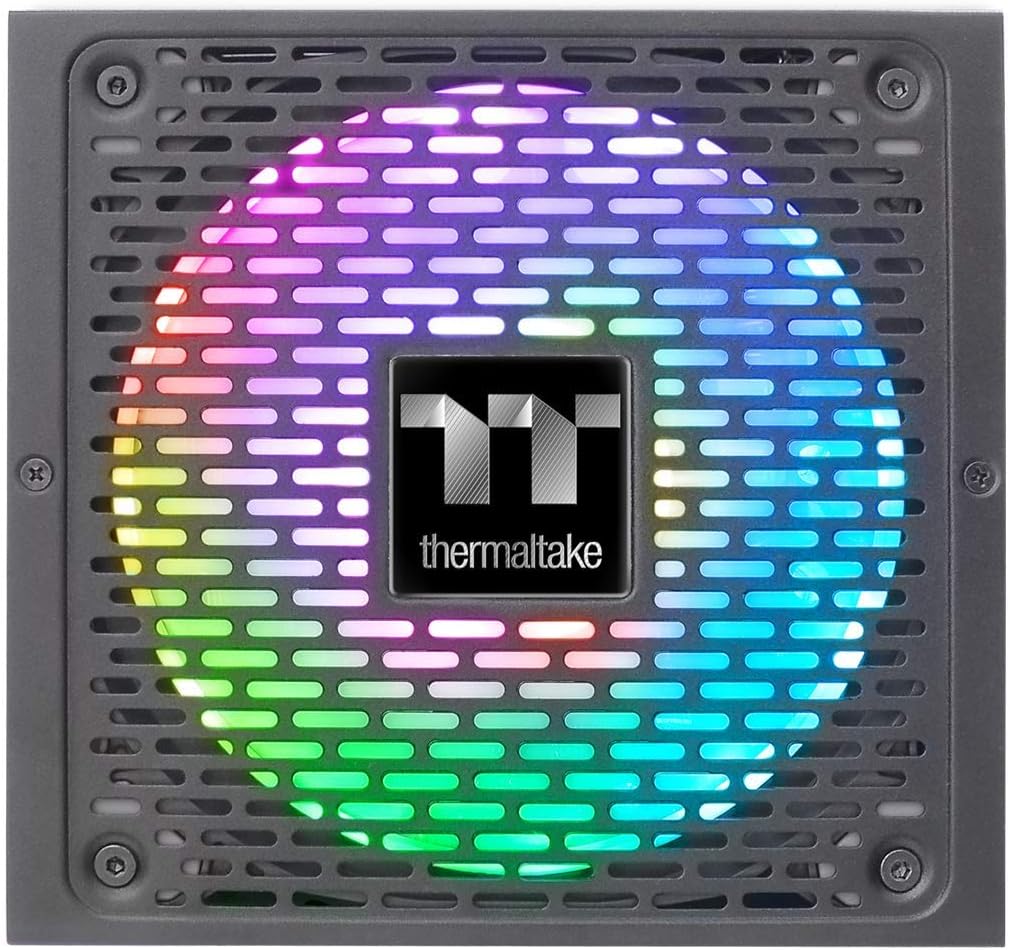
Image 9.1: Product label showing model number, input/output specifications, and safety warnings.

Image 9.2: Close-up internal view of the power supply, highlighting the 100% Japanese 105°C/221°F capacitors for enhanced durability and stability.

Image 9.3: An internal view of the power supply's circuit board and components, demonstrating quality construction.
10. Warranty Information
The Thermaltake Toughpower iRGB Plus 750W Power Supply comes with a 10-year warranty. This warranty covers defects in materials and workmanship under normal use. Please retain your proof of purchase for warranty claims. For full warranty terms and conditions, please refer to the official Thermaltake website or contact their customer support.
11. Support
For further assistance, technical support, or to download the latest software and drivers, please visit the official Thermaltake website:
You may also find helpful resources and FAQs on their support pages.
Official Product Video:
Video 11.1: An official product video demonstrating features and functionality of the Thermaltake Toughpower iRGB Plus Power Supply. This video provides a visual overview for users.


