
Introduction
This manual provides detailed instructions for the setup, operation, and maintenance of your ROAV DashCam Duo. This device is designed to record your driving environment and vehicle interior, offering enhanced safety and documentation for your journeys.
What's in the Box
- Roav DashCam Duo
- 2-port car charger
- 3.5 mm power cable
- 2-piece 3M mount
- Trim removal tool
- User manual
- Happy Card
Product Overview
The ROAV DashCam Duo features a compact design with dual cameras for comprehensive coverage. It includes intuitive controls and essential ports for easy operation and connectivity.

Figure 1: ROAV DashCam Duo with its suction cup mount and a display showing the interior camera view.
Camera Features
- Front Camera: 155° wide-angle, 1080p Full HD.
- Interior Camera: 110° wide-angle, 1080p Full HD, with 4 IR lights for night vision.
- Dual Sony Sensors: Equipped with 323 Sony sensors and F 1.8 lenses for enhanced image quality.
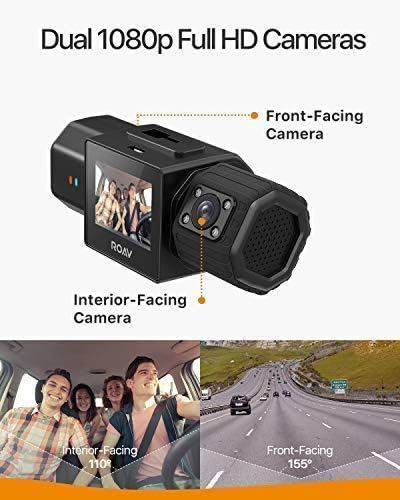
Figure 2: Illustration of the dual 1080p Full HD cameras, highlighting the 155° front-facing and 110° interior-facing angles.
Buttons and Ports
- Power Button: Located on the side, press and hold to power on/off. Also functions as an event recording button.
- Menu Buttons: Navigate menus, switch camera views, toggle microphone, and activate/deactivate Wi-Fi.
- USB-C Port: For data transfer to a computer.
- Micro SD Card Slot: For storage (supports up to 128GB, card not included).
- DC IN Port: For power connection via car charger.
Video 1: Detailed overview of the DashCam Duo's physical features, buttons, and ports, including how to connect power and remove the camera from its mount.
Setup
Mounting the Dash Cam
- Clean the desired mounting area on your windshield.
- Remove the protective film from the 3M adhesive on the mount.
- Firmly press the mount onto the upper mid-section of your windshield for optimal coverage.
Power Connection
- Connect the 3.5 mm power cable to the DC IN port on the dash cam's mount.
- Plug the 2-port car charger into your vehicle's 12V power outlet.
Inserting the Micro SD Card
- Locate the micro SD card slot on the side of the dash cam.
- Gently insert a compatible micro SD card (up to 128GB) until it clicks into place.
Operating Instructions
Basic Recording
- The DashCam Duo automatically begins recording when powered on.
- Press the camera icon button to toggle the screen on/off during recording.
Loop Recording
The dash cam records video in continuous loops, overwriting the oldest footage when the storage card is full. You can adjust the loop duration in the settings.

Figure 3: Display illustrating the loop recording function, showing how older footage is overwritten and support for up to 128GB Micro SD cards.
Emergency Recording
- The built-in G-sensor automatically detects collisions and records 10 seconds before and 20 seconds after the event.
- Emergency recordings are locked and will not be overwritten by loop recording.
- You can manually trigger an emergency recording by pressing the power/event button.

Figure 4: Screen capture showing the Emergency Recording Mode activated by the G-Sensor, indicating a collision event is being securely recorded.
Parking Mode
When enabled, parking mode monitors your vehicle 24 hours a day. If sudden movement is detected, the G-sensor activates the camera to record. Note: This feature requires a hardwire kit (not included).
Night Vision
Dual Sony sensors with F 1.8 lenses and NightHawk Vision technology provide clear night-time clarity. The interior camera includes 4 IR lights for enhanced visibility in low-light conditions.

Figure 5: Close-up of the interior camera, illustrating its Infrared Night Vision capabilities with 4 IR Lights for clear recording in dark environments.
GPS Tracking
The built-in GPS automatically records your driving route, location, and speed. This data can be viewed using the proprietary Anker software on your computer.
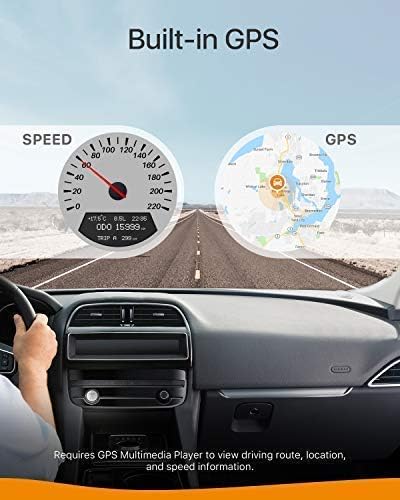
Figure 6: Visual representation of the built-in GPS feature, displaying vehicle speed and a map with the recorded driving route.
App Usage
The companion app allows you to view live footage, access recorded files, and adjust dash cam settings directly from your smartphone. Files are stored in an SD card folder and can be downloaded to your phone's local folder or synced to your photos app.
Voice Control
The dash cam supports voice commands for various functions, including taking photos, starting/stopping video, turning audio on/off, and controlling the screen and Wi-Fi. This feature can be enabled/disabled in the system settings.
Maintenance
- Regularly check the dash cam's mounting to ensure it remains secure.
- Clean the camera lenses periodically with a soft, dry cloth to ensure clear recordings.
- Format the micro SD card regularly (e.g., monthly) to maintain optimal performance and prevent data corruption.
Troubleshooting
- Recording Issues: Ensure the micro SD card is properly inserted and formatted. Check for sufficient storage space.
- Power Issues: Verify the car charger is securely plugged into the 12V outlet and the power cable is connected to the dash cam's DC IN port.
- GPS Not Tracking: Ensure the dash cam has a clear view of the sky for optimal GPS signal reception.
- App Connectivity: Confirm Wi-Fi is enabled on the dash cam and your smartphone is connected to the dash cam's Wi-Fi network.
Specifications
- Model Number: AK-R2130111
- Product Dimensions: 4.06 x 1.22 x 1.42 inches
- Item Weight: 5.6 ounces
- Video Capture Resolution: 1080p Full HD (Front & Interior)
- Field Of View: 155 Degrees (Front), 110 Degrees (Interior)
- Mounting Type: Adhesive sticker
- Manufacturer: Anker
- Date First Available: February 10, 2019
Warranty & Support
Your ROAV DashCam Duo comes with a