
Introduction
Thank you for choosing the DAP Audio COM-ART Wireless Audio Connection system. This device is designed to provide a reliable and high-quality wireless link for your audio signals, offering freedom from cables in various applications. This manual will guide you through the setup, operation, maintenance, and troubleshooting of your COM-ART system.
The COM-ART system typically consists of two main units: a transmitter (COM-AT) and a receiver (COM-AR), enabling a 2-channel wireless audio connection.
Product Overview
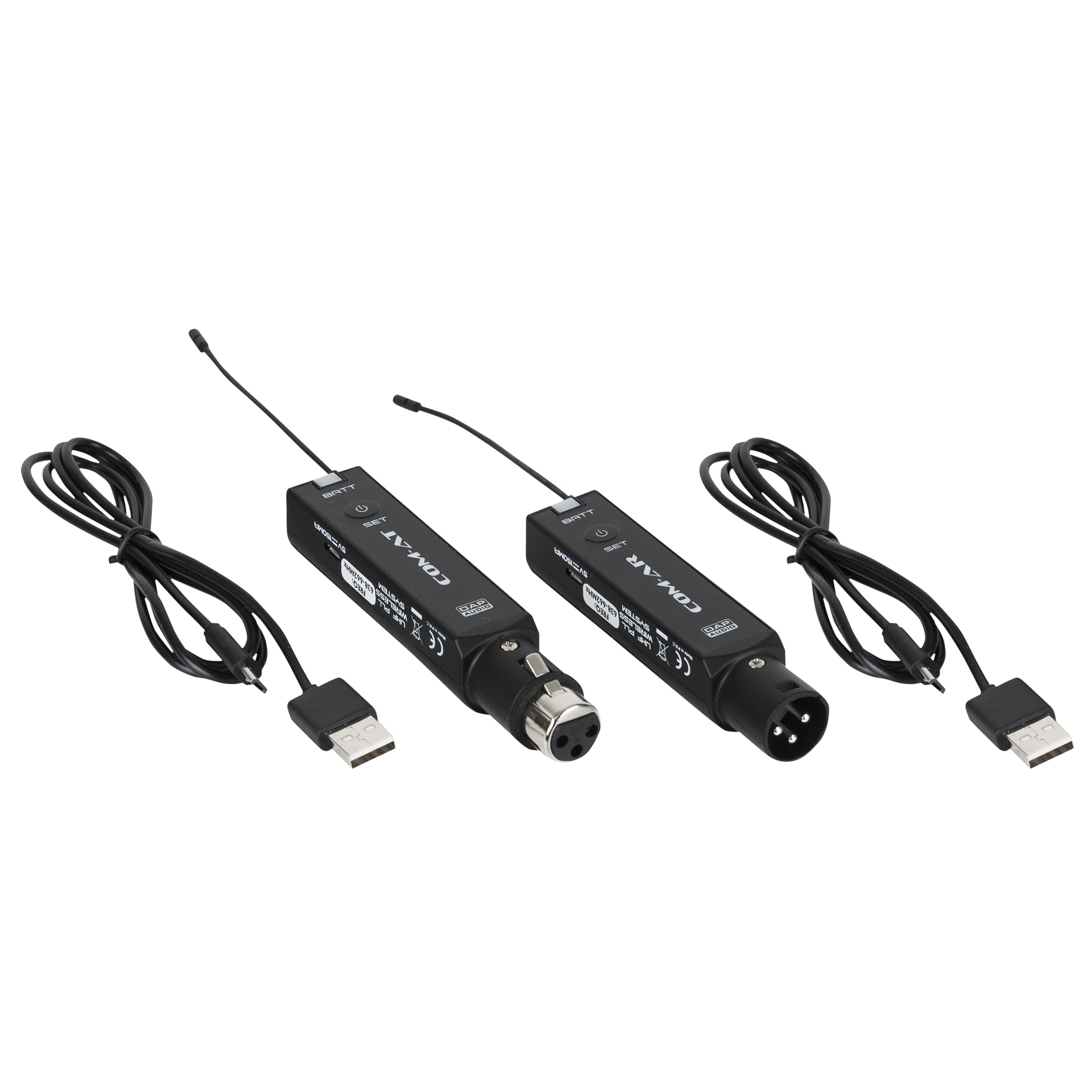
Image: The DAP Audio COM-ART Wireless Audio Connection system, showing both the transmitter (left, with XLR connector) and receiver (right, with 1/4-inch jack connector) units. Each unit features an antenna, a battery indicator (BATT), a power button, and a 'SET' button for configuration.
The COM-ART system provides a convenient solution for wireless audio transmission. The units are compact and designed for ease of use, featuring essential controls for power, battery status, and channel settings.
Setup
1. Unpacking and Inspection
- Carefully remove all components from the packaging.
- Inspect the units for any signs of damage during transit. If any damage is found, contact your dealer immediately.
- Ensure all listed components are present.
2. Battery Installation
- Locate the battery compartment on each unit.
- Insert the required batteries (type not specified, typically AA or AAA) according to the polarity markings inside the compartment.
- Close the battery compartment securely.
3. Connecting the Units
- Transmitter (COM-AT): Connect your audio source (e.g., microphone, instrument output) to the input connector of the COM-AT unit. The image suggests an XLR connector for the transmitter.
- Receiver (COM-AR): Connect the output connector of the COM-AR unit to your audio destination (e.g., mixer input, amplifier). The image suggests a 1/4-inch jack connector for the receiver.
4. Powering On and Pairing
- Press and hold the power button on both the transmitter and receiver units until they power on.
- Observe the 'BATT' indicator to ensure sufficient battery life.
- To pair the units or select a channel, press the 'SET' button. Follow the on-screen indicators (if any) or refer to specific pairing instructions provided with the product packaging for detailed steps. Ensure both units are set to the same channel for proper communication.
Operating
1. Power On/Off
- To power on, press and hold the power button until the unit activates.
- To power off, press and hold the power button until the unit shuts down.
2. Monitoring Battery Life
- The 'BATT' indicator provides information on the remaining battery life. Consult the product's specific documentation for indicator meanings (e.g., solid light, blinking, color changes).
- Replace batteries promptly when the indicator shows low power to avoid interruption during use.
3. Optimal Placement
- For best performance, ensure a clear line of sight between the transmitter and receiver antennas.
- Avoid placing units near large metal objects, walls, or other wireless devices that may cause interference.
- Keep the distance between the transmitter and receiver within the recommended operating range.
Maintenance
1. Cleaning
- Clean the units with a soft, dry cloth.
- Do not use abrasive cleaners, solvents, or harsh chemicals, as these can damage the finish or internal components.
2. Battery Care
- Remove batteries from the units if they will not be used for an extended period to prevent leakage and damage.
- Dispose of used batteries responsibly according to local regulations.
3. Storage
- Store the units in a cool, dry place, away from direct sunlight and extreme temperatures.
- Protect the units from dust and moisture.
Troubleshooting
No Audio Output
- Check Power: Ensure both the transmitter and receiver units are powered on and have sufficient battery life.
- Check Connections: Verify that all audio cables are securely connected to the correct input/output ports on both the COM-ART units and your audio equipment.
- Verify Pairing/Channel: Confirm that the transmitter and receiver are paired correctly and operating on the same channel. Re-pair if necessary using the 'SET' button.
- Audio Source/Destination: Ensure your audio source is producing a signal and your audio destination (mixer, amplifier) is correctly configured and powered.
Interference or Poor Signal Quality
- Distance: Reduce the distance between the transmitter and receiver.
- Obstacles: Ensure there are no large physical obstructions (e.g., walls, metal structures, people) between the units.
- Other Wireless Devices: Move the COM-ART system away from other wireless devices (Wi-Fi routers, other wireless microphones) that might be operating on similar frequencies.
- Change Channel: If available, try switching to a different operating channel using the 'SET' button to avoid interference.
Unit Not Powering On
- Check Batteries: Ensure batteries are correctly installed and fully charged or new.
- Battery Compartment: Verify the battery compartment is closed securely.
Specifications
| Feature | Specification |
|---|---|
| Brand Name | DAP Audio |
| Model Number | D1414 |
| Part Number | HD1414 |
| Number of Channels | 2 |
| Product Dimensions (as listed) | 0.18 x 0.13 x 0.03 cm; 120 g |
Note: The listed product dimensions appear to be for packaging or a small component. Actual unit dimensions may vary.
Warranty and Support
Information regarding warranty coverage and customer support for your DAP Audio COM-ART Wireless Audio Connection system is typically provided with the product packaging or available on the official DAP Audio website. Please refer to these resources for details on warranty periods, service procedures, and contact information for technical assistance.

