
Introduction
Welcome to the user manual for your KECHAODA A27 Mini Mobile Phone. This compact and functional keypad phone is designed for essential communication. This manual provides detailed instructions on how to set up, operate, maintain, and troubleshoot your device to ensure optimal performance. Please read this manual thoroughly before using your phone.
What's Included in the Box
Upon opening your KECHAODA A27 package, you should find the following items:
- KECHAODA A27 Mini Mobile Phone
- USB Charging Cable
- Rechargeable Lithium-Ion Battery
- User Manual (this document)
Note: A wall charger adapter is NOT included in the box. Please use a compatible USB charger (5V/1A recommended) to charge your device.
Product Overview
The KECHAODA A27 is a compact feature phone designed for portability and essential functions. It features a keypad for easy dialing and navigation, a small LCD display, and supports dual SIM cards.

Figure 1: Front and back view of the KECHAODA A27 Mini Mobile Phone in Gold. The back features the KECHAODA brand logo and speaker grille.

Figure 2: Side view of the KECHAODA A27 Mini Mobile Phone, showcasing its slim profile.
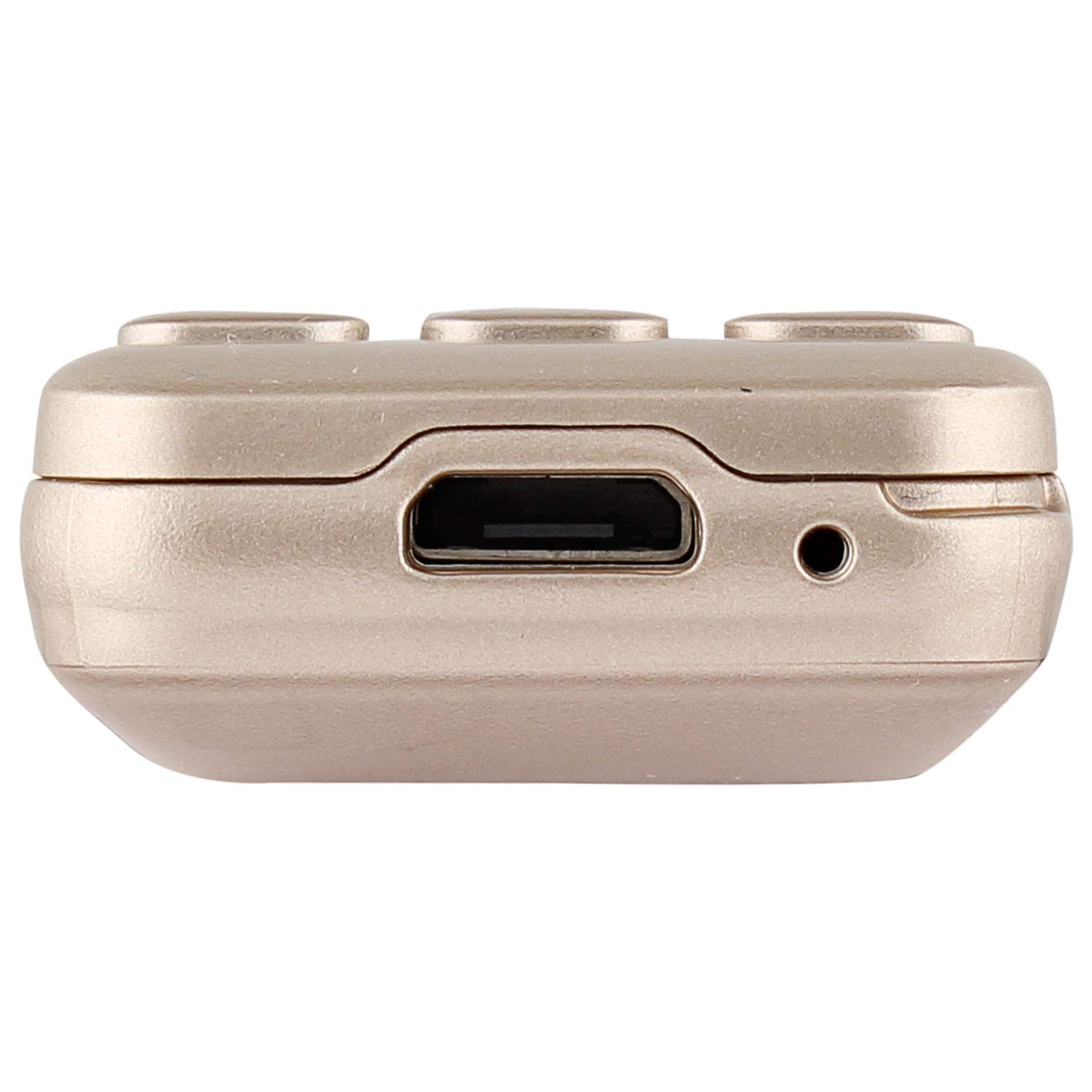
Figure 3: Top view of the KECHAODA A27 Mini Mobile Phone, highlighting the Micro USB charging port and a small audio jack (if present, based on image).
Product Overview Video
Video 1: A brief product overview of the KECHAODA A27 Mini Mobile Phone, demonstrating its size and key features.
Setup Guide
1. Inserting SIM Cards and Battery
- Remove the Back Cover: Gently pry open the back cover of the phone.
- Insert SIM Cards: Locate the SIM card slots. This phone supports dual SIM cards. Carefully insert your SIM cards into the designated slots with the gold contacts facing down. Ensure they are securely seated.
- Insert External Memory Card (Optional): If you wish to expand storage, insert a compatible external memory card (up to 16GB) into the dedicated slot.
- Insert Battery: Place the provided Lithium-Ion battery into the battery compartment, aligning the gold contacts on the battery with those in the phone.
- Replace Back Cover: Carefully align and snap the back cover back into place until it is secure.
2. Charging the Device
- Connect the small end of the USB charging cable to the Micro USB port on the top of your phone.
- Connect the larger end of the USB cable to a compatible USB wall adapter (not included) or a computer's USB port.
- The phone will indicate that it is charging. For initial use, it is recommended to charge the phone for approximately 30 minutes. Avoid overcharging.
3. Powering On/Off
- To Power On: Press and hold the Power/End Call button (usually marked with a red phone icon) until the screen lights up.
- To Power Off: Press and hold the Power/End Call button until the power-off options appear, then select "Power Off" or simply hold until the device shuts down.
Operating Instructions
Basic Navigation
- Use the directional keys (up, down, left, right) to navigate through menus.
- Press the OK/Select button (usually in the center of the directional keys) to confirm selections.
- Use the Back/Clear button to go back to the previous screen or delete characters.
- The Call button (green phone icon) is used to make calls or answer incoming calls.
- The End Call/Power button (red phone icon) is used to end calls or power the phone on/off.
Making and Receiving Calls
- To Make a Call: Enter the phone number using the keypad and press the Call button.
- To Answer a Call: When the phone rings, press the Call button.
- To End a Call: Press the End Call button.
Sending and Receiving SMS
- Navigate to the "Messages" menu.
- Select "Write Message" or "New SMS".
- Enter your message using the keypad.
- Enter the recipient's number or select from contacts.
- Select "Send".
Bluetooth Connectivity
The KECHAODA A27 supports Bluetooth 2.0 for connecting to compatible devices like headsets or for use as a Bluetooth dialer.
- Go to "Settings" > "Bluetooth".
- Turn Bluetooth "On".
- Select "Search for devices" or "Pair new device".
- Select your desired device from the list and follow on-screen prompts to pair.
- The phone can also synchronize your contact list via Bluetooth.
MP3 Playback
If an external memory card with MP3 files is inserted, you can play music:
- Navigate to the "Multimedia" or "Music Player" menu.
- Select "Play" to start music playback.
Using the Camera
The phone includes a basic VGA rear camera.
- Go to the "Camera" application from the main menu.
- Use the OK/Select button to take a photo.
Maintenance
Battery Care
- To prolong battery life, avoid fully discharging the battery frequently.
- Charge the mobile for approximately 30 minutes and then remove it from charging. Avoid leaving it connected for extended periods after it's fully charged.
- Do not expose the battery to extreme temperatures.
Cleaning Your Phone
- Use a soft, dry, lint-free cloth to clean the phone's exterior.
- Avoid using harsh chemicals, cleaning solvents, or strong detergents.
Storage
- Store the phone in a cool, dry place away from direct sunlight and extreme temperatures.
- If storing for an extended period, ensure the battery is partially charged (around 50%) to prevent deep discharge.
Troubleshooting
| Problem | Possible Cause | Solution |
|---|---|---|
| Phone does not power on. | Battery is depleted or not inserted correctly. | Ensure the battery is correctly inserted and charged. Connect to a charger for at least 30 minutes. |
| No network signal. | SIM card not inserted correctly or out of network coverage. | Check SIM card insertion. Move to an area with better network coverage. |
| Cannot make or receive calls/SMS. | SIM card issues, network problem, or insufficient balance. | Verify SIM card status and network connection. Contact your service provider. |
| Bluetooth not connecting. | Bluetooth is off or device is out of range. | Ensure Bluetooth is enabled on both devices and they are within pairing range. Try re-pairing. |
| Short battery life. | Frequent usage, old battery, or improper charging. | Reduce usage, ensure proper charging cycles (30 mins charge, avoid overcharging). Consider replacing the battery if it's old. |
Specifications
| Model | A27 |
| Brand | KECHAODA |
| Display Size | 0.66 Inches |
| Display Type | LCD |
| RAM Size | 32 MB |
| Internal Storage | 16 GB (expandable via external memory slot) |
| Operating System | Symbian 9.3 |
| Processor Speed | 400 MHz |
| Cellular Technology | 2G (GSM) |
| Connectivity | Bluetooth, USB |
| Battery Capacity | 300 mAh Lithium-Ion |
| Camera | VGA Rear Camera |
| Product Dimensions | 7 x 3 x 1.5 Centimeters |
| Item Weight | 100 g |
| Material | Plastic |
Warranty and Support
Your KECHAODA A27 Mini Mobile Phone comes with a standard brand warranty. For specific details regarding the warranty period, terms, and conditions, please refer to the warranty card included in your product packaging or visit the official KECHAODA product detail page where you purchased the device.
For further assistance, technical support, or replacement policy information, please visit the product detail page on the retailer's website or contact KECHAODA customer service.


