
Introduction
This manual provides detailed instructions for the installation, operation, and maintenance of your CP PLUS CP-UNC-C13L1-VMW 1.3 MP HD WiFi IR Cube Camera. Please read this manual thoroughly before using the product to ensure correct usage and optimal performance.
The CP-UNC-C13L1-VMW is a versatile 1.3 Megapixel HD camera designed for both indoor and outdoor surveillance, featuring Wi-Fi connectivity and infrared (IR) night vision for comprehensive monitoring.
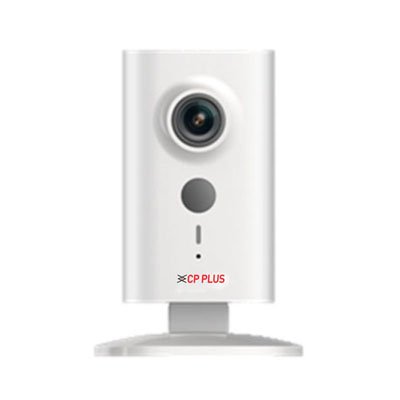
Image: Front view of the CP PLUS CP-UNC-C13L1-VMW 1.3 MP HD WiFi IR Cube Camera. The camera is white, rectangular, with a lens at the top, a grey button below it, and an indicator light and 'CP PLUS' logo at the bottom. It stands on a clear, flat base.
Package Contents
- CP PLUS CP-UNC-C13L1-VMW Camera
- Power Adapter
- Mounting Kit (screws, wall plugs)
- Quick Start Guide
Setup
1. Physical Installation
- Choose a Location: Select a suitable indoor or outdoor location for the camera. Ensure it is within range of your Wi-Fi network and a power outlet. The camera supports surface mounting.
- Mount the Camera: Use the provided mounting kit to securely attach the camera to a wall or ceiling. Ensure the camera is positioned to cover the desired surveillance area.
- Connect Power: Plug the power adapter into the camera's power input port and then into a standard electrical outlet. The camera's indicator light should illuminate.
2. Network Connection (Wi-Fi)
- Download the App: Search for the official CP PLUS mobile application on your Android device's app store. Install the application.
- Create an Account: Open the app and follow the on-screen instructions to create a new user account or log in if you already have one.
- Add Device: In the app, select the option to 'Add Device' or 'Add Camera'.
- Scan QR Code/Manual Input: Follow the app's instructions to either scan a QR code on the camera (if available) or manually input the device ID.
- Connect to Wi-Fi: The app will guide you through connecting the camera to your home Wi-Fi network. Ensure your mobile device is connected to the same 2.4GHz Wi-Fi network you intend to use for the camera.
- Complete Setup: Once connected, you can name your camera and complete the initial setup process.
Operating the Camera
1. Live View
- Open the CP PLUS app on your mobile device.
- Select your camera from the device list to view the live feed.
- You can switch between standard definition (SD) and high definition (HD) video quality within the live view interface.
2. Recording and Playback
- The camera supports continuous recording or event-triggered recording (e.g., motion detection).
- To access recorded footage, navigate to the 'Playback' section within the app.
- Select the date and time to review recorded events.
3. Motion Detection
- Enable motion detection in the camera settings within the app.
- Adjust sensitivity levels to minimize false alarms.
- Configure notification settings to receive alerts on your mobile device when motion is detected.
4. Night Vision
- The camera automatically switches to infrared (IR) night vision mode in low-light conditions.
- This provides clear black and white video footage up to 10 meters in complete darkness.
Maintenance
1. Cleaning
- Ensure the camera is powered off before cleaning.
- Use a soft, dry cloth to wipe the camera body.
- For the lens, use a specialized lens cleaning cloth and solution to avoid scratches.
- Do not use harsh chemicals or abrasive cleaners.
2. Firmware Updates
- Regularly check for firmware updates through the CP PLUS mobile application.
- Firmware updates can improve performance, add new features, and enhance security.
- Follow the in-app instructions carefully during the update process. Do not power off the camera during an update.
3. Storage Management
- If using a local storage card (not included), ensure it is formatted periodically to maintain optimal recording performance.
- Manage cloud storage settings (if subscribed) through the mobile application.
Troubleshooting
| Problem | Possible Cause | Solution |
|---|---|---|
| Camera not powering on | No power supply; faulty adapter | Check power connection; try a different outlet; ensure adapter is working. |
| Unable to connect to Wi-Fi | Incorrect Wi-Fi password; camera too far from router; 5GHz network used | Verify password; move camera closer to router; ensure router is broadcasting 2.4GHz Wi-Fi. |
| Poor video quality | Weak Wi-Fi signal; dirty lens | Improve Wi-Fi signal strength; clean the camera lens. |
| Motion detection not working | Feature disabled; incorrect sensitivity settings | Enable motion detection in app; adjust sensitivity. |
Specifications
| Feature | Detail |
|---|---|
| Model | CP-UNC-C13L1-VMW |
| Brand | CP PLUS |
| Resolution | 1.3 MP HD (Video Capture Resolution: 720p) |
| Connectivity Technology | Wireless (Wi-Fi) |
| Indoor/Outdoor Usage | Indoor, Outdoor |
| Power Source | Corded Electric |
| Controller Type | Android (via mobile application) |
| Mounting Type | Surface Mount |
| Item Weight | 240 g |
| Package Dimensions | 18.8 x 10.2 x 9.2 cm |
Warranty and Support
For warranty information, please refer to the warranty card included with your product or visit the official CP PLUS website. Keep your purchase receipt as proof of purchase.
If you encounter any issues not covered in this manual or require technical assistance, please contact CP PLUS customer support. Contact details can typically be found on the product packaging, the official website, or within the mobile application.
