
Product Overview
The Logitech Rally Camera is a premium PTZ (Pan-Tilt-Zoom) camera designed for professional meeting spaces. It features an Ultra-HD imaging system, advanced optics, and RightSense automation to deliver high-quality video for conferencing services. The camera supports resolutions up to 4K and includes automatic light balance, color optimization (RightLight), and automatic framing (RightSight) for optimal participant visibility.
- Premium PTZ camera with Ultra-HD imaging system and automatic camera control.
- Advanced optics and breakthrough technologies for premium performance in various meeting spaces.
- Ultra-HD imaging system delivers sharp video, outstanding color, and exceptional optical accuracy at resolutions up to 4K.
- Versatile placement: table, tripod, or wall-mounted with included hardware.
- Automatic image orientation and camera control correction for overhead installations.
Setup Guide
Follow these steps to set up your Logitech Rally Conference Camera:
- Unpack the Camera: Carefully remove all components from the packaging. Ensure you have the camera unit, remote control, USB cable, power cord, and mounting hardware.
- Power Connection: Connect the power cord to the camera and plug it into a power outlet.
- USB Connection: Connect the camera to your computer using the provided USB cable. The camera is plug-and-play and typically does not require additional drivers.
- Remote Control Setup: Insert the included batteries into the remote control.
- Mounting Options: The camera can be placed on a table, mounted on a tripod, or secured to a wall using the provided mounting bracket. For wall mounting, attach the bracket securely to the wall, then attach the camera to the bracket using the standard threaded screw.

Image: Logitech Rally Camera unit with its accompanying remote control. The camera features a sleek black design with a prominent lens and a sturdy base.
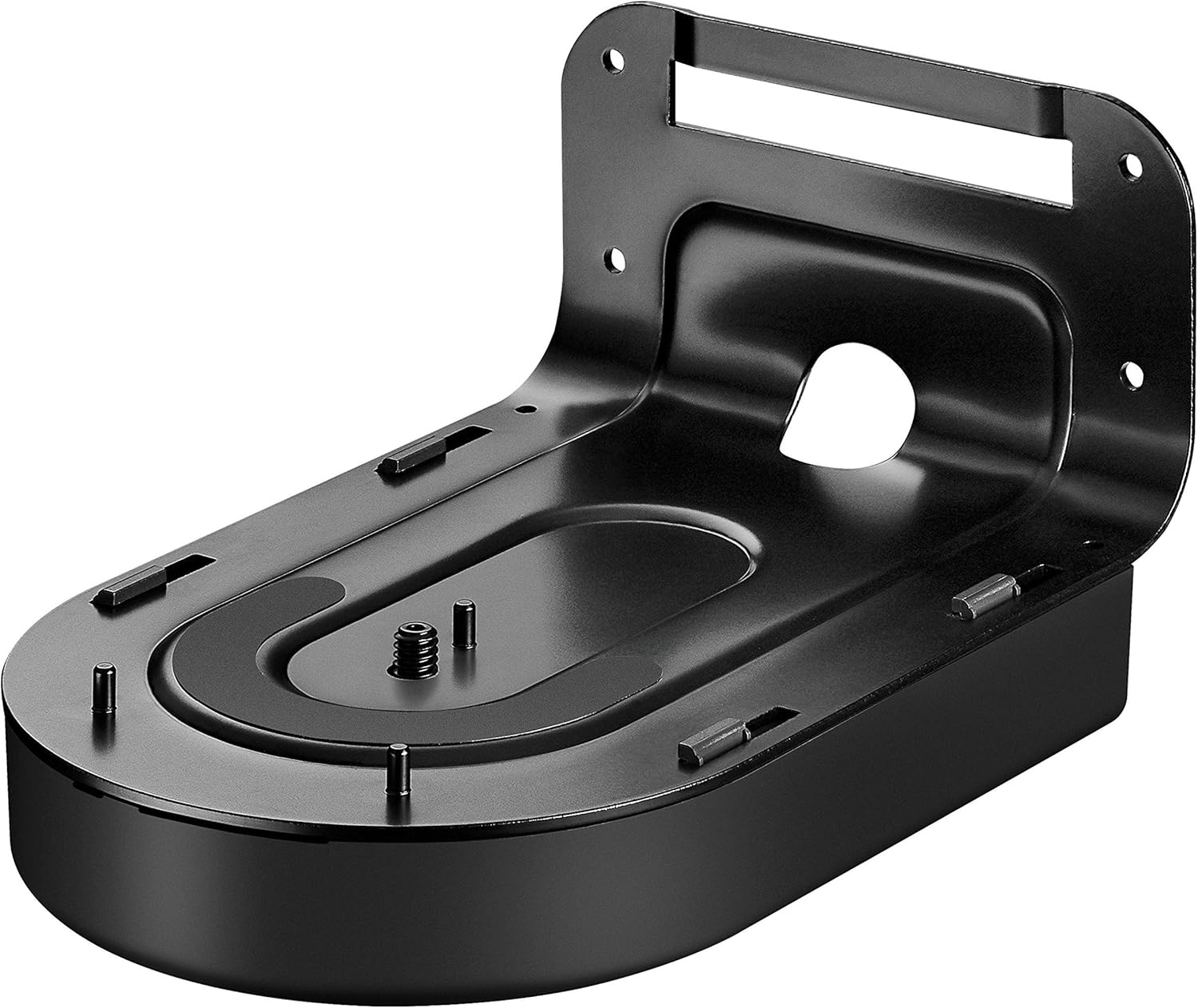
Image: The black metal mounting bracket for the Logitech Rally Camera, designed for secure wall or ceiling installation. It includes screw holes and a threaded attachment point for the camera.
Operating Instructions
Once the camera is set up and connected, you can begin using it for your video conferences. The camera's PTZ functions and advanced features are controlled via the included remote or compatible software.
- Power On/Off: The camera powers on automatically when connected to power and a computer.
- Pan, Tilt, Zoom (PTZ): Use the directional buttons on the remote control to pan (move horizontally) and tilt (move vertically) the camera. Use the zoom in/out buttons to adjust the optical and digital zoom.
- RightSight Technology: The camera automatically frames participants in the room, adjusting pan, tilt, and zoom as needed. This feature ensures all participants are visible without manual intervention.
- RightLight Technology: The camera automatically optimizes light balance and color for natural-looking skin tones, even in challenging lighting conditions.
- Preset Positions: Program up to three preset camera positions using the remote control for quick recall during meetings.
- Video Mute: Use the dedicated button on the remote to quickly mute the video feed if needed.
- Image Inversion: If the camera is mounted upside down (e.g., from a ceiling), use the inversion button on the remote to correct the image orientation.
Video: A demonstration of AI-powered PTZ camera capabilities, showcasing features like auto-leveling, gesture control, 5x optical zoom (12x hybrid zoom), 4K shooting, AI tracking, and various professional connections. This video illustrates the advanced functionalities typically found in high-end PTZ cameras like the Logitech Rally.
Maintenance
To ensure optimal performance and longevity of your Logitech Rally Camera, follow these maintenance guidelines:
- Cleaning: Use a soft, dry cloth to clean the camera lens and body. Avoid abrasive cleaners or solvents that could damage the surfaces.
- Lens Care: Keep the lens cap on when the camera is not in use to protect it from dust and scratches.
- Cable Management: Ensure all cables are neatly organized and not under strain to prevent damage.
- Software Updates: Periodically check the Logitech support website for firmware and software updates to ensure your camera has the latest features and performance enhancements.
Troubleshooting
If you encounter issues with your Logitech Rally Camera, refer to the following common troubleshooting steps:
- No Video Output: Ensure the camera is properly connected to power and the computer via USB. Check if the video application (e.g., Zoom, Teams) is correctly configured to use the Rally Camera as its video source.
- No Power: Verify that the power adapter is securely connected to both the camera and a working power outlet.
- Poor Image Quality: Check your lighting conditions. Ensure the lens is clean and free of obstructions. Adjust camera settings (brightness, contrast, white balance) via the remote or software if manual control is preferred over RightLight.
- PTZ Not Responding: Ensure the remote control batteries are fresh and correctly inserted. Point the remote directly at the camera. If using software control, verify the software is properly installed and connected.
- Audio Issues: The Rally Camera is primarily a video device and does not include built-in microphones. Ensure you have a separate audio input device (e.g., Rally Mic Pods, speakerphone) connected and configured for your conference.
Technical Specifications
| Brand Name | Logitech |
| Item Weight | 0.01 ounces |
| Product Dimensions | 11.8 x 11.1 x 7.7 inches |
| Item Model Number | 960-001226 |
| Color Name | Black |
| Special Features | Low Light, Rally Camera, 1920 x 1080 |
| Photo Sensor Technology | CMOS |
| Video Capture Resolution | 4K |
| Maximum Focal Length | 30 Millimeters |
| Maximum Aperture | 3.5 f |
| Flash Memory Type | SD |
| Video Capture Format | MP4 |
| Screen Size | 5.8 Inches |
| Connectivity Technology | USB |
Package Contents
The Logitech Rally Conference Camera package includes the following items:
- Logitech Rally Camera Unit
- Remote Control
- USB Cable
- Power Adapter
- Mounting Bracket with Hardware
- User Manual
Warranty and Support
Logitech products are designed for reliability and performance. For warranty information, please refer to the warranty card included in your product packaging or visit the official Logitech support website. The website also provides access to drivers, software, FAQs, and contact information for technical assistance.
For further assistance, please visit Logitech Support.


