
1. Introduction
The Ewent EW3945 Uninterruptible Power Supply (UPS) is designed to protect your electronic devices, such as computers, monitors, and networking equipment, from power outages, voltage fluctuations, and surges. This Line Interactive UPS features Automatic Voltage Regulation (AVR) to stabilize incoming power and provides battery backup to allow for safe shutdown during power interruptions. This manual provides essential information for the proper installation, operation, and maintenance of your EW3945 UPS.
2. Safety Information
Please read and follow all safety instructions carefully before installing or operating the UPS. Failure to do so may result in damage to the unit, connected equipment, or personal injury.
- Do not open the UPS casing. There are no user-serviceable parts inside. Refer all servicing to qualified service personnel.
- Do not block ventilation openings. Ensure adequate airflow around the UPS.
- Do not expose the UPS to rain, moisture, or excessive humidity.
- Connect the UPS to a grounded AC power outlet only.
- Ensure the total load of connected equipment does not exceed the UPS's rated capacity.
- In case of fire, use a dry chemical fire extinguisher. Water can cause electrical shock.
3. Product Overview
3.1 Package Contents
- Ewent EW3945 UPS Unit
- Power Cable (IEC C14 to Schuko)
- User Manual
3.2 Unit Features
- Line Interactive Technology: Provides stable power output and protects against voltage fluctuations.
- Automatic Voltage Regulation (AVR): Corrects minor power fluctuations without switching to battery power, extending battery life.
- 6 Output Connectors: Includes 6 EU Type F outlets, with 3 offering battery backup and surge protection, and 3 offering surge protection only.
- Comprehensive Protection: Safeguards against surges, short circuits, overloads, and battery overcharge/overdischarge.
- Audible Alarms & LED Indicators: Provides clear status updates and alerts during power events.
- Wall-Mountable Design: Offers flexible placement options.
3.3 Front Panel and Indicators
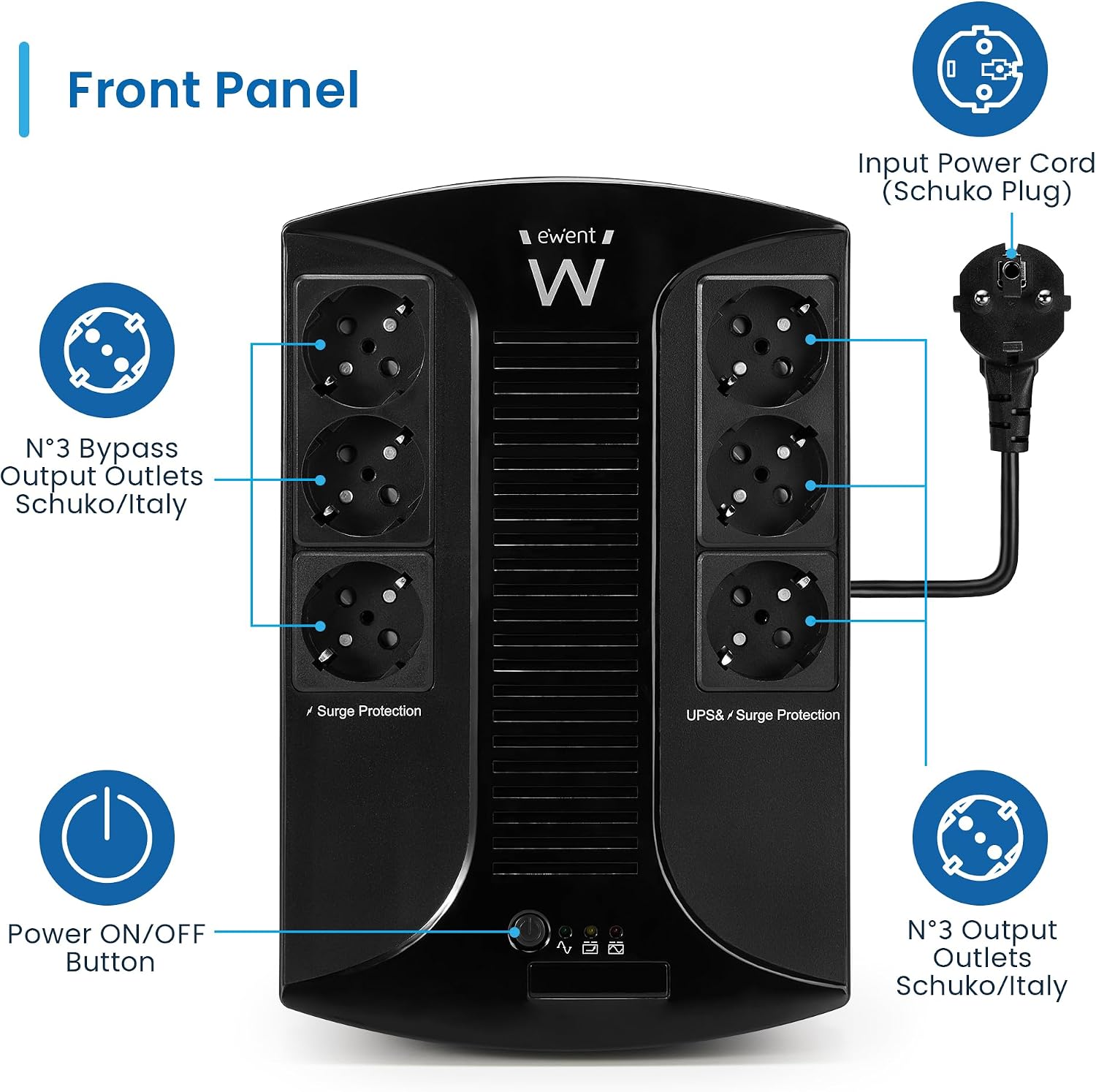
Figure 1: Front Panel Layout with Input and Output Ports
The front panel features the power button and LED indicators for operational status. The rear of the unit (or top, depending on orientation) houses the input power cord connection and the six output receptacles.

Figure 2: Detailed View of Control Panel LEDs
- Power ON/OFF Button: Controls the main power to the UPS.
- LED Line Indicator: Illuminates when the UPS is operating on utility power.
- LED Battery Indicator: Illuminates when the UPS is operating on battery power.
- LED Back-up Indicator: Indicates the battery backup status.
- Emergency Back-up Warning Light: Flashes or illuminates to indicate a critical status or fault.
4. Setup and Installation
4.1 Unpacking and Placement
- Carefully unpack the UPS and inspect it for any shipping damage. If damage is found, do not install and contact your dealer.
- Place the UPS in a clean, dry, and well-ventilated area, away from direct sunlight, heat sources, and excessive dust.
- Ensure the ambient temperature is within the operating range of 0°C to 40°C.
- The UPS can be placed on a flat surface or wall-mounted using appropriate hardware (not included).
4.2 Initial Charging
Before initial use, connect the UPS to a standard grounded AC outlet and allow it to charge for at least 6-8 hours without any load. This ensures the internal battery is fully charged and ready to provide optimal backup time.

Figure 3: UPS Charging and Operation Overview
4.3 Connecting Equipment
The EW3945 features six EU Type F output connectors. It is crucial to understand which outlets provide battery backup and surge protection, and which provide surge protection only.
- Battery Backup & Surge Protection Outlets (3 outlets): Connect critical devices such as your computer, monitor, and router to these outlets. These devices will remain powered during a power outage.
- Surge Protection Only Outlets (3 outlets): Connect non-critical devices like printers, scanners, or lamps to these outlets. These devices will be protected from surges but will lose power during an outage.
Simply plug your devices into the appropriate outlets on the UPS. Ensure all connections are secure.

Figure 4: Example Applications for the EW3945 UPS
5. Operation
5.1 Powering On/Off
- To Power On: Press and hold the Power ON/OFF button for approximately 3 seconds until you hear a beep and the LED indicators illuminate.
- To Power Off: Press and hold the Power ON/OFF button for approximately 3 seconds until the LED indicators turn off.
5.2 Understanding LED Indicators and Alarms
The LED indicators on the front panel provide real-time status of the UPS. Audible alarms will sound to alert you to specific conditions.
| Indicator/Alarm | Status/Sound | Description |
|---|---|---|
| LED Line | Solid Green | UPS is operating on utility power. |
| LED Battery | Solid Yellow | UPS is operating on battery power (power outage). |
| LED Back-up | Flashing Yellow | Battery is low or nearing end of backup time. |
| Emergency Back-up | Solid Red / Continuous Beep | Overload, fault, or critical battery level. |
| Audible Alarm | Beeping (e.g., every 10 seconds) | Indicates power failure and UPS is on battery. |
| Audible Alarm | Rapid Beeping | Indicates low battery or overload condition. |
5.3 Power Outage and Battery Backup
During a power outage, the UPS will automatically switch to battery power. An audible alarm will sound, and the LED Battery indicator will illuminate. The EW3945 provides approximately 10 minutes of backup time for a 120W load, allowing you to save your work and safely shut down connected equipment.

Figure 5: Low Switching Time and Waveform Information
The UPS features a low switching time (2-8ms typical, 10ms maximum) to ensure a seamless transition to battery power. In battery mode, the UPS outputs a simulated sine wave.
6. Maintenance
6.1 Battery Care
The internal battery is designed for a long service life, which is further extended by the UPS's AVR technology. To maximize battery life:
- Keep the UPS connected to AC power to ensure the battery remains charged.
- Avoid frequent deep discharges.
- Operate the UPS within the recommended temperature range.
6.2 Cleaning
Periodically clean the exterior of the UPS with a soft, dry cloth. Do not use liquid or aerosol cleaners. Ensure ventilation openings are free from dust and debris.
6.3 Storage
If storing the UPS for an extended period, ensure the battery is fully charged. Store it in a cool, dry place. Recharge the battery every three months to prevent permanent damage.
7. Troubleshooting
This section addresses common issues you might encounter with your EW3945 UPS. If the problem persists after following these steps, please contact Ewent support.
| Problem | Possible Cause | Solution |
|---|---|---|
| UPS does not turn on | No AC input power Low battery UPS fault | Check AC power connection and wall outlet. Charge the UPS for 6-8 hours. Contact support. |
| UPS beeps continuously / Red LED | Overload Battery fault Internal fault | Reduce connected load. Allow UPS to cool down. Contact support. |
| Short backup time | Battery not fully charged Battery nearing end of life Excessive load | Charge UPS for 6-8 hours. Consider battery replacement (contact support). Reduce connected load. |
| UPS does not provide power during outage | Devices connected to surge-only outlets UPS not turned on Battery completely discharged | Ensure critical devices are in battery backup outlets. Press power button to turn on UPS. Charge UPS for 6-8 hours. |
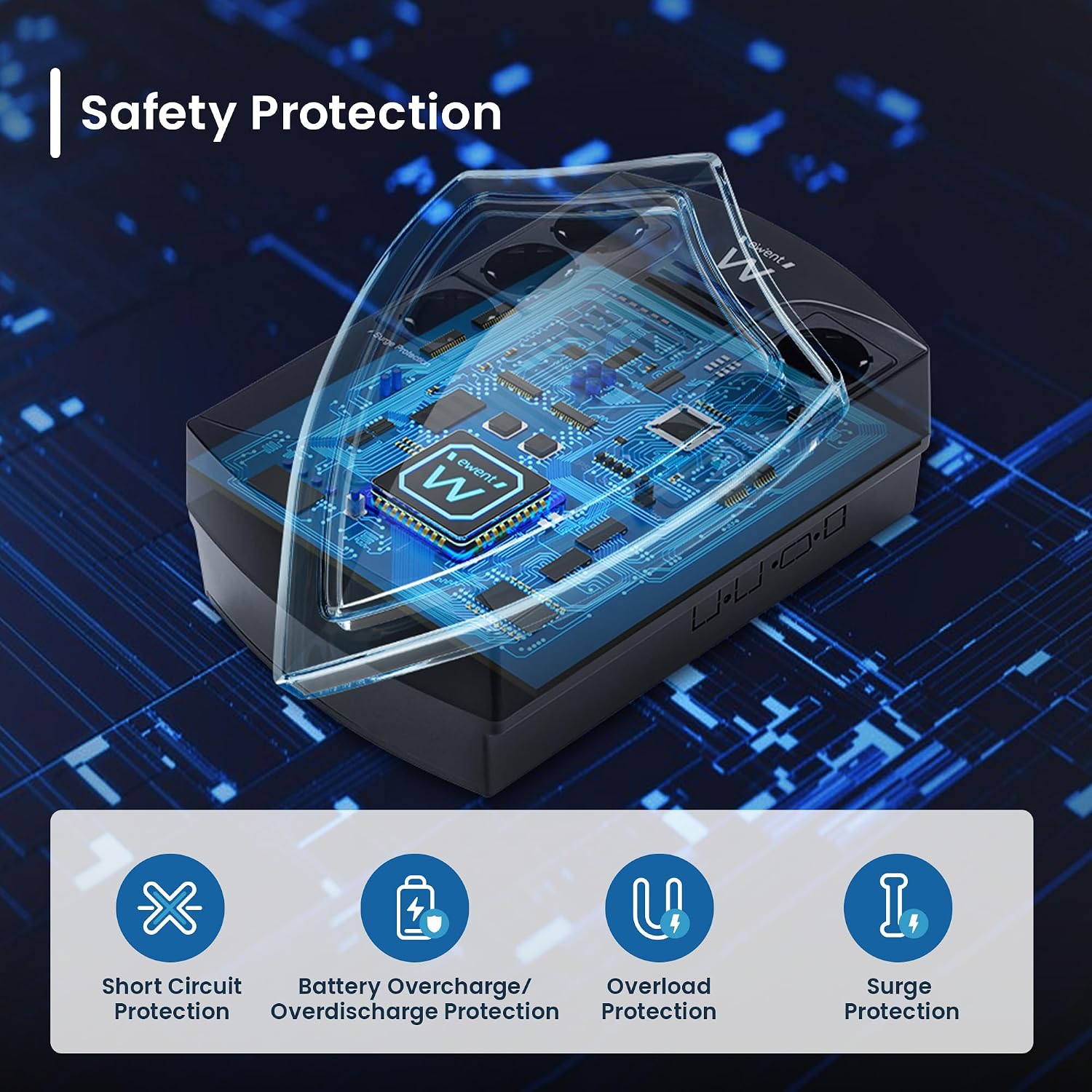
Figure 6: Built-in Safety Protections
8. Specifications
| Feature | Detail |
|---|---|
| Model | EW3945 |
| Capacity | 600 VA / 360 W |
| Input Voltage | 230 V AC |
| Output Voltage | 230 V AC (Mains Mode), Simulated Sine Wave (Battery Mode) |
| Output Connectors | 6 x EU Type F (Schuko/Italy), 3 with Battery Backup & Surge Protection, 3 with Surge Protection Only |
| Transfer Time | 2-8 ms (typical), 10 ms (max) |
| Battery Type | 1 x Lithium-ion (internal, rechargeable) |
| Backup Time (120W load) | Approximately 10 minutes |
| Protection | Surge, Short Circuit, Overload, Battery Overcharge/Overdischarge |
| Operating Temperature | 0°C - 40°C |
| Dimensions (L x W x H) | 280 mm x 185 mm x 95 mm |
| Weight | 4.5 kg |
| Color | Black |

Figure 7: EW3945 UPS Dimensions
9. Warranty and Support
9.1 Warranty Information
The Ewent EW3945 UPS typically comes with a manufacturer's warranty. Please refer to the warranty card included with your product or visit the official Ewent website for detailed warranty terms and conditions specific to your region. Keep your proof of purchase for warranty claims.
9.2 Technical Support
For technical assistance, troubleshooting beyond this manual, or service inquiries, please visit the official Ewent website. You can usually find FAQs, driver downloads, and contact information for customer support there.
Ewent Official Website: www.ewent-online.com

