
Introduction
This manual provides instructions for the proper setup, operation, and maintenance of your Gembird MUS-4B-01 USB Optical Mouse. Please read this manual thoroughly before using the device to ensure optimal performance and longevity.
Setup
Follow these steps to connect your Gembird MUS-4B-01 USB Optical Mouse to your computer.
- Unpack the Mouse: Carefully remove the mouse from its packaging.
- Connect to a USB Port: Locate an available USB port on your computer. Insert the USB connector of the Gembird MUS-4B-01 mouse firmly into the USB port.
- Automatic Driver Installation: Your operating system (Windows 7/8/10) will typically detect the new hardware and install the necessary drivers automatically. This process may take a few moments.
- Verify Functionality: Once the drivers are installed, move the mouse to check if the cursor on your screen responds. If the cursor moves, the mouse is ready for use.
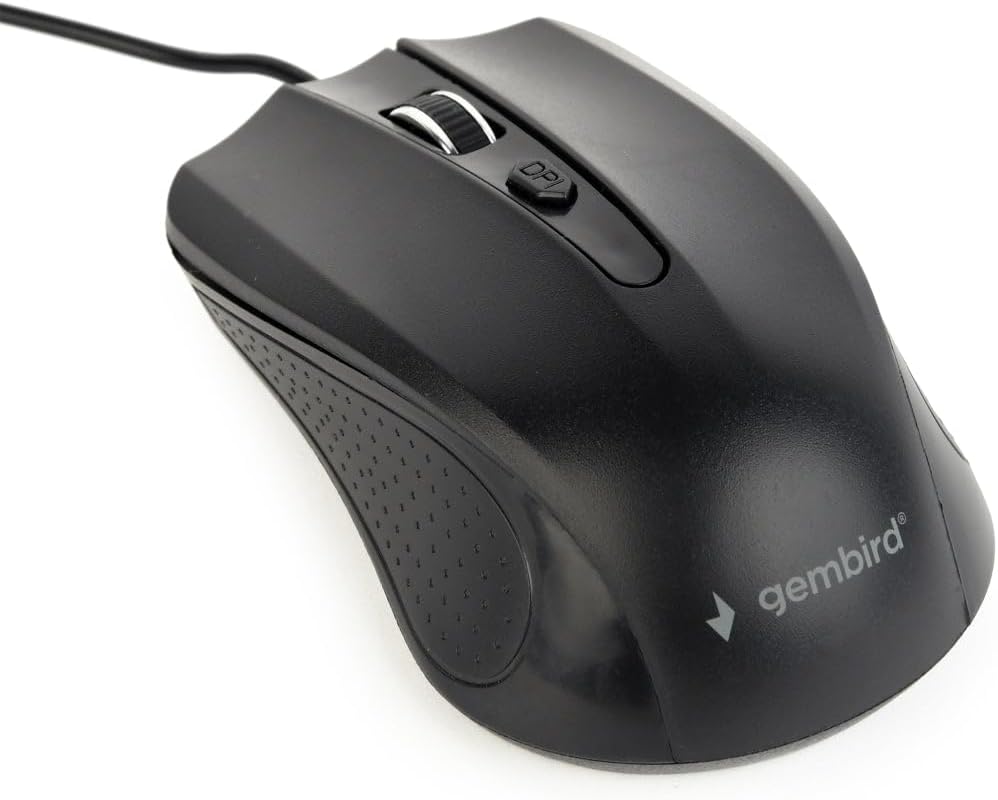
Image: The Gembird MUS-4B-01 USB Optical Mouse, showing its black design and USB cable, ready for connection.
Operating Instructions
The Gembird MUS-4B-01 mouse features standard controls for efficient navigation.
- Left Button: Used for selecting items, clicking links, and performing primary actions.
- Right Button: Used for accessing context menus and secondary functions.
- Scroll Wheel: Roll up or down to scroll through documents and web pages. The scroll wheel can also be pressed as a middle button for additional functions (e.g., opening links in new tabs).
- DPI Button: Located behind the scroll wheel, this button allows you to adjust the mouse's sensitivity (Dots Per Inch) on the fly. Press it to cycle through available DPI settings to match your preference.

Image: A close-up view of the Gembird MUS-4B-01 mouse, highlighting the scroll wheel and the DPI adjustment button.
Maintenance
Proper maintenance ensures the longevity and optimal performance of your mouse.
- Cleaning: Use a soft, dry cloth to wipe the surface of the mouse. For stubborn dirt, slightly dampen the cloth with water or a mild cleaning solution. Avoid harsh chemicals or abrasive materials.
- Optical Sensor: Periodically check the optical sensor on the underside of the mouse for dust or debris. Use a soft brush or compressed air to gently clean the sensor area. Do not touch the sensor directly.
- Cable Care: Avoid bending or twisting the USB cable sharply. Store the mouse in a way that prevents the cable from being crimped or damaged.
- Storage: When not in use for extended periods, store the mouse in a clean, dry environment away from extreme temperatures.
Troubleshooting
If you encounter issues with your Gembird MUS-4B-01 mouse, refer to the following common solutions.
- Mouse Not Responding:
- Ensure the USB cable is securely plugged into a working USB port on your computer.
- Try plugging the mouse into a different USB port.
- Restart your computer.
- Test the mouse on another computer to determine if the issue is with the mouse or the computer.
- Cursor Movement is Erratic or Jumpy:
- Clean the optical sensor on the underside of the mouse.
- Ensure you are using the mouse on a clean, non-reflective, and uniform surface (e.g., a mouse pad).
- Adjust the DPI setting using the DPI button on the mouse.
- Buttons or Scroll Wheel Not Working:
- Check for any physical obstructions around the buttons or scroll wheel.
- Ensure the mouse drivers are correctly installed. You can check Device Manager on Windows.
- Try restarting your computer.
Specifications
Key technical specifications for the Gembird MUS-4B-01 USB Optical Mouse.
| Feature | Detail |
|---|---|
| Brand | Gembird |
| Model Name | MUS-4B-01 |
| Connectivity Technology | USB |
| Movement Detection Technology | Optical |
| Number of Buttons | 4 |
| Hand Orientation | Ambidextrous |
| Compatible Operating Systems | Windows 7/8/10 |
| Hardware Platform | PC |
| Item Weight | 71 Grams |
| Color | Black |
Warranty and Support
For warranty information or technical support, please refer to the documentation included with your purchase or visit the official Gembird website. Keep your proof of purchase for warranty claims.


