
Nix NIXPRO2
Nix Pro 2 Color Sensor User Manual
Model: NIXPRO2
1. Introduction
The Nix Pro 2 Color Sensor is a professional-grade tool designed for instantly identifying and matching paint and digital color values. This device provides accurate color measurements across various surfaces and materials, making it an essential tool for designers, painters, and anyone requiring precise color analysis. It integrates seamlessly with its companion mobile application to offer comprehensive color data and matching capabilities.
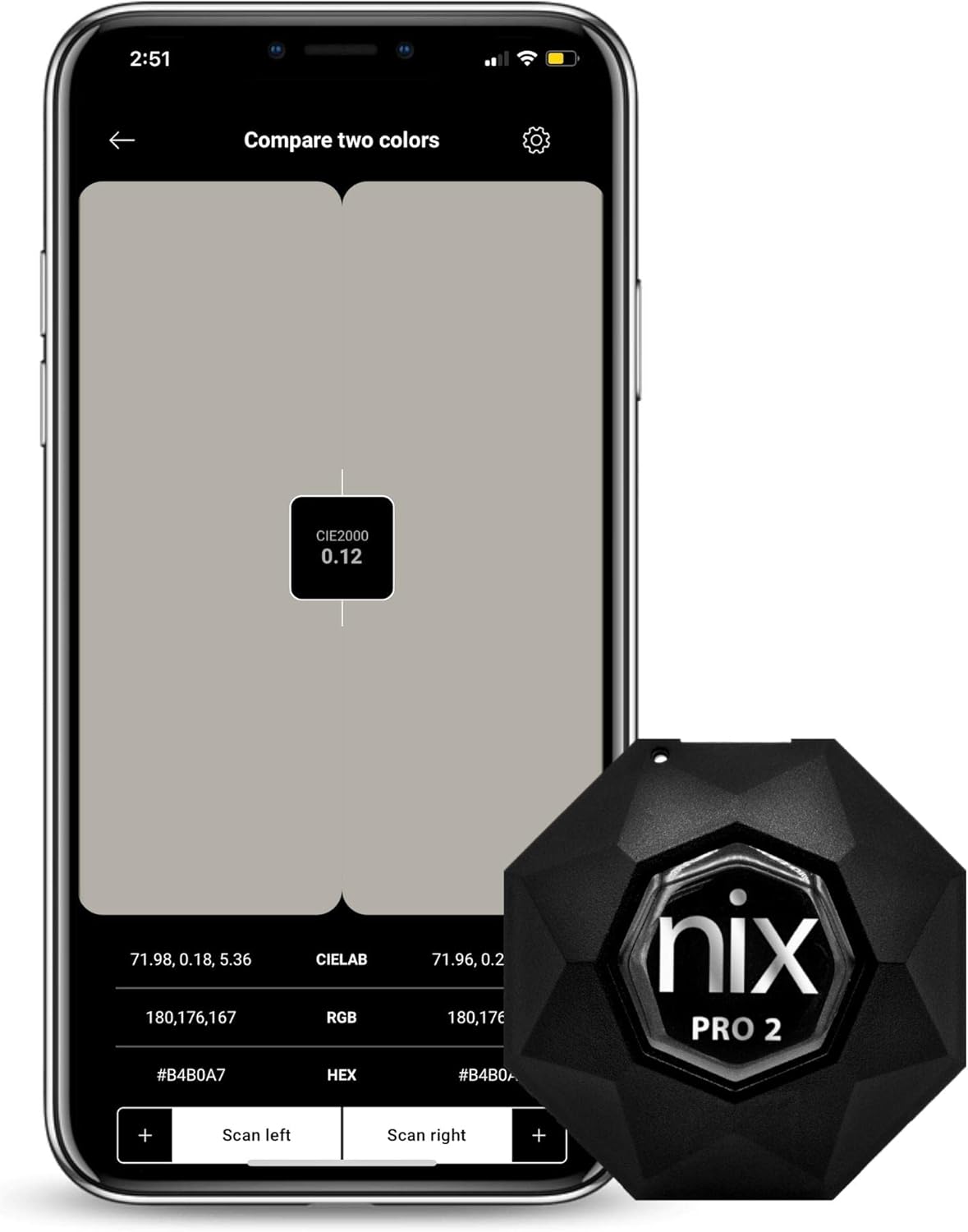
Image: The Nix Pro 2 Color Sensor, a compact black device, shown alongside a smartphone displaying its color comparison feature. The phone screen shows two color swatches and detailed color values like CIE2000, CIELAB, RGB, and HEX.
2. Getting Started
2.1 Package Contents
Before proceeding, ensure all items are present in your Nix Pro 2 package:
- Nix Pro 2 Color Sensor device
- USB Charging Cable
- Quick Start Guide (if included)

Image: The Nix Pro 2 Color Sensor displayed within its transparent plastic packaging, showcasing the device and its branding.
2.2 Charging the Device
The Nix Pro 2 contains a rechargeable Lithium Ion battery. Before first use, it is recommended to fully charge the device.
- Locate the USB charging port on the side of the Nix Pro 2 device.
- Connect the provided USB cable to the device and plug the other end into a standard USB power adapter (not included) or a computer's USB port.
- The indicator light on the device will show charging status (refer to device specific light indicators for full/charging status).

Image: A detailed view of the Nix Pro 2 device, highlighting the USB charging port located on its side.
2.3 Downloading the Nix Toolkit App
The Nix Pro 2 operates in conjunction with the Nix Toolkit mobile application. This app is available for both iOS and Android devices.
- Search for "Nix Toolkit" in the Apple App Store or Google Play Store.
- Download and install the application on your smartphone or tablet.

Image: A smartphone screen showing the login interface for the Nix Toolkit application, prompting for email and password.
2.4 Pairing with Your Device
Once the app is installed, pair your Nix Pro 2 with your mobile device via Bluetooth:
- Ensure Bluetooth is enabled on your smartphone or tablet.
- Open the Nix Toolkit app.
- Follow the on-screen prompts within the app to connect to your Nix Pro 2. The app will guide you through the pairing process.
3. Operating Instructions
3.1 Scanning a Color
To obtain an accurate color reading:
- Ensure the Nix Pro 2 is connected to the app.
- Place the aperture of the Nix Pro 2 flush against the surface you wish to scan. Ensure there are no gaps and that ambient light is blocked.
- Press the scan button within the Nix Toolkit app. The device will emit a light and capture the color data.
- The scanned color and its corresponding values will appear on your device's screen.

Image: A user demonstrating the scanning process, holding the Nix Pro 2 firmly against a red painted surface. The accompanying smartphone shows the "Swatch details" screen with the scanned red color.
The Nix Pro 2 can scan colors from various materials, including paint, fabric, and digital displays. For best results, ensure the surface is clean and dry.

Image: A user scanning a piece of patterned fabric with the Nix Pro 2. The smartphone screen shows the "Scan for digital values" interface, displaying color data like CIELAB, RGB, and HEX for the scanned area.
3.2 Interpreting Color Values
The Nix Toolkit app provides various color values for each scan:
- RGB (Red, Green, Blue): Digital color values, commonly used in screens and web design.
- CMYK (Cyan, Magenta, Yellow, Key/Black): Used in printing.
- HEX (Hexadecimal): A shorthand for RGB values, often used in web development.
- CIELAB (L*, a*, b*): A device-independent color space that describes all colors visible to the human eye. L* represents lightness, a* represents green-red, and b* represents blue-yellow.
- LCH (Luminance, Chroma, Hue): A cylindrical representation of the CIELAB color space.
- XYZ: Another device-independent color space.

Image: A close-up of a smartphone screen within the Nix Toolkit app, showing a scanned color and its comprehensive breakdown into various color models including RGB, CMYK, HEX, CIELAB, LCH, and XYZ.
3.3 Comparing Colors (Delta E)
The app allows you to compare two scanned colors or a scanned color against a reference color from a library. The difference is expressed as a Delta E (ΔE) value.
- A ΔE value of 1.0 or less is generally considered imperceptible to the human eye.
- Higher ΔE values indicate a greater color difference.

Image: A smartphone screen displaying the "Compare two colours" function of the Nix Toolkit app. It shows two color swatches side-by-side with their respective color values and the calculated Delta E2000 and Delta E76 differences.
3.4 Matching to Paint Libraries
The Nix Toolkit app includes extensive libraries of paint colors from various manufacturers. After scanning a color, you can find the closest match within these libraries.
- After scanning, select the option to "Compare to Library" or "Find Match."
- Choose the desired paint brand or library.
- The app will display the closest matching colors from the selected library, often with their respective Delta E values to indicate closeness.

Image: A smartphone screen displaying the "Compare to Library" feature, showing a scanned color and a list of the closest matching paint colors from various brands, along with their Delta E values.
Important Note on Color Accuracy: Colors shown on-screen may not precisely represent actual paint or digital colors due to variances in display calibrations. Color scans are affected by uneven surfaces, multicolored patterns, metallic surfaces, pearls, high gloss, and ambient light. For best results, keep the Pro 2 flush and scan matte samples with the gloss coating removed. To confirm colors, it is recommended to bring the paint name and numbers to your local paint retailer for physical sample comparison.
4. Maintenance
4.1 Cleaning the Device
To ensure optimal performance and longevity of your Nix Pro 2:
- Wipe the exterior of the device with a soft, dry, lint-free cloth.
- For the optical aperture, use a lens cleaning cloth or a cotton swab lightly dampened with isopropyl alcohol. Be gentle to avoid scratching the lens.
- Do not use abrasive cleaners or immerse the device in water.
4.2 Battery Care and Storage
- Store the device in a cool, dry place away from direct sunlight and extreme temperatures.
- For long-term storage, ensure the battery is partially charged (around 50%) to preserve battery health.
- Avoid fully discharging the battery frequently, as this can reduce its lifespan.
5. Troubleshooting
| Problem | Possible Cause | Solution |
|---|---|---|
| Device not turning on | Low battery | Charge the device using the provided USB cable. |
| Cannot connect to app | Bluetooth off; device not paired; app issue | Ensure Bluetooth is enabled on your phone. Restart both the Nix Pro 2 and the app. Try re-pairing the device through the app settings. |
| Inaccurate color readings | Improper placement; surface texture; ambient light interference; dirty lens | Ensure the device is flush against the surface. Scan matte samples with gloss coating removed. Avoid scanning highly reflective or textured surfaces. Clean the optical aperture. Minimize ambient light. |
| App crashing or freezing | Software bug; insufficient device resources | Close and restart the app. Ensure your mobile device's operating system is up to date. Check for Nix Toolkit app updates. |
If you encounter issues not listed here or if the suggested solutions do not resolve the problem, please refer to the support section.
6. Specifications
| Feature | Detail |
|---|---|
| Model Number | NIXPRO2 |
| Manufacturer | Nix Sensor Ltd. |
| Item Weight | 7.8 ounces |
| Product Dimensions | 3.35 x 3.15 x 3.74 inches |
| Material | ABS |
| Battery Type | Lithium Ion (1 required, included) |
| Connectivity | Bluetooth |
| Calibration | Self-calibrating (no external tiles required) |
7. Warranty and Support
7.1 Warranty Information
Nix Sensor Ltd. products are manufactured with high-quality components and undergo rigorous testing. For specific warranty terms and conditions, please refer to the warranty card included with your product or visit the official Nix Sensor website. Typically, warranty covers manufacturing defects under normal use.
7.2 Customer Support
If you require assistance with your Nix Pro 2 Color Sensor, have questions about its operation, or need to report a defect, please contact Nix Sensor customer support:
- Online Support: Visit the official Nix Sensor website for FAQs, troubleshooting guides, and contact forms.
- Email Support: Refer to your product documentation or the website for the appropriate support email address.
Please have your product model number (NIXPRO2) and purchase information ready when contacting support.
Ask a question about this manual
Ask about setup, troubleshooting, compatibility, parts, safety, or missing instructions. Manuals+ will review the question and use this page’s manual context to help answer it.