
MEDION MD18500

MEDION Robotic Vacuum Cleaner
Model: MD18500 - Instruction Manual
1. Introduction
Thank you for choosing the MEDION MD18500 Robotic Vacuum Cleaner. This fully automatic device is designed to simplify your daily cleaning routine, effortlessly maintaining clean floors in your home. Its advanced features ensure efficient cleaning on various surfaces while navigating your living space safely.
Key Features:
- Automatic cleaning with infrared sensors.
- Large dustbin capacity.
- Self-charging function: automatically returns to the charging station.
- Suitable for parquet, tiles, laminate, and low-pile carpets.
- Programmable cleaning schedules.
- Obstacle and stair avoidance.
- Low profile design (8 cm height) to clean under furniture.
- Virtual wall function to define cleaning areas.
2. Safety Information
Please read all safety instructions carefully before using the appliance. Keep this manual for future reference.
- Ensure the charging station is placed in an open area, away from stairs or obstacles.
- Do not use the robot vacuum on wet surfaces or to pick up liquids.
- Keep loose cables, curtains, and other objects that could entangle the robot out of its path.
- The robot is equipped with infrared sensors to detect stairs and obstacles. However, always supervise its first few cleaning cycles to ensure proper navigation in your specific environment.
- Do not allow children or pets to play with the robot vacuum.
- Only use original accessories and replacement parts.

The robot vacuum is designed to detect and avoid obstacles, ensuring safe operation around furniture and walls.

Equipped with cliff sensors, the MD18500 can detect drops and stairs, preventing falls.
3. Package Contents
Please check the box for the following items:
- MEDION MD18500 Robotic Vacuum Cleaner
- Remote Control
- Charging Station
- 2 x Filters
- 2 x Side Brushes
- 2 x Replacement Side Brushes
- Cleaning Brush
- 2 x AAA Batteries (for Remote Control)
- 2 x AA Batteries (for Virtual Wall)
4. Product Overview
Familiarize yourself with the main components of your MEDION MD18500.
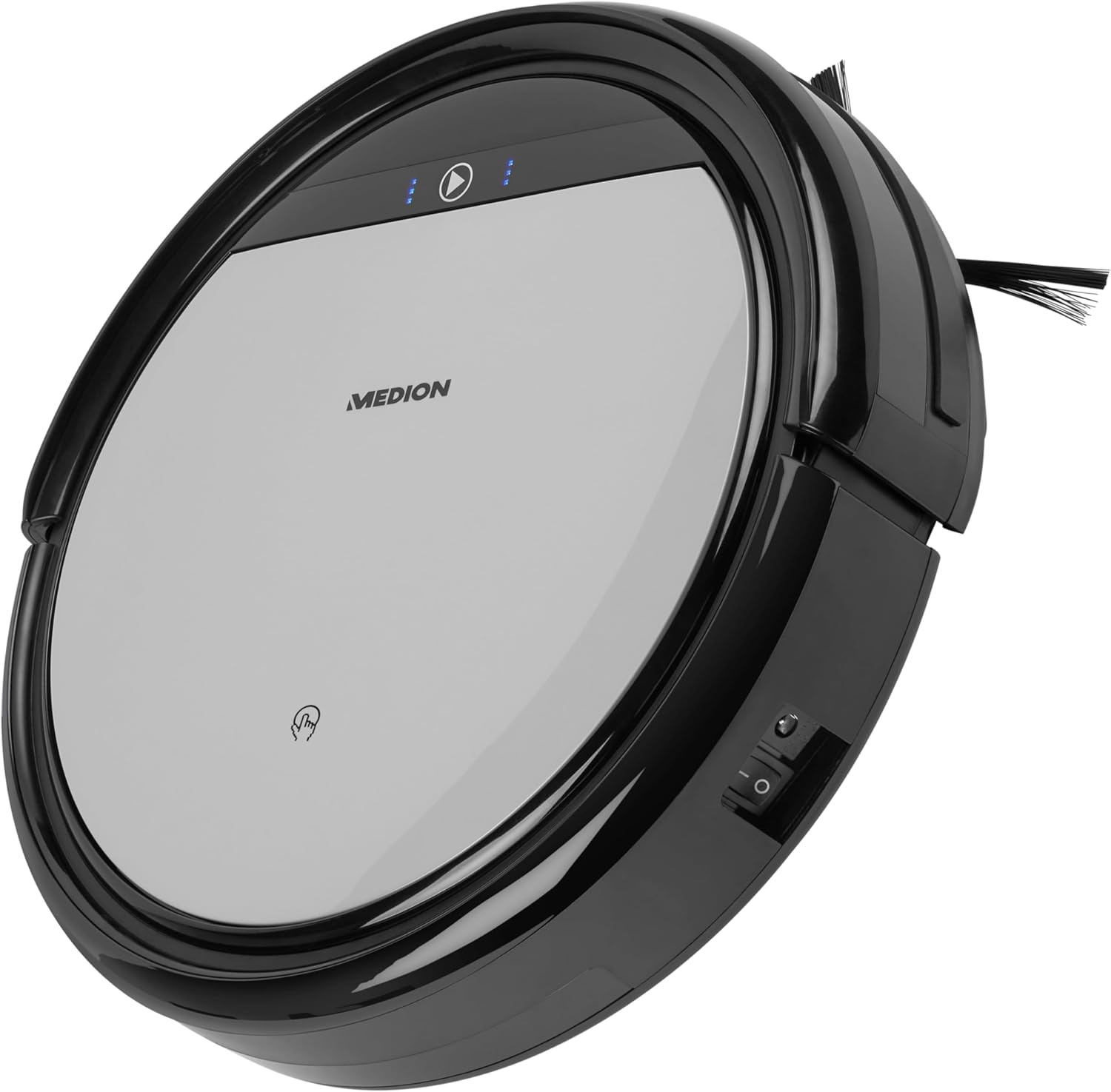
Front view of the MD18500, showing its sleek design and control panel.

Top-down view highlighting the main power button, indicator lights, and dustbin access.

The low-profile design allows the MD18500 to clean effectively under furniture.
5. Setup
- Unpacking: Carefully remove all components from the packaging.
- Charging Station Placement: Place the charging station against a wall in an open area, ensuring at least 1 meter of clear space on either side and 2 meters in front. Connect the power adapter.
- Initial Charging: Place the robot vacuum on the charging station. Ensure the charging contacts align. The indicator lights will show charging status. Fully charge the robot before first use (approx. 4-5 hours).
- Install Side Brushes: Snap the left (L) and right (R) side brushes into their respective slots on the bottom of the robot.
- Install Batteries: Insert the provided AAA batteries into the remote control and AA batteries into the virtual wall unit (if applicable).
6. Operating Instructions
The MEDION MD18500 offers flexible cleaning options.
Starting a Cleaning Cycle
- Manual Start: Press the power button on the robot or the 'Clean' button on the remote control to start cleaning.
- Automatic Return: When the battery is low, the robot will automatically return to its charging station.
Scheduling Cleaning
You can program the robot to clean at specific times daily.

The MD18500 supports scheduling, allowing you to set automatic cleaning times.
Refer to the remote control section in the full manual for detailed scheduling instructions.
Cleaning Modes
The robot intelligently adapts its cleaning path. It can clean various floor types including parquet, tiles, laminate, and low-pile carpets.

The robot efficiently cleans across different floor surfaces, indicated by the blue arrows.
Virtual Wall (Optional Accessory)
Use the virtual wall to create an invisible barrier that the robot will not cross. This is useful for restricting the robot to specific rooms or areas.
7. Maintenance
Regular maintenance ensures optimal performance and extends the lifespan of your robot vacuum.
- Emptying the Dustbin: The dustbin should be emptied after each cleaning cycle or when full. Press the 'PUSH' button on the top cover to open and remove the dustbin.
- Cleaning Filters: Tap the filter to remove loose dirt. Filters can be gently brushed clean. Replace filters every 3-6 months depending on usage.
- Cleaning Side Brushes: Remove any hair or debris tangled around the side brushes. Replace worn brushes.
- Cleaning Sensors: Wipe the infrared sensors (located on the front and bottom) with a soft, dry cloth to ensure proper navigation.
- Cleaning Driving Wheels: Check the driving wheels for any trapped hair or debris and clean as necessary.
8. Troubleshooting
If you encounter issues with your MEDION MD18500, refer to the following common problems and solutions:
| Problem | Possible Cause | Solution |
|---|---|---|
| Robot does not start | Low battery; Power switch off; Dustbin not installed correctly | Charge robot; Turn on power switch; Reinstall dustbin |
| Robot gets stuck frequently | Obstacles (cables, rugs); Dirty sensors | Clear obstacles; Clean sensors |
| Poor cleaning performance | Full dustbin; Clogged filter; Worn brushes | Empty dustbin; Clean/replace filter; Clean/replace brushes |
| Robot does not return to charging station | Charging station blocked; Robot too far from station | Ensure clear path to station; Manually place robot closer |
For more complex issues, please contact MEDION customer support.
9. Technical Specifications
| Feature | Specification |
|---|---|
| Brand | MEDION |
| Model Name | MD 18500 |
| Model Number | 50059290 |
| Color | Grey |
| Product Dimensions | 30 x 30 x 8 cm |
| Item Weight | 2.5 Kilograms |
| Power | 36.00 Watts |
| Voltage | 11.1 Volts |
| Noise Level | 65 dB |
| Special Features | Suitable for carpets & hard floors, Timer function, Suitable for pet hair |
10. Warranty and Support
Your MEDION MD18500 Robotic Vacuum Cleaner comes with a standard manufacturer's warranty. Please refer to the warranty card included in your package for specific terms and conditions.
For technical support, spare parts, or warranty claims, please visit the official MEDION website or contact their customer service department. Keep your purchase receipt as proof of purchase.
MEDION Customer Service: For contact details, please visit www.medion.com
Related documentsMD18500


Ask a question about this manual
Ask about setup, troubleshooting, compatibility, parts, safety, or missing instructions. Manuals+ will review the question and use this page’s manual context to help answer it.