
IK Multimedia IP-ILOUD-MTM-IN
IK Multimedia iLoud MTM User Manual
Model: IP-ILOUD-MTM-IN
Brand: IK Multimedia
Introduction
This manual provides comprehensive instructions for the setup, operation, and maintenance of your IK Multimedia iLoud MTM studio monitor. The iLoud MTM is designed to deliver incredibly clear linear phase sound and deep, extended bass, making it ideal for studio, desktop, or bookshelf use.
Safety Information
Please read and follow all safety instructions carefully before operating the iLoud MTM. Retain this manual for future reference.
- Do not expose the unit to rain, moisture, dripping, or splashing.
- Ensure proper ventilation; do not block any ventilation openings.
- Use only attachments/accessories specified by the manufacturer.
- Disconnect the unit during lightning storms or when unused for long periods.
- Refer all servicing to qualified service personnel.
What's in the Box
Verify that all components are present in the packaging:
- IK Multimedia iLoud MTM Studio Monitor (Single Unit)
- ARC Microphone cable
- Power Cable
- Adjustable stand/tilt base
Product Overview
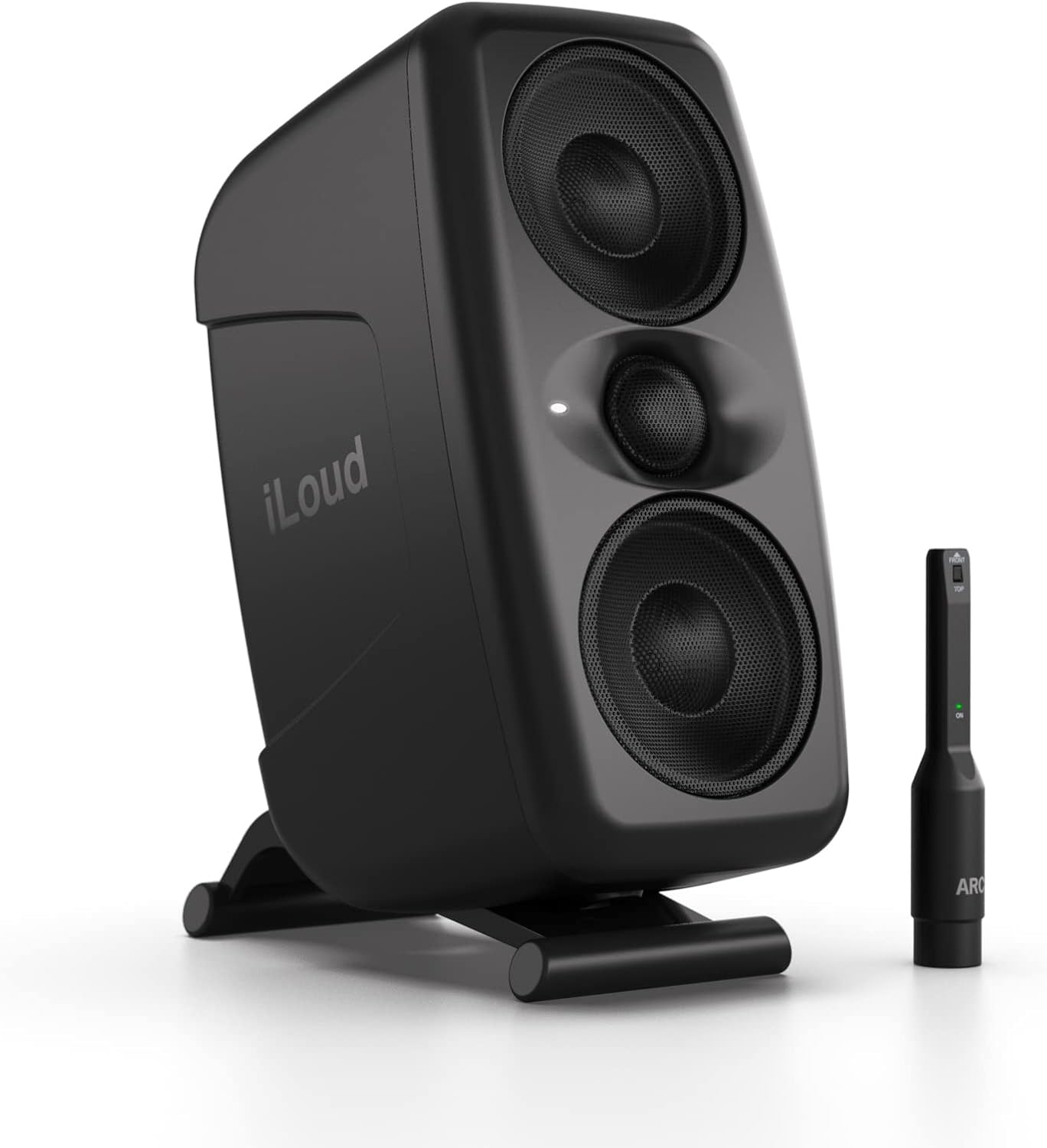
Figure 1: Front view of the iLoud MTM studio monitor, showcasing its dual woofers, tweeter, and the included ARC microphone for acoustic calibration.

Figure 2: Rear panel of the iLoud MTM, detailing the various controls and input/output ports, including LF Extension, LF/HF trim, CAL/Preset button, Volume, Input, ARC Mic In, USB, Power AC, and Power switch.
The iLoud MTM features a compact design with a powerful 100W output. It includes dual 3-inch woofers and a 1-inch tweeter, providing a wide frequency response. The rear panel offers controls for acoustic adjustment and connectivity.
- Front Panel: Features the main speaker drivers and an LED indicator.
- Rear Panel: Contains all input/output connections and acoustic calibration controls.
- Adjustable Stand: Allows for tilting the monitor to optimize listening angle.
Setup
1. Placement
Position the iLoud MTM monitors on a stable surface, ideally at ear level in your listening position. Use the included adjustable stand to tilt the monitors for optimal sound projection towards your ears. Ensure there is adequate space behind the monitors for proper bass port function and ventilation.

Figure 3: Proper placement of iLoud MTM monitors on a desktop for an optimal listening experience.
2. Connections
- Connect the power cable to the AC input on the rear panel of each monitor and then to a power outlet.
- Connect your audio source (e.g., audio interface, mixer) to the INPUT port on the rear panel using an appropriate XLR or TRS cable.
- (Optional) Connect the included ARC Microphone to the ARC MIC IN port for acoustic calibration.
- (Optional) Connect the USB port to your computer for firmware updates or advanced control via IK Multimedia software.
3. Acoustic Calibration (ARC)
The iLoud MTM features built-in acoustic self-calibration using the included ARC reference microphone. This process automatically adjusts the frequency response to your room environment.
- Connect the ARC microphone to the "ARC MIC IN" port on the rear of the monitor.
- Place the microphone at your primary listening position (where your head would be during mixing/listening).
- Ensure the room is quiet and free from external noise.
- Press and hold the "CAL/PRESET" button on the rear panel until the calibration process begins. The monitor will emit a series of test tones.
- Once complete, the monitor's internal DSP will be optimized for your room. The CAL LED will illuminate.
Note: Calibration should be performed for each monitor individually if you are using a stereo pair.
Operating the iLoud MTM
Power On/Off
Locate the POWER switch on the rear panel of the monitor. Flip the switch to the "ON" position to power on the unit. The front LED will illuminate. Flip to "OFF" to power down.
Volume Control
Adjust the overall output volume using the VOLUME knob on the rear panel. Start with a low volume and gradually increase it to a comfortable listening level.
Acoustic Adjustments
The iLoud MTM offers several controls for fine-tuning the sound to your preference or room acoustics:
- LF EXTENSION: Adjusts the low-frequency cutoff point (40Hz, 50Hz, 60Hz). This can be useful for managing bass response in different room sizes or when using a subwoofer.
- LF Trim: Provides +/- 2dB adjustment for low frequencies.
- HF Trim: Provides +/- 2dB adjustment for high frequencies.
- DESK: Engages a specific EQ curve designed to compensate for reflections when monitors are placed on a desk.
Note: These manual adjustments can be made in conjunction with or instead of the ARC calibration.
Maintenance
To ensure the longevity and optimal performance of your iLoud MTM monitors, follow these maintenance guidelines:
- Cleaning: Use a soft, dry cloth to wipe down the exterior of the monitors. Do not use abrasive cleaners, waxes, or solvents.
- Dust: Regularly dust the speaker grilles and ventilation openings to prevent accumulation that could affect performance.
- Storage: If storing the monitors for an extended period, disconnect them from power and store them in a cool, dry place, ideally in their original packaging.
- Avoid Liquids: Keep liquids away from the monitors to prevent damage to internal components.
Troubleshooting
| Problem | Possible Cause | Solution |
|---|---|---|
| No sound from the monitor. |
|
|
| Distorted or unclear sound. |
|
|
| Monitor LED blinking purple or steady red/yellow. |
|
|
| White noise or hiss. |
|
|
Specifications
| Feature | Detail |
|---|---|
| Model Name | iLoud MTM MKII |
| Speaker Type | Monitor, Woofer, Portable, Tweeter |
| Special Feature | Built-in acoustic correction and microphone |
| Recommended Uses | For Computers, Desktop speaker, computer speaker, speaker for DJs |
| Subwoofer Diameter | 3 Inches |
| Speaker Maximum Output Power | 100 Watts |
| Connectivity Technology | Bluetooth |
| Color | Black |
| Product Dimensions (DxWxH) | 5"D x 6"W x 10"H |
| Item Weight | 8.8 ounces (250 Grams) |
| Manufacturer | IK Multimedia |
| Item Model Number | IP-ILOUD-MTM-IN |
Warranty and Support
IK Multimedia products are covered by a limited warranty. For detailed warranty information, product registration, and technical support, please visit the official IK Multimedia website or refer to the documentation included with your purchase.
Online Resources:
- Official Website: www.ikmultimedia.com
- Support Page: Refer to the website for support contact information and FAQs.
Note: No official product videos from the seller were available for embedding based on the provided data.
Related documentsIP-ILOUD-MTM-IN


Ask a question about this manual
Ask about setup, troubleshooting, compatibility, parts, safety, or missing instructions. Manuals+ will review the question and use this page’s manual context to help answer it.