
1. Introduction
This manual provides detailed instructions for the installation, programming, and use of your Signstek Keyless Entry Deadbolt Lock. This electronic keypad door lock offers enhanced security and convenient access through multiple methods, including a touchscreen keypad, a Bluetooth-enabled mobile application, and traditional physical keys. Please read this manual thoroughly before installation and operation to ensure proper functionality and safety.
2. Key Features
- Multiple Access Methods: Unlock using a customizable password on the touchscreen keypad, via the dedicated Bluetooth mobile application, or with a traditional physical key.
- Bluetooth Connectivity: Seamlessly connect to your smartphone for remote locking/unlocking (within Bluetooth range), user management, and access log review.
- Automatic Locking: The lock can be configured to automatically lock after a set period, providing peace of mind.
- Green Backlight: Keypad features a green backlight for improved visibility and ease of use in low-light conditions.
- Durable Construction: Made from Nickel and Zinc materials, ensuring longevity and security.
- Adjustable Latch: Supports both 2-3/8 inch and 2-3/4 inch backsets for versatile installation.

Figure 2.1: Multiple access methods for the Signstek deadbolt, including keypad, Bluetooth app, and physical key.
3. What's Included
Verify that all components are present before beginning installation:
- Exterior Keypad Assembly
- Interior Assembly (with battery cover)
- Deadbolt Latch
- Mounting Plate
- Strike Plate
- Mounting Screws
- Physical Keys (2)
- Installation Template
- User Manual

Figure 3.1: All components provided with your Signstek Keyless Entry Deadbolt Lock.
4. Setup and Installation
Follow these steps to install your Signstek Keyless Entry Deadbolt Lock. Ensure your door is prepared according to the provided template before starting.
- Install the Deadbolt Latch: Insert the deadbolt latch into the door edge. Ensure the latch is oriented correctly for your door's swing. Adjust the backset if necessary (2-3/8 inch or 2-3/4 inch). Secure with screws.
- Install the Exterior Keypad Assembly: Pass the cable from the exterior keypad assembly through the hole in the door and align the assembly with the latch.
- Install the Mounting Plate: Place the mounting plate on the interior side of the door, aligning it with the exterior assembly. Secure it with the provided screws, ensuring the cable passes through the plate.
- Connect the Interior Assembly: Connect the cable from the exterior assembly to the interior assembly. Carefully tuck any excess cable into the door cavity. Align the interior assembly with the mounting plate and secure it with screws.
- Install Batteries: Insert 4 AA batteries (not included) into the battery compartment of the interior assembly.
- Test Functionality: Use a physical key to test the deadbolt. Then, proceed to programming the lock.
Video 4.1: Official installation and setup guide for the Signstek Keyless Entry Deadbolt Lock.

Figure 4.2: Detailed dimensions of the Signstek Keyless Entry Deadbolt Lock for proper fitment.
5. Operating Instructions
5.1 Using the Keypad
To lock or unlock using the keypad:
- To Unlock: Enter your programmed user code (4-10 digits) followed by the '#' key. The lock will retract the deadbolt.
- To Lock: Press any key on the keypad for 3 seconds, or press the 'Lock' button (if available on your model). The deadbolt will extend.

Figure 5.1: The keypad illuminates with a green backlight for easy use in dark environments.
5.2 Using the Mobile Application (BLE Smart Lock)
The Signstek deadbolt can be controlled via a Bluetooth-enabled mobile application. Search for "BLE Smart Lock" in your device's app store (available for iOS and Android).
- Download and Install: Download the "BLE Smart Lock" app from the App Store or Google Play.
- Pairing: Ensure Bluetooth is enabled on your smartphone. Open the app and follow the on-screen instructions to pair your device with the lock.
- Lock/Unlock: Within Bluetooth range, use the app interface to lock or unlock the deadbolt with a single tap.
- User Management: The app allows you to add, modify, or delete user codes for the keypad.
- Access Log: Review a detailed log of who has accessed the lock and at what times.

Figure 5.2: The BLE Smart Lock app displays current lock status and provides a detailed usage log.

Figure 5.3: The one-touch unlocking feature allows quick access without entering a password when the app is open.
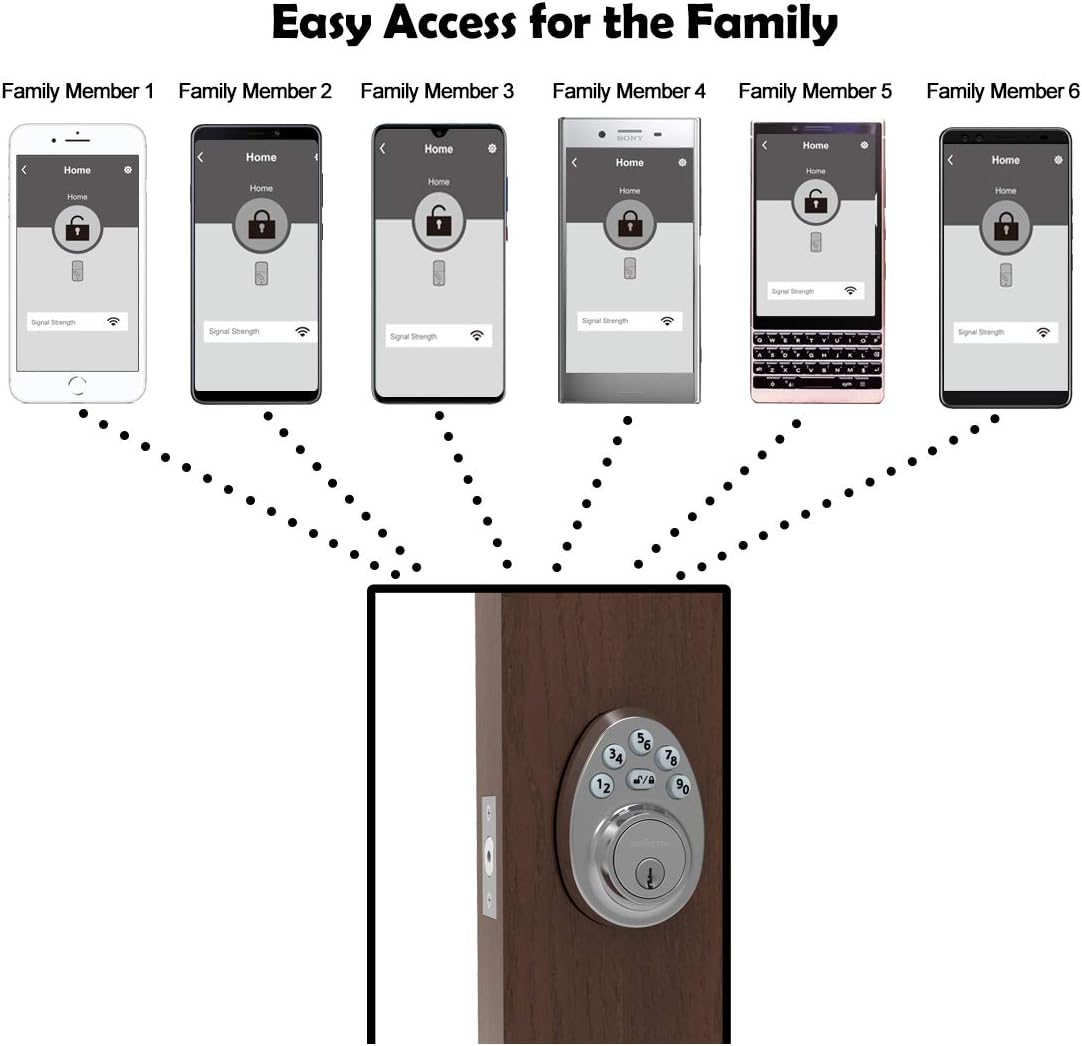
Figure 5.4: The mobile application facilitates easy access management for multiple family members or authorized users.
5.3 Automatic Locking Feature
The lock is equipped with an automatic locking feature. If the deadbolt is not fully extended after a period, the lock will attempt to automatically secure itself. This feature can be configured or disabled via the mobile application settings.
6. Maintenance
- Battery Replacement: When the battery level is low, the lock will provide an audible or visual alert. Replace all four AA batteries promptly to ensure continuous operation.
- Cleaning: Clean the keypad and exterior surfaces with a soft, damp cloth. Avoid abrasive cleaners or solvents that could damage the finish or electronic components.
- Lubrication: Periodically lubricate the deadbolt mechanism with a silicone-based lubricant to ensure smooth operation. Do not use oil-based lubricants.
7. Troubleshooting
- Lock Not Responding: Check battery levels and replace if necessary. Ensure the keypad is clean and free from debris.
- Keypad Not Lighting Up: This typically indicates low batteries. Replace the batteries.
- Difficulty Locking/Unlocking: Ensure the door frame and strike plate are properly aligned. The deadbolt should move freely without obstruction. Check for any warping of the door that might impede the deadbolt.
- App Connectivity Issues: Ensure Bluetooth is enabled on your phone and you are within range of the lock. Restart the app or your phone if issues persist.
- Programming Issues: Refer to the detailed programming section in the full user manual (if provided separately) or the app's help section for specific programming steps.
8. Specifications
| Feature | Detail |
|---|---|
| Brand | Signstek |
| Model Number | B07N85PVSW |
| Lock Type | Keypad Deadbolt |
| Material | Nickel, Zinc |
| Finish Type | Nickel |
| Color | Satin Nickel |
| Style | Modern |
| Special Features | Digital Lock, Multifunctional |
| Control Method | Touch |
| Connectivity Protocol | Bluetooth |
| Backset Support | 2-3/8 inches (60mm) or 2-3/4 inches (70mm) |
9. Warranty and Support
For warranty information and technical support, please refer to the documentation included with your product packaging or visit the official Signstek website. Keep your purchase receipt as proof of purchase for any warranty claims.
