1. Introduction
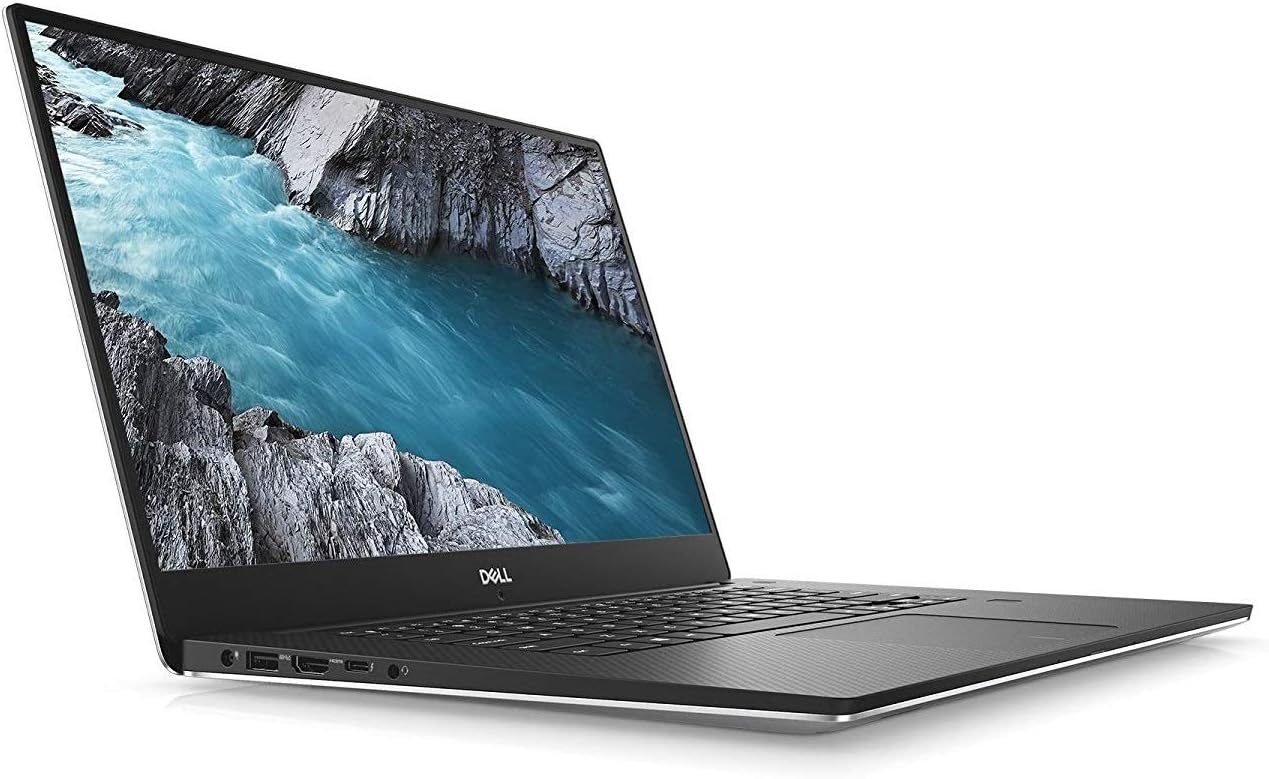
This manual provides essential information for the safe and efficient use of your Dell XPS 15 9570 laptop. It covers initial setup, basic operation, maintenance guidelines, and troubleshooting tips. Your Dell XPS 15 9570 features an 8th Generation Intel Core i7-8750H Processor, a 4K Touchscreen display, 16GB DDR4 2666MHz RAM, a 512GB SSD, and NVIDIA GeForce GTX 1050Ti graphics, running on Windows 10 Home.
2. What's in the Box
Upon unpacking your Dell XPS 15 9570, please ensure all the following items are present:
- Dell XPS 15 9570 Laptop
- Power Cable and Charger
3. Setup
Follow these steps for the initial setup of your Dell XPS 15 9570 laptop:
- Connect the Power Adapter: Plug the power adapter into a wall outlet and then connect the charging cable to the power port on your laptop. The battery will begin charging automatically.
- Initial Power On: Open the laptop lid and press the power button, typically located on the top right of the keyboard deck.
- Windows 10 Setup: Follow the on-screen instructions to complete the Windows 10 Home setup process. This includes selecting your region, connecting to a Wi-Fi network, creating a user account, and configuring privacy settings.
- System Updates: After initial setup, it is recommended to connect to the internet and allow Windows Update to download and install the latest operating system updates. Additionally, visit the official Dell support website to download and install the latest drivers and BIOS updates for optimal performance and stability.
4. Operating Your Dell XPS 15 9570
4.1 Power Management
- Power On: Press the power button.
- Sleep Mode: Close the lid or select 'Sleep' from the Windows Start menu.
- Shut Down: Select 'Shut down' from the Windows Start menu.
- Restart: Select 'Restart' from the Windows Start menu.
4.2 Keyboard and Touchpad
The laptop features a full-sized keyboard and a precision touchpad for navigation.
- Keyboard: Use for typing and executing commands. Function keys (F1-F12) often have secondary functions (e.g., volume, brightness) accessible by pressing the Fn key simultaneously.
- Touchpad: Supports multi-touch gestures for scrolling, zooming, and other actions. Refer to Windows settings for customizing touchpad gestures.

4.3 Touchscreen Functionality
Your Dell XPS 15 9570 is equipped with a 4K touchscreen display. You can interact with the operating system and applications directly on the screen using touch gestures.
- Tap: Equivalent to a mouse click.
- Tap and Hold: Equivalent to a right-click.
- Pinch-to-Zoom: Use two fingers to zoom in or out.
- Swipe: Navigate through content or activate system functions (e.g., opening Action Center).
4.4 Connecting Peripherals
The Dell XPS 15 9570 offers various ports for connecting external devices:
- USB Ports: For connecting USB devices like external drives, mice, or keyboards.
- HDMI Port: For connecting to external displays or projectors.
- SD Card Reader: For reading and writing data to SD memory cards.
- Headphone/Microphone Jack: For connecting audio devices.
- Thunderbolt 3 (USB-C) Port: Supports power delivery, DisplayPort, and high-speed data transfer.

5. Maintenance
Proper maintenance ensures the longevity and optimal performance of your laptop.
- Cleaning: Use a soft, lint-free cloth to clean the screen and chassis. For stubborn marks, dampen the cloth slightly with water or a screen-safe cleaner. Avoid harsh chemicals.
- Battery Care: To maximize battery lifespan, avoid consistently draining the battery to 0% or keeping it at 100% charge for extended periods. Periodically allow the battery to discharge and recharge.
- Software Updates: Regularly check for and install updates for Windows 10, device drivers, and BIOS from the Dell support website. These updates often include performance improvements, security patches, and bug fixes.
- Storage Management: Periodically clean up unnecessary files, uninstall unused applications, and consider using cloud storage to free up space on your 512GB SSD.
- Thermal Management: Ensure the laptop's ventilation vents are clear and unobstructed to prevent overheating. Avoid operating the laptop on soft surfaces like beds or couches that can block airflow.
6. Troubleshooting
This section addresses common issues you might encounter with your Dell XPS 15 9570.
- Laptop Does Not Power On:
- Ensure the power adapter is securely connected to both the laptop and a working power outlet.
- Verify the power outlet is functional by plugging in another device.
- If the battery is completely drained, allow it to charge for at least 15-30 minutes before attempting to power on.
- Display Issues (No Image, Flickering):
- Adjust the display brightness using the keyboard function keys.
- Connect an external monitor to check if the issue is with the laptop's internal display or the graphics output.
- Ensure graphics drivers are up to date.
- Performance Slowdown:
- Check Task Manager (Ctrl+Shift+Esc) for applications consuming excessive CPU, RAM, or disk resources.
- Ensure the laptop is not overheating; clear vents and use on a hard, flat surface.
- Run a full system scan for malware or viruses.
- Verify that Windows and all drivers are updated.
- Wi-Fi Connectivity Issues:
- Restart your router and modem.
- Ensure Wi-Fi is enabled on your laptop (check Windows settings or function keys).
- Update your wireless network adapter drivers from the Dell support website.
For more complex issues or if troubleshooting steps do not resolve the problem, please refer to the Dell support website or contact Dell technical support.
7. Specifications
Key technical specifications for the Dell XPS 15 9570 laptop:
| Feature | Specification |
|---|---|
| Processor | Intel Core i7-8750H |
| RAM | 16 GB DDR4 2666 MHz |
| Storage | 512 GB SSD |
| Graphics | NVIDIA GeForce GTX 1050Ti (4 GB GDDR5) |
| Display | 15.6-inch 4K (3840 x 2160) Touchscreen |
| Operating System | Windows 10 Home |
| Wireless Connectivity | 802.11a/b/g/n/ac, Bluetooth |
| Ports | USB, HDMI, SD Card Reader, Headphone/Microphone Jack, Thunderbolt 3 (USB-C) |
| Dimensions (LxWxH) | 14.1 x 9.3 x 0.66 inches |
| Weight | 6.24 pounds |
8. Warranty and Support
Your Dell XPS 15 9570 laptop is covered by Dell's standard warranty. For detailed information regarding your warranty coverage, terms, and conditions, please refer to the documentation included with your purchase or visit the official Dell support website.
For technical assistance, driver downloads, service requests, or to access Dell's knowledge base, please visit www.dell.com/support. You will need your laptop's Service Tag, which can typically be found on a label on the bottom of the device or accessed through system information software.


