
1. Introduction
This user manual provides essential instructions for the proper setup, operation, and maintenance of your Socket Mobile Charging Stand with Anti-Theft Lock, Model AC4159-1956. This stand is designed to securely hold and charge compatible Socket Mobile S700 and D700 series barcode scanners, while also offering an automatic scanning function for specific 2D barcode scanner models.
2. Product Overview
The Socket Mobile Charging Stand is a robust accessory designed to enhance the functionality and security of your Socket Mobile barcode scanners. It provides a stable base for charging and hands-free operation.
- Charging Functionality: Serves as a stand for charging Socket Mobile S700, D700, and D600 series scanners.
- Anti-Theft Security: Includes a cable lock mechanism to help prevent unauthorized removal of the scanner.
- Automatic Scanning Mode: For compatible 2D barcode scanners (models S740, S760, D740, D750, D760), placing the scanner on the stand enables an automatic scanning function, allowing for hands-free barcode reading.

Figure 2.1: The Socket Mobile Charging Stand (Model AC4159-1956).

Figure 2.2: The charging stand shown with a compatible Socket Mobile barcode scanner in place.
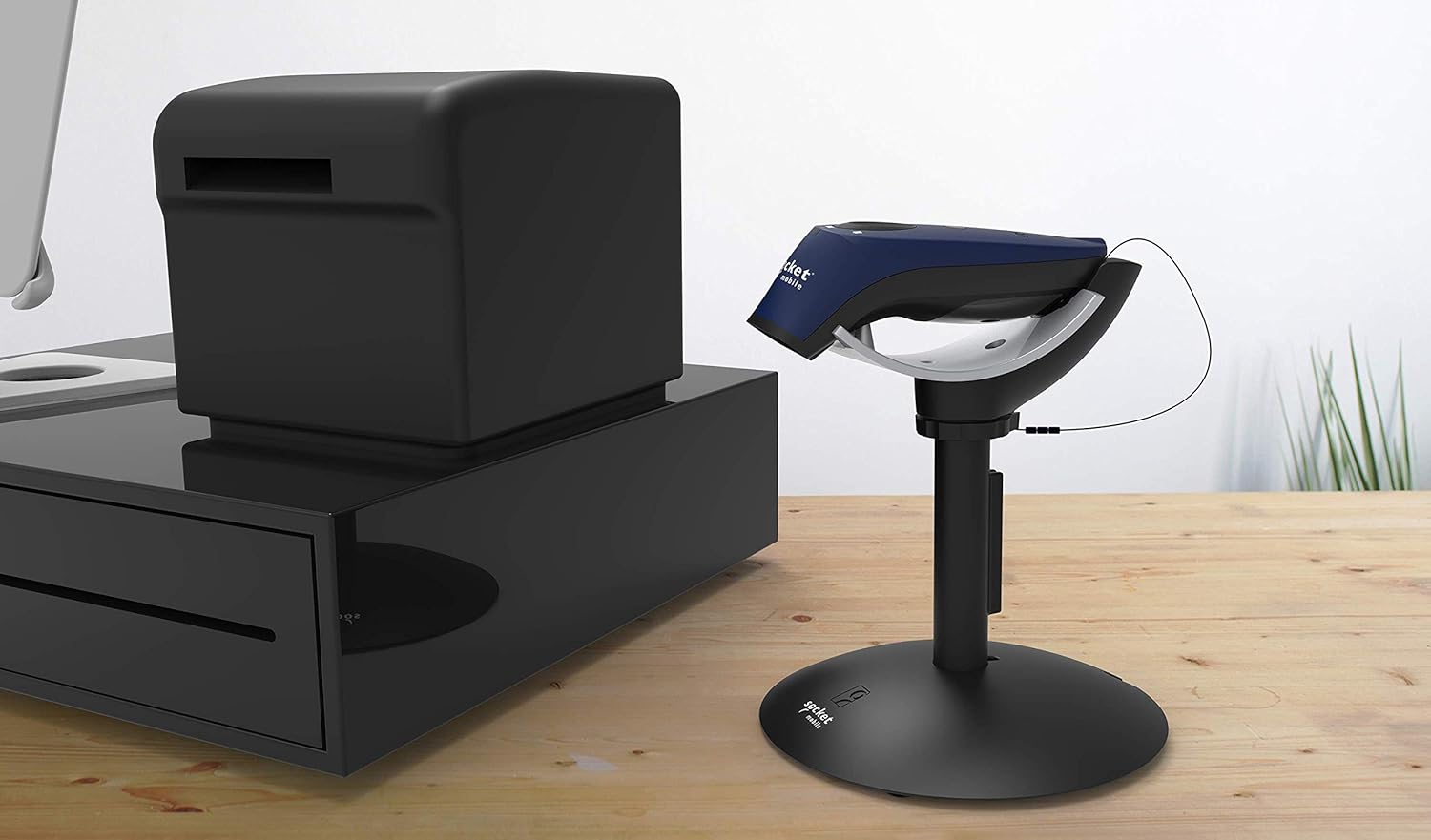
Figure 2.3: The charging stand integrated into a typical point-of-sale setup.
3. Setup
3.1. Unpacking
Carefully remove all components from the packaging. Verify that all parts are present: the charging stand base, the scanner cradle, and any included anti-theft cable lock accessories.
3.2. Assembly
- Place the stand base on a stable, flat surface.
- Attach the scanner cradle to the stand post, ensuring it is securely fastened. Some models may require twisting or clicking into place.
- If using the anti-theft cable lock, route the cable through the designated slot on the stand and secure it to a fixed object.
3.3. Connecting Power
Connect the appropriate power adapter (sold separately or included with your scanner) to the charging port on the stand. Plug the power adapter into a standard electrical outlet. The stand is now ready to charge your scanner.
4. Operating Instructions
4.1. Charging the Scanner
To charge your Socket Mobile S700, D700, or D600 series scanner, simply place it into the cradle of the charging stand. Ensure the scanner makes proper contact with the charging pins. The scanner's charging indicator (typically an LED) will illuminate to confirm charging is in progress.
4.2. Automatic Scanning Mode (for compatible 2D scanners)
For Socket Mobile 2D barcode scanners (S740, S760, D740, D750, D760), placing the scanner on the stand activates an automatic scanning mode. In this mode, the scanner will automatically read barcodes when they are presented within its scanning field, eliminating the need to manually press the scan button.
4.3. Using the Anti-Theft Lock
The integrated anti-theft cable lock provides an additional layer of security. Once the scanner is placed in the cradle, ensure the cable lock is properly engaged and secured to a fixed anchor point to deter theft.
5. Maintenance
- Cleaning: Use a soft, dry, lint-free cloth to clean the stand. Avoid abrasive cleaners or solvents.
- Storage: Store the stand in a cool, dry place when not in use.
- Inspection: Periodically inspect the charging pins and cable for any signs of damage or wear.
6. Troubleshooting
If you encounter issues with your charging stand, refer to the following table for common problems and solutions:
| Problem | Possible Cause | Solution |
|---|---|---|
| Scanner not charging | No power to the stand; scanner not seated correctly; dirty charging contacts. | Ensure power adapter is connected and plugged in. Re-seat the scanner firmly. Clean charging contacts on both scanner and stand with a dry cloth. |
| Automatic scanning not working | Scanner not compatible with auto-scan feature; scanner not seated correctly. | Verify your scanner model (S740, S760, D740, D750, D760) supports auto-scan. Re-seat the scanner firmly in the cradle. |
| Anti-theft lock not securing scanner | Cable not properly routed or secured; lock mechanism not engaged. | Ensure the anti-theft cable is correctly routed through the stand and secured to a fixed object. Verify the lock mechanism is fully engaged. |
7. Specifications
| Feature | Detail |
|---|---|
| Brand | Socket Mobile |
| Model Number | AC4159-1956 |
| Color | Charging Stand (with Anti-Theft Lock) |
| Product Dimensions | 13.97 x 4.57 x 16.51 cm |
| Product Weight | 388.39 g |
| Power Source | External Power (for charging battery-powered scanners) |
| UPC | 758497114679 |
| Manufacturer | Socket mobile |
8. Warranty Information
Specific warranty details for the Socket Mobile Charging Stand (AC4159-1956) are typically provided with the product packaging or can be found on the official Socket Mobile website. Please refer to these resources for the most accurate and up-to-date warranty terms and conditions.
9. Customer Support
For further assistance, technical support, or inquiries regarding your Socket Mobile Charging Stand, please visit the official Socket Mobile support website or contact their customer service department. Contact information can usually be found on the manufacturer's website or in the product documentation.
Website: www.socketmobile.com/support


