
1. Introduction
The VoltEdge TX20 Universal Headset is designed for versatile audio experiences, whether at home or on the go. Its lightweight construction, combined with a retro aesthetic, provides comfort and style. Engineered with stainless steel and polypropylene, the TX20 offers a flexible and durable design. Custom dynamic drivers deliver quality in-game sound, while the directional in-line microphone ensures clear chat audio. Convenient volume control and an instant push-pull mute function are integrated for ease of use.
Key Features:
- Lightweight and comfortable design
- Retro-inspired style
- In-line microphone with minimal feedback
- Custom dynamic audio drivers
- Robust and durable build quality

Figure 1: VoltEdge TX20 Universal Headset packaging, showing the headset and key features.
2. Product Components
The VoltEdge TX20 headset consists of the following main components:
- Adjustable Headband: For a secure and comfortable fit.
- On-Ear Earcups: Featuring custom dynamic drivers and soft ear cushions.
- In-line Control Unit: Contains volume control and a mute switch for the microphone.
- Directional In-line Microphone: For clear voice communication.
- 3.5mm Audio Jack: For universal connectivity to various devices.
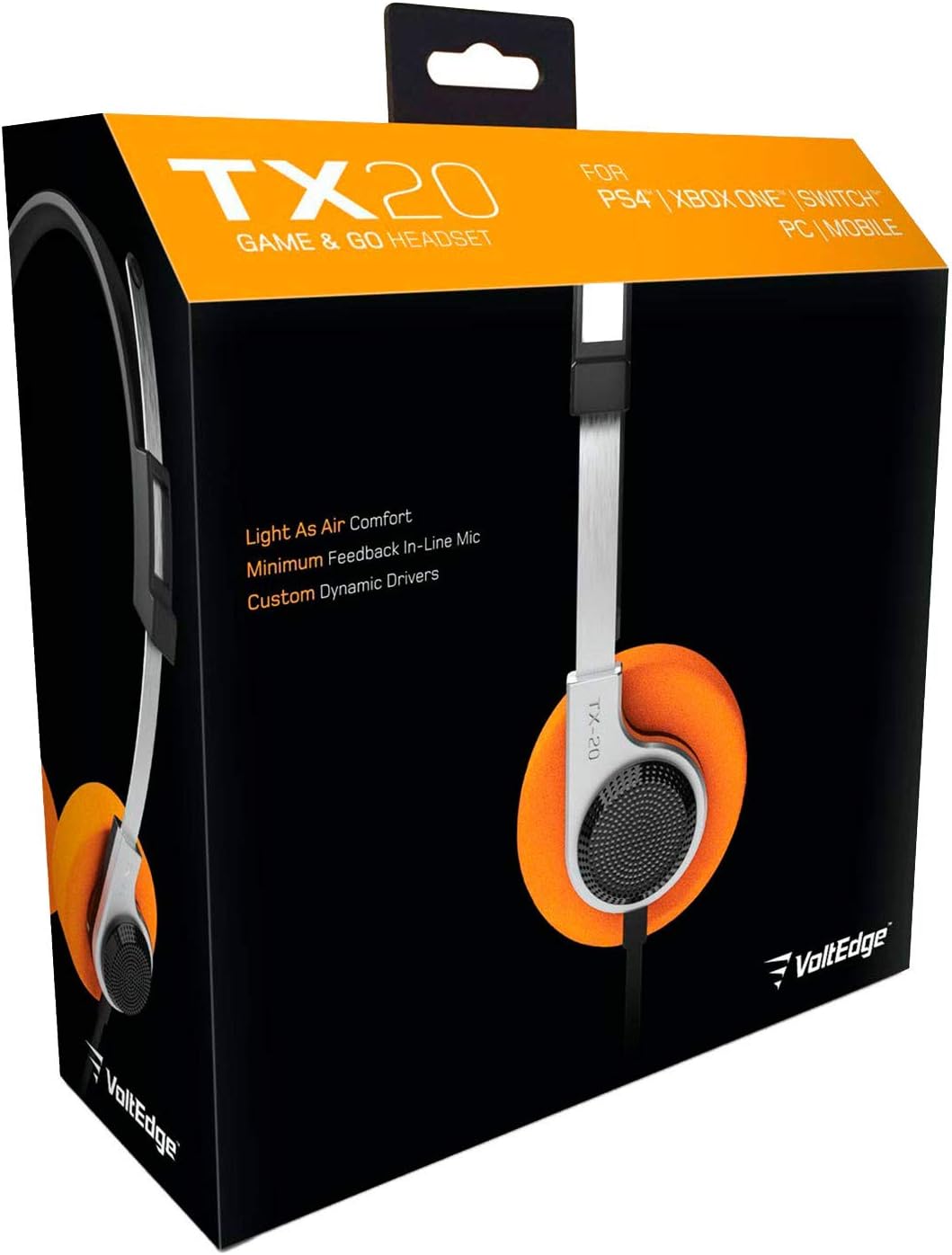
Figure 2: Front view of the VoltEdge TX20 Headset, showing the headband and earcups.

Figure 3: Side view of the VoltEdge TX20 Headset, highlighting the earcup design and TX-20 branding.
3. Setup Instructions
3.1 Connecting the Headset
- Locate the 3.5mm audio jack on your gaming console controller (e.g., PS4, Xbox One), Nintendo Switch, PC, or mobile device.
- Insert the 3.5mm audio jack from the VoltEdge TX20 headset firmly into the audio port of your device.
- Ensure the connection is secure to prevent audio interruptions.
3.2 Adjusting for Comfort
- Gently extend or retract the headband to fit your head size.
- Position the earcups so they rest comfortably over your ears. The on-ear design should provide a snug fit without excessive pressure.
4. Operating Instructions
4.1 Volume Control
The VoltEdge TX20 features an in-line control unit on the cable. To adjust the audio volume, slide the volume wheel up or down. Increase the volume by sliding it up, and decrease it by sliding it down.
4.2 Microphone Mute Function
To mute the microphone, locate the push-pull switch on the in-line control unit. Push the switch to mute your microphone, preventing your voice from being transmitted. Pull the switch to unmute the microphone and resume voice communication.
4.3 General Usage
- Gaming: Connect to your console or PC for immersive game audio and clear team chat.
- Music & Video: Enjoy high-quality audio for music playback and video streaming on compatible devices.
- Mobile Calls: Use the integrated microphone for hands-free calls on your smartphone.
5. Maintenance
5.1 Cleaning
- Use a soft, dry cloth to wipe the exterior surfaces of the headset.
- For earcups, gently wipe with a slightly damp cloth if necessary, then dry immediately.
- Avoid using harsh chemicals, solvents, or abrasive cleaners, as these can damage the headset's finish.
5.2 Storage
- Store the headset in a cool, dry place away from direct sunlight and extreme temperatures.
- Avoid tangling the cable. Consider coiling it loosely when not in use.
5.3 Handling Precautions
- Do not expose the headset to water or excessive moisture.
- Avoid dropping or subjecting the headset to strong impacts.
- Do not attempt to disassemble or modify the headset, as this will void any warranty.
6. Troubleshooting
6.1 No Sound or Low Volume
- Check Connection: Ensure the 3.5mm audio jack is fully inserted into the device's audio port.
- Adjust Volume: Verify that the in-line volume control on the headset is turned up. Also, check the volume settings on your connected device.
- Test on Another Device: Connect the headset to a different device (e.g., smartphone, another PC) to determine if the issue is with the headset or the original device.
6.2 Microphone Not Working or Unclear
- Check Mute Switch: Ensure the in-line microphone mute switch is in the "unmute" position.
- Device Settings: Verify microphone input settings on your connected device (e.g., PC sound settings, console audio settings). Ensure the TX20 is selected as the input device.
- Application Settings: Some applications (e.g., gaming chat, video conferencing) have their own microphone settings. Check these as well.
- Test on Another Device: As with audio, test the microphone on another device to isolate the problem.
6.3 Static or Distorted Audio
- Check Connection: A loose connection can cause static. Re-insert the 3.5mm jack firmly.
- Interference: Move away from other electronic devices that might be causing interference.
- Source Quality: Ensure the audio source itself is of good quality.
7. Technical Specifications
| Model Number | TX20UNIV |
| Connectivity Technology | Wired (3.5mm Audio Jack) |
| Material | Stainless Steel, Polypropylene |
| Earpiece Shape | On-Ear |
| Audio Driver Type | Dynamic Driver |
| Control Type | In-line Volume Control, Mute Switch |
| Special Feature | Mute Control |
| Item Weight | 7 ounces (approximately 0.44 pounds) |
| Product Dimensions (LxWxH) | 7.5 x 3 x 7.9 inches |
| Recommended Uses | Gaming, Music, Video, Mobile Calls |
| UPC | 857288008033 |
8. Warranty Information
VoltEdge products are manufactured to high-quality standards. For specific warranty details regarding your TX20 Universal Headset, please refer to the warranty card included with your purchase or visit the official VoltEdge website. Keep your proof of purchase for any warranty claims.
9. Customer Support
If you encounter any issues or have questions not covered in this manual, please contact VoltEdge customer support. You can typically find contact information on the product packaging, the official VoltEdge website, or through your retailer.
For the most up-to-date support resources, please visit the official VoltEdge website: VoltEdge Store on Amazon