
JOUNIVO JV-601
JOUNIVO USB Microphone User Manual
Model: JV-601
Brand: JOUNIVO
Introduction
Thank you for choosing the JOUNIVO USB Microphone, Model JV-601. This microphone features a 360-degree adjustable gooseneck design, a convenient mute button with an LED indicator, and noise-canceling technology for clear audio capture. It is designed for plug-and-play compatibility with Windows and MacOS systems, making it ideal for various applications such as PC gaming, voice dictation, online meetings, and more.
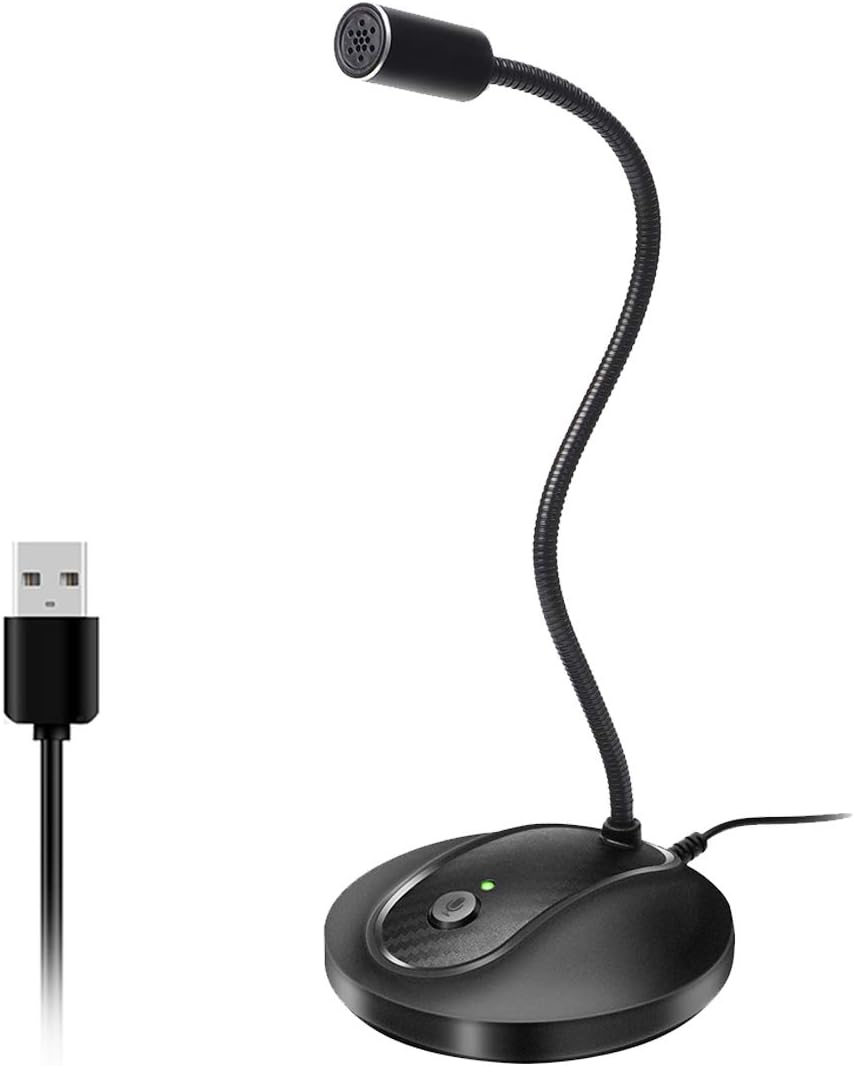
Image: The JOUNIVO USB Microphone JV-601, featuring a black gooseneck microphone with a round base and a USB cable.
Setup Guide
- Unpack the Microphone: Carefully remove the JOUNIVO USB Microphone from its packaging.
- Connect to Computer: Locate an available USB port on your computer (desktop or laptop). Insert the USB connector of the microphone firmly into the USB port.
- Automatic Installation: The microphone is plug-and-play, meaning no additional drivers are required for most Windows (7, 8, 10, 11) and MacOS systems. Your operating system should automatically detect and install the necessary components.
- Verify Connection: Once connected, the LED indicator on the microphone base should illuminate green, indicating a successful connection and active status.
- Adjust System Settings (if necessary): In some cases, you may need to select the JOUNIVO microphone as your default input device in your computer's sound settings.
- Windows: Go to Sound Settings > Sound Control Panel > Recording tab. Select "JOUNIVO Microphone" and set it as Default Device.
- MacOS: Go to System Preferences > Sound > Input tab. Select "JOUNIVO Microphone" from the list.

Image: Illustration showing the JOUNIVO USB Microphone connected to various devices, including Windows PCs, MacBooks, and a PlayStation 4, highlighting its plug-and-play compatibility.
Operating Instructions
Mute Button & LED Indicator
The JOUNIVO USB Microphone features a dedicated mute button located on its base, accompanied by an LED indicator to show the microphone's status.
- Green Light: Indicates the microphone is active and picking up sound.
- Red Light: Indicates the microphone is muted and not picking up sound.
- To Mute/Unmute: Press the mute button once to toggle between active (green LED) and muted (red LED) states.

Image: Close-up view of the microphone base, showing a finger pressing the mute button and illustrating the green (connected) and red (mute) LED indicator states.
360-Degree Adjustable Gooseneck
The flexible gooseneck design allows you to adjust the microphone's position 360 degrees to achieve optimal sound pickup.
- Gently bend the gooseneck to position the microphone head closer to your mouth for clearer voice capture, or away to reduce background noise.
- Ensure the microphone head is pointed towards the sound source for best performance.

Image: Diagram illustrating the 360-degree adjustable gooseneck of the JOUNIVO USB Microphone, showing its flexibility and dimensions.

Image: Three panels showing the JOUNIVO USB Microphone in use: a person working at a desk, a person in a video conference, and the microphone positioned next to a computer monitor during gaming.
Maintenance
- Cleaning: Use a soft, dry cloth to wipe the microphone and its base. Avoid using liquid cleaners or abrasive materials.
- Storage: When not in use, store the microphone in a clean, dry place away from extreme temperatures and direct sunlight.
- Handling: Avoid excessive force when adjusting the gooseneck. Do not drop the microphone or expose it to impacts.
- Cable Care: Do not bend or crimp the USB cable excessively. Use the included Velcro tie for neat cable management.

Image: Detailed view of the microphone's features, including the full-metal shell, included Velcro tie for cable management, durable USB connector, and anti-slip pads on the base.
Troubleshooting
| Problem | Possible Cause | Solution |
|---|---|---|
| Microphone not detected / No sound input. |
|
|
| Poor sound quality / Background noise. |
|
|
| Microphone intermittently stops working. |
|
|
Product Videos
JOUNIVO USB Microphone: Colors and Features
Video: An official overview of the JOUNIVO USB Microphone, showcasing its various features and available colors. This video provides a visual demonstration of the microphone's design and functionality.
Specifications
| Feature | Detail |
|---|---|
| Model Number | JV-601 |
| Microphone Form Factor | Gooseneck |
| Connectivity Technology | USB |
| Polar Pattern | Omnidirectional |
| Frequency Range | 20Hz-20kHz |
| Signal-to-Noise Ratio | 76 dB |
| Cable Length | 1.8m / 6ft (USB Cable) |
| Material | Acrylonitrile Butadiene Styrene, Metal |
| Item Dimensions (L x W x H) | 3 x 3 x 9 inches |
| Item Weight | 7.1 ounces (approx. 200g) |
| Compatible Devices | Laptop, Personal Computer |
| Operating Systems | Windows (7, 8, 10, 11), MacOS |
| Incompatible Devices | Xbox, Raspberry Pi, Android |
| Special Feature | Mute Button with LED Indicator, 360-Degree Adjustable Gooseneck |
Warranty and Support
The JOUNIVO USB Microphone JV-601 comes with a standard return policy of 30 days for refund or replacement. For specific warranty details and technical support, please refer to the official JOUNIVO website or contact their customer service directly.
You can visit the official JOUNIVO Store on Amazon for more information and product updates: JOUNIVO Store.
Ask a question about this manual
Ask about setup, troubleshooting, compatibility, parts, safety, or missing instructions. Manuals+ will review the question and use this page’s manual context to help answer it.