
XVIM US-D8-4AHD7-1T-205-3D
XVIM 8CH 1080P Home Security Camera System User Manual
Model: US-D8-4AHD7-1T-205-3D
Introduction
This manual provides comprehensive instructions for the installation, operation, and maintenance of your XVIM 8-Channel 1080P Home Security Camera System. This system is designed to provide reliable surveillance for both indoor and outdoor environments, featuring 1080P HD cameras, night vision capabilities, and remote access via mobile devices.

Figure 1: Overview of the XVIM 8-Channel 1080P Home Security Camera System.
Package Contents
Verify that all components listed below are included in your package:
- DVR (Digital Video Recorder) x1
- Cameras x4
- 60ft BNC Cable x4
- Power Supply (for DVR) x1
- 1-to-4 Splitter Cable x1
- USB Mouse x1
- Power Supply (for cameras) x1
- 1TB Memory Disc (pre-installed) x1
- Screws x4

Figure 2: Included components in the XVIM security system package.
Setup Guide
1. Physical Connection
Follow these steps to connect your security system components:
- Connect each camera to a 60ft BNC cable.
- Connect the other end of the BNC cables to the "VIDEO IN" ports on the back of the DVR.
- Connect the camera power supplies to the cameras using the 1-to-4 splitter cable.
- Connect the DVR power supply to the DVR.
- Connect a monitor to the DVR using either the VGA or HDMI port.
- Connect the USB mouse to a USB port on the DVR.
- For remote access, connect the DVR to your router using an Ethernet cable.

Figure 3: DVR rear panel connections.

Figure 4: System connection diagram.
2. Hard Drive Installation (Pre-installed)
Your XVIM security camera system comes with a 1TB hard drive pre-installed for immediate recording. No additional installation is required for the hard drive.
3. Mobile Application Setup
For remote viewing and control, download and configure the mobile application:
- Download the "XMEye Pro" or "HoMeYe Pro" app from the Google Play Store (for Android) or Apple App Store (for iOS).
- Register an account and log in.
- Add your device by scanning the QR code on the DVR or manually entering the device ID.
- Once added, you can view your cameras remotely.

Figure 5: Mobile app live viewing interface.

Figure 6: Remote viewing across various devices.
Operating Instructions
1. Live Viewing
Once the system is powered on and connected to a monitor, you will see the live camera feeds. The system provides clear 1080P HD images during the day and automatically switches to infrared (IR) night vision in low-light conditions.
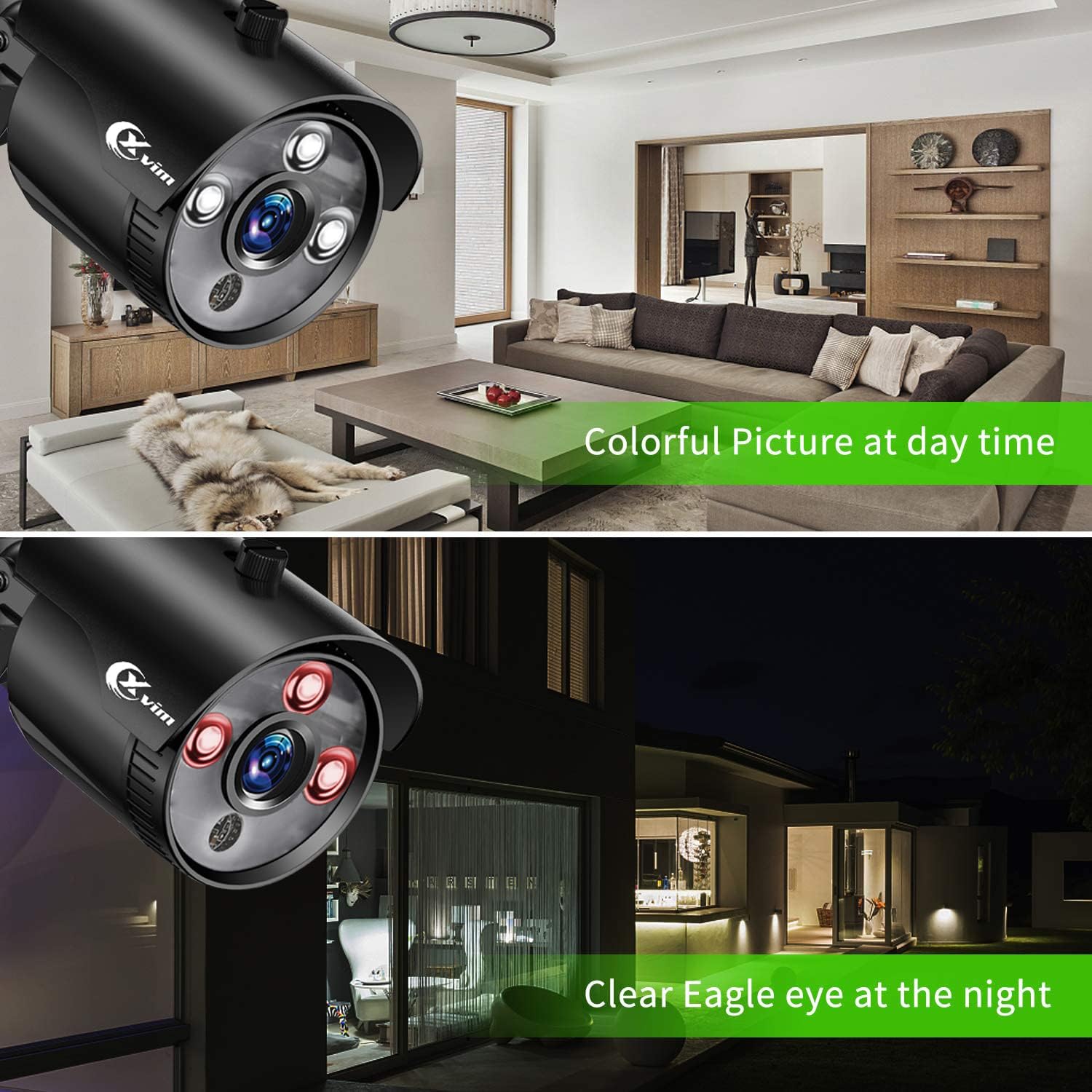
Figure 7: Day and Night Vision comparison.
The cameras are equipped with a 3.6mm lens providing an 81° viewing angle and up to 65 feet of night vision range.
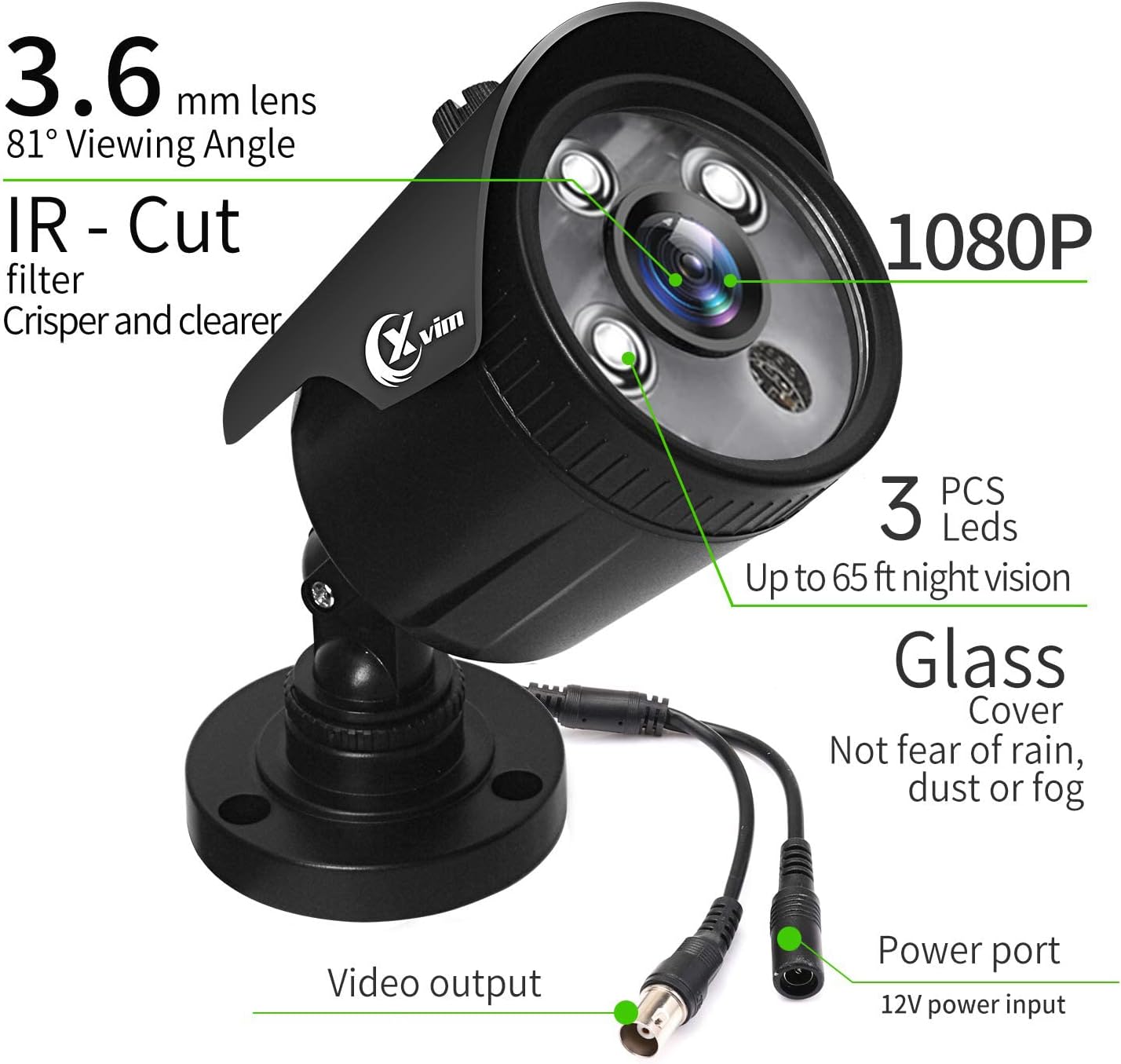
Figure 8: Camera features and specifications.
2. Recording Modes
The DVR supports various recording modes:
- Manual Recording: Start and stop recording manually via the DVR interface.
- Motion Detection Recording: Recording begins automatically when motion is detected in the camera's field of view.
- Scheduled Recording: Set specific times for continuous recording.
The system utilizes H.265+ video compression technology, which significantly reduces storage space requirements compared to H.264, allowing for longer recording times on the 1TB hard drive.

Figure 9: H.265+ Compression Efficiency.
3. Playback
Access recorded footage through the DVR interface or the mobile application. You can search by date, time, or event (e.g., motion detection) for smart playback.
4. Motion Detection & Alerts
Configure motion detection zones on the DVR to minimize false alarms. When motion is detected, the system can send instant push notifications to your mobile application.

Figure 10: Motion Monitoring Alarm and App Notification.
Maintenance
Regular maintenance ensures optimal performance and longevity of your security system.
- Camera Cleaning: Periodically clean the camera lenses with a soft, damp cloth to remove dust, dirt, or water spots that may obstruct the view. Avoid abrasive cleaners.
- Hard Drive Management: The 1TB hard drive will automatically overwrite the oldest footage when full. No manual intervention is typically required.
- Firmware Updates: Check the official XVIM website or contact support for any available firmware updates for your DVR to ensure the latest features and security patches.
- Weather Protection: The cameras are IP66-rated for waterproof and dust-proof performance, designed to withstand various weather conditions.

Figure 11: IP66 Weatherproof Rating.
Troubleshooting
This section addresses common issues you might encounter.
| Problem | Possible Cause | Solution |
|---|---|---|
| No image on monitor | Loose cable connection; DVR not powered on; Incorrect video input on monitor. | Check all power and video cables. Ensure DVR is powered. Select correct input (HDMI/VGA) on your monitor. |
| No remote access via app | DVR not connected to internet; Incorrect device ID; App not updated. | Ensure DVR is connected to your router. Verify device ID. Update the mobile app to the latest version. Check network settings on DVR. |
| Poor night vision | Infrared LEDs obstructed; Camera lens dirty; Insufficient ambient light. | Clean the camera lens. Ensure no obstructions are blocking the IR LEDs. Consider adding external IR illuminators if needed. |
| Motion detection false alarms | Sensitive settings; Environmental factors (e.g., moving branches, shadows). | Adjust motion detection sensitivity. Define specific detection zones to exclude areas with frequent irrelevant movement. |
Specifications
| Feature | Detail |
|---|---|
| Brand | XVIM |
| Model Number | US-D8-4AHD7-1T-205-3D |
| Connectivity Technology | Wired |
| Video Capture Resolution | 1080p |
| Number of Channels | 8 |
| Memory Storage Capacity | 1 TB (Pre-installed) |
| Power Source | Corded Electric |
| Operating System Compatibility | Android, iOS |
| Night Vision Range | Up to 65 feet (20 meters) |
| Viewing Angle | 75 Degrees (81° for 3.6mm lens) |
| Recording Mode | Manual, Motion Detection |
| Weatherproof Rating | IP66 |
| Product Dimensions | 14.06 x 13.82 x 6.85 inches |
| Item Weight | 8.36 pounds |
| UPC | 675234631933 |
Warranty and Support
For information regarding product warranty, please refer to the documentation included with your purchase or visit the official XVIM website. For technical support, troubleshooting assistance, or further inquiries, please contact XVIM customer service.
Additional resources, including the installation manual, may be available online:
Related documentsUS-D8-4AHD7-1T-205-3D


Ask a question about this manual
Ask about setup, troubleshooting, compatibility, parts, safety, or missing instructions. Manuals+ will review the question and use this page’s manual context to help answer it.