
Anlapus B07MX7VHKT
Anlapus 8 Channel 720P DVR Security Camera System Recorder User Manual
Model: B07MX7VHKT
1. Introduction
This manual provides detailed instructions for the installation, operation, and maintenance of your Anlapus 8 Channel 720P DVR Security Camera System Recorder. Please read this manual thoroughly before using the product to ensure proper setup and optimal performance. Keep this manual for future reference.
2. Safety Information
To prevent injury to yourself or others, or damage to your device, read all safety information before using the device. Failure to follow these instructions may result in electric shock, fire, or other hazards.
- Use only the power adapter supplied with the device.
- Do not expose the DVR to water, moisture, or extreme temperatures.
- Ensure proper ventilation to prevent overheating.
- Do not attempt to open or repair the device yourself. Refer all servicing to qualified personnel.
- Keep the device away from strong magnetic fields.
3. Package Contents
Please check the package contents upon opening. If any items are missing or damaged, contact customer support immediately.
- Anlapus 8 Channel 720P DVR Recorder (with pre-installed 1TB Hard Drive)
- Power Adapter
- USB Mouse
- Quick Start Guide
- Screws for HDD (if applicable)
4. Product Overview
The Anlapus 8 Channel 720P DVR is a versatile security recording solution supporting multiple camera types including 960H Analog, 720P/1080P AHD, 720P/1080P TVI, and CVI cameras. It comes with a pre-installed 1TB hard drive for continuous recording.
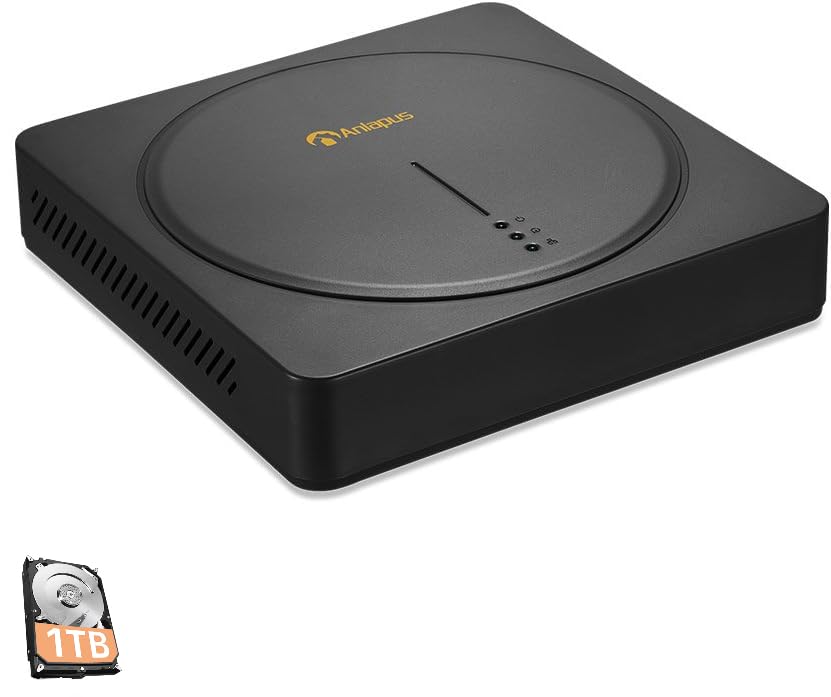
An image showing the Anlapus 8 Channel 720P DVR unit, a black square device with a circular indentation on top, featuring the Anlapus logo and indicator lights. A small icon of a 1TB hard drive is also visible in the bottom left corner.
Front Panel
- Indicator Lights: Power, HDD activity, Network status.
Rear Panel
- Video Inputs: 8 BNC ports for camera connections.
- Video Outputs: HDMI, VGA for monitor connection.
- Audio Inputs/Outputs: RCA ports for audio.
- Network Port: RJ45 Ethernet port for internet connection.
- USB Ports: For mouse, USB backup, or Wi-Fi adapter (if supported).
- Power Input: DC 12V power jack.
5. Setup Guide
5.1 Hardware Connection
- Connect Cameras: Connect your security cameras to the BNC video input ports on the rear of the DVR.
- Connect Monitor: Connect a monitor to the DVR using either the HDMI or VGA port.
- Connect Mouse: Plug the USB mouse into one of the USB ports.
- Connect Network (Optional but Recommended): Connect an Ethernet cable from the DVR's network port to your router or network switch for remote access and email alerts.
- Connect Power: Plug the power adapter into the DVR's power input and then into a power outlet. The DVR will power on automatically.
5.2 Initial Configuration
Upon first boot, the system will guide you through an initial setup wizard. Follow the on-screen prompts to:
- Set up a strong password for the administrator account.
- Configure date and time settings.
- Adjust network settings (DHCP is usually sufficient).
- Format the pre-installed 1TB hard drive if prompted (this will erase any existing data).
5.3 Mobile App Setup
For remote viewing and alerts, download the free Anlapus mobile application (available for Android and iOS devices).
- Download the app from your device's app store by searching for "Anlapus" or by scanning the QR code displayed on the DVR's monitor under the network settings or P2P menu.
- Create an account or log in.
- Add your DVR device by scanning the device's QR code (usually found on a sticker on the DVR or in the network settings menu) or by manually entering the device ID.
- Once added, you can view live footage, play back recordings, and receive alerts from your smartphone or tablet.
6. Operating Instructions
6.1 Live View
After successful setup, the DVR will display live video feeds from all connected cameras on the monitor. You can switch between single-camera view and multi-camera grid view using the on-screen controls or mouse.
6.2 Recording Modes
The DVR supports various recording modes:
- Continuous Recording: Records 24/7.
- Motion Detection Recording: Records only when motion is detected, saving hard drive space.
- Scheduled Recording: Records during specific time periods.
- Manual Recording: Start/stop recording manually.
Configure recording schedules and settings via the DVR's main menu (right-click with mouse).
6.3 Playback
To review recorded footage:
- From the main menu, select "Playback".
- Choose the date and camera channel you wish to review.
- Use the timeline to navigate through recordings. Different colors on the timeline indicate different recording types (e.g., continuous, motion).
6.4 Motion Detection and Email Alerts
The DVR features customizable motion detection with instant email alerts.
- Navigate to the "Alarm" or "Motion Detect" settings in the main menu.
- Enable motion detection for desired channels.
- Adjust sensitivity and define detection areas.
- Configure email settings under "Network" or "Alarm" to receive alerts with images when motion is detected. Ensure your network settings are correct for email functionality.
6.5 Data Backup
You can back up recorded footage to a USB flash drive.
- Insert a USB flash drive into a USB port on the DVR.
- From the main menu, select "Backup".
- Choose the camera channel, time range, and file type for backup.
- Start the backup process.
7. Maintenance
- Hard Drive Management: The 1TB hard drive will automatically overwrite the oldest footage when full. Regularly check the HDD status in the system settings.
- Firmware Updates: Periodically check the Anlapus official website for firmware updates. Updates can improve performance and add new features. Follow the instructions provided with the firmware carefully.
- Cleaning: Use a soft, dry cloth to clean the exterior of the DVR. Do not use liquid cleaners or aerosols. Ensure ventilation openings are free from dust.
- Password Security: Regularly change your DVR and app passwords to maintain security.
8. Troubleshooting
This section addresses common issues you might encounter.
- No Video Output:
- Check power connection to DVR and monitor.
- Ensure HDMI/VGA cable is securely connected.
- Verify monitor input source is correctly selected.
- No Camera Display:
- Check camera power supply.
- Ensure BNC cables are securely connected to both camera and DVR.
- Verify camera compatibility with the DVR (960H Analog, 720P/1080P AHD, TVI, CVI).
- Remote Viewing Not Working:
- Ensure DVR is connected to the internet (check network status light).
- Verify network settings (DHCP enabled or static IP configured correctly).
- Check if the device is added correctly in the mobile app.
- Ensure your router's firewall is not blocking the connection (port forwarding may be required for advanced setups).
- No Recording:
- Check if the hard drive is detected and formatted.
- Verify recording schedules are set correctly.
- Ensure motion detection is configured if using that mode.
- Email Alerts Not Received:
- Check network connection.
- Verify email server settings (SMTP, port, encryption) are correct in the DVR.
- Check your email spam folder.
For further assistance, refer to the Warranty and Support section.
9. Specifications
| Feature | Specification |
|---|---|
| Model | B07MX7VHKT |
| Video Inputs | 8 Channels (BNC) |
| Video Compatibility | 960H Analog, 720P/1080P AHD, 720P/1080P TVI, CVI |
| Video Outputs | HDMI, VGA |
| Hard Drive | 1TB Security Grade (Pre-installed) |
| Recording Resolution | Up to 720P on all 8 channels |
| Connectivity | Ethernet (RJ45), USB |
| Motion Detection | Yes, with Email Alert |
| Mobile App Support | Android, iOS (via QR Code Scan) |
| Power Supply | DC 12V |
| Dimensions | 16.77 x 10.87 x 3.58 inches (approx.) |
| Weight | 3.7 pounds (approx.) |
10. Warranty and Support
Anlapus provides a 2-year warranty for this product from the date of purchase. This warranty covers manufacturing defects and malfunctions under normal use. It does not cover damage caused by misuse, accidents, unauthorized modifications, or natural disasters.
For technical assistance, troubleshooting, or warranty claims, please contact Anlapus customer support. We offer lifetime technical support to ensure your system operates smoothly.
Contact Information:
Please refer to the contact details provided on the Anlapus official website or your purchase documentation for the most current support channels (e.g., email, phone, online chat).
When contacting support, please have your product model (B07MX7VHKT) and purchase information ready.
Related documentsB07MX7VHKT


Ask a question about this manual
Ask about setup, troubleshooting, compatibility, parts, safety, or missing instructions. Manuals+ will review the question and use this page’s manual context to help answer it.