
1. Introduction
The CreatBot F430 is a professional-grade 3D printer designed for high-precision additive manufacturing, capable of processing demanding industrial filaments such as ABS, PC, PP, Nylon, and PEEK. Its heated build chamber (up to 70°C) and hot end (up to 420°C) minimize deformation and ensure excellent print quality. With a full metal housing and a high-precision industrial guide system, the F430 delivers exceptional accuracy up to 0.04 mm and speeds up to 120 mm/s, making it ideal for engineering and aerospace applications.
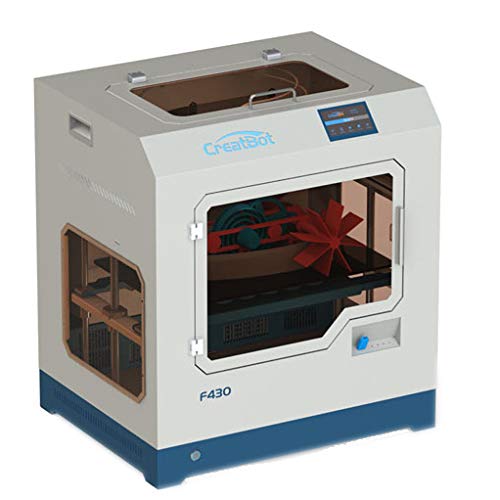
Image 1.1: The CreatBot F430 Professional 3D Printer. This image shows the front and side view of the printer, highlighting its robust metal casing and the transparent viewing window into the build chamber. A printed object is visible inside.
2. Setup
2.1 Unboxing and Placement
- Carefully remove the printer from its packaging. Retain all packaging materials for future transport or service.
- Place the CreatBot F430 on a stable, level surface capable of supporting its weight. Ensure adequate ventilation around the printer.
- Remove all internal packing materials and protective films from the build chamber, print head, and bed.
2.2 Power Connection
- Connect the power cable to the printer's power input and then to a grounded electrical outlet.
- Ensure the power switch is in the OFF position before connecting.
2.3 Initial Calibration
Refer to the on-screen instructions on the printer's control panel for initial bed leveling and print head calibration. This is crucial for achieving optimal print quality.
3. Operation
3.1 Software Installation
Install the CreatBot slicing software (or a compatible third-party slicer) on your PC. This software converts 3D models into printable G-code files.
3.2 Loading Filament
- Preheat the hot end to the recommended temperature for your chosen filament type.
- Insert the filament into the designated feeder mechanism.
- Guide the filament through the extruder until it emerges from the nozzle.
3.3 Starting a Print
- Transfer your G-code file to the printer via USB or network connection.
- Select the desired file from the printer's control panel.
- Confirm print settings and initiate the print job.
4. Maintenance
4.1 Regular Cleaning
- Regularly clean the print bed with isopropyl alcohol to ensure good adhesion.
- Remove any filament debris from the build chamber and around the print head.
4.2 Nozzle Maintenance
Periodically inspect the nozzle for wear or clogs. Use the provided cleaning tools to clear any blockages. Replace the nozzle if significant wear is observed.
4.3 Lubrication
Apply a small amount of lubricant to the linear rails and lead screws every few months to ensure smooth movement.
5. Troubleshooting
5.1 Common Issues and Solutions
| Issue | Possible Cause | Solution |
|---|---|---|
| Filament not extruding | Clogged nozzle, incorrect temperature, tangled filament | Clean or replace nozzle, verify temperature settings, untangle filament |
| Poor print adhesion | Dirty print bed, incorrect bed leveling, wrong bed temperature | Clean print bed, re-level bed, adjust bed temperature |
| Layer shifting | Loose belts, motor issues, print speed too high | Check and tighten belts, inspect motors, reduce print speed |
6. Specifications
| Feature | Detail |
|---|---|
| Brand | Creatbot |
| Model Number | F430 |
| Manufacturer | Creatbot |
| Color | Blue, White |
| Compatible Devices | PC |
| Suitable Material | Nylon, ABS, PC, PP, PEEK (and others) |
| Heated Build Chamber | Up to 70°C |
| Hot End Temperature | Up to 420°C |
| Production Accuracy | Up to 0.04 mm |
| Print Speed | Up to 120 mm/s |
| Housing Material | Full Metal |
| ASIN | B07MVJFMJF |
| First Available | January 16, 2019 |
7. Warranty and Support
For detailed warranty information and technical support, please refer to the official CreatBot website or contact their customer service directly. Keep your purchase receipt as proof of purchase for warranty claims.
Online Resources: Visit the CreatBot official website for FAQs, software updates, and additional resources.
Customer Service: Contact information for support can typically be found on the manufacturer's website.


