
Introduction
This manual provides essential information for the setup, operation, maintenance, and troubleshooting of your Fujitsu ESPRIMO P557 desktop computer. The Fujitsu ESPRIMO P557 is a powerful Midi Tower PC designed for reliable performance, featuring a 7th Gen Intel Core i7 processor, 16 GB of RAM, and a 512 GB storage capacity, running on Windows 10 Pro.
Please read this manual thoroughly before using your computer to ensure proper functionality and to maximize its lifespan.
Setup
Follow these steps to set up your Fujitsu ESPRIMO P557 PC:
- Unpacking: Carefully remove the computer and all accessories from the packaging. Retain the original packaging for future transport or service needs.
- Placement: Place the computer on a stable, flat surface with adequate ventilation. Ensure that the air vents are not obstructed.
- Connecting Peripherals:
- Connect your monitor to the appropriate video output port (e.g., HDMI, DVI) on the back of the PC.
- Connect your keyboard and mouse to the available USB ports.
- If using wired network, connect an Ethernet cable to the LAN port.
- Connect any other desired peripherals such as speakers, printers, or external drives.
- Power Connection: Connect the power cable to the power input on the back of the PC, then plug the other end into a grounded electrical outlet.
- Initial Power On: Press the power button located on the front of the PC. The system will boot into Windows 10 Pro. Follow the on-screen instructions for initial setup, including language, region, and network configuration.

Figure 1: Front-side view of the Fujitsu ESPRIMO P557 PC, showcasing its compact tower design and front panel features.

Figure 2: Direct front view of the Fujitsu ESPRIMO P557 PC, highlighting the optical drive, front USB ports, and power button.
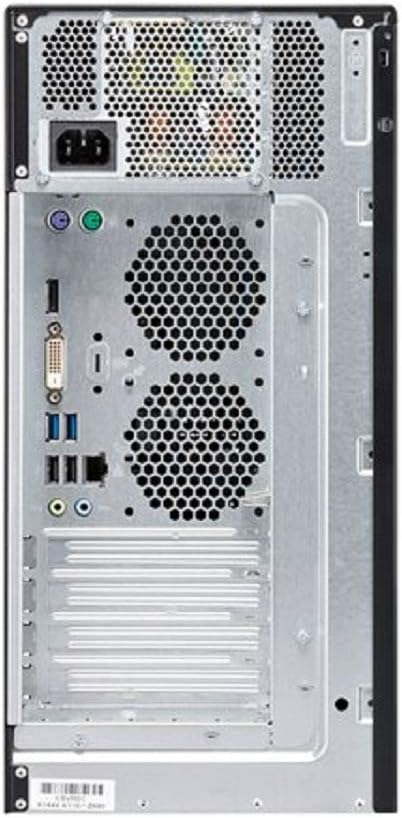
Figure 3: Rear view of the Fujitsu ESPRIMO P557 PC, illustrating various connectivity ports including power, video outputs, and USB ports.
Operating Instructions
This section covers the basic operation of your Fujitsu ESPRIMO P557.
Power On/Off
- To Power On: Press the power button on the front panel. The system will initiate the boot sequence.
- To Shut Down: In Windows 10 Pro, click the Start button, then select Power > Shut down. This ensures all applications are closed properly and data is saved.
- To Restart: In Windows 10 Pro, click the Start button, then select Power > Restart.
- To Sleep: In Windows 10 Pro, click the Start button, then select Power > Sleep.
Using the Optical Drive (DVD Super Multi)
The integrated DVD Super Multi drive supports reading and writing various disc formats.
- Press the eject button on the optical drive to open the disc tray.
- Place the disc (CD/DVD) gently onto the tray with the label side facing up.
- Gently push the tray back into the drive until it clicks shut.
- The operating system will typically detect the disc and prompt you for action or automatically launch content.
USB Ports
The Fujitsu ESPRIMO P557 is equipped with multiple USB ports (both front and rear) for connecting external devices such as USB drives, printers, and other peripherals. Simply plug your USB device into an available port. Windows 10 Pro will typically install the necessary drivers automatically.
Maintenance
Regular maintenance helps ensure the longevity and optimal performance of your computer.
- Cleaning:
- Use a soft, lint-free cloth to wipe the exterior of the computer.
- For stubborn marks, slightly dampen the cloth with water or a mild, non-abrasive cleaner.
- Use compressed air to clear dust from the ventilation grilles and ports periodically. Ensure the PC is powered off and unplugged before cleaning.
- Software Updates: Regularly check for and install updates for Windows 10 Pro and your installed applications. This ensures security, stability, and performance improvements.
- To check for Windows updates: Go to Settings > Update & Security > Windows Update.
- Ventilation: Ensure that the computer's ventilation openings are not blocked. Proper airflow is crucial to prevent overheating. Avoid placing the PC in enclosed spaces or on soft surfaces that can restrict airflow.
- Data Backup: Regularly back up your important data to an external drive or cloud storage to prevent data loss in case of system failure.
Troubleshooting
This section provides solutions to common issues you might encounter.
- No Power:
- Ensure the power cable is securely connected to both the PC and the electrical outlet.
- Verify the power outlet is functional by plugging in another device.
- Check the power supply unit (PSU) switch on the back of the PC, if present, to ensure it is in the 'On' position.
- No Display on Monitor:
- Confirm the monitor is powered on and its power indicator light is active.
- Check that the video cable (HDMI, DVI) is securely connected to both the PC and the monitor.
- Ensure the monitor's input source is correctly selected (e.g., HDMI 1, DVI).
- If you have a dedicated graphics card, ensure the monitor is connected to its ports, not the integrated graphics ports.
- System is Slow or Unresponsive:
- Close unnecessary applications running in the background.
- Check Task Manager (Ctrl+Shift+Esc) for processes consuming high CPU, memory, or disk usage.
- Ensure your operating system and drivers are up to date.
- Run a full system scan with antivirus software to check for malware.
- Restart the computer.
- Peripheral Not Detected:
- Try connecting the peripheral to a different USB port.
- Restart the computer.
- Check the device manager in Windows for any driver issues.
Specifications
Below are the key technical specifications for the Fujitsu ESPRIMO P557:
| Feature | Specification |
|---|---|
| Brand | Fujitsu |
| Model Number | VFY:P0557PP761DE |
| Processor Brand | Intel |
| Processor Type | Core i7 (7th Gen Intel® Core i7-7700) |
| Processor Speed | 3.6 GHz |
| Processor Count | 4 |
| RAM Size | 16 GB |
| Memory Technology | DDR4 SDRAM |
| Hard Disk Description | HDD (512 GB) |
| Graphics Coprocessor | Intel HD Graphics 630 |
| Graphics Card Description | Integrated |
| Operating System | Windows 10 Pro |
| Form Factor | Tower |
| Colour | Red, Black |
| Item Weight | 7 kg |
| Optical Drive | DVD Super Multi |
| HDMI Ports | 1 |
Warranty and Support
Your Fujitsu ESPRIMO P557 comes with a standard manufacturer's warranty. For specific warranty terms and conditions, please refer to the documentation included with your purchase or visit the official Fujitsu support website.
For technical support, driver downloads, or further assistance, please visit the official Fujitsu support portal. You may need your product model number (VFY:P0557PP761DE) and serial number (if applicable) when contacting support.
Fujitsu Support Website: https://www.fujitsu.com/global/support/


