
A-Tech ATMS269639B13039X1
A-Tech 4GB DDR3L SODIMM Memory Module
Model: ATMS269639B13039X1
Introduction
This manual provides detailed instructions for the installation, operation, and maintenance of your A-Tech 4GB DDR3L PC3-14900 1866MHz SODIMM memory module. This module is specifically designed for compatibility with the Acer Aspire E1-510-2602 Laptop & Notebook, as well as other compatible systems requiring DDR3L SODIMM memory.
A memory (RAM) upgrade can significantly improve your system's performance by allowing it to handle more applications and data simultaneously, leading to a faster and smoother computing experience.

Image: The A-Tech 4GB DDR3L SODIMM memory module, showing the green PCB and the product label with model number ATMS269639B13039X1.
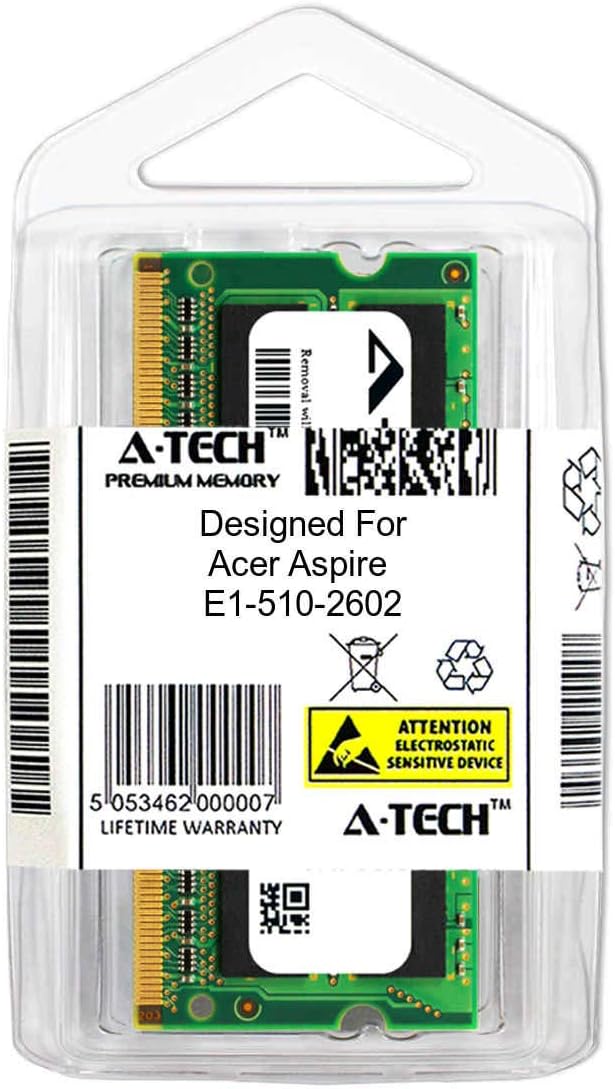
Image: The A-Tech 4GB DDR3L SODIMM memory module packaged in its clear retail casing, designed for Acer Aspire E1-510-2602.
Setup and Installation
Before beginning the installation process, ensure your system is powered off and disconnected from all power sources. It is recommended to discharge any static electricity by touching a grounded metal object before handling the memory module.
1. Compatibility Check
Verify that your laptop or notebook supports DDR3L SODIMM memory at 1866MHz. This module is dual voltage (1.35V and 1.5V) and compatible with systems requiring either. Refer to your system's manual for specific memory requirements.

Image: A graphic emphasizing compatibility, showing a person using a laptop, with text "COMPATIBILITY Designed for Laptop, Mini PC, and AIO systems".
2. Preparation
- Power down your laptop completely and remove the power adapter.
- Remove the battery if it is user-removable.
- Open the memory compartment cover, typically located on the underside of the laptop. Consult your laptop's manual for exact location and opening procedure.
- Discharge static electricity by touching a metal part of the laptop chassis.
3. Module Installation
- Locate the available SODIMM slot(s). If replacing existing memory, gently push the retention clips outwards to release the old module, then remove it.
- Hold the new A-Tech memory module by its edges, avoiding contact with the gold connectors.
- Align the notch on the memory module with the key in the SODIMM slot.
- Insert the module firmly into the slot at a 45-degree angle.
- Gently push the module down until the retention clips on both sides snap into place, securing the module horizontally.

Image: A graphic illustrating the ease of installation, showing a memory module being inserted into a laptop's RAM slot.
4. Post-Installation
- Replace the memory compartment cover.
- Reinstall the battery (if removed) and reconnect the power adapter.
- Power on your laptop. The system should automatically detect the new memory.
- Verify the installed memory in your operating system's system information (e.g., Task Manager in Windows, About This Mac in macOS).
Operating Principles
The A-Tech 4GB DDR3L SODIMM memory module functions as your computer's short-term data storage, enabling quick access to information for the CPU. It works in conjunction with your existing memory modules of similar specifications (Samsung, Hynix, Micron, etc.) to expand your system's total RAM capacity.
This module operates at 1866MHz, providing efficient data transfer rates for demanding applications and multitasking. Its dual voltage capability (1.35V and 1.5V) ensures broad compatibility with various laptop models that support DDR3L standards.

Image: A graphic highlighting reliability, showing a person working on a laptop in a comfortable setting, with text "RELIABILITY All A-Tech memory modules undergo extensive quality control testing to ensure dependable and reliable performance".
Maintenance
Memory modules generally require minimal maintenance. To ensure optimal performance and longevity:
- Keep your system clean: Regularly clean your laptop's vents and fans to prevent dust buildup, which can lead to overheating and affect component lifespan.
- Handle with care: If you ever need to remove or reinstall the module, always handle it by the edges to avoid touching the gold contacts or integrated circuits.
- Static electricity: Always take anti-static precautions (e.g., using an anti-static wrist strap or touching a grounded metal object) when handling memory modules to prevent damage from electrostatic discharge.
- Environmental conditions: Store and operate your laptop in a cool, dry environment, away from extreme temperatures and humidity.
Troubleshooting
If you encounter issues after installing your A-Tech memory module, consider the following troubleshooting steps:
System Does Not Boot or Beeps Repeatedly
- Re-seat the module: Power off the system, remove the module, and re-insert it firmly into the slot, ensuring the retention clips snap into place.
- Check notch alignment: Ensure the notch on the module correctly aligns with the key in the slot. Incorrect alignment can prevent proper seating.
- Test one module at a time: If you installed multiple modules, try booting with only the new A-Tech module installed (or one at a time if you have multiple new modules).
- Check existing modules: If you are adding to existing RAM, try booting with only the original modules to confirm they are still functional.
Incorrect Amount of RAM Detected
- Verify seating: Ensure the module is fully seated in its slot. A partially seated module may not be fully recognized.
- Check BIOS/UEFI: Some systems may require a BIOS/UEFI update to fully recognize new or higher capacity memory modules. Consult your laptop manufacturer's support website.
- Operating System Limitations: Ensure your operating system (especially 32-bit versions) supports the total amount of RAM installed. 32-bit operating systems typically only recognize up to 4GB of RAM.
System Instability or Crashes
- Run memory diagnostics: Use built-in memory diagnostic tools (e.g., Windows Memory Diagnostic) to check for errors.
- Check for overheating: Ensure your laptop's cooling system is functioning correctly. Excessive heat can cause instability.
- Driver updates: Ensure your system's chipset drivers are up to date.
Specifications
| Feature | Detail |
|---|---|
| Module Type | SODIMM (Small Outline Dual In-line Memory Module) |
| Capacity | 4GB (Single Module) |
| Technology | DDR3L (Double Data Rate 3 Low Voltage) |
| Speed | 1866MHz (PC3-14900) |
| Voltage | 1.35V (Dual Voltage: Compatible with 1.5V) |
| Pin Count | 204-pin |
| Error Correction | Non-ECC Unbuffered |
| Compatibility | Acer Aspire E1-510-2602 Laptop & Notebook, and other compatible systems. Works with existing Samsung, Hynix, and Micron RAM modules of similar specs. |
| Model Number | ATMS269639B13039X1 |
Warranty and Support
A-Tech memory modules come with a Lifetime Warranty, ensuring peace of mind regarding your investment. This warranty covers defects in materials and workmanship for the lifetime of the product.
For technical support, warranty claims, or further assistance, please contact A-Tech directly. You can find more information and contact details on the official A-Tech website:
Visit A-Tech Memory Official Website

Image: The A-Tech brand logo, featuring "A-TECH PREMIUM MEMORY".
Ask a question about this manual
Ask about setup, troubleshooting, compatibility, parts, safety, or missing instructions. Manuals+ will review the question and use this page’s manual context to help answer it.