
A-Tech ATMS376102B12351X1
A-Tech 8GB DDR3L SODIMM Memory Module for HP 17-p121wm Laptop
Model: ATMS376102B12351X1
Introduction
This manual provides instructions for the installation, operation, and maintenance of your A-Tech 8GB DDR3L PC3L-12800 1600MHz SODIMM memory module. This module is designed for compatibility with the HP 17-p121wm laptop and other systems requiring DDR3L SODIMM memory.
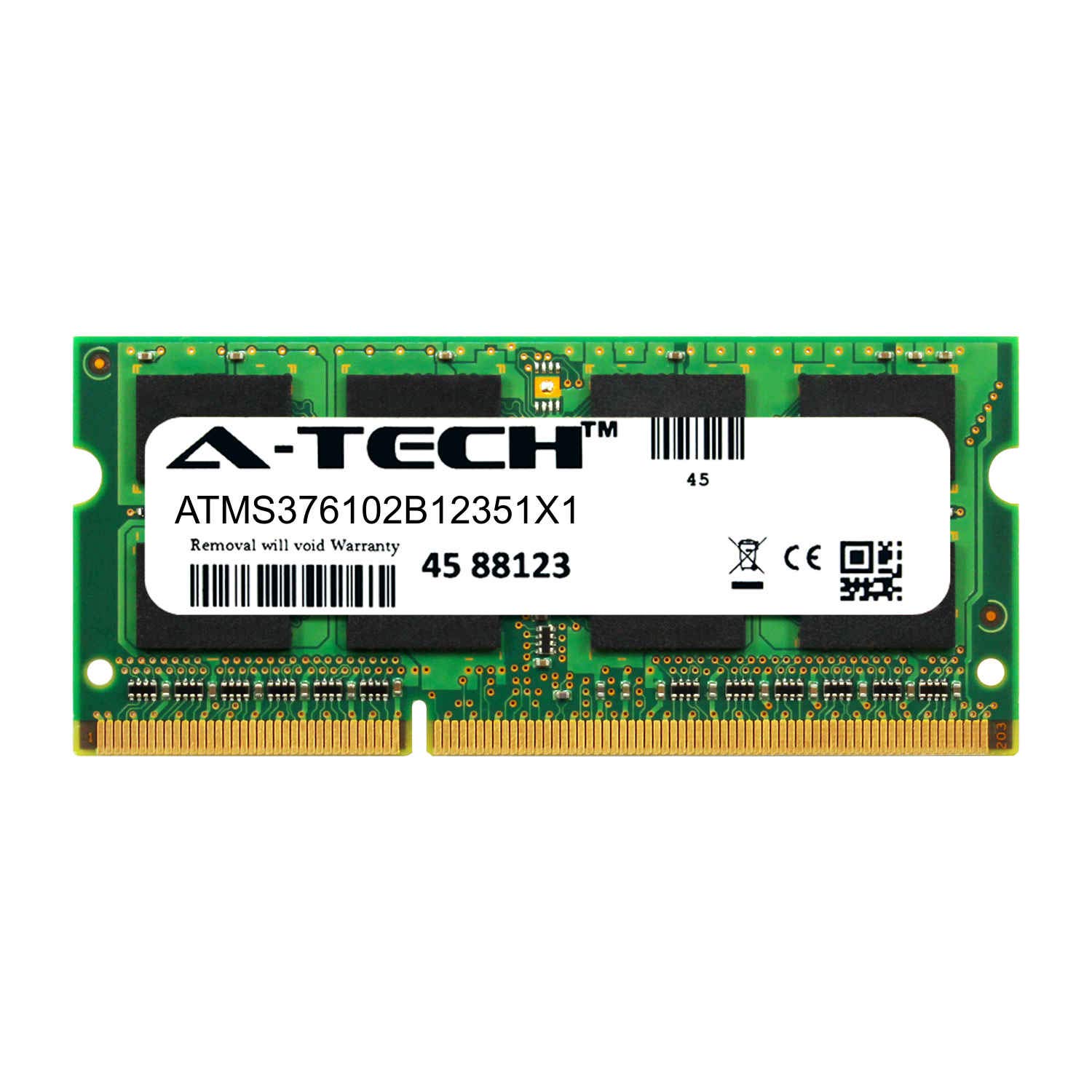
Image: A-Tech 8GB DDR3L SODIMM memory module in its retail packaging, clearly indicating compatibility with HP 17-p121wm.
Memory (RAM) is a critical component that allows your computer to perform multiple tasks efficiently. Upgrading your system's RAM can significantly improve overall performance, especially when running demanding applications or multitasking.
Compatibility
This A-Tech memory module is a DDR3L SODIMM, designed for laptops, mini PCs, and All-in-One (AIO) systems that support DDR3L PC3L-12800 (1600MHz) memory. It is specifically tested and compatible with the HP 17-p121wm laptop.
Before installation, verify your system's memory requirements to ensure compatibility. This module operates at 1.35V and is also compatible with systems requiring 1.5V DDR3 memory.

Image: Illustrates the compatibility of SODIMM RAM with various portable and compact computer systems.
Installation Guide
Installing a memory module requires careful handling. Please follow these steps to ensure a successful installation:
- Preparation:
- Power off your laptop completely and disconnect the power adapter.
- Remove the battery if it is user-removable.
- Discharge any static electricity by touching a grounded metal object. Consider using an anti-static wrist strap.
- Gather necessary tools, typically a small Phillips head screwdriver.
- Accessing Memory Slots:
- Carefully turn your laptop over.
- Locate the memory compartment cover. This is usually secured by small screws. Refer to your laptop's specific service manual for exact location and removal instructions.
- Remove the screws and gently lift off the cover to expose the memory slots.
- Installing the Module:
- If replacing an existing module, gently push outwards on the metal clips on either side of the module. The module will pop up at an angle. You can then pull it out.
- Hold the new A-Tech SODIMM module by its edges, avoiding touching the gold connectors.
- Align the notch on the module with the key in the memory slot.
- Insert the module firmly into the slot at a 45-degree angle.
- Push down on the module until the metal clips on both sides snap into place, securing the module horizontally.
- Reassembly:
- Replace the memory compartment cover and secure it with screws.
- Reinstall the battery (if removed) and reconnect the power adapter.
- Power on your laptop. The system should automatically detect the new memory.

Image: The A-Tech 8GB DDR3L SODIMM module, ready for installation.

Image: A close-up of a DDR3 SODIMM module, illustrating the notch for proper alignment during installation.
Operation
Once installed, the A-Tech memory module operates automatically. Your operating system will detect the increased memory capacity, and applications will utilize it as needed. No additional software or drivers are typically required for memory modules.
To verify successful installation, you can check your system's memory information through the operating system settings (e.g., Task Manager in Windows, About This Mac in macOS, or system information utilities in Linux).

Image: Visual representation of enhanced system performance after a memory upgrade.
Maintenance
Memory modules generally require minimal maintenance. To ensure optimal performance and longevity:
- Keep System Clean: Regularly clean your laptop's cooling vents to prevent dust buildup, which can lead to overheating and affect all internal components, including RAM.
- Handle with Care: If you ever need to remove or reinstall the module, always handle it by the edges to avoid touching the gold contacts or integrated circuits.
- Static Prevention: Always take anti-static precautions when handling memory modules to prevent damage from electrostatic discharge.
Troubleshooting
If you encounter issues after installing your A-Tech memory module, consider the following:
| Symptom | Possible Cause | Solution |
|---|---|---|
| System does not boot or displays a blank screen. | Module not seated correctly; incompatibility; faulty module. |
|
| System boots but displays incorrect memory amount. | Module not fully recognized; BIOS/UEFI settings. |
|
| Frequent system crashes or "Blue Screen of Death" (BSOD). | Unstable memory; faulty module. |
|
If troubleshooting steps do not resolve the issue, please contact A-Tech Technical Support for further assistance.
Specifications
| Feature | Detail |
|---|---|
| Brand | A-Tech |
| Module Capacity | 8 GB |
| Memory Technology | DDR3L (DDR3 Low Voltage) |
| Memory Speed | 1600 MHz (PC3L-12800) |
| Form Factor | 204-pin SO-DIMM |
| Voltage | 1.35 Volts (Dual Voltage: 1.35V / 1.5V compatible) |
| Error Correction | Non-ECC Unbuffered |
| Rank | 2Rx8 |
| Compatible Devices | Laptop (specifically HP 17-p121wm) |
| Model Number | ATMS376102B12351X1 |
Warranty and Support
A-Tech memory modules come with a Limited Lifetime Warranty covering defects in materials and workmanship. This warranty ensures your investment is protected for the lifespan of the product.
For technical assistance, warranty claims, or any questions regarding your A-Tech memory module, please contact A-Tech Technical Support. Contact information can typically be found on the official A-Tech website or through your purchase documentation.
Official A-Tech Website: atechmemory.com
Ask a question about this manual
Ask about setup, troubleshooting, compatibility, parts, safety, or missing instructions. Manuals+ will review the question and use this page’s manual context to help answer it.