
1. Introduction
This user manual provides detailed instructions for the operation and maintenance of your Samsung DS-5007S digital telephone. This device is designed for business communication systems, offering essential features for efficient call handling. Please read this manual thoroughly to ensure proper use and to maximize the functionality of your telephone.
2. Product Overview
The Samsung DS-5007S is an Enterprise DS-5000 series digital telephone featuring a 7-button speaker display. It is designed for integration into Samsung OfficeServ communication systems.
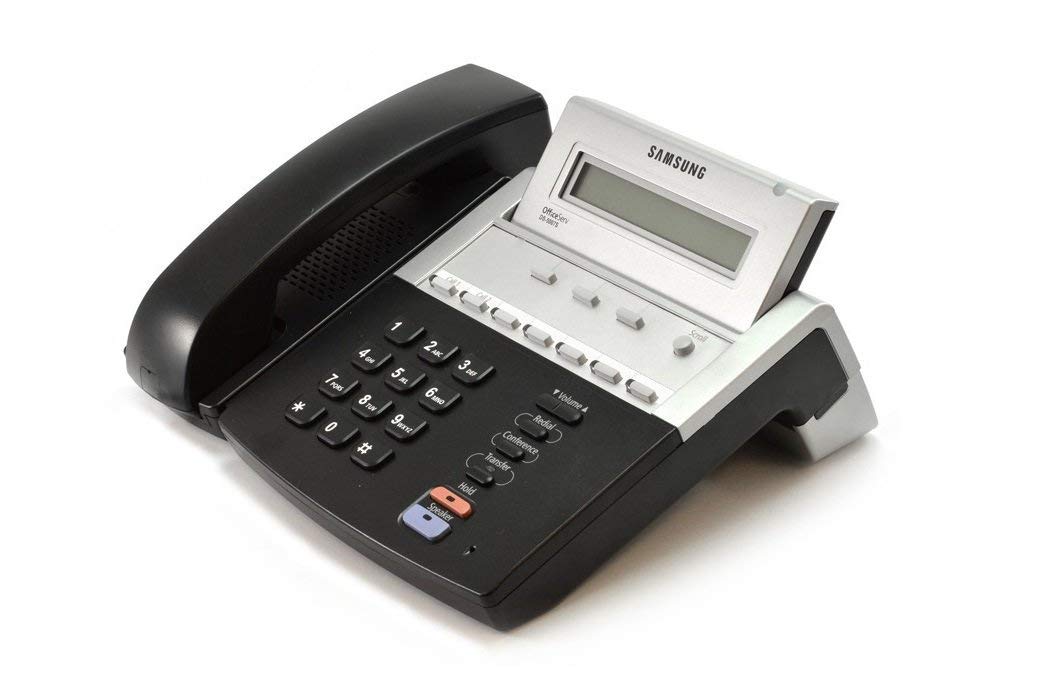
Figure 2.1: Samsung DS-5007S Digital Telephone. This image displays the complete telephone unit, including the handset on the left, the main body with a monochrome display, and a numeric keypad along with various function buttons.
Key Components:
- Handset: For private conversations.
- Display Screen: Shows call information, menu options, and system status.
- Programmable Buttons (Call 1, Call 2, etc.): Used for line access, speed dials, or other system features.
- Scroll Button: Navigates through menu options on the display.
- Numeric Keypad: For dialing numbers and entering data.
- Volume Buttons (▼ Volume ▲): Adjusts handset, speaker, or ringer volume.
- Redial Button: Dials the last number called.
- Conference Button: Initiates or joins a conference call.
- Transfer Button: Transfers an active call to another extension or external number.
- Hold Button: Places an active call on hold.
- Speaker Button: Activates or deactivates the speakerphone function.
3. Setup
The Samsung DS-5007S digital telephone connects to a compatible Samsung OfficeServ system. Professional installation is typically required for initial system integration. For basic setup:
- Connect Handset: Plug the coiled cord from the handset into the designated port on the left side of the telephone base.
- Connect Line Cord: Connect the telephone line cord from the wall jack (or system port) to the "LINE" port on the back of the phone.
- Power Connection: If an external power adapter is required (check your system's requirements), connect it to the power port on the back of the phone and then to a power outlet. Digital phones often draw power directly from the system line.
- Initial Boot-up: The phone will power on and display system information. Wait for it to register with the OfficeServ system.
If the phone does not power on or register, consult your system administrator or the troubleshooting section.
4. Operating Instructions
4.1 Making a Call
- Lift the handset or press the Speaker button.
- Dial the desired number using the numeric keypad.
- The call will connect automatically.
4.2 Answering a Call
- When the phone rings, lift the handset or press the flashing line button (e.g., Call 1 or Call 2) or the Speaker button.
4.3 Using Speakerphone
- To activate speakerphone during a call, press the Speaker button. You can then place the handset back in its cradle.
- To switch back to the handset, simply lift the handset.
4.4 Placing a Call on Hold
- During an active call, press the Hold button. The line button will typically flash.
- To retrieve the call, press the flashing line button.
4.5 Transferring a Call
- During an active call, press the Transfer button. The current call will be placed on hold.
- Dial the extension or external number you wish to transfer the call to.
- Wait for the party to answer (optional, for an announced transfer) or press Transfer again to complete the transfer (for a blind transfer).
4.6 Initiating a Conference Call
- During an active call, press the Conference button. The current call will be placed on hold.
- Dial the number of the third party.
- Once the third party answers, press the Conference button again to join all parties.
4.7 Redialing the Last Number
- Lift the handset or press the Speaker button.
- Press the Redial button. The phone will automatically dial the last outgoing number.
4.8 Adjusting Volume
- During a call, press the Volume ▲ button to increase volume or Volume ▼ to decrease volume for the handset or speakerphone.
- When the phone is idle, press the Volume ▲ or Volume ▼ buttons to adjust the ringer volume.
4.9 Using the Display and Scroll Button
- The display shows call status, caller ID, and menu options.
- Use the Scroll button (typically a rocker or up/down button) to navigate through menu items or call logs displayed on the screen.
5. Maintenance
Proper maintenance ensures the longevity and optimal performance of your Samsung DS-5007S telephone.
- Cleaning: Use a soft, damp cloth to clean the exterior of the phone. Avoid abrasive cleaners, solvents, or excessive moisture. Do not spray cleaners directly onto the phone.
- Environment: Keep the phone away from direct sunlight, excessive heat, and moisture. Ensure it is placed on a stable surface.
- Cord Management: Ensure all cords are not tangled or pinched, which can lead to damage or signal issues.
6. Troubleshooting
If you encounter issues with your telephone, try the following basic troubleshooting steps:
| Problem | Possible Cause | Solution |
|---|---|---|
| No dial tone | Phone not connected to system; system issue; power issue. | Check all cable connections. Ensure the system is operational. If using an external power adapter, verify it's plugged in. Contact your system administrator. |
| Display is blank | No power; phone not registered. | Verify power connection. Ensure the phone is properly connected to the OfficeServ system. |
| Cannot make/receive calls | Line issue; system configuration; phone not registered. | Check if other phones on the system are working. Verify line connections. Contact your system administrator for configuration checks. |
| Buttons unresponsive | Temporary software glitch; physical damage. | Disconnect and reconnect the phone (power cycle). If the issue persists, contact support. |
For issues not resolved by these steps, please contact your system administrator or technical support.
7. Specifications
- Model: Samsung DS-5007S
- Manufacturer: Samsung
- Product Dimensions: 10 x 10 x 6 inches (approximately)
- Item Weight: 2.27 pounds (approximately)
- Type: Digital Business Telephone
- Display: 7-button speaker display
- Compatibility: Samsung OfficeServ systems
- Date First Available: January 15, 2019
8. Warranty and Support
As a renewed product, the Samsung DS-5007S is typically covered by the Amazon Renewed Guarantee, which provides for a replacement or refund if you are not satisfied with your purchase. Specific warranty terms may vary depending on the seller and region.
- Amazon Renewed Guarantee: Refer to the Amazon Renewed program details for information on eligibility for replacement or refund.
- Technical Support: For system-specific issues or advanced configuration, contact your IT department or the authorized Samsung OfficeServ system administrator.
- Seller Support: For issues related to the condition of the renewed product, contact the seller directly through the platform where it was purchased.


