
Logitech G 981-000742
Logitech G935 Wireless DTS:X 7.1 Surround Sound LIGHTSYNC RGB PC Gaming Headset User Manual
Brand: Logitech G
Introduction
The Logitech G935 is an advanced wireless gaming headset designed to provide an immersive audio experience. It features 50mm Pro-G drivers for detailed sound, LIGHTSYNC RGB lighting for customizable aesthetics, and DTS Headphone:X 2.0 surround sound for precise positional audio. This manual provides comprehensive instructions for setting up, operating, and maintaining your headset.
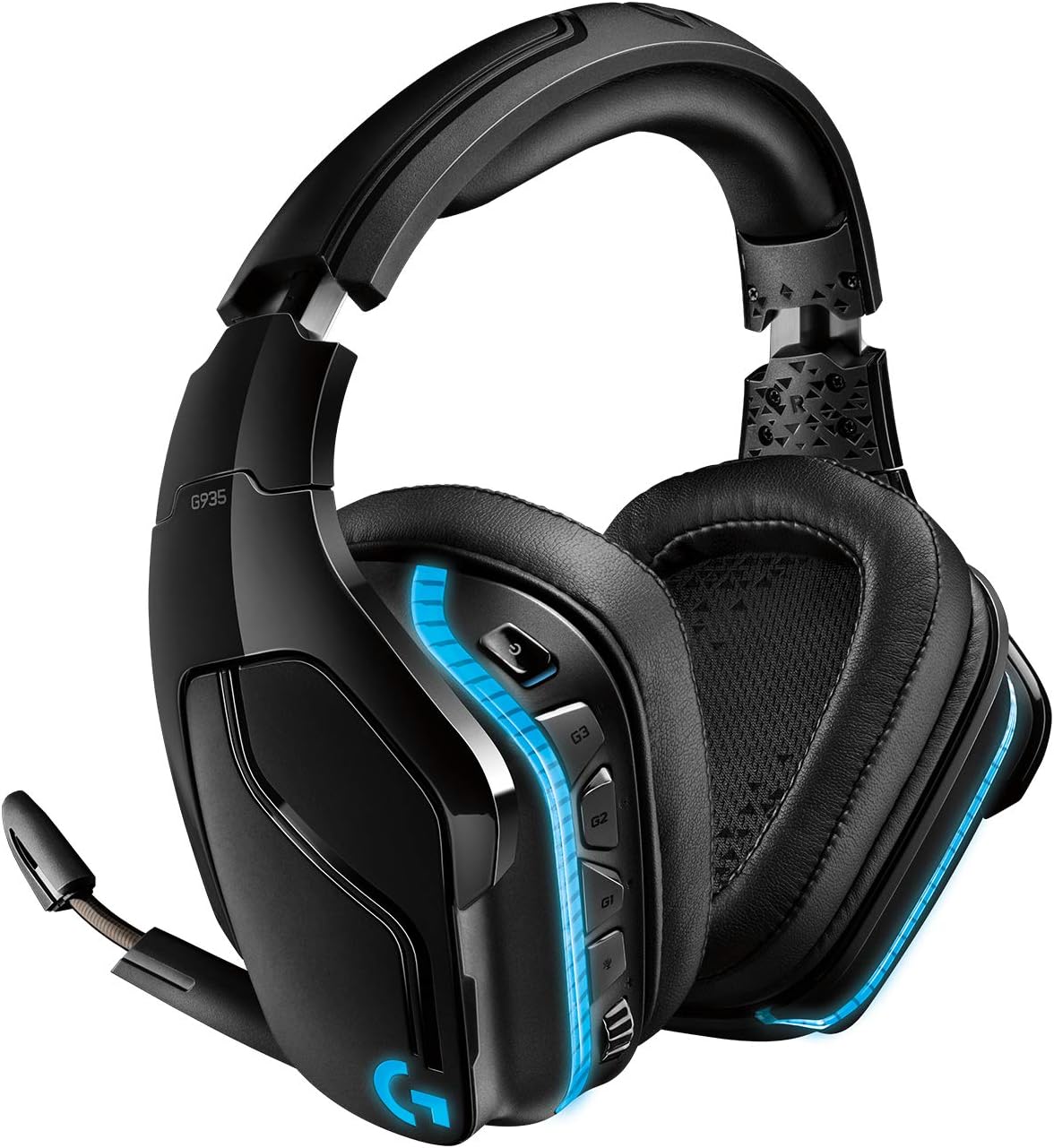
Figure 1: Logitech G935 Wireless Gaming Headset, showcasing its sleek black design with blue LIGHTSYNC RGB accents.
Key Features
- Advanced Wireless Connectivity: 2.4 GHz wireless technology provides premium sound quality, freedom of movement, and a clean, wire-free setup.
- 50mm Pro-G Drivers: Large drivers made of woven hybrid mesh are designed to reduce distortion, allowing for greater detail in the game environment.
- LIGHTSYNC RGB Lighting: Fully customizable RGB lighting that can react to in-game action on supported games. Customization is available through Logitech G Hub software.
- DTS Headphone:X 2.0 Surround Sound: Delivers precise positional 3D soundscapes, enhancing immersion by allowing users to pinpoint audio cues like enemy footsteps or special abilities.
- Enhanced 6mm Flip-to-Mute Microphone: Provides clear communication and features a convenient flip-to-mute function.
- Long Battery Life: Offers up to 12 hours of playtime without lighting, and 8 hours with default lighting.
- Programmable G-Keys: Headset includes programmable G-keys for custom commands and macros.

Figure 2: Diagram highlighting key features of the G935 headset, including LIGHTSYNC RGB, programmable G Keys, 6mm flip-to-mute mic, leatherette earpads, Pro-G 50mm drivers, and 12h battery/15m range.

Figure 3: The G935 headset emphasizing its 12-hour battery life and 15-meter wireless range, enabled by 2.4 GHz wireless technology.

Figure 4: Visual representation of the Pro-G 50mm drivers within the G935 headset, designed for immersive sound with better bass and accuracy.

Figure 5: The G935 headset highlighting DTS Headphone:X 2.0 surround sound, which provides precise positional audio for an enhanced gaming experience.
What's in the Box
- G935 headset
- USB wireless receiver
- Micro-USB charging cable
- 3.5 mm audio cable
Setup
Initial Connection
- Insert the USB wireless receiver into an available USB port on your PC, PlayStation 4, or PlayStation 5.
- Turn on the Logitech G935 headset by sliding the power switch located on the left earcup.
- The headset should automatically connect to the USB wireless receiver. A solid blue light on the receiver indicates a successful connection.
- For optimal performance and customization, download and install the Logitech G Hub software from the official Logitech G website. This software is compatible with Windows 7 or later, macOS 10.11 or later, and Chrome OS.
Charging the Headset
Connect the Micro-USB charging cable to the charging port on the headset and the other end to a USB power source. The LED indicator on the headset will show charging status. A full charge takes approximately 2 hours.
Operating Instructions
Microphone Usage
The 6mm microphone can be flipped down for use and flipped up to automatically mute. A red LED on the microphone indicates it is muted.

Figure 6: Close-up of the G935's 6mm microphone, emphasizing its clarity for voice communications and the convenient flip-to-mute feature.
Volume and Controls
Volume can be adjusted using the scroll wheel located on the left earcup. The headset also features programmable G-keys (G1, G2, G3) that can be customized via the Logitech G Hub software for various functions such as audio profiles, media controls, or in-game macros.
LIGHTSYNC RGB Customization
Utilize the Logitech G Hub software to customize the LIGHTSYNC RGB lighting. You can choose from approximately 16.8 million colors, synchronize lighting effects with other Logitech G devices, or set lighting to react to in-game actions.

Figure 7: The G935 headset displaying its vibrant, fully customizable LIGHTSYNC RGB lighting with a spectrum of colors.
Audio Settings and EQ
The Logitech G Hub software allows for detailed customization of audio settings, including equalizer (EQ) profiles. You can create custom EQ settings to optimize sound for different games, music, or communication needs.

Figure 8: Screenshot illustrating the Logitech G Hub interface for customizing lighting, EQ, and sound settings for the G935 headset.
Maintenance
- Cleaning: Use a soft, dry cloth to clean the headset. Avoid abrasive cleaners or solvents. For the earcups, gently wipe with a damp cloth and allow to air dry completely.
- Storage: Store the headset in a cool, dry place away from direct sunlight and extreme temperatures.
- Battery Care: To prolong battery life, avoid fully discharging the headset frequently. Charge it regularly, even if not in constant use.
Troubleshooting
| Issue | Possible Solution |
|---|---|
| No audio or intermittent connection |
|
| Microphone not working |
|
| RGB lighting not functioning or customizable |
|
| Short battery life |
|
Specifications
| Feature | Detail |
|---|---|
| Model Name | Wireless 7.1 Surround Sound LIGHTSYNC Gaming Headset |
| Connectivity Technology | Wired, Wireless |
| Wireless Communication Technology | Wireless (2.4 GHz) |
| Audio Driver Size | 50mm Pro-G |
| Surround Sound | DTS Headphone:X 2.0 |
| Microphone | 6mm Flip-to-Mute |
| Battery Life (No Lighting) | Up to 12 hours |
| Battery Life (Default Lighting) | Up to 8 hours |
| Charging Time | Approximately 2 hours |
| Wireless Range (Indoor) | 15 meters |
| Wireless Range (Outdoor) | 20 meters |
| Frequency Response | 20 Hz – 20 KHz |
| Control Type | Button Control, Touch Control |
| Earpiece Shape | Over-the-head |
| Item Weight | 1.54 pounds (0.7 Kilograms) |
| Compatible Operating Systems | Windows 7 or later, macOS 10.11 or later, Chrome OS |
| UPC | 097855144508 |
| Item Model Number | 981-000742 |
Warranty and Support
The Logitech G935 headset comes with a 2-year limited hardware warranty. For detailed warranty information and support, please visit the official Logitech G support website or refer to the full user manual.
You can download the official User Manual (PDF) for more in-depth information and troubleshooting steps from the following link: Logitech G935 User Manual (PDF)
For software updates, customization options, and additional support resources, download the Logitech G Hub software from the official Logitech G website.
Related documents981-000742


Ask a question about this manual
Ask about setup, troubleshooting, compatibility, parts, safety, or missing instructions. Manuals+ will review the question and use this page’s manual context to help answer it.