
Introduction
The Turtle Beach Battle Buds In-Ear Gaming Headset is engineered for versatile gaming across multiple platforms, including mobile devices, PC, Xbox, and PlayStation consoles. This lightweight headset combines in-ear comfort with clear audio and communication capabilities, making it ideal for gaming on the go or at home. This manual provides essential information for setting up, operating, maintaining, and troubleshooting your Battle Buds headset.
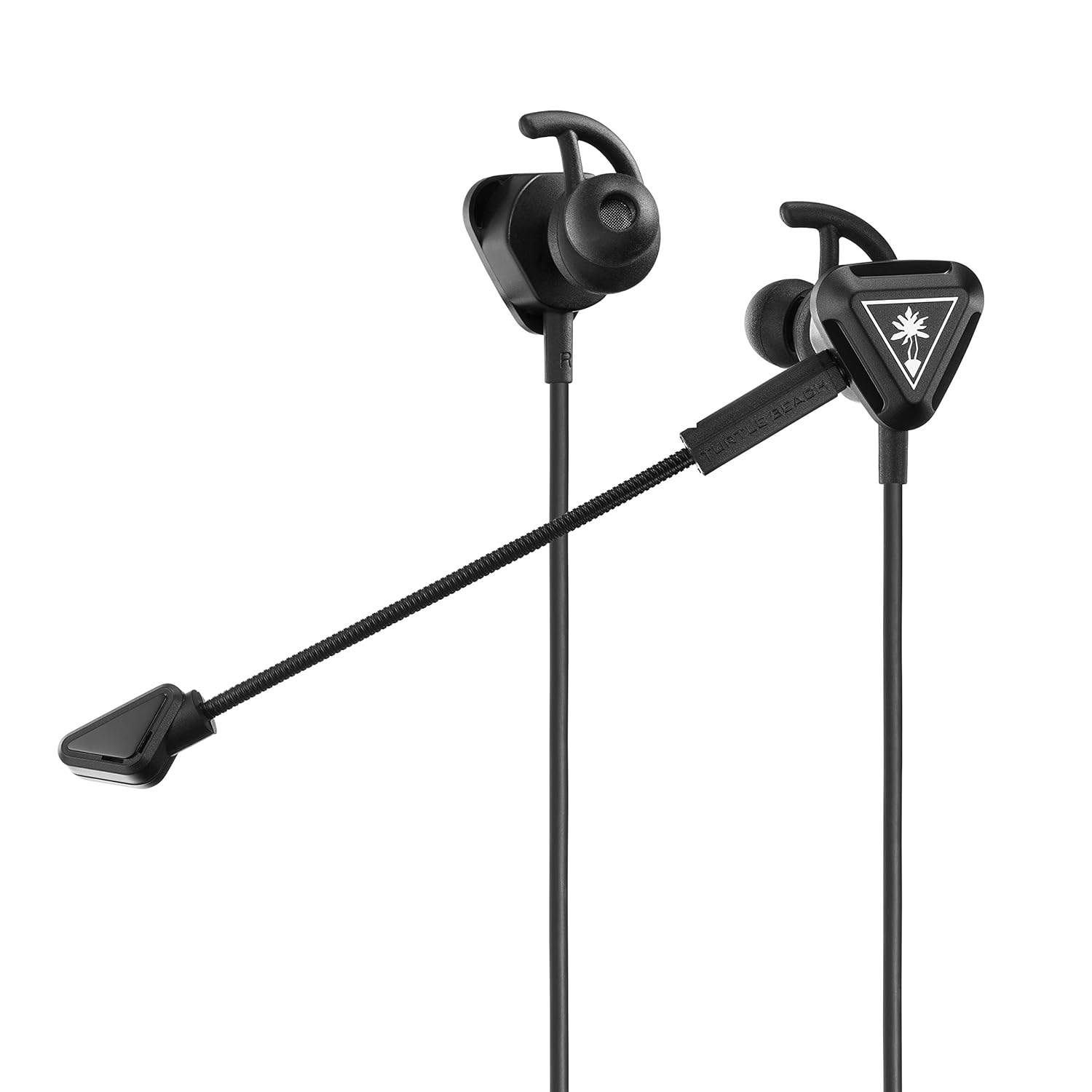
Image: The Turtle Beach Battle Buds In-Ear Gaming Headset, showcasing its compact design and detachable microphone.
Package Contents
Please verify that all items listed below are included in your package:
- Turtle Beach Battle Buds In-Ear Gaming Headset
- Removable High-Sensitivity Boom Microphone
- Carrying Pouch
- Ear Bud Tips (three sizes: Small, Medium, Large)
- Stabilizer Wings (three sizes: Small, Medium, Large)
- Quick Start Guide
- Turtle Beach Sticker

Image: All components of the Battle Buds headset package, including the headset, detachable microphone, carrying pouch, and various ear tip and stabilizer sizes.
Setup
1. Choosing the Right Fit
For optimal sound quality and comfort, select the ear bud tips and stabilizer wings that best fit your ears. Experiment with the three included sizes (Small, Medium, Large) to find the most secure and comfortable fit. A proper seal in your ear canal is crucial for bass response and noise isolation.

Image: A selection of three different sizes of ear bud tips and stabilizer wings, demonstrating the customization options for fit.
2. Attaching the Microphone
The Battle Buds feature a removable high-sensitivity boom microphone for clear voice chat during gaming. To attach, simply align the microphone's 3.5mm jack with the port on the left earbud and push firmly until it clicks into place. Ensure it is fully inserted for proper function.

Image: A close-up view of the removable high-sensitivity boom microphone, highlighting its connection point to the earbud.
3. Connecting to Your Device
The Battle Buds connect via a standard 3.5mm jack. Plug the headset's 3.5mm connector into the compatible audio port on your gaming controller (Xbox, PlayStation), PC, mobile device, or Nintendo Switch. Ensure the connection is secure.

Image: A diagram illustrating the multiplatform compatibility of the Battle Buds, showing connections to Xbox, PlayStation, mobile, and PC devices.
Operating Instructions
Inline Controls
The Battle Buds feature a convenient inline controller for easy access to essential functions:
- Master Volume Wheel: Adjust the overall audio volume by sliding the wheel up or down.
- Mic Mute Switch: Toggle this switch to quickly mute or unmute your microphone. When muted, your voice will not be transmitted.
- Multifunction Button: On supported devices (e.g., mobile phones), this button can be used to answer/end calls, play/pause music, or skip tracks. Refer to your device's manual for specific functionality.

Image: A detailed view of the inline controller, showing the master volume wheel and the mic mute switch.
Microphone Usage
The Battle Buds offer two microphone options:
- Removable Boom Mic: For optimal clarity during gaming, use the high-sensitivity boom microphone. Position it close to your mouth for the best voice pickup.
- Built-in Inline Mic: When the boom mic is detached, the headset automatically switches to the built-in inline microphone. This is suitable for casual use, mobile calls, or when the boom mic is not desired.

Image: A person wearing the Turtle Beach Battle Buds headset, demonstrating the position of the detachable boom microphone for clear communication.
Maintenance
Proper care will extend the life of your Battle Buds headset:
- Cleaning: Gently wipe the earbuds, tips, and cable with a soft, dry cloth. For stubborn dirt, a slightly damp cloth can be used, but ensure no moisture enters the speaker grilles or microphone. Do not use harsh chemicals or abrasive cleaners.
- Storage: When not in use, store the headset in the included carrying pouch to protect it from dust, dirt, and tangles. Avoid wrapping the cable too tightly.
- Cable Care: Do not pull on the cable to disconnect the headset. Always grasp the 3.5mm plug. Avoid sharp bends or kinks in the cable.
Troubleshooting
If you encounter issues with your Battle Buds, please refer to the following common problems and solutions:
| Problem | Possible Cause | Solution |
|---|---|---|
| No sound or low volume |
|
|
| Microphone not working |
|
|
| Uncomfortable fit or falling out |
|
|
If these solutions do not resolve your issue, please visit the Turtle Beach support website for further assistance.
Specifications
| Feature | Detail |
|---|---|
| Model Name | Battle Buds |
| Model Number | TBS-4002-01 |
| Connectivity Technology | Wired (3.5mm) |
| Speakers | 10mm with Neodymium Magnets |
| Frequency Response | 20Hz – 20kHz |
| Headphone Design | In-Ear |
| Microphone Design | Removable Unidirectional Boom Microphone & Built-In Inline Microphone |
| Inline Controls | Master Volume Wheel, Mic Mute, Multifunction Button |
| Compatible Devices | Xbox (Series X, Series S, One), PlayStation (PS5, PS4, PS4 Pro), PC, Mobile |
| Material | Plastic |
| Item Weight | 0.8 ounces (approx. 22.7 grams) |
| Product Dimensions | 1.5 x 0.75 x 1.1 inches |
| UPC | 731855040025 |
| Release Date | March 1, 2019 |

Image: A close-up view of the Battle Buds' 10mm speakers, highlighting their design.
Warranty and Support
Turtle Beach products are designed for durability and performance. For information regarding warranty coverage, product registration, or technical support, please visit the official Turtle Beach website. You can find FAQs, driver downloads, and contact information for customer service there.
Official Turtle Beach Support: www.turtlebeach.com/pages/support
