
Introduction
This manual provides detailed instructions for the LiNKFOR Digital Toslink Optical 4x1 Switch, Model ULKVC232. This device allows you to connect up to four optical fiber audio sources to a single SPDIF/TosLink receiving device, such as a soundbar or amplifier, eliminating the need to constantly swap cables.
Product Features
- Optical Audio Switcher 4x1: Connects four optical fiber signals to one SPDIF/TosLink receiving device.
- Supported Audio Formats: Compatible with LPCM2.0, DTS, and Dolby-AC3 audio formats, supporting up to 96Khz. Note: This device does not support 7.1CH Dolby Digital Plus or Dolby TrueHD.
- Long Distance Transmission: Supports optical fiber cable loss less than 0.2Db/m, allowing for an output distance of up to 40 meters (130 feet).
- Voltage Protection: Features integrated over-voltage protection to prevent damage from incompatible power adapters.
- High-grade Aluminum Alloy Design: Constructed with a durable aluminum alloy chassis, ensuring overall shielding without signal interference for high-quality audio transmission.
Package Contents
Please check the package contents upon opening to ensure all items are present:
- 1x LiNKFOR Digital Toslink Optical 4x1 Switch
- 1x IR Remote Control Unit
- 1x 1-meter Optical Cable
- 1x USB Power Cable
- 2x AAA Batteries (for remote control)
- 1x User Manual
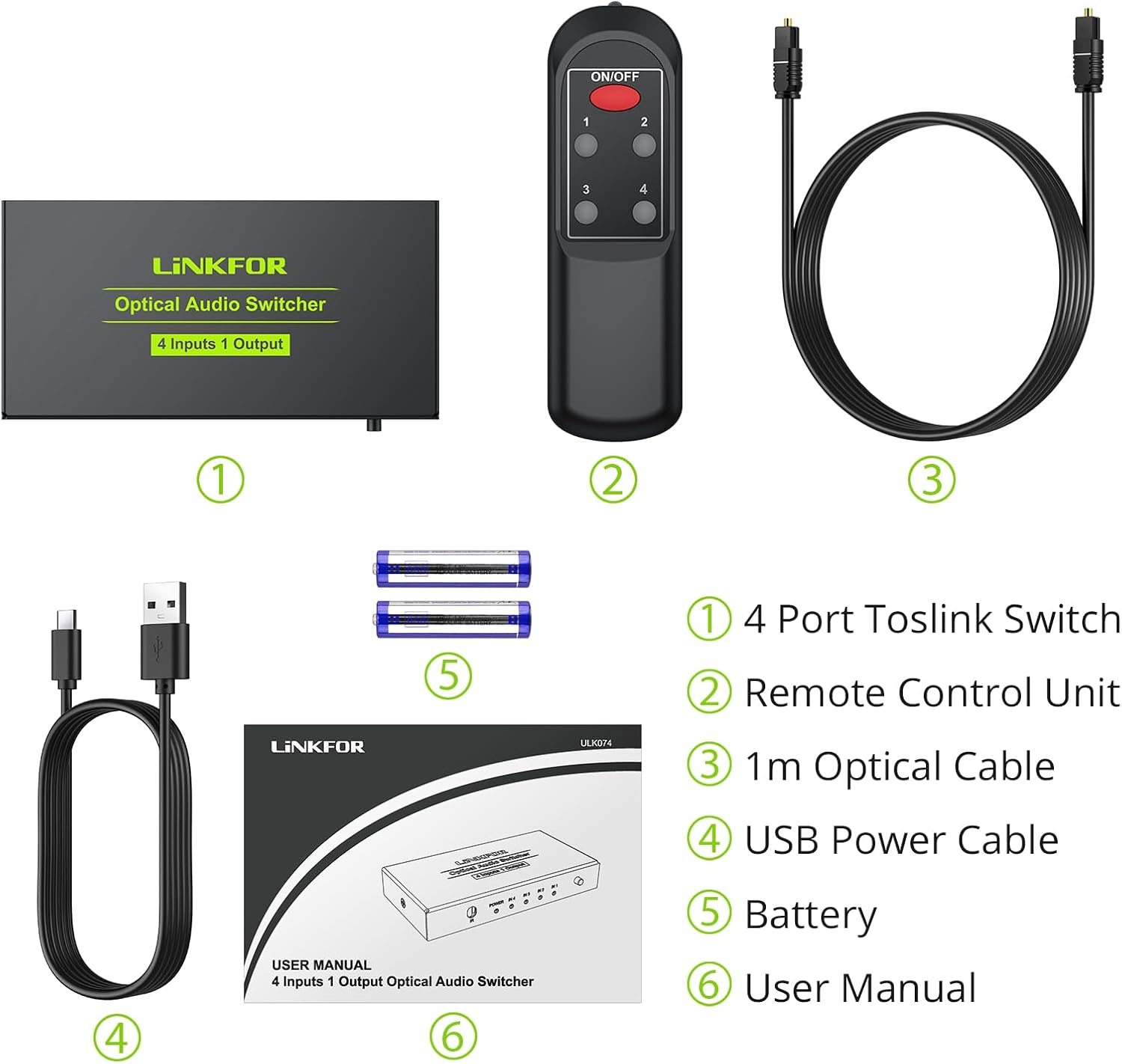
Figure 1: Package Contents. This image displays all items included in the product package: the main switch unit, its remote control, an optical audio cable, a USB power cable, two AAA batteries, and the user manual.
Product Overview and Connections

Figure 2: Device Connection Diagram. This diagram illustrates the rear panel with four optical inputs (IN1-IN4), one optical output (OUT), and a USB 5V power input. It also shows the front panel with the IR receiver, Power LED, Input Indicator LEDs, and the Select Switch button. Example devices like DVD, XBOX360, HDTV, PS4, and Soundbar are shown connected.
Front Panel
- IR Receiver: Receives signals from the infrared remote control.
- POWER LED: Indicates the power status of the device.
- IN 1-4 LEDs: Indicate which input channel is currently selected.
- Select Switch: Button to manually cycle through the input channels.
Rear Panel
- IN 1-4: Optical Toslink input ports for connecting up to four audio sources.
- OUT: Optical Toslink output port for connecting to your audio receiving device.
- USB 5V: Micro USB port for connecting the 5V power supply.
Remote Control
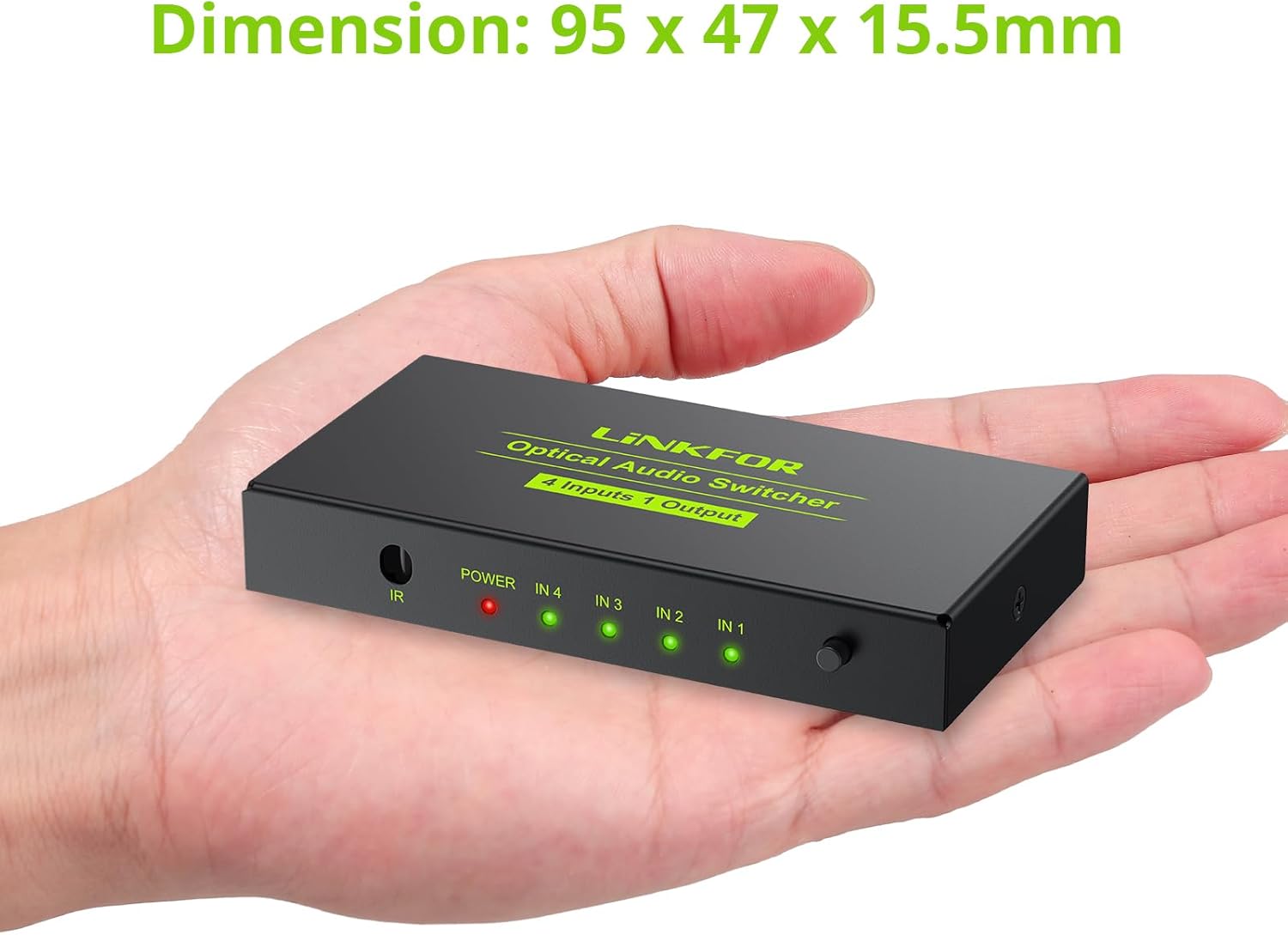
Figure 3: Remote Control Layout. This image highlights the power switch button and the numeric Toslink input switch buttons (1-4) on the remote control.
- ON/OFF Button: Powers the switch on or off.
- Numeric Buttons (1-4): Directly select the corresponding input channel.
Setup Instructions
- Connect Audio Sources: Using optical Toslink cables, connect your audio source devices (e.g., DVD player, game console, HDTV) to the IN1, IN2, IN3, and IN4 ports on the rear panel of the LiNKFOR switch.
- Connect Audio Receiver: Connect the optical Toslink output (OUT) port of the LiNKFOR switch to the optical input of your audio receiving device (e.g., soundbar, amplifier).
- Connect Power: Connect the provided USB power cable to the USB 5V port on the switch and then to a 5V USB power source (e.g., a USB wall adapter, TV USB port, or computer USB port). The POWER LED on the front panel will illuminate.
- Power On Devices: Ensure all connected audio sources and your audio receiving device are powered on.
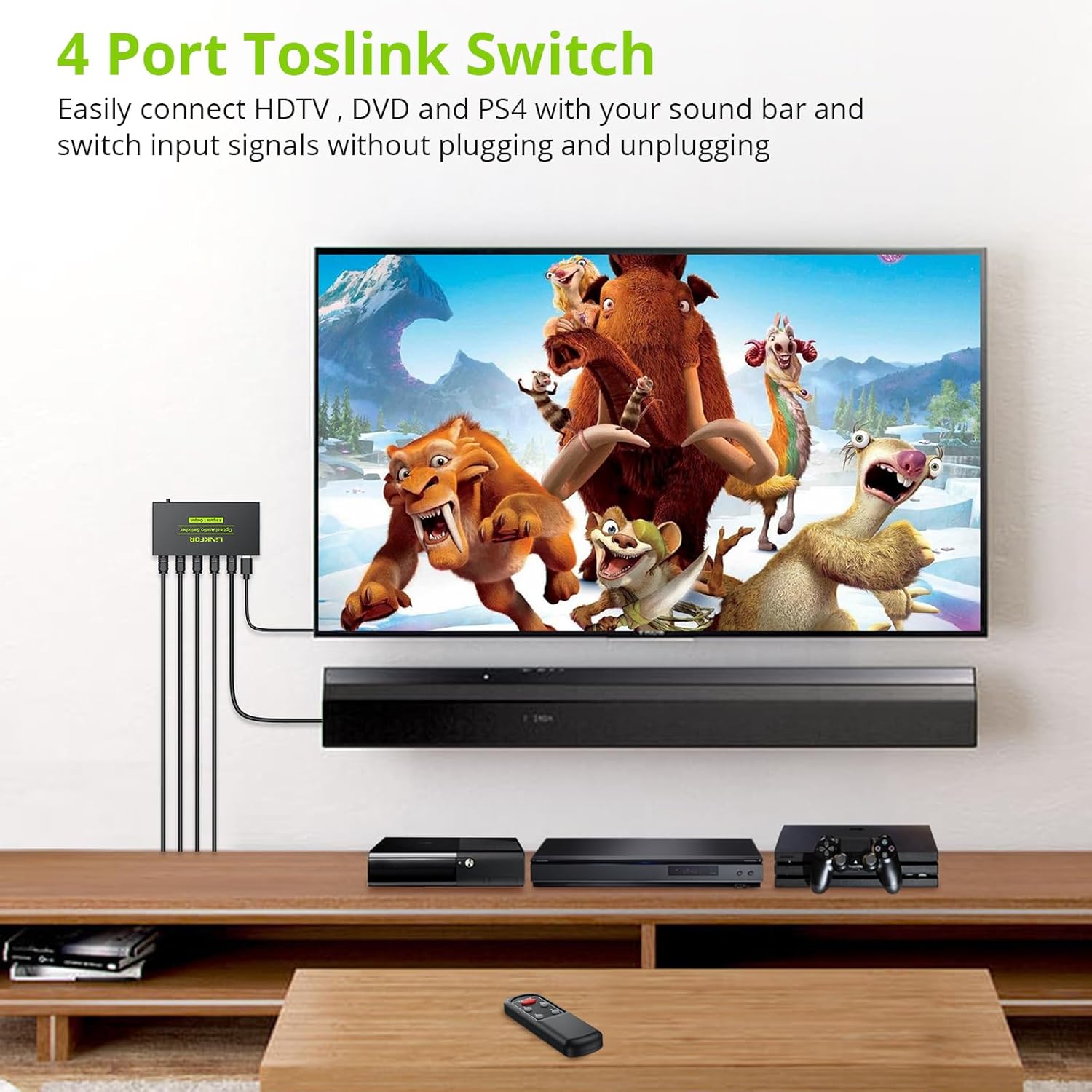
Figure 4: Example Setup. This image demonstrates a typical setup where the Toslink switch connects multiple devices to a sound system, allowing easy switching between inputs.
Operating Instructions
The LiNKFOR Digital Toslink Optical 4x1 Switch offers two methods for selecting input sources:
1. Manual Switching (Device Button)
Press the Select Switch button located on the front panel of the device. Each press will cycle through the input channels (IN1 → IN2 → IN3 → IN4 → IN1). The corresponding input indicator LED will light up to show the active input.
2. Remote Control Switching
Use the provided IR remote control to select your desired input. Ensure there is a clear line of sight between the remote control and the IR Receiver on the front panel of the switch.
- Press the ON/OFF button to power the unit on or off.
- Press the numeric button (1, 2, 3, or 4) corresponding to the input channel you wish to select. The respective input indicator LED on the switch will illuminate.

Figure 5: Remote Control Operation. This image illustrates using the remote control to switch between inputs, highlighting the effective range of approximately 5 meters.
Specifications
| Model Number | ULKVC232 |
| Product Dimensions | 7.68 x 4.92 x 1.1 inches (19.5 x 12.5 x 2.8 cm) |
| Item Weight | 3.7 ounces (105 grams) |
| Brand | LiNKFOR |
| Connector Type | Optical Cable (Toslink) |
| Compatible Devices | Computer, Gaming Console (PS3, Xbox), Receiver, Apple TV, Blu-Ray Player, HDTV |
| Supported Audio Formats | LPCM2.0, DTS, Dolby-AC3 (up to 96Khz) |
| Max Output Distance | 40 meters (130 feet) with <0.2Db/m optical fiber cable loss |
| Power Supply | DC 5V via Micro USB |
Troubleshooting
If you encounter issues with your LiNKFOR Digital Toslink Optical 4x1 Switch, please refer to the following common problems and solutions:
- No Audio Output:
- Ensure the switch is powered on and the POWER LED is illuminated.
- Verify all optical cables are securely connected to both the source devices, the switch, and the audio receiving device.
- Check that the correct input channel is selected on the switch (indicated by the illuminated IN LED).
- Confirm that your audio source is outputting an audio format supported by the switch (LPCM2.0, DTS, or Dolby-AC3). Some devices may need their audio output settings adjusted.
- Test with different optical cables, as a faulty cable can prevent audio transmission.
- Remote Control Not Responding:
- Check if the AAA batteries in the remote control are correctly inserted and have sufficient charge. Replace if necessary.
- Ensure there is a clear line of sight between the remote control and the IR Receiver on the front of the switch. Obstructions can block the signal.
- Make sure you are within the effective range of the remote control (approximately 5 meters).
- Intermittent Audio or Static:
- Inspect optical cables for any damage or kinks.
- Ensure all optical cable connections are firm and fully seated.
- Verify that the audio format from the source is stable and compatible.
- Power LED Not On:
- Ensure the USB power cable is properly connected to both the switch and a working 5V USB power source.
- Try a different USB power source or USB wall adapter.
Maintenance
To ensure the longevity and optimal performance of your LiNKFOR Digital Toslink Optical 4x1 Switch, follow these maintenance guidelines:
- Cleaning: Use a soft, dry cloth to clean the exterior of the device. Do not use liquid cleaners or aerosols.
- Environment: Keep the device in a cool, dry place, away from direct sunlight, heat sources, and excessive moisture.
- Ventilation: Ensure adequate airflow around the device to prevent overheating. Do not block ventilation openings.
- Cable Care: Handle optical cables carefully. Avoid bending them sharply or placing heavy objects on them, as this can damage the fiber.
Warranty and Support
For technical assistance, warranty information, or any product-related inquiries, please contact LiNKFOR customer service through the retailer where the product was purchased or visit the official LiNKFOR website for support resources.