
MuSheng DWR 2000M
D-Link DWR 2000M 5G AX1800 Router User Manual
Model: DWR 2000M
1. Introduction
This user manual provides comprehensive instructions for the setup, operation, and maintenance of your D-Link DWR 2000M 5G AX1800 Router. This device is designed to provide high-speed 5G internet connectivity and robust Wi-Fi AX1800 for your home or office, supporting up to 128 devices.
2. Safety Information
- Ensure the router is placed in a well-ventilated area, away from direct sunlight, heat sources, and moisture.
- Use only the power adapter supplied with the device.
- Do not open the router casing; refer all servicing to qualified personnel.
- Keep the device away from children and pets.
- Disconnect power during lightning storms or when unused for long periods.
3. Package Contents
Verify that your package contains the following items:
- D-Link DWR 2000M 5G AX1800 Router
- Power Adapter
- Ethernet Cable
- Quick Installation Guide
4. Product Overview
4.1 Front Panel

Figure 4.1: Front view of the D-Link DWR 2000M 5G AX1800 Router, showing the D-Link logo, status indicator LEDs for 5G, Wi-Fi, and signal strength, and the power button at the bottom.
The front panel of the DWR 2000M features several LED indicators that provide real-time status of the router's operation. These include indicators for 5G connectivity, Wi-Fi status, and signal strength, allowing for quick visual checks of the network's health. A power button is conveniently located at the bottom for easy on/off control.
4.2 Rear Panel

Figure 4.2: Rear view of the D-Link DWR 2000M 5G AX1800 Router, displaying the various ports including LAN, WAN, and power input.
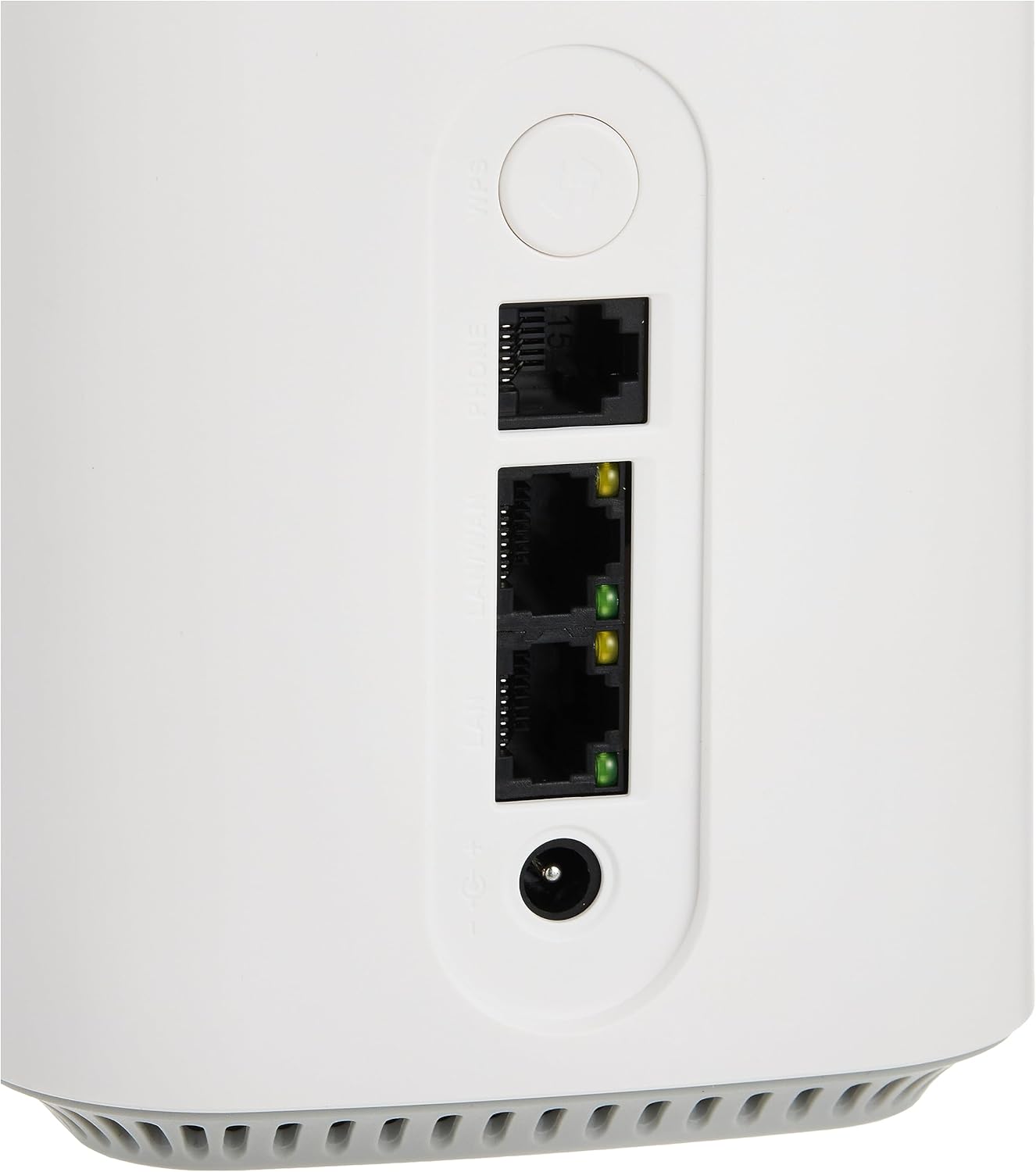
Figure 4.3: Close-up view of the rear ports on the D-Link DWR 2000M, highlighting the Ethernet LAN ports, WAN port, and the power input. Also visible are the WPS button and a reset pinhole.
The rear panel houses all the essential connectivity ports. These include multiple Gigabit Ethernet LAN ports for wired devices, a Gigabit WAN port for connecting to an external modem or fiber optic terminal, an FXS port for voice services, and a USB 3.0 port for connecting external storage or other peripherals. A WPS button is available for easy Wi-Fi Protected Setup, and a recessed reset button allows for factory default restoration.
5. Setup
5.1 Hardware Installation
- Insert SIM Card: Locate the SIM card slot on the router. Gently insert your 5G/4G SIM card until it clicks into place. Ensure the SIM card is correctly oriented as indicated by the diagram near the slot.
- Connect Power: Connect the supplied power adapter to the router's power input port and then plug the adapter into a power outlet. The router will automatically power on.
- Connect Ethernet Devices (Optional): For wired connections, connect one end of an Ethernet cable to a LAN port on the router and the other end to your computer, gaming console, or other network device.
- Connect WAN (Optional): If you are using an external modem or fiber connection, connect an Ethernet cable from your modem/ONT to the WAN port on the router.
5.2 Initial Configuration
After hardware installation, wait for the router to boot up. The 5G and Wi-Fi LEDs on the front panel should indicate a stable connection.
- Connect to Wi-Fi: On your computer or mobile device, search for available Wi-Fi networks. Select the network name (SSID) printed on the label at the bottom of your router. Enter the Wi-Fi password (Wi-Fi Key) also found on the label.
- Access Web Interface: Open a web browser (e.g., Chrome, Firefox, Edge) and type
http://dlinkrouter.localor the default IP address (usually192.168.0.1) into the address bar and press Enter. - Login: Enter the default username (usually
admin) and password (also found on the router's label or left blank for first-time setup). Follow the on-screen setup wizard to configure your internet connection and Wi-Fi settings.
6. Operating the Router
6.1 Connecting Devices
- Wi-Fi Devices: Use the SSID and Wi-Fi Key from the router's label or your custom settings to connect smartphones, tablets, laptops, and other wireless devices.
- Wired Devices: Connect devices like desktop computers, smart TVs, or gaming consoles directly to the router's LAN ports using Ethernet cables for stable, high-speed connections.
- USB Devices: Plug USB storage devices into the USB 3.0 port to share files across your network.
6.2 Basic Network Settings
Access the web interface (as described in Section 5.2) to manage your network settings.
- Change Wi-Fi Name (SSID) and Password: Navigate to the Wi-Fi settings section to customize your network name and set a strong, secure password.
- Guest Network: Enable a separate guest Wi-Fi network to provide internet access to visitors without giving them access to your main network.
- Parental Controls: Configure time-based access or content filtering for specific devices on your network.
6.3 Advanced Features
- Quality of Service (QoS): Prioritize network traffic for applications like online gaming or video streaming to ensure smooth performance.
- Port Forwarding: Configure port forwarding rules for specific applications or services that require direct access from the internet.
- VPN Passthrough: The router supports VPN passthrough for secure remote access.
- IPv6 Support: The router is compatible with the next generation of internet standards, IPv6.
7. Maintenance
7.1 Firmware Updates
Regularly check for and install firmware updates to ensure optimal performance, security, and access to new features. You can usually find firmware updates on the D-Link support website or through the router's web interface.
7.2 Cleaning
To clean the router, gently wipe the exterior with a soft, dry cloth. Do not use liquid cleaners or aerosols. Ensure the ventilation slots are free from dust accumulation.
7.3 Resetting the Device
If you encounter persistent issues or forget your login credentials, you can perform a factory reset. With the router powered on, use a paperclip or similar pointed object to press and hold the recessed reset button on the rear panel for approximately 10 seconds. The router will restart with factory default settings.
8. Troubleshooting
| Problem | Possible Solution |
|---|---|
| No Internet connection |
|
| Cannot connect to Wi-Fi |
|
| Slow network speed |
|
9. Specifications
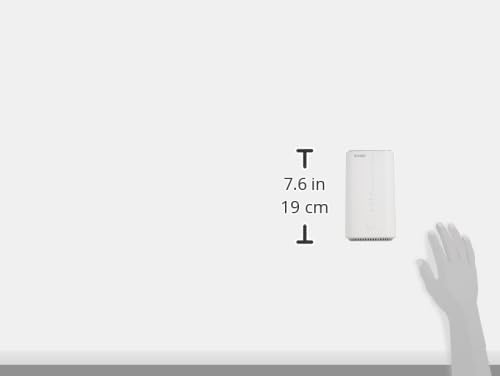
Figure 9.1: Approximate dimensions of the D-Link DWR 2000M router, showing a height of 7.6 inches (19 cm).
| Feature | Detail |
|---|---|
| Model Number | DWR 2000M |
| Connectivity | 5G NR, 4G LTE, Wi-Fi 6 (802.11ax) |
| Wi-Fi Speed | AX1800 (1201 Mbps on 5 GHz + 574 Mbps on 2.4 GHz) |
| Ethernet Ports | 4 x Gigabit LAN, 1 x Gigabit WAN |
| Other Ports | 1 x FXS port, 1 x USB 3.0 port |
| Max Connected Devices | Up to 128 |
| Dimensions (L x W x H) | 23.44 x 24.49 x 5.54 cm |
| Weight | 920 g |
| Operating System | RouterOS |
| Special Features | QoS, Dual-Band, IPv6 Support |
10. Warranty and Support
For warranty information, please refer to the warranty card included in your product package or visit the official D-Link website.
If you require technical assistance or have questions about your D-Link DWR 2000M router, please contact D-Link customer support through their official website or the contact details provided in your product documentation.
- Online Support: Visit www.dlink.com/support for FAQs, firmware downloads, and support resources.
- Phone Support: Refer to your regional D-Link website for local support numbers.
Related Documents - DWR 2000M
 |
D-Link DWR-2000M 5G Router Setup Guide A comprehensive guide to installing and configuring your D-Link DWR-2000M 5G Router with an ONT modem, covering connection types like DHCP, PPPoE, and Static IP, along with failover features. |
 |
D-Link DWR-BE7200G 5G Wi-Fi 7 Router Setup Guide: Nano SIM Installation Step-by-step guide to set up and install your D-Link DWR-BE7200G 5G Wi-Fi 7 Router using a Nano SIM card. Includes network signal checks, router connection, setup wizard, and manual APN configuration. |
 |
DWR-M921 Wireless Broadband Router User Manual: Setup, Features, and Specifications This user manual provides comprehensive information on the D-Link DWR-M921 Wireless Broadband Router, covering hardware description, product specifications, installation, setup, configuration, and advanced features. Learn how to connect, manage, and optimize your DWR-M921 for reliable internet access. |
 |
D-Link DWR-953V2 Wireless AC1200 Wave 2 MU-MIMO 4G LTE Router User Manual Comprehensive user manual for the D-Link DWR-953V2, a Wireless AC1200 Wave 2 MU-MIMO 4G LTE Router with Gigabit Ethernet Ports. Learn about installation, configuration, specifications, and advanced features for home and office networks. |
 |
D-Link DWR-M921 4G LTE Router Quick Installation Guide Comprehensive quick installation guide for the D-Link DWR-M921 4G LTE Router. Learn how to set up hardware, configure network settings, troubleshoot common issues, and find technical support information. Includes details on SIM card insertion, power adapter connection, and network access. |
 |
D-Link DWR-2000M Router: Access Configuration and Change Password Guide A comprehensive guide detailing how to access the D-Link DWR-2000M 5G Wi-Fi 6 Router's web configuration interface and change the administrator password. Includes instructions for navigating browser security warnings and setting up new credentials. |