
Introduction
This user manual provides comprehensive instructions for the setup, operation, maintenance, and troubleshooting of your Alienware M15 Gaming Laptop. Please read this manual thoroughly to ensure optimal performance and longevity of your device. For additional support, refer to the official Alienware support resources.
Product Overview
Key Features
- 8th Generation Intel Core i7-8750H (6-Core, 9MB Cache, up to 4.1GHz w/ Turbo Boost)
- 15.6" FHD (1920 x 1080) 60Hz Anti-glare IPS, 300-nits 72% Color gamut, narrow-border Display
- 16GB, 2x8GB, DDR4, 2666MHz RAM
- 128GB PCIe M.2 SSD + 1TB (+8GB SSHD) Hybrid Drive
- Nvidia GeForce GTX 1060 with 6GB GDDR5 Graphics Card
- Windows 10 Home Operating System
Physical Components

Figure 1: Front view of the Alienware M15 laptop, showcasing the display with the Alienware logo.

Figure 2: Top-down view of the open Alienware M15 laptop, highlighting the keyboard layout and touchpad.

Figure 3: Left side view of the Alienware M15 laptop, showing various ports such as USB 3.0.
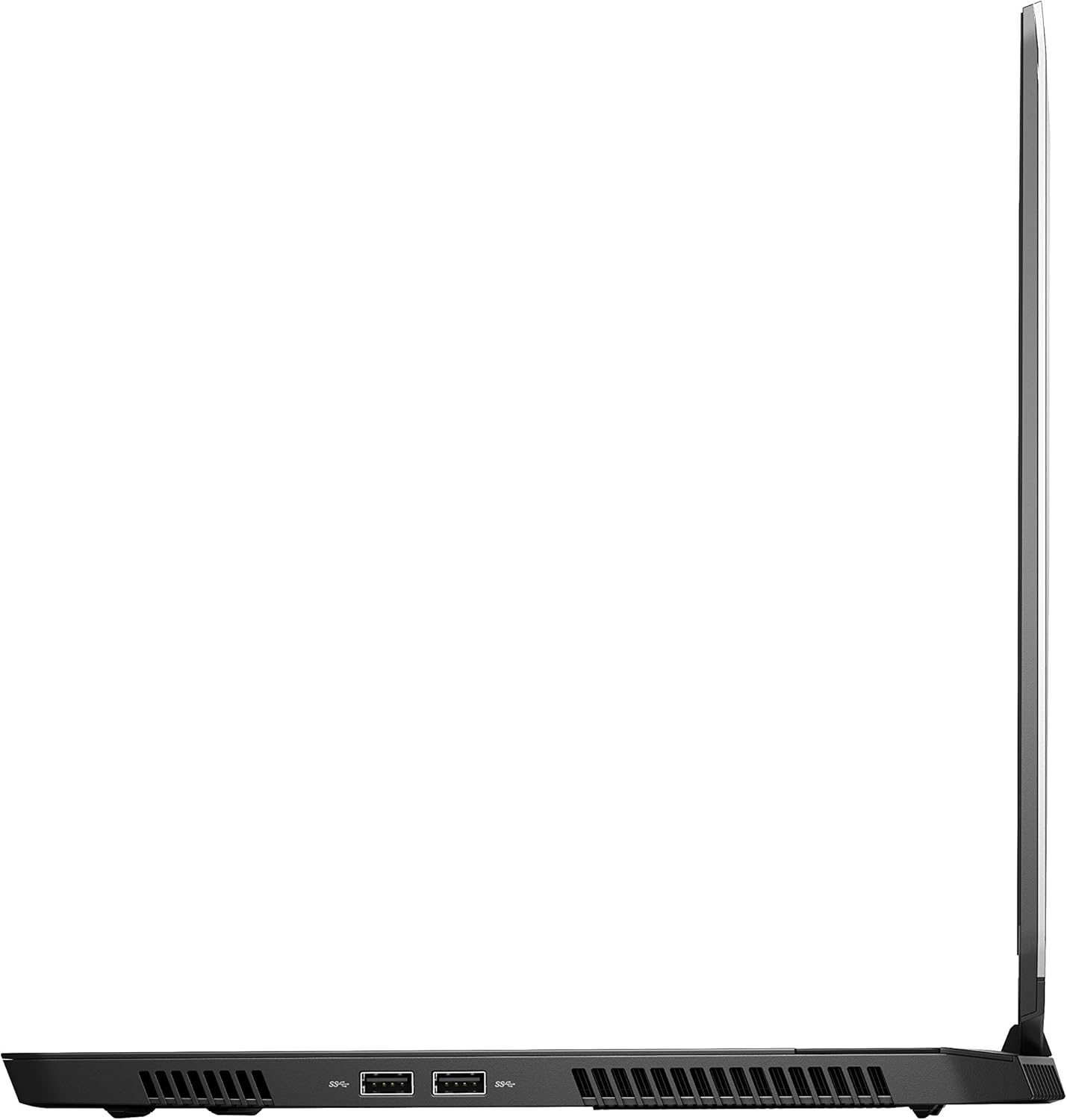
Figure 4: Right side view of the Alienware M15 laptop, displaying additional ports and ventilation.

Figure 5: Exploded view illustrating the internal cooling system of the Alienware M15 laptop, including fans and heat sinks.
Setup
Unpacking
Carefully remove all components from the packaging. Ensure the following items are present:
- Alienware M15 Gaming Laptop
- Power Cord
- 180W Power Adapter
Initial Power-On
- Connect the power adapter to the laptop's power input port.
- Plug the power cord into a wall outlet.
- Open the laptop lid and press the power button, typically located on the top right of the keyboard deck or a dedicated button on the chassis.
- Follow the on-screen instructions to complete the Windows 10 Home setup process, including language selection, network connection, and user account creation.
Operating Instructions
Basic Operation
Your Alienware M15 laptop runs on Windows 10 Home. Familiarize yourself with the operating system's interface. The keyboard features customizable backlighting via Alienware's software. The touchpad supports multi-touch gestures for navigation.
Gaming Performance
The Alienware M15 is designed for high-performance gaming. For optimal gaming experience, ensure the laptop is connected to the power adapter. This allows the system to utilize its full power capabilities for the CPU and GPU. While gaming, the laptop may generate significant heat; this is normal for high-performance hardware. Consider using a cooling pad for extended gaming sessions to enhance thermal management.
Maintenance
Cleaning
- Screen: Use a soft, lint-free cloth slightly dampened with water or a screen cleaner. Avoid harsh chemicals.
- Keyboard and Chassis: Use a soft brush or compressed air to remove dust from keys and vents. Wipe surfaces with a microfiber cloth.
- Ports: Use compressed air to clear dust from USB, HDMI, and other ports.
Software Updates
Regularly update your Windows operating system, graphics drivers (NVIDIA GeForce), and Alienware software. Updates often include performance improvements, security patches, and bug fixes. Access Windows updates through Settings > Update & Security. Graphics drivers can be updated via the NVIDIA GeForce Experience application.
Battery Care
To maximize battery lifespan, avoid consistently discharging the battery completely. For prolonged use while plugged in, consider using battery management features (if available in Alienware Command Center) to limit charging to 80-90% capacity.
Troubleshooting
This section addresses common issues you might encounter with your Alienware M15 laptop.
| Problem | Possible Cause / Solution |
|---|---|
| Laptop gets excessively hot during use. | High-performance components generate heat. Ensure ventilation vents are clear. Use a cooling pad. Update graphics drivers. |
| "No media present" error or SSD/HDD not detected. | This can sometimes be a temporary software glitch. Try restarting the laptop. If persistent, ensure the power cable is securely connected and try a hard reboot (unplug power, hold power button for 15 seconds, then reconnect and power on). If the issue persists, contact support. |
| Wi-Fi connection drops frequently. | Ensure Wi-Fi drivers are up to date. Check for interference from other devices. Restart your router and the laptop. If the issue persists, consider reinstalling Wi-Fi drivers or contacting support. |
| System performance is slow or lagging. | Ensure the laptop is plugged into power for full performance. Close unnecessary background applications. Check for malware. Ensure sufficient free space on the SSD/HDD. |
Specifications
Detailed technical specifications for the Alienware M15 Gaming Laptop (Model: AWM15-7830SLV-PUS).
| Feature | Detail |
|---|---|
| Standing screen display size | 15.6 Inches |
| Screen Resolution | 1920 x 1080 pixels |
| Max Screen Resolution | 1920x1080 Pixels |
| Processor | 4.1 GHz core_i7_8750h |
| RAM | 16 GB DDR4 |
| Memory Speed | 2666 MHz |
| Hard Drive | 1000 GB 128GB PCIe M.2 SSD + 1TB (+8GB SSHD) Hybrid Drive |
| Graphics Coprocessor | NVIDIA GeForce GTX 1060 |
| Chipset Brand | NVIDIA |
| Card Description | Dedicated |
| Graphics Card Ram Size | 6 GB |
| Wireless Type | 802.11a/b/g/n |
| Number of USB 3.0 Ports | 3 |
| Brand | Alienware |
| Series | AWm15-7830SLV-PUS |
| Item model number | AWM15-7830SLV-PUS |
| Operating System | Windows 10 Home |
| Item Weight | 4.8 pounds |
| Product Dimensions | 10.8 x 14.3 x 0.8 inches |
| Color | Black |
| Processor Brand | Intel |
| Number of Processors | 6 |
| Computer Memory Type | DDR4 SDRAM |
| Flash Memory Size | 16 |
| Hard Drive Interface | Solid State |
| Hard Drive Rotational Speed | 5400 RPM |
| Optical Drive Type | No Optical Drive |
| Voltage | 240 Volts |
| Batteries | 1 Lithium Metal batteries required. (included) |
| Date First Available | January 5, 2019 |
| Model Name | AWm15-7830SLV-PUS |
| Screen Size | 15.6 Inches |
| Hard Disk Size | 1000 GB |
| CPU Model | Core i7 8750H |
| Ram Memory Installed Size | 16 GB |
| Special Feature | Anti Glare Coating |
Warranty and Support
For detailed warranty information, please refer to the documentation included with your purchase or visit the official Alienware support website. For technical assistance, driver downloads, and further resources, please visit the Alienware support portal.
An official User Manual (PDF) is also available for download: Download User Manual PDF


