
1. Product Overview
The Aexit TF-S6U is a versatile USB DIY component designed for controlling LED screen displays, specifically P10 modules. This asynchronous control card facilitates multi-area displays with features like U-disk program updates, U-disk panel setup, and brightness adjustment. It is an essential component for managing LED light characteristics such as picture, speed, and color.
Key Features:
- Supports U-disk for program updates, brightness adjustment, and panel setup.
- Settings are stored as a file format on the U-disk, preserving original documents.
- Capable of storing up to 200 programs.
- Compatible with Windows operating systems, supporting up to 16 items per window.
- Designed for controlling various LED light parameters.

Figure 1: Top view of the TF-S6U USB LED Screen Display Controller Card, showing the USB port, various chips, and pin headers.
2. Safety Information
Please read and understand all safety warnings before handling or operating the TF-S6U LED Controller Card. Failure to follow these instructions may result in injury or damage to the product.
General Safety Warnings:
- Do not allow children to have casual contact with the device. This product contains small components and electrical parts that could pose a hazard.
- Handle with care; do not shake forcefully. The internal components are delicate and can be damaged by rough handling.
- Avoid use in extreme temperatures. Do not expose the device to open flames or super high temperatures, as this can cause damage or malfunction.
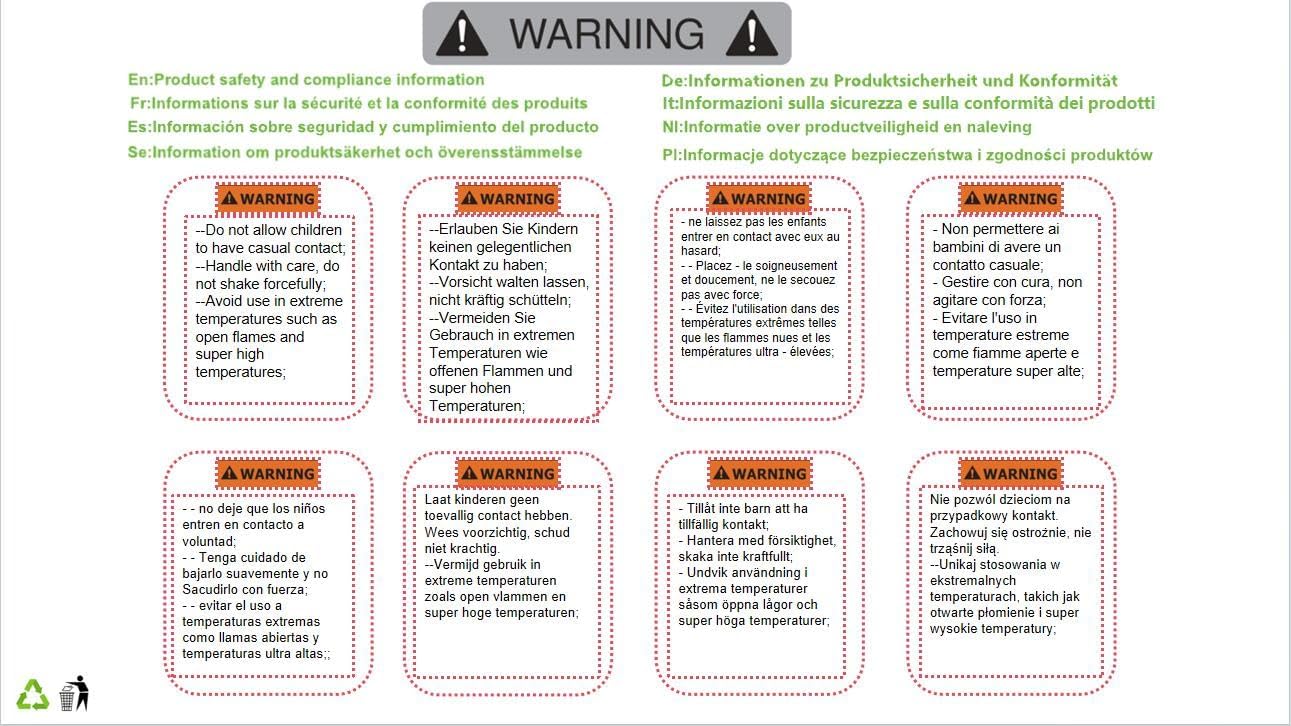
Figure 2: Product safety and compliance information label, detailing handling precautions and temperature warnings.
3. Setup
This section outlines the basic steps for setting up your TF-S6U LED Controller Card.
Connecting the Module:
- Power Connection: Connect a stable DC 5V power supply to the designated power input terminals on the module. Ensure correct polarity (+5V and GND).
- USB Connection: Insert a U-disk (USB flash drive) into the USB port on the module for program updates and configuration.
- LED Display Connection: Connect your P10 LED display modules to the output pins (3 rows, 16 pins per row, total 48 pins) on the TF-S6U card. Refer to your LED display's documentation for correct pin assignments.
- Mounting: The module has mounting holes with a diameter of 3.5mm (0.14") and a distance of 42mm (1.7") for secure installation within your LED display setup.

Figure 3: Angled view of the TF-S6U module, highlighting the USB port and screw terminals for power input.
4. Operating Instructions
The TF-S6U controller card is designed for easy operation primarily through a U-disk.
U-disk Program Management:
- Program Creation: Use the compatible software (typically provided by the manufacturer or available for download) on a Windows PC to create your LED display programs. This software allows you to design multi-area displays, set text, images, animations, and define display parameters.
- Saving to U-disk: Save the created program files to a U-disk. The controller card supports settings stored as a file format, ensuring that the original documents on your U-disk are not affected.
- Updating the Controller: Insert the U-disk containing the program files into the USB port of the TF-S6U module. The card will automatically detect and load the new program.
- Brightness Adjustment: Brightness can be adjusted via the U-disk. Specific instructions for brightness control will be found within the accompanying software.
- Panel Setup: Panel configuration, including resolution and module type, can also be set via the U-disk using the software.
The controller card can store a maximum of 200 programs. Each program can support up to 16 items (e.g., text blocks, images) within its display windows.
5. Maintenance
Proper maintenance ensures the longevity and optimal performance of your TF-S6U LED Controller Card.
- Cleaning: Keep the module free from dust and debris. Use a soft, dry cloth for cleaning. Avoid using liquid cleaners or solvents.
- Environmental Conditions: Operate and store the module within recommended temperature and humidity ranges. Avoid extreme heat, cold, or moisture.
- Physical Handling: Always handle the circuit board by its edges to prevent damage to components. Avoid dropping or subjecting the module to strong impacts.
- Power Supply: Ensure a stable and correct DC 5V power supply is used. Fluctuations or incorrect voltage can damage the module.
6. Troubleshooting
This section provides basic troubleshooting steps for common issues you might encounter with the TF-S6U LED Controller Card.
Common Issues and Solutions:
- LED Display Not Lighting Up:
- Verify that the DC 5V power supply is correctly connected and providing power.
- Check all connections between the TF-S6U module and the LED display panels. Ensure pins are correctly aligned and seated.
- Confirm that a program has been successfully loaded onto the controller via the U-disk.
- Incorrect Display Content:
- Ensure the correct program file is loaded from the U-disk.
- Verify the panel setup (resolution, module type) in the software matches your physical LED display configuration.
- Re-save and re-upload the program to the U-disk and then to the controller.
- U-disk Not Detected:
- Try a different U-disk to rule out U-disk compatibility issues.
- Ensure the U-disk is formatted correctly (usually FAT32).
- Check the USB port for any physical damage or obstructions.
If issues persist, consult the manufacturer's support resources or contact a qualified technician.
7. Specifications
| Feature | Specification |
|---|---|
| Model | TF-S6U |
| Main Color | Red |
| Material | Plastic, Electric Parts |
| Net Weight | 23g |
| Output | 3 Rows (16pin Per Row) Total 48Pin |
| Mounting Hole Diameter | 3.5mm / 0.14" |
| Mounting Hole Distance | 42mm / 1.7" |
| Module Size (L*W*T) | 57 x 50 x 16mm / 2.2" x 2" x 0.6" |
| Module Thickness | 1.6mm / 0.06" |
| Rating | DC 5V |
| Power Consumption | <0.5W |
| Connector Type | USB Port |
| Max Program Storage | 200 programs |
| Windows Support | Up to 16 items per window |
| Country of Manufacture | China |
8. Warranty and Support
Information regarding specific warranty terms for the Aexit TF-S6U LED Controller Card is not explicitly provided in the product details. For warranty claims or technical support, please refer to the documentation included with your purchase or contact the seller directly through the platform where the product was acquired.
For general inquiries or to find updated software for the TF-S6U, it is recommended to visit the official website of the manufacturer or distributor, if available. Always retain your proof of purchase for any support requests.