
Product Overview
The FebSmart FS-N300 is a Wireless N 2.4GHz 300Mbps PCIE Wireless Network Adapter designed to provide reliable Wi-Fi connectivity for desktop PCs. It enables internet surfing, file downloading, online phone calls, online video calls, and video streaming with a maximum speed of 300Mbps on the 2.4GHz band. This adapter is built on the Qualcomm Atheros AR928X chipset and supports IEEE 802.11N standard, ensuring compatibility with various Wi-Fi routers and access points.

Image: FebSmart FS-N300 PCIE Wireless Network Adapter with its components, including the main card, two detachable antennas, and a low-profile bracket.

Image: Labeled diagram showing the various components of the FS-N300 adapter, including brackets, antennas, and connectors.
What's in the Box
- 1X FS-N300 Wireless Network Adapter
- 1X Mini CD (for drivers)
- 1X User manual
- 2X 3dBi antennas
- 1X Mounting screw
- 1X Low profile bracket
Specifications
| Brand | FebSmart |
| Model Number | FS-N300 |
| Hardware Interface | PCIE x 1 (Compatible with PCIE X1, X2, X4, X8, X16 slots) |
| Data Link Protocol | IEEE 802.11n |
| Data Transfer Rate | 300 Megabits Per Second (2.4GHz) |
| Operation Frequency | 2.4.12-2.4835 GHz |
| Major Chipset | Qualcomm Atheros AR928X |
| Compatible Hardware Platform | ARM, INTEL, and AMD PCs |
| Product Dimensions | 0.72 x 2.55 x 4.72 inches (12cm/4.72in length, 6.5cm/2.55in width, 4.6cm/1.8in height) |
| Item Weight | 3.7 ounces (105 Grams) |
| WiFi Encryption | WEP, WPA, WPA2, WPA3, WPA-PSK, WPA2-PSK, TKIP/AES |

Image: Detailed dimensions of the FS-N300 adapter and its antennas.

Image: Illustration highlighting the Qualcomm Atheros AR928X chipset and the 2.4GHz 300Mbps maximum speed of the adapter.
System Requirements
- Desktop PC with at least one empty PCIE X1 slot (compatible with PCIE X1, X2, X4, X8, X16 slots).
- Operating Systems:
- Plug and Play: Windows 11, Windows 10, Windows 8.x (32/64bit), Windows Server 2012, 2012R2, 2016, 2019, 2022.
- Driver Installation Required: Windows XP, Windows 7 (32/64bit), Windows Server 2003, 2003R2, 2008, 2008R2 (32/64bit).
- Linux: Requires ATH9K driver.
- Note: Not compatible with Windows Vista.

Image: Visual representation of compatible operating systems, including Windows 11, 10, 8.x, 7, XP, Windows Server, and Linux.
Setup and Installation
Follow these steps to install the FebSmart FS-N300 Wireless Network Adapter into your desktop PC.
- Prepare Your PC: Power off your computer and unplug all cables. Remove the side panel of your PC case to access the internal components.
- Identify PCIE Slot: Locate an empty PCIE X1 slot on your motherboard. The FS-N300 is compatible with PCIE X1, X2, X4, X8, and X16 slots.
- Remove Blank Bracket: Remove the corresponding blank metal bracket from the back of your PC case that aligns with the chosen PCIE slot.
- Install Low Profile Bracket (if needed): If you have a slim PC case, you will need to replace the pre-installed full-height bracket on the FS-N300 with the included low-profile bracket. This typically involves unscrewing two small screws, swapping the brackets, and re-securing the screws.
- Insert WiFi Card: Carefully align the gold contacts of the FS-N300 card with the PCIE slot and firmly press it down until it is securely seated.
- Secure the Card: Use the provided mounting screw to secure the adapter's bracket to the PC case.
- Attach Antennas: Screw the two 3dBi antennas onto the SMA connectors on the back of the installed WiFi card. Ensure they are finger-tight.
- Reassemble PC: Replace the PC case cover and reconnect all cables.
- Power On and Driver Installation: Power on your PC.
- For Windows 11, 10, 8.x, and Windows Server 2012/2016/2019/2022, the adapter should be plug-and-play, and drivers will install automatically.
- For Windows XP, 7, and Windows Server 2003/2008, you will need to install the driver manually from the included mini CD or download it from the FebSmart website.
- For Linux, refer to the ATH9K driver documentation for your specific distribution.
- Connect to Wi-Fi: Once drivers are installed, navigate to your operating system's network settings to connect to your desired Wi-Fi network.

Image: Visual guide illustrating the installation process, from opening the PC case to connecting to a Wi-Fi network.

Image: Illustration of the full-height and low-profile brackets, and how the card fits into various PCIE slot types (X1, X2, X4, X8, X16).

Image: Depiction of the FS-N300 adapter being installed into a PCIE X1 slot inside a desktop computer case.
Operating Instructions
Once the FebSmart FS-N300 adapter is successfully installed and its drivers are recognized by your operating system, you can connect to a wireless network.
- Access Network Settings:
- Windows: Click on the Wi-Fi icon in the system tray (usually bottom-right corner of the screen). Select "Network & Internet settings" or "Open Network and Sharing Center."
- Linux: Access your desktop environment's network manager (e.g., GNOME NetworkManager, KDE Plasma Network Management).
- Select Network: A list of available Wi-Fi networks will appear. Select your desired network (SSID).
- Enter Password: If the network is secured, you will be prompted to enter the Wi-Fi password (security key).
- Connect: Click "Connect." Your computer should now be connected to the wireless network.
The adapter supports 2.4GHz 300Mbps max speed, suitable for general internet use, streaming, and online communication.
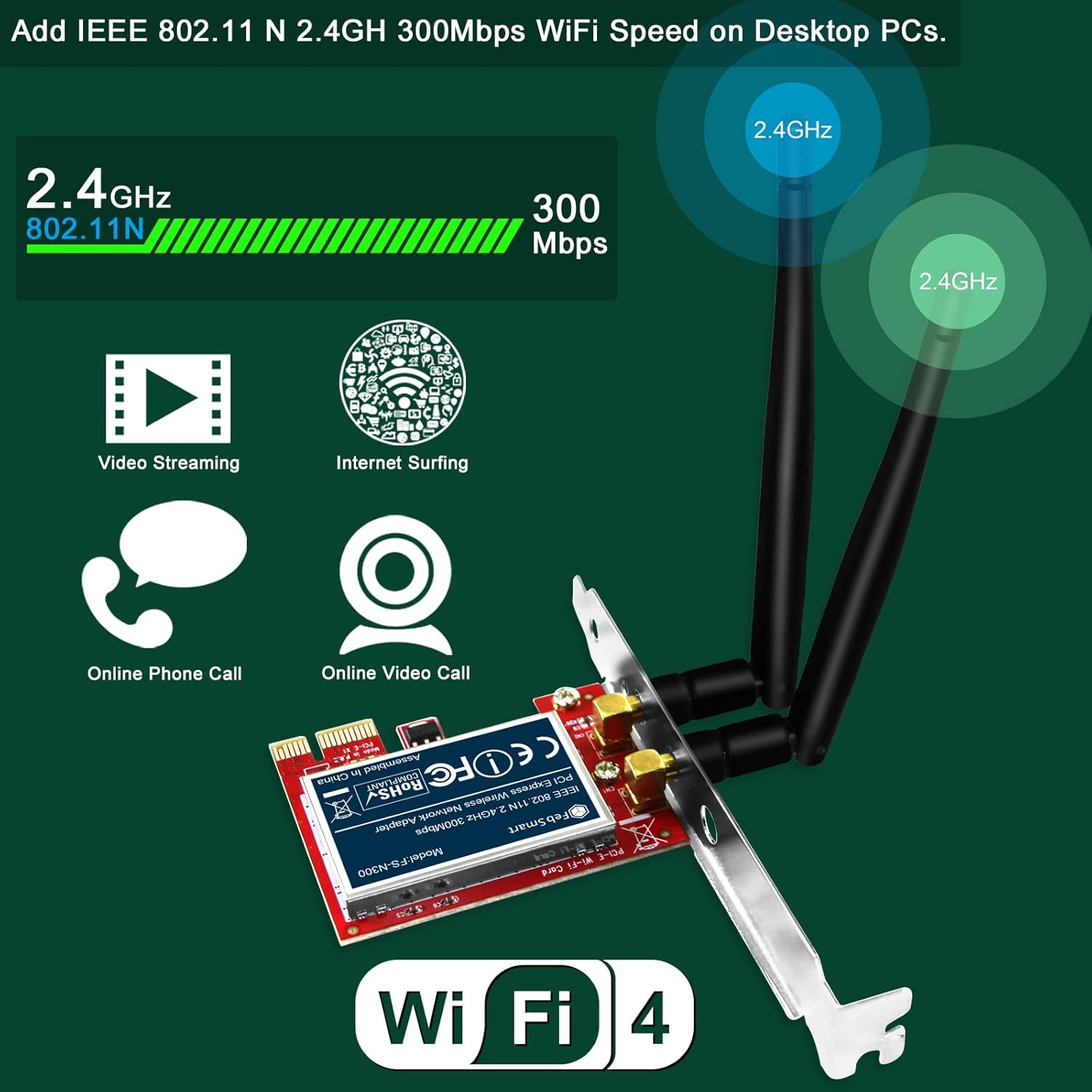
Image: Depiction of the adapter's capabilities, including support for video streaming, internet surfing, online phone calls, and online video calls.
Maintenance
The FebSmart FS-N300 is designed for low maintenance. Consider the following for optimal performance:
- Driver Updates: Periodically check the FebSmart official website for updated drivers, especially if you upgrade your operating system or experience connectivity issues.
- Antenna Positioning: Ensure the antennas are positioned optimally for the best signal reception. Adjust their angle to improve signal strength if needed.
- Cleanliness: Keep your PC's interior clean from dust to prevent overheating, which can affect component performance.
Troubleshooting
If you encounter issues with your FebSmart FS-N300 adapter, consider the following troubleshooting steps:
- Adapter Not Detected / Not Initiating:
- Ensure the adapter is fully seated in the PCIE slot.
- Check Device Manager (Windows) to see if the device is listed. If it has an error (e.g., yellow exclamation mark), try uninstalling the device from Device Manager and then restarting your PC.
- Try installing the adapter in a different PCIE slot if available.
- No Wi-Fi Networks Found / Weak Signal:
- Verify that the antennas are securely attached to the adapter.
- Adjust the orientation of the antennas.
- Ensure your Wi-Fi router is powered on and broadcasting a 2.4GHz signal.
- Check for physical obstructions between your PC and the router.
- Driver Issues (Windows XP/7, Linux):
- Ensure you have installed the correct driver for your operating system. Use the provided mini CD or download the latest driver from the FebSmart website.
- For Linux, confirm that the ATH9K driver is correctly installed and loaded.
- Intermittent Connection / Freezing:
- Ensure the adapter is not overheating. Ensure proper airflow in your PC case.
- Update your motherboard's BIOS/UEFI to the latest version.
- If issues persist, try the adapter in another PC to rule out compatibility issues with your current system.
Warranty and Support
FebSmart products typically come with a manufacturer's warranty. For specific warranty terms and conditions, please refer to the documentation included with your product or visit the official FebSmart website.
For technical support, driver downloads, or further assistance, please contact FebSmart customer service through their official website or the contact information provided in your product packaging.
Official FebSmart Store: FebSmart Amazon Store
