
FOTGA A50TLS
FOTGA A50TLS 5-inch Field Monitor User Manual
Model: A50TLS
1. Introduction
This manual provides detailed instructions for the operation and maintenance of your FOTGA A50TLS 5-inch FHD IPS DCI-P3 Touchscreen Video DSLR Camera Field Monitor. Please read this manual thoroughly before using the product to ensure proper function and to prevent damage.
2. Product Features
- Full Features: Includes waveform, vector, histogram, 3D LUT, anamorphic mode, zebra, peaking, false color, monochrome, center marker, safety marker, and edge enhance.
- Connectivity: Supports 4K HDMI input/output and 3G SDI input/output for simultaneous image viewing on multiple monitors. Features a 3.5mm headphone output and a USB port for firmware upgrades.
- Control Options: Offers both touchscreen control and physical button control. Silent physical operation buttons are included, along with support for customizable shortcut buttons. A short press of the power switch toggles between touchscreen and physical button modes.
- Customizable Buttons: F1-F7 buttons can be customized for quick operation during recording. Functions can be set in the left menu or by dragging down the top menu on the screen.
- Display & Accessories: Features super high brightness up to 700 nits for daylight visibility, a 170° viewable angle, and a 360° rotatable/180° tiltable cold shoe adapter. Includes a foldable sunshade hood that can also protect the screen for storage.
3. Package Contents
Please verify that all items are present in your package:
- FOTGA A50TLS 5-inch Field Monitor
- Foldable Sunshade Hood
- Cold Shoe Adapter with 1/4" screw
- HDMI Cable
- USB Cable
- DC Power Cable
- User Manual (this document)

Image: FOTGA A50TLS monitor and its accessories, including cables, sunshade, and mounting adapter.
4. Component Overview
Familiarize yourself with the various parts and connections of your A50TLS monitor.

Image: Rear view of the monitor, highlighting the SDI In/Out, HDMI In/Out, DC In, Headphone port, and dual NP-F battery plate.
- SDI In/Out: For professional video signal input and output.
- HDMI In/Out: For HDMI video signal input and output, supporting up to 4K.
- DC In: Power input port (7V-20V).
- Headphone Port: 3.5mm audio output for monitoring sound.
- BAT Out: Power output for dummy batteries.
- Dual NP-F Battery Plate: Accommodates one or two NP-F type batteries for extended power.
- USB Port: Used for firmware upgrades.

Image: Top view of the monitor, showing the F1-F7 customizable function buttons, scroll wheel, and power switch.
- F1-F7 Customizable Keys: User-assignable buttons for quick access to monitor functions.
- Scroll Wheel: For navigating menus and adjusting settings.
- Power Switch: Turns the monitor on/off and toggles between touchscreen and physical button control.
5. Setup
5.1 Attaching the Sunshade Hood
The foldable sunshade hood helps reduce glare in bright conditions and protects the screen during transport.
- Align the sunshade hood with the grooves on the monitor's frame.
- Gently press until it snaps into place.
- To use, unfold the hood. To store or protect, fold it flat against the screen.
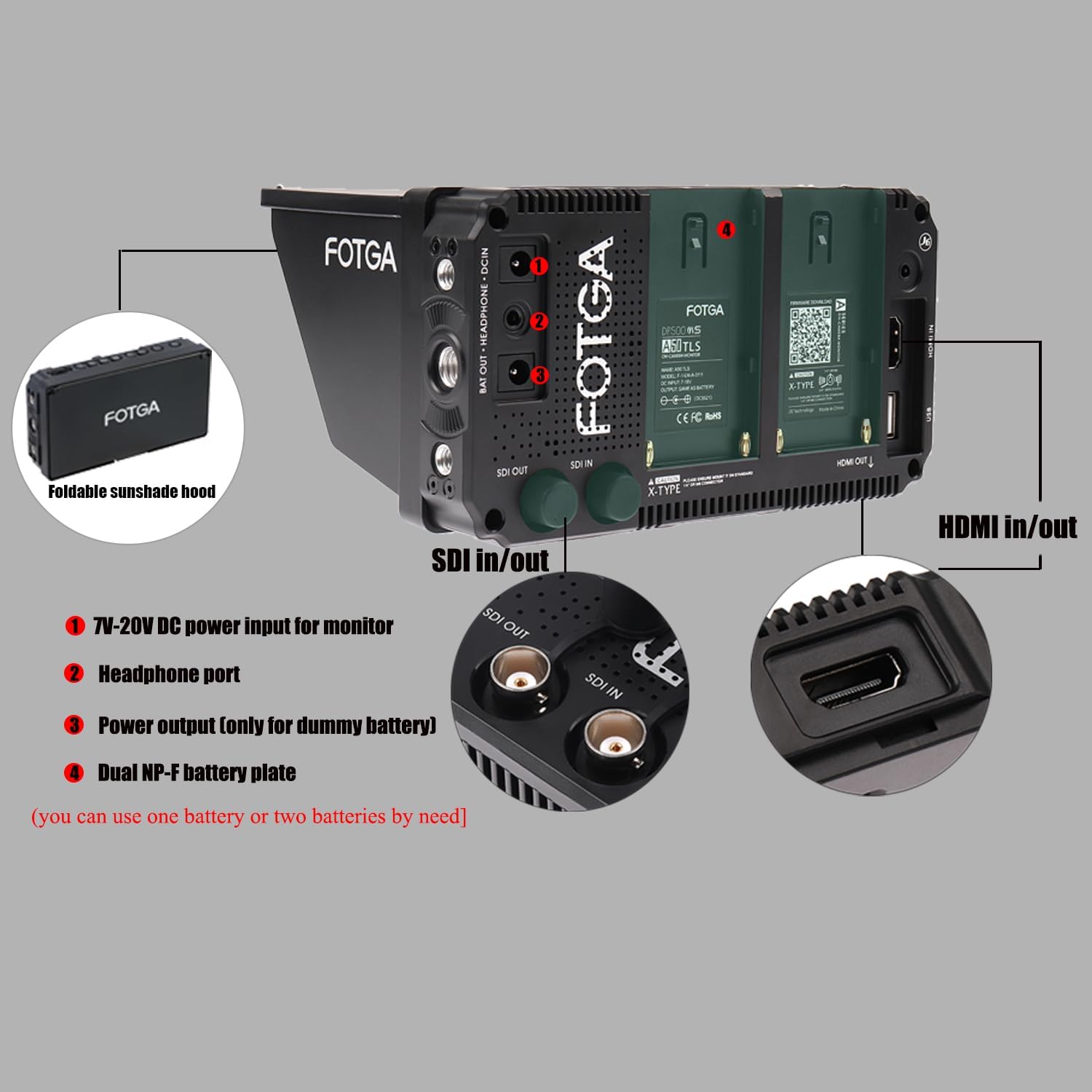
Image: The monitor with its foldable sunshade hood in the open position, ready for use.
5.2 Mounting the Monitor
The monitor can be mounted using the included cold shoe adapter or via its multiple 1/4"-20 and 3/8"-16 mounting holes.

Image: Diagram illustrating the monitor's mounting points, including 1/4"-20 and 3/8"-16 holes, and the cold shoe adapter.
- Cold Shoe Mounting: Attach the cold shoe adapter to your camera's hot shoe or a compatible rig. Secure the monitor to the adapter using the 1/4" screw.
- Side Mounting: Use the 1/4"-20 or 3/8"-16 holes on the sides for attaching to articulating arms or other accessories.
5.3 Connecting Power and Video
- Power: Insert a charged NP-F type battery into the battery plate(s) or connect the DC power cable to the DC In port and a suitable power source.
- Video Input: Connect your camera or video source to the monitor using either an HDMI cable (to HDMI In) or an SDI cable (to SDI In).
- Video Output (Optional): If you need to loop out the video signal to another monitor, connect an HDMI or SDI cable from the respective output port to the secondary display.
- Audio Monitoring (Optional): Connect headphones to the 3.5mm headphone port to monitor audio.
6. Operating Instructions
6.1 Powering On/Off
Press and hold the power button on the top of the monitor to turn it on or off.
6.2 Control Modes: Touchscreen vs. Physical Buttons
The A50TLS monitor supports both touchscreen and physical button control. A short press of the power switch allows you to toggle between these two modes. You can also change this setting within the system menu.

Image: Illustrates touchscreen interaction for menu navigation and settings adjustment.
6.3 Basic Navigation
- Touchscreen: Tap on menu items to select, swipe to scroll, and pinch-to-zoom for focus assist.
- Physical Buttons: Use the scroll wheel to navigate through menus and adjust values. Press the scroll wheel to confirm selections. The F1-F7 buttons provide quick access to assigned functions.
7. Menu Navigation and Functions
The A50TLS offers a comprehensive set of monitoring tools accessible via the menu system.
Video: Overview of the FOTGA A50TLS monitor's full features and functionality, demonstrating various monitoring tools.
7.1 Display Settings
- Backlight: Adjust screen brightness (up to 700 nits).
- Color Temp: Select color temperature presets (e.g., 6500K, 9300K).
- Color Space: Choose between DCI-P3 and other color spaces.
- Contrast, Saturation, Sharpness, Hue: Fine-tune image parameters.
7.2 Monitoring Tools

Image: The monitor screen showing multiple monitoring tools simultaneously, including waveform, vector scope, and histogram, with a DCI-P3 color gamut indication.
- Waveform: Displays the luminance and chrominance levels of your video signal.
- Vector Scope: Shows the color information (hue and saturation) of your video.
- Histogram: Visualizes the tonal distribution of your image.
- 3D LUT: Supports importing custom 3D LUTs via USB for color calibration and real-time preview. (Up to 8 LUT files, 5 built-in undeletable. USB must be FAT32 format, files under 7.9MB).
- False Color: Helps with exposure adjustment by displaying different exposure levels as distinct colors.
- Peaking Focus Assist: Highlights in-focus areas to aid in precise focusing.
- Zebra Exposure: Indicates overexposed areas with a zebra pattern (1-100% adjustable).
- Anamorphic Mode: De-squeezes anamorphic footage (2.35:1, 1.33:1).
- Image Flip: Flips the image vertically.
- Image Freeze: Pauses the live video feed.
- Safety Marker / Center Marker: Displays frame guides and a center crosshair.
- Zoom-in/out: Magnifies a portion of the screen for critical focus.
- Ratio Marker: Provides various aspect ratio guides (4:3, 16:9, 16:10, 5:4, 1.85:1, 2.35:1).
7.3 Customizing F-Buttons
The F1-F7 buttons can be assigned to frequently used functions for quick access.

Image: The monitor screen displaying the menu for customizing F1-F7 buttons, allowing users to assign functions like Parade, Vector, Histogram, False Color, Backlight, and H-Bright.
- Access the customization menu either through the main menu or by dragging down the top menu on the screen (in touchscreen mode).
- Select the desired F-button and choose a function from the available options.
8. Connectivity
The A50TLS monitor provides versatile connectivity options for various production workflows.
- HDMI Input/Output: Supports 4K HDMI signals. Use for connecting to DSLR/mirrorless cameras, camcorders, or other HDMI sources. The output can loop the signal to another display.
- SDI Input/Output: Supports 3G SDI signals. Ideal for professional cinema cameras and broadcast equipment. The output can loop the signal to another display.
- 3.5mm Headphone Jack: For real-time audio monitoring from the input video signal.
- USB Port: Primarily used for firmware updates. Ensure the USB drive is formatted to FAT32.
9. Power Management
The monitor can be powered by external DC power or NP-F type batteries.
- DC Input: Connect a 7V-20V DC power adapter to the DC In port.
- Dual NP-F Battery Plate: The monitor features two battery slots, allowing for extended operation or hot-swapping batteries without interrupting power.
- BAT Out: Provides power output for external devices, such as a camera using a dummy battery.
10. Maintenance
- Cleaning the Screen: Use a soft, lint-free cloth specifically designed for electronics screens. Do not use harsh chemicals or abrasive materials.
- Cleaning the Body: Wipe the monitor body with a soft, dry cloth. Avoid getting moisture into ports.
- Storage: When not in use, store the monitor in a dry, cool place, away from direct sunlight and extreme temperatures. Use the foldable sunshade hood to protect the screen.
- Firmware Updates: Periodically check the FOTGA official website for new firmware versions. Follow the provided instructions carefully for updates via the USB port.
11. Troubleshooting
| Problem | Possible Cause | Solution |
|---|---|---|
| Monitor does not power on. | Low or depleted battery; power cable not connected; faulty power source. | Ensure batteries are charged or replace them. Check DC power cable connection and power source. |
| No video signal. | Incorrect input selected; cable not connected properly; camera output settings incorrect; incompatible signal. | Verify the correct input (HDMI/SDI) is selected in the monitor menu. Check all cable connections. Ensure camera video output settings match monitor's supported formats. |
| Image is distorted or incorrect colors. | Incorrect color space setting; faulty cable; monitor settings. | Adjust color space and other display settings in the monitor menu. Try a different HDMI/SDI cable. |
| Touchscreen unresponsive. | Touchscreen mode disabled; temporary software glitch. | Short press the power button to toggle touchscreen mode. Restart the monitor. |
| Audio issues (no sound, distorted sound). | Headphones not connected properly; audio not embedded in video signal; monitor volume too low. | Check headphone connection. Ensure your camera is outputting embedded audio. Adjust monitor volume. |
12. Specifications
| Feature | Detail |
|---|---|
| Model | A50TLS |
| Screen Size | 5-inch |
| Resolution | 1920x1080 (FHD) |
| Brightness | 700 nits |
| Viewing Angle | 170° |
| Color Gamut | DCI-P3 Wide Color Gamut |
| Video Input | HDMI (4K), 3G SDI |
| Video Output | HDMI (4K), 3G SDI |
| Audio Output | 3.5mm Headphone Jack |
| Power Input | 7V-20V DC, Dual NP-F Battery Plate |
| Control | Touchscreen, Physical Buttons (F1-F7 customizable) |
| Dimensions | 8.2 x 6 x 3.5 inches (Package) |
| Item Weight | 1.75 pounds |
| Manufacturer | FOTGA |
| Date First Available | January 3, 2019 |
13. Warranty and Support
For warranty information and technical support, please refer to the warranty card included with your product or visit the official FOTGA website. Keep your purchase receipt as proof of purchase for warranty claims.
FOTGA Official Website: FOTGA Store on Amazon
Ask a question about this manual
Ask about setup, troubleshooting, compatibility, parts, safety, or missing instructions. Manuals+ will review the question and use this page’s manual context to help answer it.