
1. Introduction
The ZTE MF833V is a compact and portable USB dongle adapter designed to provide high-speed 4G LTE mobile broadband connectivity. This device allows users to access the internet on their laptops, desktops, or other compatible devices by simply plugging it into a USB port. It supports various 4G LTE and 3G UMTS frequency bands, making it suitable for use with unlocked GSM carriers globally.
This manual provides detailed instructions on how to set up, operate, and maintain your ZTE MF833V USB Dongle Adapter, along with troubleshooting tips and product specifications.
2. Product Overview
The ZTE MF833V is a sleek, white USB stick. It features a removable cap protecting the USB connector and a slot for a SIM card.
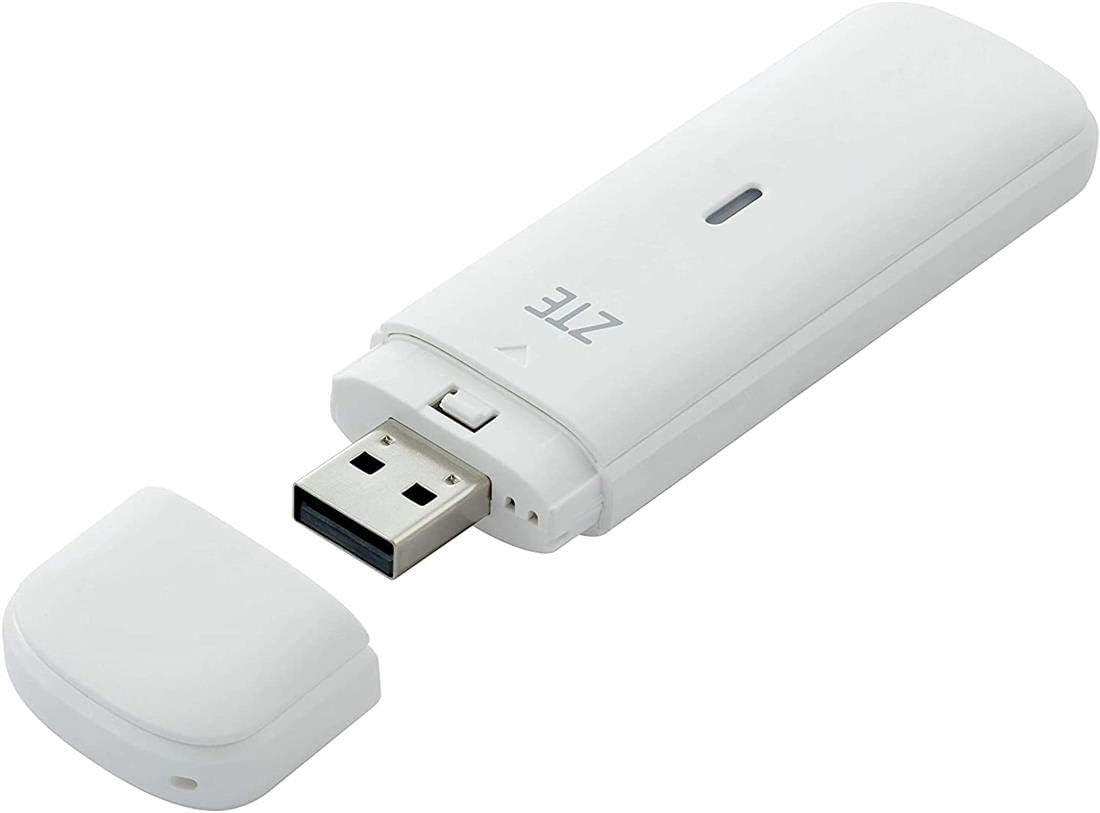
Figure 2.1: ZTE MF833V USB Dongle Adapter with its protective cap removed, revealing the standard USB-A connector. The device is white and compact, designed for portability.

Figure 2.2: Front view of the ZTE MF833V retail packaging, displaying the device and branding.

Figure 2.3: Back view of the ZTE MF833V retail packaging, showing product details such as model number, IMEI, S/N, and manufacturer information. The IMEI is 863099034072551, S/N is 320595316453, and EAN is 6902176028649.
Package Contents:
- ZTE MF833V USB Dongle Adapter
- Quick Start Guide (may vary by region)
3. Setup Guide
3.1. Inserting the SIM Card
- Locate the SIM card slot on the ZTE MF833V dongle. This is typically found by sliding or removing a cover on the side or back of the device.
- Ensure the device is not connected to a computer.
- Insert a Regular SIM Card into the designated slot with the gold contacts facing down and the notched corner aligned correctly. Push gently until it clicks into place.
- Replace any covers if removed.
Note: A SIM card and active hotspot service are required for internet connectivity. These are not included with the modem.
3.2. Connecting to Your Computer
- Remove the protective cap from the USB connector of the MF833V.
- Plug the ZTE MF833V into an available USB port on your computer.
- The computer should automatically detect the device and begin installing necessary drivers. This process may take a few minutes.
- If prompted, follow the on-screen instructions to complete the driver installation. For Windows operating systems (Win10, Win7, Win8, Windows XP, Vista) and Mac OS, drivers are typically installed automatically.
4. Operating Instructions
4.1. Accessing the Internet
- Once the drivers are successfully installed, the device's management software or a web interface should launch automatically or be accessible via your web browser.
- If a web interface is used, open your web browser and navigate to the default IP address (e.g., http://192.168.0.1 or http://192.168.1.1). Refer to the device's packaging or a quick start guide for the exact address.
- Log in using the default username and password (commonly "admin" for both, or as specified on the device/packaging).
- The software or web interface will display the network status. Ensure the SIM card is detected and the device has registered with the mobile network.
- Click the "Connect" button or similar option within the interface to establish a 4G LTE connection.
- Once connected, you can browse the internet.
4.2. Understanding LED Indicators
The MF833V typically has an LED indicator that provides information about its status:
- Solid Blue/Green: Connected to 4G LTE network.
- Solid Cyan: Connected to 3G network.
- Flashing: Searching for network or data transfer in progress.
- Solid Red: No SIM card, SIM error, or no network signal.
5. Maintenance
- Cleaning: Use a soft, dry cloth to clean the device. Avoid using liquid cleaners or aerosols.
- Storage: When not in use, store the dongle in a cool, dry place, away from direct sunlight and extreme temperatures. Keep the protective cap on the USB connector.
- Software Updates: Periodically check the ZTE official website or the device's management software for firmware updates to ensure optimal performance and security.
- Handling: Avoid dropping the device or exposing it to excessive force, as this can damage internal components.
6. Troubleshooting
| Problem | Possible Cause | Solution |
|---|---|---|
| Device not detected by computer. | Loose connection, faulty USB port, driver issue. | Try a different USB port. Restart your computer. Manually install drivers if necessary (check ZTE support website). |
| No network signal / Red LED. | No SIM card, incorrect SIM insertion, no network coverage, SIM not activated, incorrect APN settings. | Ensure SIM card is correctly inserted and activated. Check for network coverage in your area. Verify APN settings in the device's management software (consult your carrier). |
| Cannot connect to the internet. | No active data plan, insufficient signal, incorrect settings, carrier restrictions. | Confirm your SIM card has an active data plan. Move to an area with better signal. Check APN settings. Ensure your carrier supports the device's frequency bands. (Modem does NOT work on Verizon, Sprint, Net10, or any CDMA carrier). |
| Slow internet speed. | Weak signal, network congestion, data throttling by carrier. | Relocate to an area with stronger signal. Check with your carrier for network status or data plan limits. |
7. Specifications
- Model: MF833V
- Network Compatibility:
- 4G LTE-FDD: B1/B2/B5/B4/B28/B7MHz
- LTE TDD: B40 (B38 or B41)
- 3G UMTS: 850/1900/2100/900MHz
- Unlocked GSM Carrier (Does NOT work on Verizon, Sprint, Net10, or any CDMA Carrier)
- Data Speed:
- 4G LTE Download: Up to 150Mbps (Category 4)
- 4G LTE Upload: Up to 50Mbps
- SIM Card Type: Regular SIM Card
- Interface: USB 2.0
- Operating Systems Supported: Win10, Win7, Win8, Windows XP, Vista, Mac OS
- Dimensions: 3.5 x 1 x 0.3 inches (approx.)
- Weight: 2.89 ounces (approx.)
- Color: White
- Special Feature: WPS
- Frequency Band Class: Dual-Band
- Wireless Communication Standard: 802.11n (Note: This might refer to internal Wi-Fi for management, as it's a dongle, not a hotspot. The primary connection is 4G LTE via USB.)
- Compatible Devices: Smartphone (for management via app, if available), Personal Computer
- Recommended Uses: Internet access on-the-go, traveling, as a backup internet connection
8. Warranty and Support
For warranty information, please refer to the warranty card included with your product or visit the official ZTE website. Warranty terms may vary by region and retailer.
Customer Support:
If you encounter issues not covered in this manual or require further assistance, please contact ZTE customer support:
- Manufacturer: ZTE CORPORATION
- Website: http://www.ztedevice.com
- Email: mobile@zte.com.cn
- Service Hotline: +86-755-26779999
Please have your product model (MF833V) and serial number (S/N: 320595316453) ready when contacting support.


