
Dell Precision 7530
Dell Precision 7530 Mobile Workstation User Manual
Model: 2RKYC
Introduction
This manual provides essential information for the safe and efficient operation of your Dell Precision 7530 Mobile Workstation. Please read this manual thoroughly before using the device and retain it for future reference.
The Dell Precision 7530 is a high-performance 15.6-inch mobile workstation designed for demanding professional applications, including VR content creation. It features an Intel Core i7-8850H Hexa-core processor, 8GB RAM, and a 512GB SSD, running on Windows 10 Pro.
What's in the Box
Upon unpacking your Dell Precision 7530 Mobile Workstation, ensure all components are present:
- Dell Precision 7530 Mobile Workstation
- Lithium Ion Battery
- Power Cord
- AC Adapter
- Documentation Disks (Safety and Regulatory Documents in English, French, Dutch)
- Placemat (English, French, Spanish)
Setup
1. Initial Power-Up
- Connect the AC Adapter: Plug the AC adapter into the workstation's power port and then into a wall outlet.
- Open the Display: Gently lift the display lid.
- Power On: Press the power button, typically located on the top right of the keyboard deck.
- Initial Configuration: Follow the on-screen prompts to complete the Windows 10 Pro setup, including language, region, network connection, and user account creation.
2. Connecting Peripherals
The Precision 7530 offers various ports for connecting external devices:
- USB Ports: For mice, keyboards, external drives, etc.
- Thunderbolt 3 Ports: For high-speed data transfer, external displays, and docking stations.
- DisplayPort: For connecting external monitors.
- Audio Jack: For headphones or external speakers.
- Ethernet Port: For wired network connection.

Image: Side view of the Dell Precision 7530 Mobile Workstation, illustrating the arrangement of various connectivity ports including USB and Thunderbolt.
Operating Instructions
1. Power Management
- Power On: Press the power button.
- Sleep Mode: Close the lid or select "Sleep" from the Start Menu.
- Shut Down: Select "Shut down" from the Start Menu.
- Restart: Select "Restart" from the Start Menu.
2. Keyboard and Touchpad
The workstation features an ergonomic keyboard and a precision touchpad for navigation.
- Function Keys: Use the Fn key in combination with F1-F12 for quick access to system functions like volume, brightness, and wireless toggles.
- Touchpad Gestures: Refer to Windows settings for customizable multi-touch gestures.
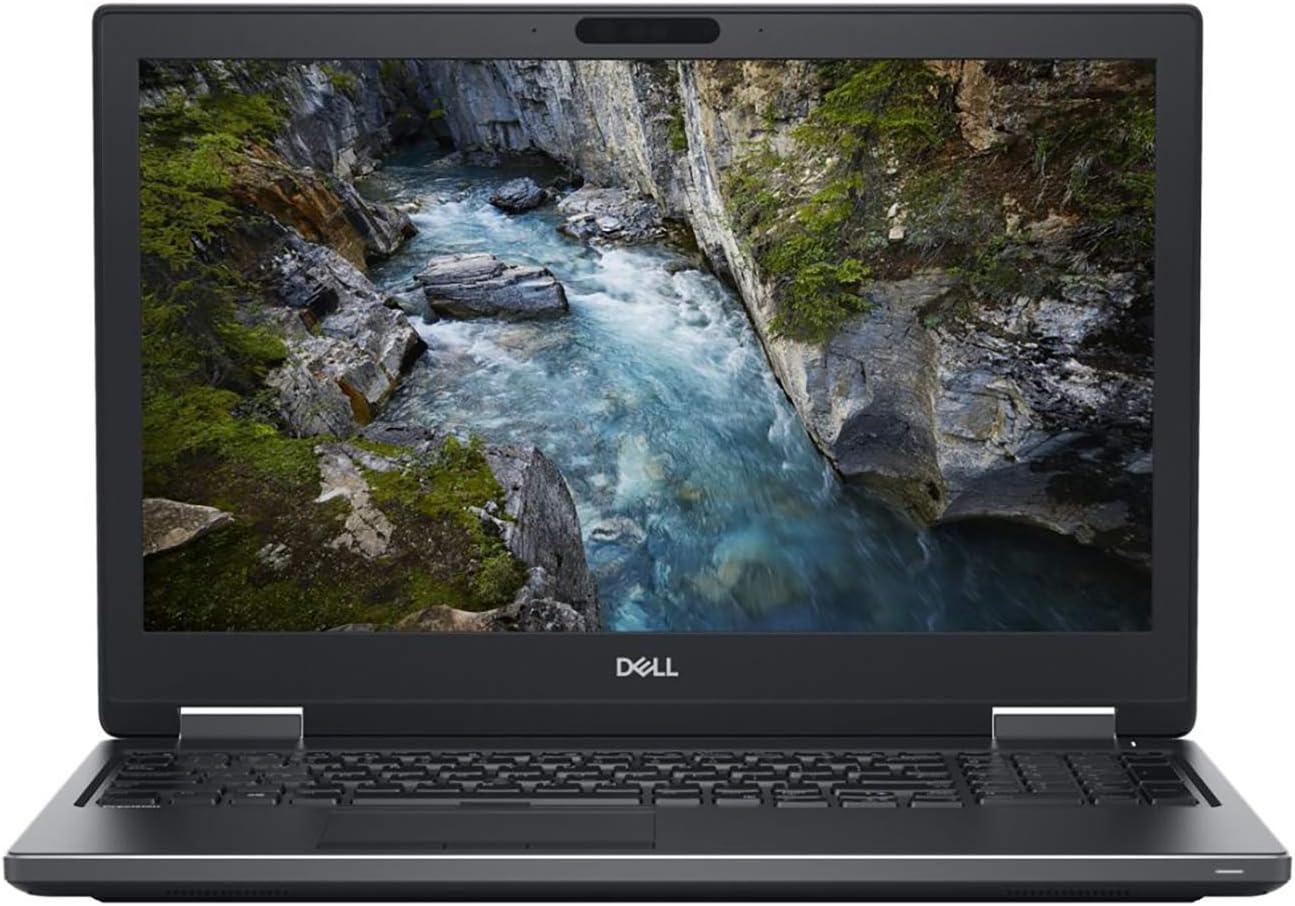
Image: Front view of the Dell Precision 7530 Mobile Workstation, showcasing the ergonomic keyboard and touchpad.
3. Display and Graphics
The 15.6-inch Full HD (1920 x 1080) LCD display is powered by NVIDIA Quadro Professional Graphics, suitable for high-resolution tasks and VR applications.
- Adjusting Brightness: Use the Fn + F11 (decrease) and Fn + F12 (increase) keys.
- External Displays: Connect external monitors via DisplayPort or Thunderbolt 3. Configure display settings in Windows.

Image: Front view of the Dell Precision 7530 Mobile Workstation with its 15.6-inch LCD display active, showing a detailed image.
Maintenance
1. Cleaning the Workstation
- Screen: Use a soft, lint-free cloth lightly dampened with water or a screen cleaner. Do not spray liquid directly onto the screen.
- Keyboard and Chassis: Use a soft, dry cloth. For stubborn dirt, a slightly damp cloth with mild soap solution can be used, ensuring no liquid enters openings.
- Vents: Periodically clean dust from the ventilation grilles using compressed air to ensure proper airflow and prevent overheating.
2. Battery Care
- Avoid extreme temperatures.
- Do not fully discharge the battery frequently.
- For long-term storage, charge the battery to about 50-60%.
3. Software Updates
Regularly update your operating system and drivers to ensure optimal performance and security. Check Dell's official support website for the latest drivers for your Precision 7530.
Troubleshooting
| Problem | Possible Solution |
|---|---|
| Workstation does not power on. | Ensure the AC adapter is securely connected and the power outlet is functional. Check battery charge level. |
| Screen is blank or black. | Check display brightness settings. Ensure no external monitor is set as the primary display. Try restarting the workstation. |
| Keyboard or touchpad not responding. | Restart the workstation. Check for driver updates. If using an external keyboard/mouse, test them on another device. |
| System is slow or unresponsive. | Close unnecessary applications. Check Task Manager for high CPU/RAM usage. Run a virus scan. Ensure sufficient free space on the SSD. |
| Wi-Fi connectivity issues. | Ensure Wi-Fi is enabled (Fn + F2). Restart your router/modem. Check network settings in Windows. Update wireless drivers. |
For more detailed troubleshooting, refer to the Dell support website or contact Dell technical support.
Specifications
| Feature | Detail |
|---|---|
| Brand | Dell |
| Model Name | Precision |
| Model Number | 2RKYC |
| Screen Size | 15.6 Inches |
| Native Resolution | 1920 x 1080 pixels (Full HD) |
| Display Technology | LCD |
| CPU Model | Intel Core i7 Family (i7-8850H) |
| Processor Speed | 2.6 GHz (Hexa-core) |
| RAM Memory Installed Size | 8 GB DDR4 |
| Hard Disk Size | 512 GB SSD |
| Graphics Coprocessor | NVIDIA Quadro P1000 (4 GB GDDR5) |
| Operating System | Windows 10 Pro |
| Connectivity Technology | USB, Wi-Fi, Bluetooth, Thunderbolt |
| Total Thunderbolt Ports | 1 |
| Video Output | DisplayPort |
| Virtual Reality Ready | Yes |
| Battery Life | 97 Watt Hours (Lithium Ion) |
| Item Weight | 5.73 Pounds |
| Model Year | 2018 |
| UPC | 884116320159 |
Warranty Information
The Dell Precision 7530 Mobile Workstation comes with a 3-year limited warranty. This warranty covers manufacturing defects and hardware malfunctions under normal use conditions.
For full terms and conditions, please refer to the warranty documentation included with your product or visit the official Dell support website.
Support and Contact
For technical assistance, driver downloads, or further support, please visit the official Dell support website:
When contacting support, please have your service tag or express service code ready. This information is typically located on a label on the bottom of your workstation.
Related documentsPrecision 7530


Ask a question about this manual
Ask about setup, troubleshooting, compatibility, parts, safety, or missing instructions. Manuals+ will review the question and use this page’s manual context to help answer it.