
1. Introduction
This manual provides instructions for the Superior Electronics Universal Replacement Remote Control, model SUPTRB015. This remote is designed to be a direct replacement for original remote controls of LG, Samsung, and Sony televisions, including Smart TV models. It is ready to use without any programming.
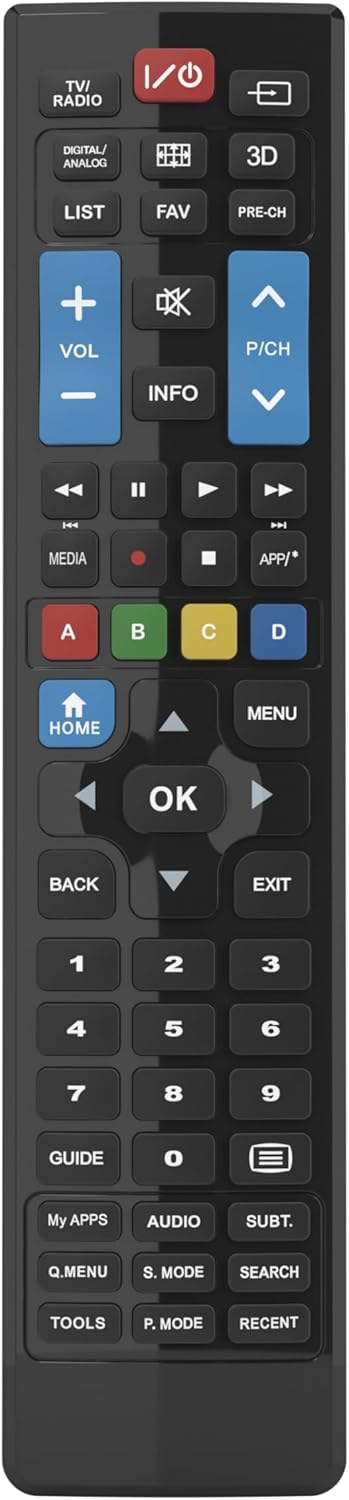
Figure 1: Superior Electronics Universal Remote Control (SUPTRB015)
2. Setup
2.1. Battery Installation
The remote control requires two AAA batteries (not included). Follow these steps to install them:
- Locate the battery compartment on the back of the remote control.
- Press down on the latch and slide the battery cover off.
- Insert two AAA batteries, ensuring the positive (+) and negative (-) terminals match the diagrams inside the compartment.
- Slide the battery cover back into place until it clicks securely.

Figure 2: Battery Compartment on the back of the remote.
2.2. Initial Use (No Programming Required)
This universal remote control is designed for immediate use with LG, Samsung, and Sony televisions. Once batteries are installed, it is ready to operate your TV without any additional programming or code setup.
3. Operating Instructions
The remote control features an intuitive layout with dedicated buttons for common functions and Smart TV access. Refer to Figure 3 for a visual guide to the buttons.

Figure 3: Remote Control Button Layout.
3.1. Basic TV Functions
- Power Button (ⓘ): Turns the TV on or off.
- Volume Up/Down (VOL +/-): Adjusts the sound volume.
- Channel Up/Down (P/CH +/-): Changes TV channels.
- Mute Button (🔇): Mutes or unmutes the TV sound.
- Number Buttons (0-9): Directly select TV channels.
- Input/Source Button (⎌): Selects the input source (HDMI, AV, etc.).
3.2. Navigation and Menu Functions
- Directional Pad (Up, Down, Left, Right Arrows): Navigates through menus and options.
- OK Button: Confirms selections.
- HOME Button: Accesses the TV's main home screen or Smart Hub.
- MENU Button: Opens the TV's main menu.
- BACK Button: Returns to the previous screen or menu.
- EXIT Button: Exits the current menu or application.
- INFO Button: Displays information about the current program or input.
3.3. Smart TV and Media Functions
- Dedicated Smart TV Buttons: Access popular streaming apps directly (e.g., Netflix, YouTube, Prime Video). These buttons are typically labeled or have recognizable logos.
- Media Control Buttons (Play, Pause, Stop, Rewind, Fast Forward): Controls media playback.
- Colored Buttons (Red, Green, Yellow, Blue): These buttons often have specific functions within Smart TV apps or teletext, as indicated on your TV screen.
4. Maintenance
4.1. Cleaning the Remote Control
To maintain the remote control's appearance and functionality:
- Wipe the surface with a soft, dry cloth.
- For stubborn dirt, slightly dampen the cloth with water or a mild, non-abrasive cleaner.
- Do not use harsh chemicals, solvents, or abrasive cleaning pads, as these can damage the remote's finish or internal components.
4.2. Battery Replacement
Replace batteries when the remote's response becomes sluggish or it stops functioning. Always replace both batteries at the same time with new AAA batteries. Do not mix old and new batteries, or different types of batteries.
5. Troubleshooting
If you experience issues with your remote control, try the following solutions:
- Remote not responding:
- Check if the batteries are correctly inserted with the correct polarity (+/-).
- Replace the batteries with fresh ones.
- Ensure there are no obstructions between the remote control and the TV's infrared receiver.
- Make sure you are within the effective operating range (up to 10 meters).
- Certain buttons not working:
- This remote is designed for LG, Samsung, and Sony TVs. Ensure your TV is one of these brands.
- Some advanced functions or very specific buttons might not be universally supported across all TV models, especially older ones.
- Clean the remote control, especially around the unresponsive buttons, to ensure no debris is preventing contact.
- Smart TV buttons not working:
- Ensure your TV is a Smart TV and is connected to the internet.
- The dedicated Smart TV buttons (e.g., Netflix, YouTube) are compatible with most LG, Samsung, and Sony Smart TV models. If they don't work, you may need to access these apps through your TV's main Smart Hub/Home menu using the navigation buttons.
6. Specifications
| Brand | Superior Electronics |
| Model Name | Superior Electronics Replacement LG/Samsung/Sony SUPTRB015 |
| Special Feature | Universal |
| Color | Black |
| Max Supported Devices | 3 (LG, Samsung, Sony) |
| Compatible Devices | Television |
| Connectivity Technology | Infrared |
| Controller Type | Button Control |
| Maximum Range | 10 Meters |
| Number of Batteries | 2 AAA (Required) |

Figure 4: Remote Control Dimensions (approx. 20 cm length, 4.5 cm width).
7. Warranty and Support
Superior Electronics products are manufactured to high-quality standards. For information regarding warranty coverage, please refer to the documentation provided with your purchase or visit the official Superior Electronics website. For technical support or further assistance, please contact Superior Electronics customer service through their official channels.
Please retain this manual for future reference.


