
1. Introduction
The Brightsign HD224 is a Full HD Standard I/O Digital Signage Player designed for reliable and easy-to-use content delivery. It supports flawless 4K and Full HD single video decoding, mainstream HTML5 performance, and simultaneous playback from local, networked, and streaming sources. This player includes standard I/O features such as gigabit Ethernet, GPIO (GPIO connectors sold separately), and analog and digital audio. The HD224 is suitable for mainstream 4Kp60, Full HD, and HTML5 applications, offering H.265 decoding, HTML5 rendering, and Gigabit Ethernet. Its robust interactive controls, live content features, BrightWall, and Mosaic Mode make it versatile for various digital signage applications.
2. Key Features
- H.265 Decoding: Enables smaller file sizes and lower bitrates compared to H.264, optimizing storage and bandwidth.
- HTML5 Support: Features a hardware-accelerated engine for seamless playback of modular HTML assets alongside high-bandwidth video content.
- BrightBeacon: Facilitates two-way Bluetooth/Beacon communication between mobile devices and signage (requires a wireless/Bluetooth module, sold separately).
- BrightWall: Provides synchronized playback across multiple displays, ideal for video wall applications.
- AutoWall: Leverages HTML5 capabilities to create dynamic and unique multimedia video walls.
3. Setup Guide
3.1 Package Contents
Verify that the following items are included in your package:
- Brightsign HD224 Digital Signage Player
- Power Adapter
- Quick Start Guide (if applicable)
Note: Additional accessories such as HDMI cables, Ethernet cables, microSD cards, and GPIO connectors are sold separately.
3.2 Connecting the Player
- Insert MicroSD Card: If using local storage for content, insert a formatted microSD card into the designated slot on the player. Ensure the card is inserted correctly until it clicks into place.
- Connect to Display: Connect an HDMI cable from the HDMI output port on the HD224 player to the HDMI input port on your display device (monitor, TV, projector).
- Connect to Network (Optional): For network-based content updates or live feeds, connect an Ethernet cable from the Ethernet port on the HD224 to your network router or switch.
- Connect Audio (Optional): If external audio is required, connect an audio cable from the analog audio output port to your audio system. Digital audio is also supported via HDMI.
- Connect GPIO (Optional): If using interactive controls, connect your GPIO devices to the GPIO port. GPIO connectors are sold separately.
- Connect Power: Plug the power adapter into the 12V 1.5A power input port on the HD224, then plug the adapter into a power outlet. The player will power on automatically.
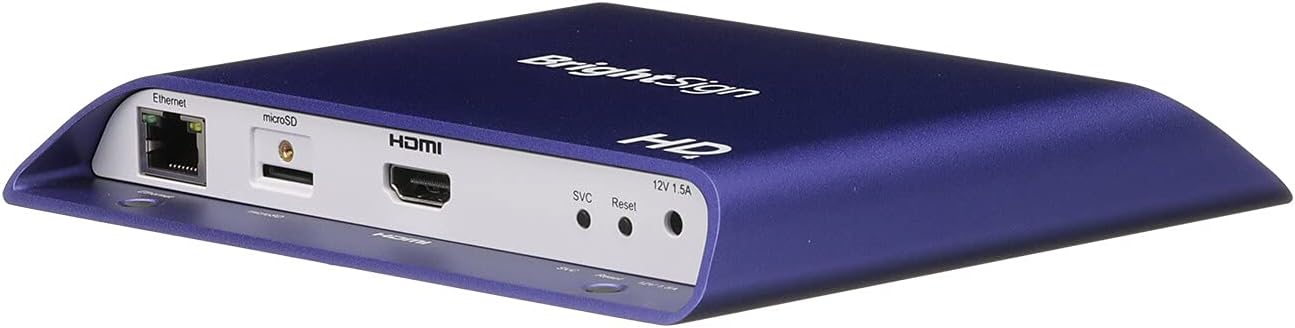
Figure 1: Rear view of the Brightsign HD224 player showing connectivity ports including Ethernet, microSD, HDMI, SVC, Reset, and 12V 1.5A power input.
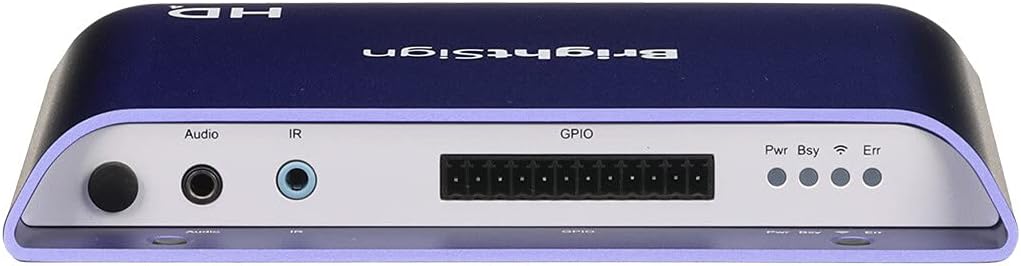
Figure 2: Front view of the Brightsign HD224 player showing Audio, IR, GPIO ports, and status indicators for Power (Pwr), Busy (Bsy), and Error (Err).
4. Operating Instructions
4.1 Content Management
The Brightsign HD224 player requires content to be prepared and published using BrightSign's proprietary software, BrightAuthor or BrightSign BSN.cloud. Refer to the BrightSign documentation for detailed instructions on creating presentations, scheduling content, and publishing to your player.
- Local Playback: Content can be loaded onto a microSD card and inserted into the player for standalone operation.
- Networked Playback: For dynamic content updates and remote management, connect the player to a network and use BrightSign's network solutions.
- HTML5 Content: The player supports advanced HTML5 content, allowing for interactive and web-based presentations.
4.2 Status Indicators
The front panel of the HD224 features LED indicators to provide operational status:
- Pwr (Power): Indicates the power status of the device.
- Bsy (Busy): Indicates when the player is actively processing or playing content.
- Err (Error): Illuminates if an error occurs, such as a content loading issue or hardware malfunction. Refer to the troubleshooting section for more details.
5. Maintenance
5.1 Cleaning
To maintain optimal performance, keep the player clean. Use a soft, dry cloth to wipe the exterior. Do not use liquid cleaners or abrasive materials, as they may damage the device. Ensure ventilation openings are free from dust and obstructions.
5.2 Firmware Updates
Periodically check the BrightSign website for firmware updates. Keeping your player's firmware up-to-date ensures access to the latest features, performance improvements, and security patches. Follow the instructions provided by BrightSign for safe firmware update procedures.
6. Troubleshooting
| Problem | Possible Cause | Solution |
|---|---|---|
| No display output |
|
|
| No audio output |
|
|
| Player not connecting to network |
|
|
| Err LED is illuminated |
|
|
For further assistance, consult the official BrightSign support resources or contact their customer service.
7. Specifications
| Model Number | HD224 |
| Brand | Brightsign |
| Dimensions (LxWxH) | 9.88 x 7.08 x 2.75 inches |
| Item Weight | 1.54 pounds |
| Resolution Support | 1920x1080 (Full HD), 3840x2160 (4K) |
| Connectivity Technology | Ethernet |
| Connector Type | HDMI |
| Audio Output Mode | Stereo, Surround |
| Hard Drive | 1 GB Hybrid Drive (Internal, for OS/firmware) |
| Flash Memory Size | 1 (Internal, for OS/firmware) |
| Wireless Type | Bluetooth (requires wireless/Bluetooth module) |
| Media Type Support | Digital video and image files (Blu-Ray Disc, DVD listed in source data likely refers to supported content formats, not physical disc playback) |
| Special Feature | Portable |
Note: Specifications are subject to change without notice. For the most current information, please refer to the official BrightSign website.
8. Warranty and Support
BrightSign products are covered by a manufacturer's warranty. For specific warranty terms and conditions, please refer to the documentation included with your product or visit the official BrightSign website. Technical support and additional resources, including FAQs and software downloads, are available through BrightSign's customer support channels.
For support, visit: BrightSign Support


