
1. Introduction
Welcome to the user manual for your RugGear RG910 Rugged 8-inch Tablet. This document provides essential information for setting up, operating, maintaining, and troubleshooting your device. The RG910 is engineered for demanding environments, offering superior durability and connectivity for outdoor work and extreme conditions.
Please read this manual carefully to ensure proper use and to maximize the lifespan of your tablet.
2. Product Overview
The RugGear RG910 is a robust tablet featuring an 8-inch WUXGA touchscreen, designed to withstand harsh conditions. It incorporates advanced sealing technology for high water and dust resistance, and is built to endure drops and impacts.

Figure 2.1: Front view of the RugGear RG910 rugged tablet, showcasing its durable design and display.
Key features include Push-to-Talk (PTT) functionality, a long-lasting 6000 mAh battery, and an Android 8 (Oreo) operating system optimized for performance and power efficiency. The device is IP68 certified, allowing submersion in water up to 1.2 meters for 60 minutes, and is drop-resistant up to 1.5 meters.

Figure 2.2: Infographic highlighting the RG910's reliable performance, PTT capability, long battery life, Android 8 optimization, IP68 rating, and dual stereo speakers.
Connectivity options include 4G LTE, Wi-Fi 802.11b/g/n, and Bluetooth 4.0. It also features 8MP and 2MP cameras, GPS, A-GPS, GLONASS, and Beidou for navigation. The display is protected by Corning Gorilla Glass for enhanced durability and readability in sunlight.
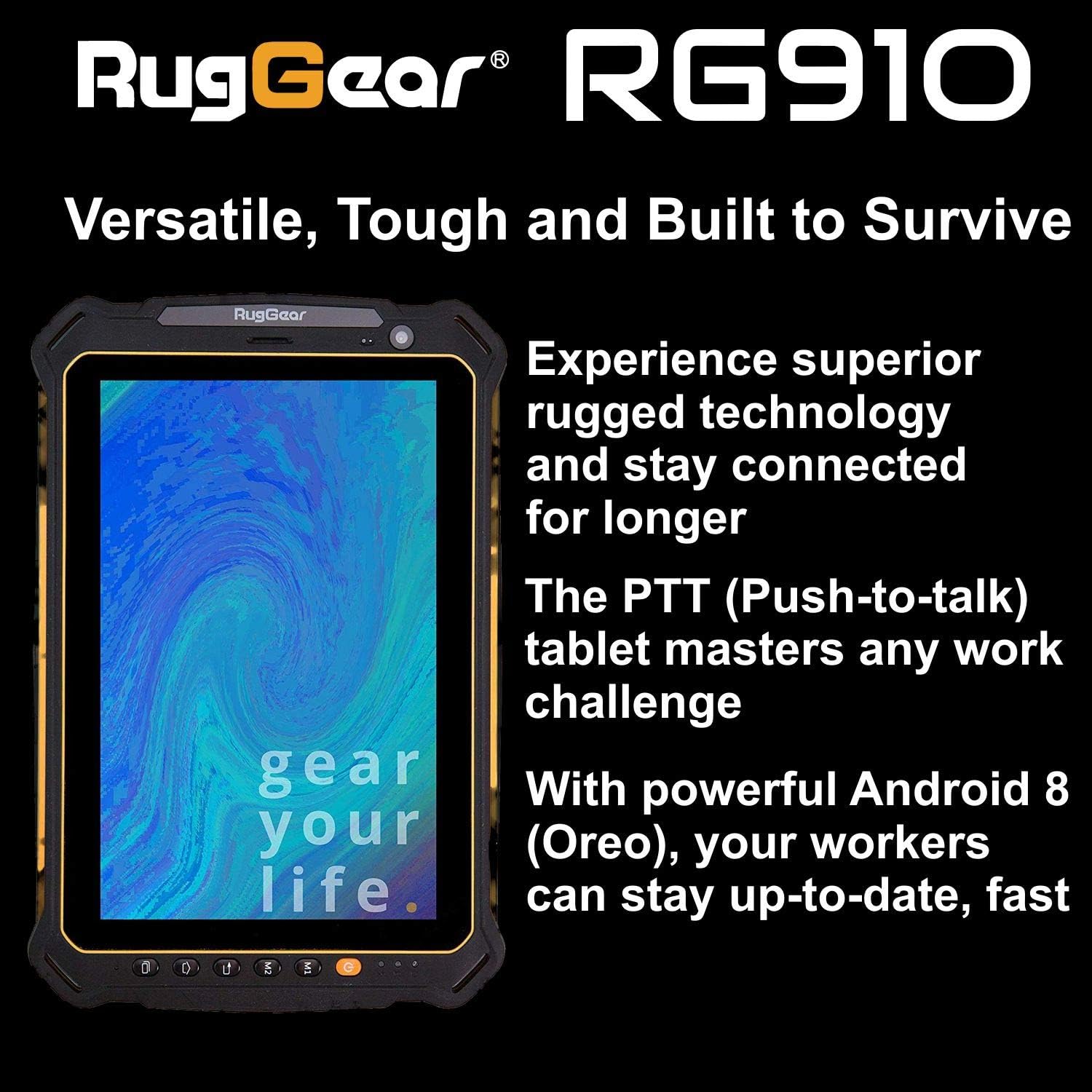
Figure 2.3: The RugGear RG910 tablet being used, illustrating its robust construction and suitability for various tasks.
3. Setup
3.1 Charging the Device
Before initial use, fully charge the tablet using the provided charger and USB cable. Connect the charger to a power outlet and the USB cable to the tablet's charging port. The charging indicator will show the charging status.
3.2 Inserting SIM and Micro-SD Cards
- Locate the SIM/Micro-SD card slot cover on the side of the tablet.
- Carefully open the cover.
- Insert the Nano-SIM card into the designated slot with the gold contacts facing down, ensuring it is correctly oriented.
- If using, insert a Micro-SD card (up to 64GB) into its dedicated slot.
- Close the cover securely to maintain the device's water and dust resistance.
3.3 Initial Power-On and Setup
Press and hold the Power button until the RugGear logo appears. Follow the on-screen instructions to complete the initial setup, which includes selecting your language, connecting to a Wi-Fi network, and setting up your Google account.
4. Operating Instructions
4.1 Power On/Off
- To Power On: Press and hold the Power button until the screen illuminates.
- To Power Off: Press and hold the Power button until the power options appear, then select 'Power off'.
- To Restart: Press and hold the Power button until the power options appear, then select 'Restart'.
4.2 Basic Navigation
The RG910 uses a capacitive touchscreen. Use standard Android gestures:
- Tap: Select an item or open an application.
- Swipe: Scroll through lists or switch between home screens.
- Pinch: Zoom in or out on images and web pages.
- Long Press: Access contextual menus or move icons.
4.3 Push-to-Talk (PTT) Functionality
The RG910 supports Push-to-Talk (PTT) communication. A dedicated PTT button may be present on the device. Consult your service provider or PTT application instructions for specific setup and usage details.
4.4 Camera Operation
To use the cameras:
- Open the Camera application from the home screen or app drawer.
- Tap the screen to focus.
- Tap the Shutter button to take a photo or start/stop video recording.
- Switch between front and rear cameras using the camera toggle icon.
4.5 Connectivity
- Wi-Fi: Go to Settings > Network & internet > Wi-Fi to connect to available networks.
- 4G LTE: Ensure your SIM card is inserted and mobile data is enabled in Settings > Network & internet > Mobile network.
- Bluetooth: Enable Bluetooth in Settings > Connected devices > Bluetooth to pair with other devices.
5. Maintenance
5.1 Cleaning the Device
To clean your tablet, use a soft, damp cloth. Avoid using harsh chemicals, abrasive cleaners, or solvents, as these can damage the device's ruggedized coating and seals. Ensure all port covers are securely closed before cleaning with moisture.
5.2 Water and Dust Resistance (IP68)
The RG910 is IP68 certified, meaning it is protected against dust ingress and can withstand submersion in fresh water up to 1.2 meters for 60 minutes. To maintain this rating:
- Ensure all port covers (USB, SIM/Micro-SD slot) are firmly closed before exposure to water or dust.
- Do not expose the device to salt water, chlorinated water, or other liquids.
- If the device gets wet, dry it thoroughly with a clean cloth before opening any covers or charging.
5.3 Battery Care
- Avoid extreme temperatures, which can degrade battery performance.
- Use only the original or certified compatible charger and cable.
- Do not puncture, disassemble, or modify the battery.
5.4 Software Updates
Regularly check for and install software updates to ensure optimal performance, security, and access to new features. Go to Settings > System > System update.
6. Troubleshooting
This section addresses common issues you might encounter with your RugGear RG910 tablet.
| Issue | Possible Solution |
|---|---|
| Device does not power on | Ensure the battery is charged. Connect the charger and wait a few minutes before attempting to power on again. If unresponsive, perform a forced restart by holding the Power button for 10-15 seconds. |
| Screen is unresponsive | Restart the device. If the issue persists, ensure the screen is clean and dry. |
| Cannot connect to Wi-Fi/4G | Check Wi-Fi settings and ensure the network password is correct. For 4G, verify SIM card insertion, mobile data is enabled, and you have network coverage. Restart the tablet. |
| Battery drains quickly | Reduce screen brightness, close unused applications, disable unnecessary connectivity features (Bluetooth, GPS), and check for background app activity in settings. |
| Device is slow or freezes | Close background applications. Clear cache for problematic apps. Restart the device. Consider a factory reset if the issue is persistent (back up data first). |
7. Specifications
Detailed technical specifications for the RugGear RG910 tablet:
| Feature | Description |
|---|---|
| Brand | RugGear |
| Model Number | 98300000 |
| Operating System | Android 8 (Oreo) |
| Display | 8-inch WUXGA (1920 x 1200 pixels) with Corning Gorilla Glass |
| Processor | Qualcomm Snapdragon 625 |
| RAM | 3 GB |
| Internal Storage | 32 GB (expandable up to 64 GB via Micro-SD) |
| Battery | 6000 mAh Lithium-ion |
| Connectivity | 4G LTE, Wi-Fi 802.11b/g/n, Bluetooth 4.0, GPRS |
| Cameras | Rear: 8 MP, Front: 2 MP |
| Navigation | GPS, A-GPS, GLONASS, Beidou |
| Durability | IP68 certified (water/dust resistant), Drop-resistant up to 1.5 meters |
| Dimensions (L x W x H) | 21.3 x 14.1 x 2 cm |
| Weight | 906 Grams |
| Special Features | Ruggedized Construction, Push-to-Talk (PTT) functionality, Adjustable back strap |
| Model Year | 2018 |
8. Warranty and Support
Your RugGear RG910 tablet is covered by a manufacturer's warranty. Please refer to the warranty card included with your product packaging for specific terms and conditions, including warranty duration and coverage details. For technical support, service, or further assistance, please contact RugGear customer service or your authorized dealer.


