
1. Introduction
The D-Link DWR-930M 4G/LTE Mobile Router is a portable wireless device designed to provide high-speed internet access on the go. It functions as a 4G LTE Cat4 mobile hotspot, enabling you to share a broadband wireless WAN (WWAN) connection via Wi-Fi. This device supports internet speeds up to 150Mbps for downloads and 50Mbps for uploads, allowing up to 8 Wi-Fi devices to connect simultaneously.
Its compact size and rechargeable 3000 mAh Li-ion battery make it suitable for travel and situations requiring an impromptu network. The DWR-930M incorporates a built-in firewall and supports WPA/WPA2 security protocols to protect your data. Charging is facilitated via a Micro-USB port, and device management can be performed using a mobile application.
2. Package Contents
Please verify that your package contains the following items:
- D-Link DWR-930M 4G/LTE Mobile Router
- Rechargeable Lithium-Ion Battery
- Micro-USB Charging Cable
- Quick Installation Guide (if included)
If any items are missing or damaged, please contact your retailer.
3. Product Overview
Familiarize yourself with the physical components and indicator lights of your DWR-930M Mobile Router.
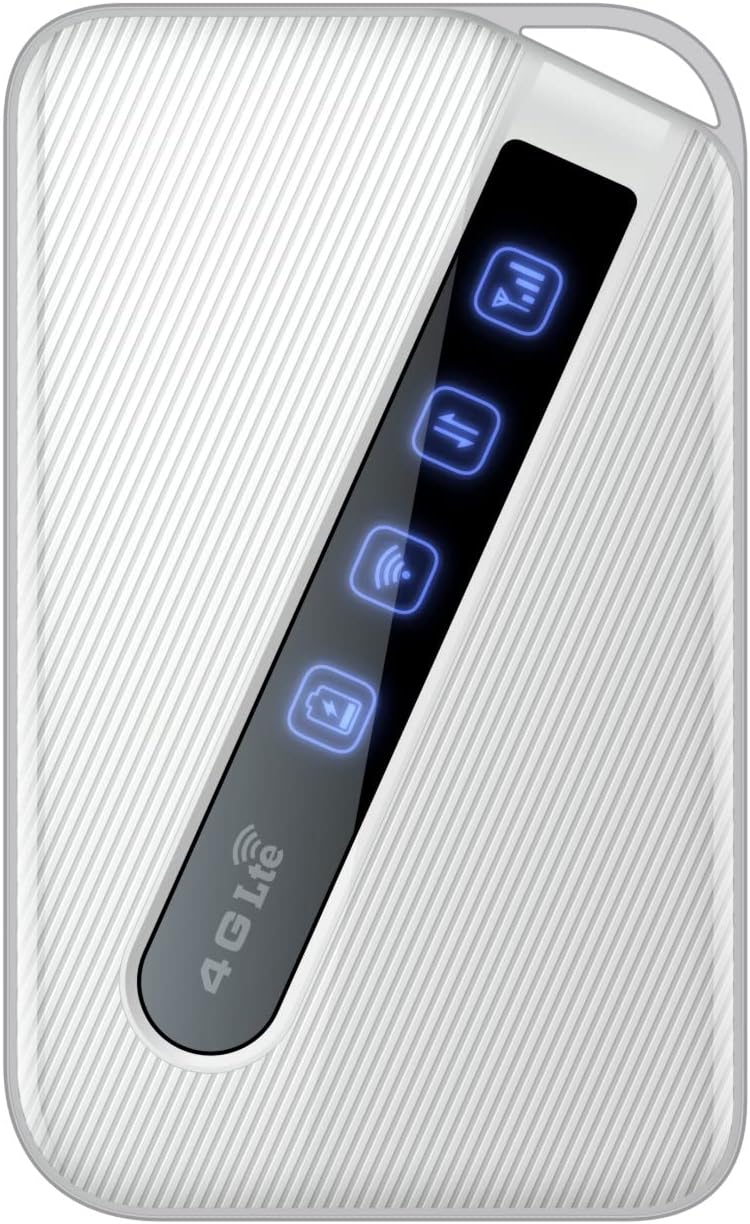
An image of the D-Link DWR-930M 4G/LTE Mobile Router, showing its compact white design and the illuminated indicator panel for signal, network, Wi-Fi, and battery status.
Indicator Lights:
- Signal Strength Indicator: Displays the strength of the 4G/LTE network signal.
- Network Type Indicator: Shows the current network connection status (e.g., 4G LTE).
- Wi-Fi Status Indicator: Indicates if the Wi-Fi hotspot is active.
- Battery Status Indicator: Shows the current battery charge level.
Ports and Slots:
- SIM Card Slot: For inserting your data-enabled SIM card.
- Micro-USB Port: Used for charging the device.
- Power Button: To turn the device on or off.
4. Setup
4.1. Inserting the SIM Card
- Ensure the DWR-930M is powered off.
- Locate the SIM card slot, typically found under the battery cover or on the side of the device.
- Carefully insert your data-enabled SIM card into the slot with the gold contacts facing down and the notched corner aligned correctly.
- Close the SIM card slot cover or replace the battery cover.
4.2. Charging the Device
- Connect the Micro-USB charging cable to the Micro-USB port on the DWR-930M.
- Connect the other end of the cable to a USB power adapter (not always included) or a computer's USB port.
- The battery indicator light will show charging status. Allow the device to fully charge before first use.
4.3. Powering On/Off
- To Power On: Press and hold the Power button until the indicator lights illuminate.
- To Power Off: Press and hold the Power button until the indicator lights turn off.
5. Operation
5.1. Connecting Devices to Wi-Fi
- Ensure the DWR-930M is powered on and the Wi-Fi indicator is active.
- On your Wi-Fi enabled device (smartphone, tablet, laptop), open the Wi-Fi settings.
- Scan for available Wi-Fi networks.
- Select the network name (SSID) of your DWR-930M (usually printed on a label inside the battery compartment or on the device itself).
- Enter the Wi-Fi password (WPA/WPA2 key), also found on the device label.
- Your device should now be connected to the internet via the DWR-930M.
5.2. Accessing the Web Management Interface
For advanced settings and configuration, you can access the router's web-based management interface.
- Connect your device to the DWR-930M's Wi-Fi network.
- Open a web browser (e.g., Chrome, Firefox, Edge).
- In the address bar, type the default IP address of the router (commonly
192.168.0.1or192.168.1.1) and press Enter. Refer to your device's label or quick start guide for the exact IP address. - Enter the default username and password (often
adminfor both, or specified on the device label). - You can now configure settings such as Wi-Fi name, password, security, and network preferences.
6. Maintenance
6.1. Battery Care
- Avoid exposing the device to extreme temperatures.
- Do not leave the battery fully discharged for extended periods.
- For optimal battery life, charge the device regularly.
6.2. Firmware Updates
Periodically check the D-Link support website for firmware updates for your DWR-930M. Firmware updates can improve performance, add new features, and enhance security. Follow the instructions provided with the firmware update carefully.
6.3. Cleaning
Use a soft, dry cloth to clean the exterior of the device. Do not use liquid cleaners or aerosols, as they may damage the device.
7. Troubleshooting
This section addresses common issues you might encounter with your DWR-930M Mobile Router.
| Problem | Possible Solution |
|---|---|
| No Internet connection |
|
| Cannot connect to Wi-Fi |
|
| Slow internet speed |
|
| Battery not charging |
|
8. Specifications
Key technical specifications for the D-Link DWR-930M 4G/LTE Mobile Router:
| Feature | Detail |
|---|---|
| Model Name | DWR-930M |
| Connectivity Technology | USB, Wi-Fi |
| Wireless Communication Standard | 802.11b, 802.11g, 802.11n |
| Frequency Band Class | Dual-Band |
| Data Speeds | Up to 150Mbps Downlink, 50Mbps Uplink (4G LTE Cat4) |
| Battery | 1 Lithium Ion battery required (included), 3000 mAh |
| Product Dimensions | 10.3 x 1.3 x 6.3 cm |
| Weight | 360 g |
| Compatible Devices | Laptop, Personal Computer, Smartphone, Tablet |
| Recommended Uses | Travel, Outdoor |
9. Warranty and Support
D-Link products are backed by a limited warranty. For specific warranty terms and conditions applicable to your region, please refer to the warranty card included with your product or visit the official D-Link website.
For technical support, product registration, or to download the latest drivers and firmware, please visit the D-Link support portal:
When contacting support, please have your product model number (DWR-930M) and serial number ready.


