
1. Introduction
This manual provides instructions for the SAFFUN 2.4 GHz Wireless USB Controller, designed for a retro gaming experience. This controller is compatible with various platforms including Windows PC, Mac, Linux, and Raspberry Pi systems. Please read this manual thoroughly before use to ensure proper setup and operation.
2. Product Overview
The SAFFUN Wireless USB Controller offers a classic SNES-style design with modern wireless connectivity. It features a 2.4 GHz wireless RF connection, providing a range of up to 10 meters for flexible gameplay.
Key Features:
- 2.4 GHz Wireless Connectivity: Offers a stable connection with up to 10 meters range.
- Plug and Play: Generic USB controller that requires no additional setup for most compatible systems.
- Sensitive Buttons: Designed for precision control.
- Extended Battery Life: Up to 3 years battery life with a 240mA capacity.
- Quick Charging: Approximately 1 hour for a full charge.
Controller Components:
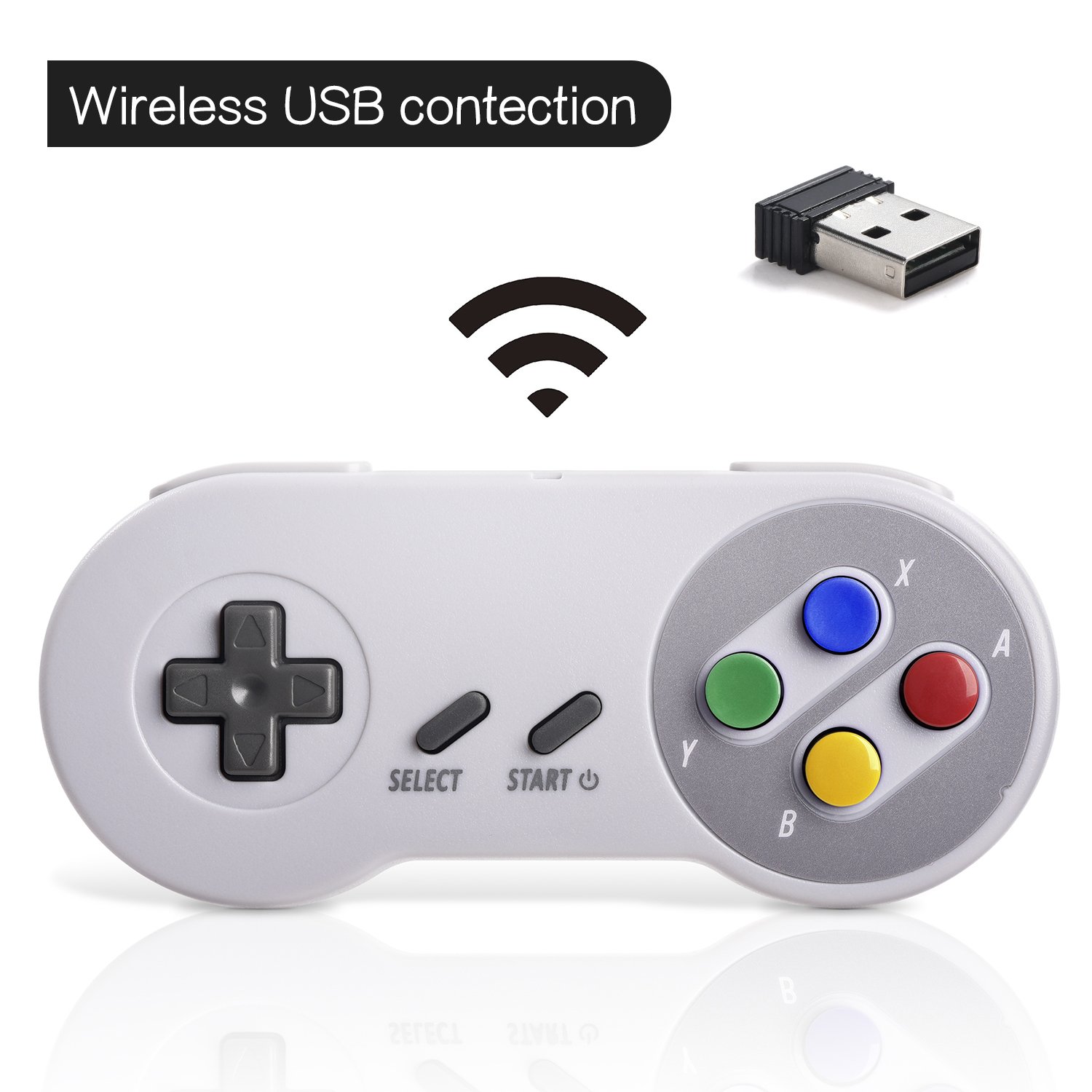

3. Setup
Initial Connection:
- Insert the 2.4 GHz USB receiver into an available USB port on your PC, Mac, Linux device, or Raspberry Pi.
- Press the 'START' button on the controller to power it on. The controller should automatically connect to the USB receiver. A red indicator light on the controller will confirm connection status.
- If your program or application accepts USB controller input, the controller should be ready for use.
Pairing and Resetting:
If the controller does not pair automatically or experiences connection issues, you may need to reset it:
- Ensure the USB receiver is securely plugged into your device.
- Press and hold the SELECT, START, and D-PAD DOWN buttons simultaneously on the controller to initiate a reset and re-pairing sequence.
- The controller should then attempt to re-establish a connection with the USB receiver.

4. Operating Instructions
The controller functions similarly to a classic SNES controller. The buttons are mapped as follows:
- D-Pad: Directional control (Up, Down, Left, Right).
- SELECT Button: Typically used for menu selections or secondary functions.
- START Button: Used to pause games, confirm selections, or power on/off the controller.
- Action Buttons (Y, X, A, B): Primary action buttons for gameplay.
- Shoulder Buttons (L, R): Located on the top edge of the controller for additional in-game actions.
For specific button assignments within games or emulators, refer to the in-game settings or emulator configuration options.
5. Compatibility
Supported Operating Systems:
- Windows (98, ME, 2000, 2003, XP, Vista, 7, 8, 8.1, 10)
- Linux (Ubuntu, Linux Mint, Android Linux via USB OTG cable)
- Mac OS X and beyond
- Retrogaming operating systems (RetroPie, Recalbox, Happi Game Center, Lakka, ChameleonPi, Piplay)
Supported Devices:
- PC, Notebook Computer, Laptop Computer
- Android Smartphone (via USB OTG cable)
- Raspberry Pi (RPI, Raspberry pie): Raspberry Pi 1 Model B, Model A, Raspberry Pi 1 Model B+, Raspberry Pi Zero, Raspberry Pi 2, Raspberry Pi 3 Model B, Raspberry Pi 3, Retro Pie

Unsupported Devices:
- Android TV Box
- C64 (Commodore 64)
- Google Chromebook
- Fire TV
- Steam
- Tesla
- Nintendo NES Classic Edition Console, NES Mini Console, Nintendo SNES Classic Edition Console, SNES Mini Console

Supported Game Emulators:
- NES, SNES, Snes9x, ZSNES, Higan
- Handheld GBA emulator
- Sega Genesis emulator
- Sega OpenEmu (Only supports OS X)
- RetroArch (Works well on Android)
- BSNES (Ideal for two-player action)
6. Charging and Battery Life
The controller is equipped with a rechargeable battery. To charge the controller:
- Connect the provided charging cable to the micro USB port on the top edge of the controller.
- Connect the other end of the cable to a standard USB power source (e.g., computer USB port, USB wall adapter).
- The red indicator light on the controller will flash while charging and remain solid when fully charged.
Battery Specifications:
- Battery capacity: 240mA
- Charging time: Approximately 1 hour
- Charging voltage: 3.7V
- Usage time: Up to 3 hours on a full charge
- Battery Level Indicator: Yes
7. Troubleshooting
Connection Issues:
- Controller not responding: Ensure the USB receiver is properly inserted into a working USB port. Verify the controller is powered on by pressing the 'START' button.
- Intermittent connection: Move closer to the USB receiver to ensure you are within the 10-meter range. Check for potential interference from other 2.4 GHz wireless devices.
- Re-pairing: If connection is lost or unstable, perform the reset procedure by holding SELECT + START + D-PAD DOWN simultaneously.
Input/Button Mapping Problems:
- Incorrect button functions: Check the in-game or emulator settings to ensure the controller buttons are correctly mapped. Some emulators may require manual configuration.
- Controller not recognized as SNES type: Some systems or games might incorrectly identify the controller. If possible, manually select a generic USB gamepad or SNES controller profile within the software settings.
Charging Problems:
- Controller not charging: Ensure the charging cable is securely connected to both the controller and the power source. Try a different USB port or charging adapter. Check if the red indicator light flashes during charging.
8. Specifications
| Feature | Detail |
|---|---|
| Model Number | 8541667389 |
| Connectivity | 2.4 GHz Wireless RF |
| Wireless Range | Up to 10 meters |
| Product Dimensions | 5.51 x 2.36 x 0.79 inches |
| Item Weight | 8.1 ounces |
| Battery Type | Rechargeable (1 A battery included) |
| Battery Capacity | 240mA |
| Charging Time | 1 hour |
| Charging Voltage | 3.7V |
| Usage Time | 3 hours |
| Manufacturer | SAFFUN |
| Date First Available | May 8, 2018 |
9. Warranty and Support
SAFFUN is registered with the United States Patent and Trademark Office. We are committed to 100% customer satisfaction.
- Warranty: We provide a hassle-free 12-month replacement warranty.
- Customer Service: For any questions or support, please feel free to contact us.
