Introduction
This manual provides comprehensive instructions for the operation and maintenance of your Casio DR-120R Full-sized Desktop Printing Calculator. Designed for heavy-duty use, this calculator offers advanced features such as Check & Correct, After-Print, Change function, Re-Print, and dedicated Cost/Sell/Margin keys, in addition to standard arithmetic operations. Please read this manual thoroughly to ensure proper use and to maximize the functionality of your device.
Setup
1. Power Supply
The Casio DR-120R operates primarily via an AC adapter (sold separately or included depending on region). It also supports battery power for portability, though the primary power source for continuous printing is typically AC. Connect the AC adapter to the calculator's power input and then to a standard electrical outlet. Ensure the power switch is in the "OFF" position before connecting or disconnecting the adapter.
2. Paper Roll Installation
- Open the printer cover.
- Place a new paper roll (2.25 inches wide) into the paper compartment, ensuring the paper feeds from the bottom of the roll.
- Feed the leading edge of the paper into the printer slot until it emerges from the top.
- Close the printer cover.
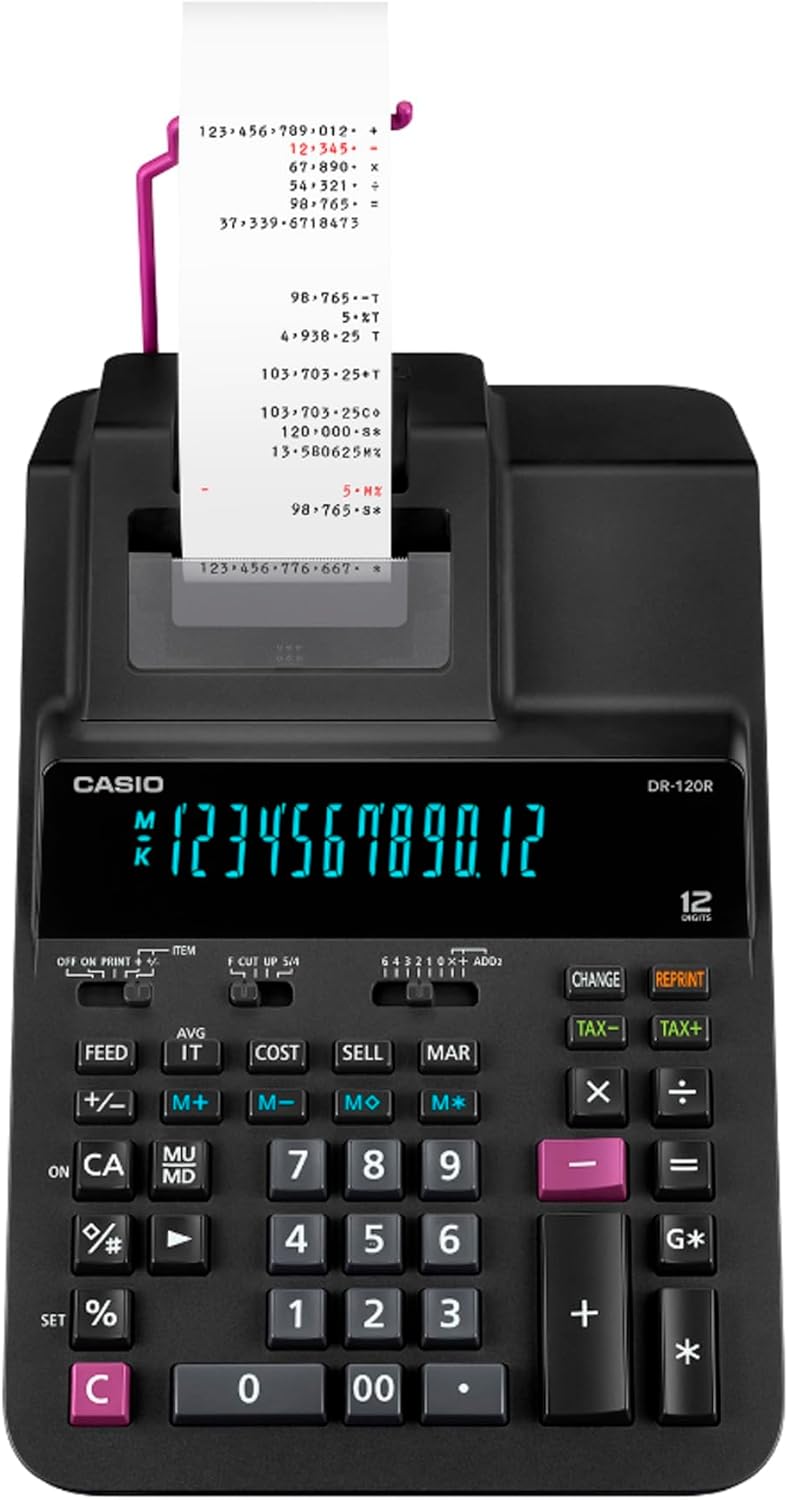
Image: Top-down view of the Casio DR-120R calculator with a paper roll correctly installed and paper feeding through the printer mechanism.
3. Ink Roller Installation/Replacement
- Ensure the calculator is turned off.
- Open the printer cover.
- Carefully remove the old ink roller by lifting it out.
- Unpack the new ink roller and insert it into the designated slot, ensuring it clicks into place. Avoid touching the ink ribbon directly.
- Close the printer cover.
Operating Instructions
Familiarize yourself with the key layout for efficient operation.

Image: Angled view of the Casio DR-120R desktop printing calculator, showing the full keyboard, display, and paper output.
Basic Calculations
- Addition (+): Enter the first number, press +, enter the second number, press +. Repeat for multiple additions. Press G* for grand total.
- Subtraction (-): Enter the first number, press -, enter the second number, press -.
- Multiplication (x): Enter the first number, press x, enter the second number, press =.
- Division (÷): Enter the dividend, press ÷, enter the divisor, press =.
- Clear Entry (CE/C): Press CE/C once to clear the last entry. Press twice to clear the entire calculation.
Special Functions
- Check & Correct Function:
This function allows you to review and correct up to 150 previous entries. Use the ▲ (up) and ▼ (down) arrow keys to scroll through entries. To correct an entry, navigate to it, enter the new value, and press the appropriate operation key (+, -, x, ÷). The calculator will automatically adjust subsequent calculations.
- After-Print Function:
If you make corrections using the Check & Correct function, you can print the corrected calculation tape by pressing the AFTER PRINT key (if available, or a combination of keys as per specific model instructions).
- Change Function:
The Change function allows the calculator to operate like a cash register, calculating change due. Enter the amount received, press CHANGE, then enter the total purchase amount, and press =. The display will show the change due.
- Re-Print Function:
To print duplicates of a previous calculation tape, use the REPRINT key. This is useful for record-keeping or providing copies.
- Cost/Sell/Margin Keys:
These dedicated keys simplify profit margin calculations. Enter two of the three values (Cost, Selling Price, Margin percentage), then press the key for the unknown value to calculate it automatically.
- Date & Time Printing:
The calculator can print the current date and time on the tape. Refer to the specific key or key combination for setting and printing the date and time, typically involving a DATE/TIME or SET key.
Maintenance
Cleaning the Unit
Wipe the calculator's exterior with a soft, dry cloth. For stubborn dirt, slightly dampen the cloth with water and a mild detergent, then wipe dry immediately. Do not use abrasive cleaners, solvents, or spray directly onto the unit.
Replacing Paper Roll
When the paper roll is nearly depleted (indicated by a red stripe appearing on the paper), replace it following the steps outlined in the "Paper Roll Installation" section under Setup.
Replacing Ink Roller
If printouts become faint or illegible, the ink roller needs replacement. Follow the steps in the "Ink Roller Installation/Replacement" section under Setup.
Troubleshooting
| Problem | Possible Cause | Solution |
|---|---|---|
| Calculator does not power on. | No power from AC adapter or depleted batteries. | Ensure AC adapter is securely connected to both the calculator and a working outlet. If using batteries, replace them. |
| Printer does not print or prints faintly. | No paper, paper jam, or depleted ink roller. | Check paper roll and install a new one if necessary. Clear any paper jams. Replace the ink roller. |
| Incorrect calculation results. | Incorrect key input or incorrect function usage. | Review your entries using the Check & Correct function. Refer to the "Operating Instructions" section for correct function usage. |
| Paper does not feed correctly. | Paper not installed correctly or paper jam. | Re-install the paper roll, ensuring it is properly aligned. Check for and remove any paper fragments causing a jam. |
Specifications
| Feature | Detail |
|---|---|
| Brand | Casio |
| Model | DR-120R |
| Item Weight | 3.09 pounds |
| Product Dimensions | 14.82 x 8.05 x 4.37 inches |
| Material Type | Plastic |
| Size | Desktop |
| Lines Per Page | 1 |
| Sheet Size (Paper Width) | 2.25 inches |
| Paper Finish | Uncoated |
| Ink Color | Red and Black |
| Power Source | Battery Powered (AC adapter typically recommended for desktop use) |
| Calculator Type | Printing |
Warranty and Support
For information regarding warranty coverage, technical support, or service, please refer to the warranty card included with your product or visit the official Casio website. Keep your purchase receipt as proof of purchase for warranty claims.
Official Casio Support: https://www.casio.com/us/support/


