
Introduction
This manual provides detailed instructions for the installation, operation, and maintenance of your FOSCAM R4S 4MP WiFi IP Camera. Designed for home security and monitoring, this camera offers advanced features such as 4MP resolution, dual-band WiFi connectivity, AI human detection, two-way audio, and night vision. Please read this manual thoroughly before using the product to ensure proper setup and functionality.

Figure 1: FOSCAM R4S 4MP WiFi IP Camera
Package Contents
Verify that all items listed below are included in your package. If any items are missing or damaged, please contact FOSCAM support.
- FOSCAM R4S 4MP WiFi IP Camera
- Power Adapter
- Ethernet Cable
- Mounting Bracket
- Mounting Screws and Wall Plugs
- Quick Setup Guide
- WiFi Antenna

Figure 2: FOSCAM R4S Package Contents
Product Overview and Features
The FOSCAM R4S camera is equipped with advanced technology to provide reliable surveillance and monitoring. Key features include:
- 4MP/2K Resolution: Delivers clear and detailed video footage.
- Dual-Band WiFi (2.4/5GHz): Ensures stable and flexible wireless connectivity.
- AI Human Detection: Reduces false alarms by distinguishing human shapes from other movements.
- Sound Detection: Alerts you to unusual sounds.
- 33ft Night Vision: Provides clear visibility in low-light conditions.
- Two-Way Audio: Allows for real-time communication through the camera.
- Pan/Tilt Functionality: Offers a 360° horizontal and 100° vertical viewing range.
- 20X Digital Zoom: Enables closer inspection of details.
- Privacy Mode: Temporarily disables recording and transmission for privacy.
- Compatibility: Works with Amazon Alexa and Google Assistant.
- Storage Options: Supports Micro SD card (up to 256GB, not included) and cloud storage services.
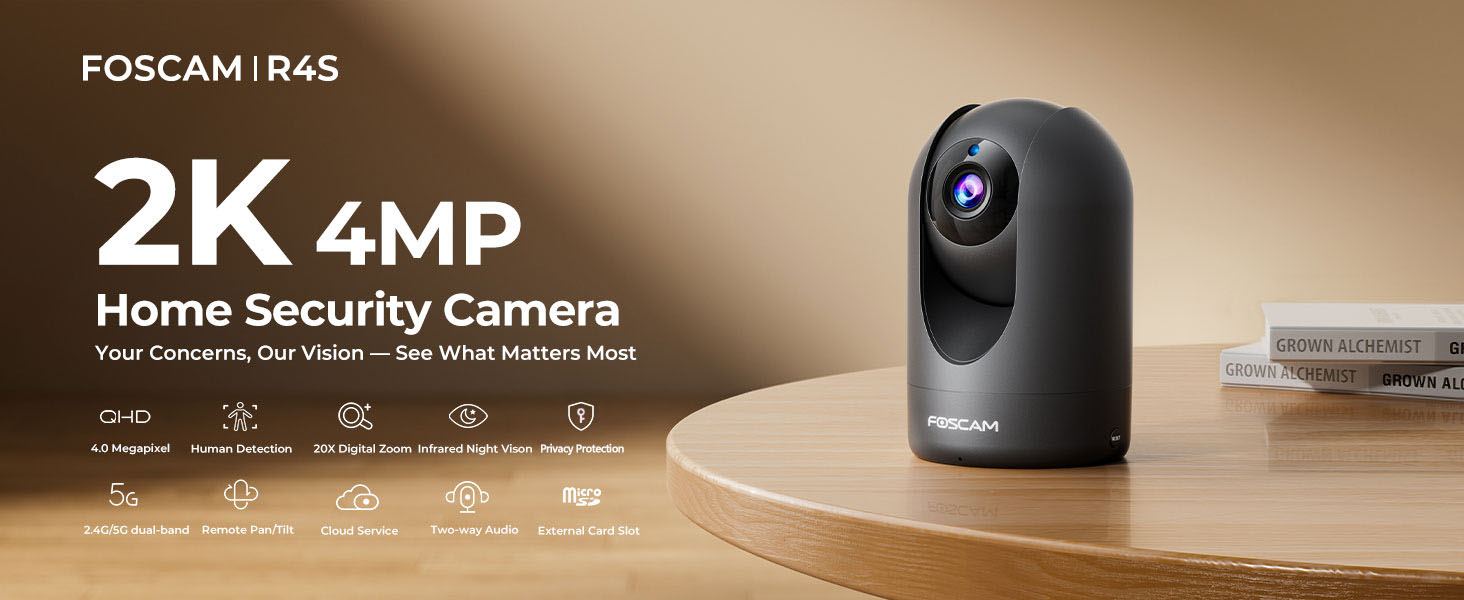
Figure 3: FOSCAM R4S Key Features
Setup Guide
1. Physical Placement
The FOSCAM R4S camera can be placed on a flat surface or mounted to a wall or ceiling. Ensure the camera is positioned to cover the desired monitoring area.

Figure 4: Camera Placement Options
2. Power Connection
Connect the power adapter to the camera's power input and plug it into a standard electrical outlet. The camera will power on automatically.
3. App Installation and Initial Setup
- Download the Foscam App from your mobile device's app store (iOS or Android).
- Open the Foscam App and create an account or log in.
- Tap the "+" icon to add a new camera.
- Follow the on-screen instructions to connect your camera to your Wi-Fi network using either the sound wave or QR code setup method. Ensure your mobile device is connected to the same Wi-Fi network (2.4GHz or 5GHz) you intend to use for the camera.
- Once connected, you can name your camera and set a password.

Figure 5: Dual-Band WiFi Connection
Operating Instructions
1. Live View and Pan/Tilt Control
From the Foscam App, select your camera to view the live feed. Use the on-screen controls to pan (horizontal movement) and tilt (vertical movement) the camera lens to adjust your viewing angle.

Figure 6: Pan/Tilt Camera Control
2. Two-Way Audio
Tap the microphone icon in the app to enable two-way audio. You can speak through your phone, and your voice will be broadcast through the camera's speaker. Similarly, you can hear audio from the camera's environment.
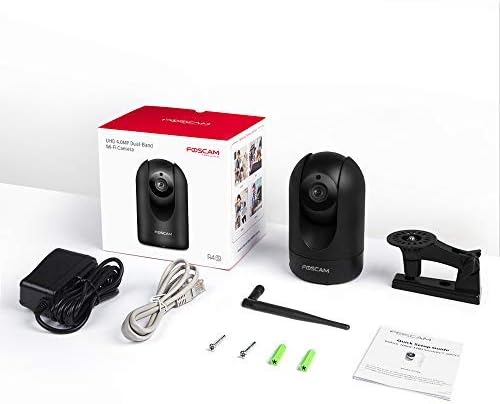
Figure 7: Two-Way Audio Communication
3. Motion and Sound Detection
Configure detection settings in the app to receive alerts for human movement or unusual sounds. You can customize sensitivity and detection zones to minimize false alarms.

Figure 8: Intelligent Human and Pet Detection
4. Night Vision
The camera automatically switches to night vision mode in low-light conditions, providing clear black and white images up to 33 feet.

Figure 9: Night Vision Capability
5. Privacy Mode
Activate Privacy Mode via the app to temporarily disable video recording and transmission, ensuring your privacy when needed. The camera lens will physically retract or turn away.

Figure 10: Activating Privacy Mode
6. Storage and Playback
Recordings can be stored on a Micro SD card (up to 256GB, not included) or via FOSCAM's cloud service. Access and playback recorded footage through the Foscam App.

Figure 11: Storage Options
Maintenance
To ensure optimal performance and longevity of your FOSCAM R4S camera, follow these maintenance guidelines:
- Cleaning: Gently wipe the camera lens and body with a soft, dry cloth. Avoid using harsh chemicals or abrasive materials.
- Firmware Updates: Regularly check for and install firmware updates through the Foscam App to ensure your camera has the latest features and security enhancements.
- Placement: Ensure the camera is placed in a stable environment, away from direct sunlight, extreme temperatures, and excessive moisture.
- Power Supply: Use only the original power adapter provided with the camera.
Troubleshooting
If you encounter issues with your FOSCAM R4S camera, refer to the following common troubleshooting steps:
| Problem | Possible Cause | Solution |
|---|---|---|
| Camera offline | No power, Wi-Fi disconnected, router issue. | Check power connection. Restart camera and router. Verify Wi-Fi signal strength. |
| Poor video quality | Low bandwidth, dirty lens, insufficient lighting. | Ensure stable Wi-Fi. Clean the lens. Adjust camera position or add lighting. |
| Motion detection not working | Incorrect settings, detection zone not configured. | Check motion detection settings in the app. Ensure detection zones are active. |
| Two-way audio issues | Microphone/speaker muted, app permissions. | Check volume settings in the app. Ensure app has microphone permissions. |
For further assistance, please refer to the FOSCAM support website or contact customer service.
Specifications
| Feature | Detail |
|---|---|
| Resolution | 4MP (2K) |
| Connectivity | 2.4GHz & 5GHz Dual-Band Wi-Fi |
| Night Vision Range | Up to 33 feet (10 meters) |
| Viewing Angle | 105° (Diagonal) |
| Pan/Tilt Range | Horizontal: 360°, Vertical: 100° |
| Digital Zoom | 20X |
| Audio | Two-Way Audio with built-in mic and speaker |
| Detection | AI Human Detection, Sound Detection |
| Storage | Micro SD Card (up to 256GB), Cloud Storage |
| Compatibility | Amazon Alexa, Google Assistant |
| Power Input | DC 5V/2A (via power adapter) |
| Dimensions (L x W x H) | 2.91 x 3.03 x 4.69 inches |
| Weight | 1.15 pounds |
Warranty and Support
FOSCAM is committed to providing high-quality products and excellent customer service.
- Quality Guarantee: 180-Day Quality Guarantee.
- Returns: 30-Day Free Returns.
- Technical Support: 24/7 Fast Reply & Lifetime Tech Support.
- Contact: For support, please visit the official FOSCAM website or contact their customer service team.


